App Store asset best practices and resources
Compelling assets help you make a strong impression on the App Store and drive people to download your app or game. Use this guidance and readymade templates to create captivating assets that people will love.
Before you beginOverview
Your App Store assets are a great opportunity to draw people in to discover what your app or game offers and why they’ll love it. These images and videos help set expectations for people before they download and reflect the quality of the experience they can expect.
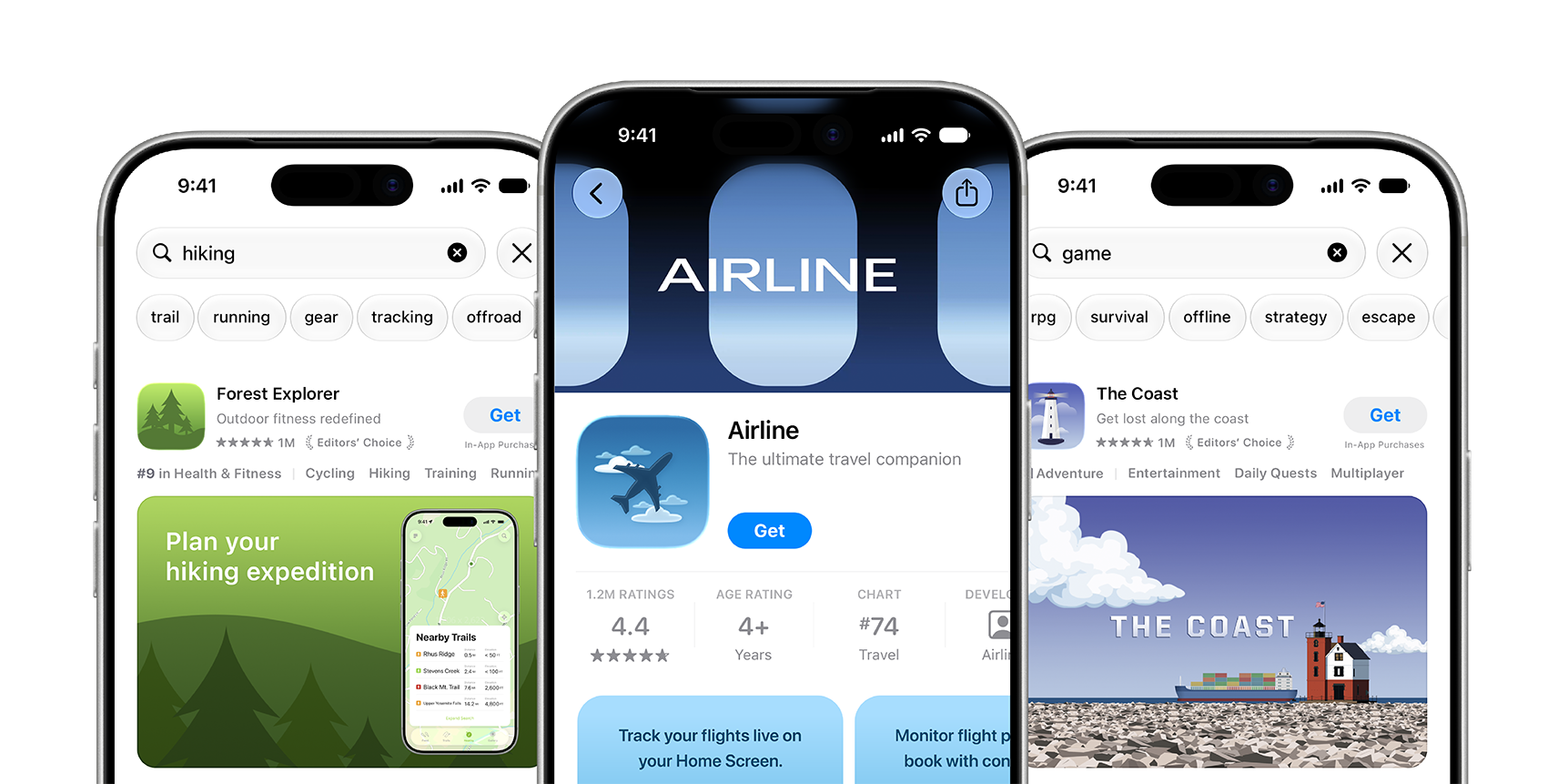
To communicate your app or game’s value and tell its story, you can use several types of assets on the App Store, including app previews, screenshots, and creative assets. App previews and screenshots showcase your app in-use or gameplay, while creative assets can be used to highlight your brand, promote seasonal offerings, showcase new content, and more. Creative assets appear across the App Store in iOS 27 and iPadOS 27 and later including your product page, in search results, and when your app is featured.
Millions of people around the world visit the App Store, and your assets are often the first thing they see when deciding whether to download your app or game. To make sure your assets meet our policies, get familiar with the App Review Guidelines (particularly section 2.3 about Accurate Metadata) and the Apple Advertising Policies before you start creating.
Get startedAsset best practices
To help you create effective assets, consider these best practices, which reflect our overarching policies as well as how we evaluate artwork for featuring, so you can put your best work forward.
Focus on your core experience
While you may depict content outside of your app or game in use, it must still relate to its general functionality. Keep your assets focused on things directly related to your app or game, to ensure people know what to expect before they download. This includes:
- Don’t include specific pricing, discounts, website URLs, copyright symbols. This ensures your content remains relevant to a global audience and more evergreen.
- Avoid claims that can’t be verified, such as awards or recognition that your app or game hasn’t actually received.
- Don’t include logos or references to other platforms or marketplaces.
- Please don’t include any Apple-designated recognitions — such as Editor's Choice, App of the Day, Game of the Day, or Apple Design Award winner, as many of these already appear alongside your app or game in search results, as well as on your product page.
Design with all customers in mind
The App Store is designed to be a safe and trusted place for everyone to discover and download apps and games. To help support this, keep the following in mind:
Build for a global audience. Aim to create assets that appeal to people around the world and of all backgrounds. Choose imagery that's inclusive to people of all backgrounds. You can localize your metadata, including images and videos, to tailor your content to each region or country in which you offer your app or game.
Create for all ages. Choose imagery that's appropriate and inclusive for people of all ages. Assets displayed on the App Store must meet a 4+ age rating, even if your app's rating is higher and it's intended for an older audience. Refrain from showing objectionable content, including explicit or harmful imagery, profanity, illegal drugs, self-harm, hate speech, stereotypes, sexually suggestive content, inflammatory religious commentary, or inaccurate and misleading quotations of religious texts.
Keep violent content in check. Games that include violence may use action imagery, but must avoid depictions of gore, graphic imagery, or weapons that are pointed directly at a person or the audience.
Format best practicesImages and videos
Some considerations depend on the format of your asset. Keep these principles in mind when choosing whether to use a static image or video.
Image
Choose compelling visuals. Your photography, illustration, and graphic design should feel current. Consider using the latest UI and reflecting your app or game’s aesthetic. Aim for strong composition and a clear focal point for each asset.
Be intentional with your text. Text can help people understand what they're looking at, and you can use image overlays to demonstrate input mechanisms or highlight specific functionality. If using text, use a short phrase that enhances your visual rather than describes it. Be sure to localize for all languages your app supports.
Keep it legible. Ensure all key elements are readable — especially any text — as assets can appear differently across the App Store. Design key elements with a safe area in mind to accommodate different devices and orientations. Be sure your focal point artwork is within the center of your composition to prevent any unwanted clipping. You can use the Preview tool in App Store Connect to visualize how your assets appear before they’re live on the App Store.
Videos
Select an impactful poster frame. The poster frame is the first image someone sees before your video plays. Choose a frame that clearly represents your app and is visually compelling on its own.
Start strong. Lead with your value proposition or most compelling feature. Be mindful with pacing your cuts to give people enough time to grasp what's being shared. Avoid quick cuts and fast-moving visuals, as these can be difficult for people to follow and may not be accessible for everyone.
Loop seamlessly. Videos autoplay and repeat, so people may see the loop multiple times. Ensure your video is polished and loops smoothly without visible jumps or breaks.
Use audio mindfully. In most cases, audio is muted by default, so your creative must work silently first. When you do add sound, treat it as brand texture rather than information delivery. Favor a short music loop over heavy sound effects, avoid sudden loud moments, and ensure the audio loops cleanly if your video repeats.
Asset-specific guidelinesDesign for every element
Every asset presents you with a unique way to showcase your app or game. Collectively, you want them to tell a cohesive story and look good together. To do so, consider using similar visual style, such as color palette, iconography, fonts, message, and tone.
App icon
Your app icon is one of the most critical ways to showcase your app or game on the App Store, and even across Apple devices once someone downloads, since your app icon can appear on their Home Screen. Make it unique and expressive of your app or game’s purpose and personality. A great icon is memorable and one that people can instantly recognize at a glance.
- Use Icon Composer to create layered icons out of Liquid Glass from a single design for iPhone, iPad, Mac, and Apple Watch.
- Ensure your icon is legible at every size across Apple devices — from App Store, to Spotlight search, to someone’s Home Screen.


Product page header
When someone lands on your product page, the first thing they'll notice is your header. Use video or images to express your brand, seasonal offerings, exciting new content, and more to set the tone for the rest of your product page.
- Focus on a single, clear idea. Visually dense or cluttered assets dilute your impact.
- Design with a first-time visitor in mind. Consider what’s most compelling to someone who’s completely new to your app or game.
To unify your message and further streamline your creative process, you can use a universal creative asset for your header and search results asset to strengthen brand recognition with people across the App Store. To gain additional insight, you can use product page optimization to test alternative header visuals and see which performs best.
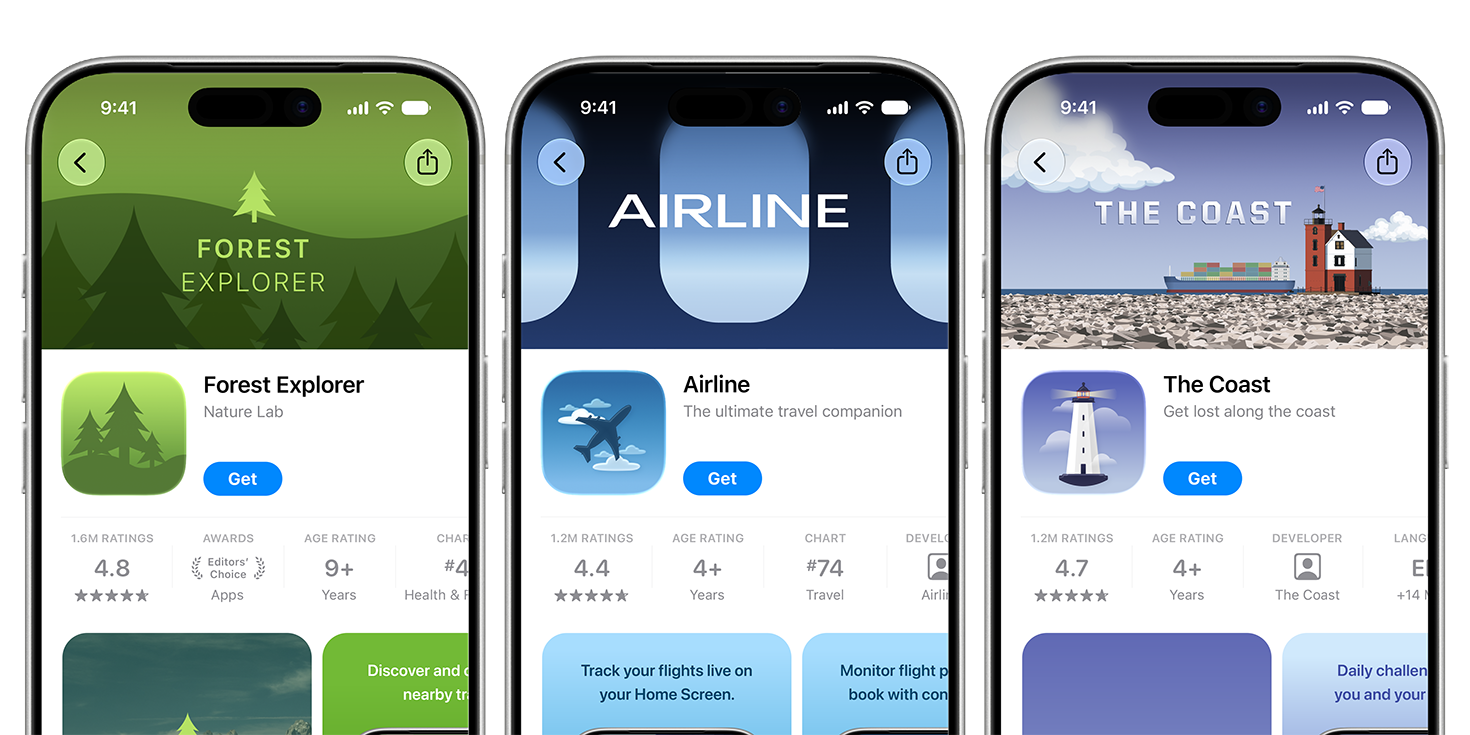
Product page header templates
Search results
Your search result asset is the first thing people experience when they find your app or game through the Search tab, before they ever reach your product page.
- State the obvious. Since people tend to look for something specific when using search, be sure your app or game’s purpose is obvious at a glance.
- Showcase the firsthand experience. Consider sharing the interface, content, or gameplay to make it easy for someone to decide whether they want to download.
If you choose to not use a search result creative asset, your In-App Events, app previews, and screenshots will appear.
Learn more about App Store search
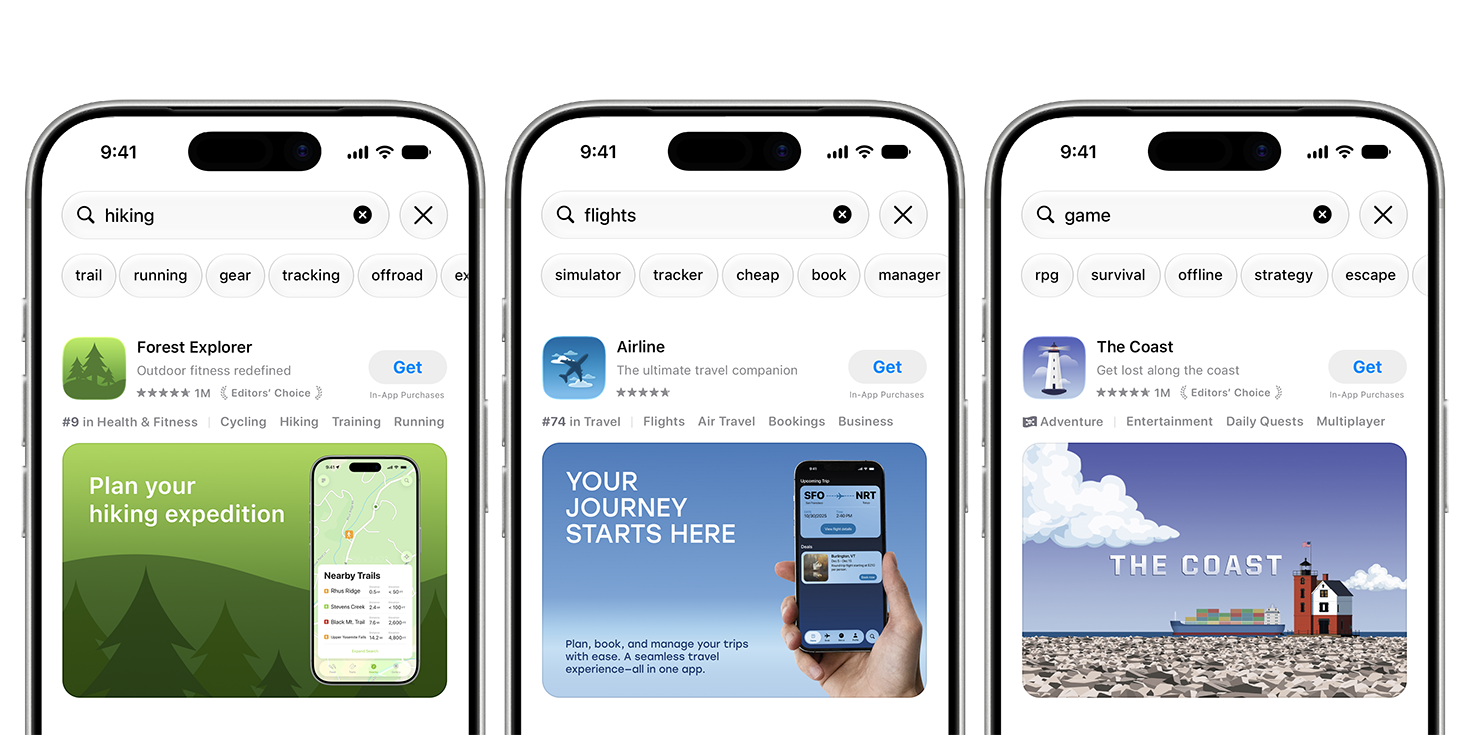
Search results templates
- Figma (Universal)
- Photoshop (Search results, Universal)
- Pixelmator (Search results, Universal)
In-App Events
In‑App Events are timely, limited-time moments within your app — such as competitions, premieres, live experiences, or seasonal content launches. You can use a creative asset for your In‑App Events.
- Design for both aspect ratios. You need media for the event card (16:9 landscape) and the event details page (9:16 portrait). Ensure both communicate your event's essence. Use similar colors or illustration styles for visual continuity.
- Consider the event badge. Your chosen badge (Challenge, Competition, Live Event, Major Update, New Season, Premiere, Special Event) visually identifies your event type. Design your media to complement the badge rather than duplicate it.
Learn more about In-App Events

Screenshots
Screenshots are one of the most effective ways to communicate your app or game’s value on the App Store and show the user experience. You can have up to 10 screenshots on your product page. Depending on orientation, up to three screenshots can appear in search results.
- Show what people can expect. Use screenshots to depict your app or game in use and give people a clear, detailed view into the experience. Stay focused on the core user experience — avoid using the entire asset to highlight general accolades or call-to-action statements.
- Lead with your best features. Showcase your strongest features or benefits and sequence them so they tell a cohesive story that’s reflective of how someone would use your app or game.

App previews
App previews are videos that demonstrate your app’s features, functionality, and user interface. You can have up to three app previews on your product page and up to three may appear in search results.
- Use real-UI or gameplay. Provide people with an interactive look at your app or game in action, so they can see firsthand what your app or game is all about. Consider compelling visuals in the first few seconds to capture someone's attention.
- Tell a complete story. Consider having a beginning, middle, and end in your storytelling so someone has the full context of your experience. For example, you might highlight your most important features in order of popularity, or showcase levels people may encounter when progressing through your game.

Go furtherSubmit your assets
When you’re ready, you can submit your assets for approval using App Store Connect, either alongside a new app version, or in your Asset Library. You can also use the App Store Connect API. All of your approved assets — including images, videos, app previews, and screenshots — will appear in your Asset Library. This lets you streamline your creative workflow, as you can see all of your assets in a central place, as well as where each asset can be used across the App Store.
You can also use the product page preview tool to visualize your product page before it’s published on the App Store. See how your product page header, app name, description, screenshots, and search results creative assets will appear to people, so you can pick just the right visuals and metadata to share your app or game with the world.
Discover more ways to market your apps and games
To take your marketing efforts even further, consider using:
- Custom product pages: Use creative assets on your custom product pages. Learn about custom product pages.
- Product page optimization: Test your creative using product page optimization. Learn about product page optimization.
- Additional marketing tools: Understand the additional tools and features you can use to promote your apps and games, even beyond the App Store. Learn about promoting your apps and games.