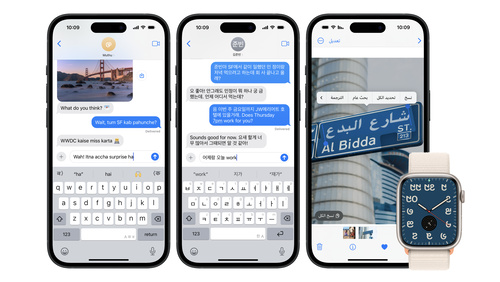
The App Store is available in 175 regions and 50 languages to make it easy for people around the world to discover and download your app. Localizing your app helps make it relevant to a variety of cultures and languages, and provides an opportunity to grow your business. Learn how to prepare your app for a global audience and understand considerations for expanding into new markets.
What’s new
Simplify your localization efforts
Use agents to perform tasks like adding languages, updating string catalogs, translating strings, and even adding language-specific plural variants, helping you reach more people globally. Xcode provides context and language-specific style guidelines to agents so they make the best translations for your app or game.
Internationalization is a fundamental step in building your apps and games for a global audience. When you internationalize your app, you structure your code and UI for localization to more easily translate elements, such as the text and images that people see.
On iOS and iPadOS, people can select their preferred language for your app independent of their device language, making it easy for people who are multilingual to switch between languages in your app. On macOS, people can set the language of an app in the Language & Region section of System Settings.
Apple offers powerful tools and technologies to help your app support multiple languages and regions, even before you know which languages you’d like to add. This includes:
Xcode. Use Xcode to automatically separate user-visible text and images so they’re distinguishable from your binary or executable code. This lets you translate these elements into additional languages and integrate the content back into your app as separate localized resource files within your app bundle. You can also manage and localize your assets — including image sets, Apple TV image stacks, Sprite Atlases, and symbol sets — directly within your Asset catalogs. And you can use a string catalog to translate text, handle plurals, and vary the text your app displays on specific devices. When you add a string catalog to your project and build, Xcode can automatically keep track of any localizable strings in your code and keep your string catalogs in sync.
SF Symbols. Get pre-localized symbols that you can use within your app and easily set the directionality for custom symbols, such as right-to-left languages like Arabic and Hebrew.
Foundation framework. Correctly express user-visible or dynamically generated values across locales, including dates, lengths, weights, prices, and currency symbols. For a seamless experience, ensure that your app supports any language and multiple languages — both within your app as well as text that people input. This lets people view your app’s content in their preferred language and format. You can also use these technologies to automatically adjust the dimensions and layouts of views with SwiftUI and Auto Layout, handle text from any language with extensive Unicode support, and display, lay out, and edit text in many languages with the powerful text handling technologies of Cocoa and Cocoa Touch — and much more.
SwiftUI. To help people experience your app in their preferred language, localize your SwiftUI views. To simplify your localization efforts, Xcode automatically parses SwiftUI views for strings to localize after each build, and keeps String Catalogs up to date automatically. You can also add comments to text views in order to help translators easily understand where this content appears in your app, allowing for easier translation.
Market-specific demographics, such as population, language, and purchasing power, can help you better understand areas that might have an affinity or need for your app. Every market has its own preferences for the types of apps or categories customers most enjoy. For example, games are popular worldwide, however strategy games may be more popular in a particular region. Consider selecting markets with similar attributes to those in which you have already established success, such as strong app downloads, sales, usage, or retention metrics, as this may make for easier growth. When selecting a market, assess how your app might fit in and how its value and functionality aligns with that market’s needs. You may even identify a need in the market that is not yet filled, allowing you to bring unique value to people who use your app.
Use Analytics to determine potential markets
If you offer your app worldwide but haven’t localized for particular regions, you can look at key performance metrics, such as Product Page Views, App Units, Sales, and Active Devices, filtered by territory. This can help you determine if your app is attracting people in a particular territory that might benefit from localization. For example, if your app is primarily in English and you see lower than average retention or sessions per active device in Germany, you might consider adding German language support. Keep in mind that some markets may have greater proficiency with your app’s primary language, while others may require more significant localization work. Usage data such as active devices, sessions, and retention only include people who have agreed to share their diagnostics and usage information with you.
While your app and product page should each provide a consistent experience across all markets, it’s sometimes valuable to refine certain elements for cultural relevance. For example, you might try incorporating market-specific content or cultural moments, such as special holiday content or regional art styles. You may want to consider any local policies and market regulations, as well as any political or religious sensitivities, to increase the likelihood that your app is well received.
Localize your app
Translate in-app content
Use the Xcode export for localization feature to automatically extract all localizable content, including localized strings referenced from code, string catalogs, and Interface Builder files, as well as any localized assets. This process shouldn’t require modifications to your source code, making it easy to work on translations in-house or with an external localization service. You can also add and edit translations directly within the string catalogs in your Xcode project. Be sure to also localize purpose strings for a consistent app experience, and consider localizing your privacy policy so that all people have a clear understanding of how their data may be handled.
Apple services. Use Apple APIs to automatically present localized buttons, payment sheets, errors, and more for Apple Pay, Apple Wallet, and Sign in with Apple.
Audiovisual media. You can also provide localized support for audiovisual media in your app using AVKit and AVFoundation. These frameworks provide built-in support for easily presenting subtitles and closed captions, and for selecting alternative audio and video tracks.
Localization services. Coding agentsin Xcode can help you localize your app by translating strings into other languages. If using any machine translation to localize content, be sure to have native speakers for any languages test your app or game’s translation and provide feedback. When choosing a model to use with your agent, consider using one with a large context window that excels at completing extended requests, as these models are best suited for translation work.
If choosing an external localization service to help translate content, find out if they specialize in localizing for particular languages, cultures, or categories, and confirm the levels of quality assurance they provide. Providing the service with context about your app and content can help increase efficiency and minimize translation errors. Consider creating a guide with important details — for example, a playbook with character names and personalities, explanations of jokes or humor, a glossary of frequently used terms, and screenshots that show where the translations will be used.
Configure test plans in Xcode to easily run tests with different settings and define your testing variants in one place. This helps flag any instances of clipping, truncation, layout overlapping, or issues with right-to-left formatting for the devices and languages you support. You can use the Localization Screenshots feature to generate localized screenshots from successful tests and export these screenshots for use in tutorials, marketing materials, or your App Store product page. Once your app is localized, use TestFlight to share your app with a group of users in the market to get feedback and gather opportunities for improvement.
Localize your App Store metadata in App Store Connect — such as your app description, keywords, app previews, and more — for each of the regions in which you offer your app. You can also translate your app’s name and tailor your screenshots to reflect the values of each market so your app might better resonate with the local audience. You can use the App Store Connect API to automate your metadata upload and management for multiple localizations.
The App Store handles payment processing, so it’s easy to offer your content to users around the world. Users pay for your apps and in-app purchases with credit or debit cards, carrier billing, digital wallets, or App Store and iTunes gift cards, depending on regional availability.
When pricing your apps and in-app purchases, you’ll choose a price tier in App Store Connect that contains prices already adjusted appropriately for the market in each region. If you prefer, you can also manage your In-App Purchase pricing manually for any region. For auto-renewable subscriptions, you can choose from 800 price points across all available currencies and price tiers to offer appropriate pricing for each storefront, with an additional 100 higher price points available upon request.
When launching your app in a new market, adapt your marketing strategy to the region to help your audience easily learn about your app and the value it provides. Research which social networks or other channels are most popular with local audiences, as these may vary significantly across markets, and use them to spread the word about your app. Localize any materials you use in your marketing and acquisition efforts, such as screenshots, banners, and advertisements.
App Store badges. Use the Download on the App Store badge in your communications as a clear call to action to download your app. Localized badges are available to let your international audience know that your app is tailored for them. Download badges from the App Store marketing tools.
App Store marketing tools. Generate short links or embeddable code that lead to your App Store product page and display your app icon, a QR code, or an App Store badge. You can also create custom marketing assets — such as banners and images — and add preset messages in multiple languages to promote your apps in your regional advertising efforts. View App Store marketing tools.
Apple Ads. Promote your app across the App Store. Reach people on the Today tab, on the Search tab, in search results, and at the bottom of product pages. Available in 91 countries and regions. Try it for free with a 100 USD credit.* Learn more and read developer success stories.
*Eligible developers who sign up for Apple Ads will have a 100 USD credit applied to their new account. Full terms and conditions apply.
Evaluate success
To understand how people in different regions discover and engage with your app, you can use Analytics in App Store Connect. You can get information like:
How many people discover your app while searching or browsing on the App Store.
How often people download your app after they’ve viewed it on the App Store, as well as first time downloads and redownloads.
Engagement data, including the number of active devices, installations, and sessions.
You can also view metrics and even filter by region for more insights. For example, you can compare data for a region you’ve recently started offering your app to data for a region where your app has been available for some time. This can help you understand whether you might benefit from adjusting your marketing strategy, or furthering your localization efforts in order to improve performance. Once you’ve found success in your chosen markets, you can identify new markets and add additional localizations to provide a great experience for even more people worldwide.