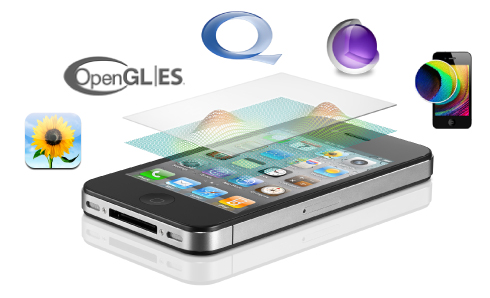
iPhone OS has several frameworks for graphics and animation:
UIKit contains a library of Objective-C classes that provide user interface controls and 2D drawing. You also use UIKit to animate the user interface.
Core Graphics is a C-based API for drawing vector graphics, bitmap images, and PDF content. (Note that Quartz 2D is the term used for the 2D drawing engine, while Core Graphics is the name of the framework. These two terms are often used as synonyms.)
The Core Animation Objective-C API adds smooth motion and dynamic feedback to the user interface.
OpenGL ES is the mobile version of OpenGL for high-performance 2D and 3D drawing on mobile devices. It is a subset of the OpenGL API on the desktop and is designed to be compact and efficient. The OpenGL ES framework includes EAGL, a C-based API that provides support for integrating OpenGL ES rendering with Core Animation layers and UIKit views.
You use UIKit to perform typical graphics operations in your user interface, such as drawing images, setting colors, and filling rectangles. It is also what you use for transformations (moving, scaling, rotating), to transition smoothly from one view (or screen) to another, and to animate content in a view or layer.
When you need more powerful 2D drawing capabilities, use the Core Graphics framework. It’s the workhorse for drawing vector graphics, lines, shapes, patterns, gradients, images, and even PDF documents. The higher-level frameworks, such as UIKit, use Core Graphics.
Core Animation is the programming interface that the UIKit framework uses for layering and transitions in its classes. Most of the time you won’t need to use Core Animation directly. Use it if your application requires fine-grained control over animations.
You use OpenGL ES to develop games or other applications that require the advanced graphics capabilities provided by the GPU.
To understand the basics about how drawing works in iPhone OS, read the following chapters in iPhone Application Programming Guide:
Read "Windows and Views" to get an understanding of such things as the view hierarchy, the native coordinate system for iPhone OS, and the operations you can perform on views.
Read "Graphics and Drawing" for an introduction to the graphics and animation concepts and terminology.
To support graphics and animation in your iPhone application, you need to decide which frameworks to use for your particular needs. Then take a close look at a sample application that uses those frameworks, to see how to combine functions and methods from various frameworks to create a working application.
In general, you should use the highest-level framework that meets the requirements of your application. Use lower-level frameworks only when you need more precise control or more powerful capabilities.
If you plan to layer 2D content, use the UIKit framework’s UIView class. The UIView class is built on Core Animation layers. On iPhone OS, it’s simpler to use views for layering rather than to use Core Animation layers.
If you want to animate layered content or views, use the UIKit framework for simple animation and Core Animation for more precise control.
If you want to display images, use the UIImage and UIImageView classes provided by the UIKit framework.
If you would like to draw custom, vector-based graphics, use the Core Graphics framework and the UIView class provided by UIKit.
If you are planning to create games, 3D content, or an application that requires the graphics capabilities of the GPU, use the OpenGL ES framework, the CAEAGLLayer class of Core Animation, and the UIView class from UIKit.
For information about the classes of the UIKit framework, see UIKit Framework Reference. For information about the classes of the Core Graphics and OpenGL ES frameworks, see Core Graphics Framework Reference and OpenGL ES Framework Reference. For information about how to incorporate animation into your applications, see "Graphics and Drawing" in iPhone Application Programming Guide.
To get started drawing layered content, make sure you are familiar with UIView Class Reference, especially the methods that manage the view hierarchy.
Next, open the Metronome sample application in Xcode. Take a look at the setupSubviews: method in the MetronomeView.m file to see how that application sets up subviews.
To get started animating content in your application, first read "Animating Views" in iPhone Application Programming Guide to find out which properties you can animate. Then look at "Applying Core Animation Effects" in iPhone Application Programming Guide.
Next, open the MoveMe sample application in Xcode. Look at the MoveMeView.m file, which contains several methods that animate views. The animateFirstTouchAtPoint:: and growAnimationDidStop:finished:context: methods show how to use the methods of the UIView class to animate views. The animatePlacardViewToCenter: method shows how to set up keyframe animation using Core Animation.
To get a more in-depth understanding of animation, read Core Animation Programming Guide.
To get started using images in your application, you’ll first want to look at UIImageView Class Reference and UIImage Class Reference. If you want to allow users to zoom images, you’ll also need to be familiar with UIScrollView Class Reference and UIScrollViewDelegate Protocol Reference.
To get started drawing 2D content, first read "Drawing With Quartz and UI Kit" in iPhone Application Programming Guide. Then, take a look at CGContext Reference, which describes most of the functions you’ll use for drawing.
Next, examine the Finger Sketch sample code in Xcode. You’ll see how to set up Core Graphics, implement the drawRect: method, and draw content based on the user’s movements .
To get a deeper understanding of how drawing works, read Overview of Quartz 2D. To find out how to perform specific drawing tasks for example, creating a pattern, path, or gradient, read the appropriate chapter in Quartz 2D Programming Guide.
To get started drawing with OpenGL ES, first read OpenGL ES Overview, provided by Khronos, the industry consortium that maintains the specifications for OpenGL ES.
Next, examine the GLSprite sample application in Xcode. You’ll see—in the EAGLView.m file—how to create a framebuffer object for OpenGL ES content.
To get a deeper understanding of how to best take advantage of OpenGL ES on the iPhone, read OpenGL ES Programming Guide for iPhone OS.
Last updated: 2009-10-19