Retired Document
Important: This document may not represent best practices for current development. Links to downloads and other resources may no longer be valid.
Devices and Ports
This chapter describes both the built-in I/O devices and the ports for connecting external I/O devices. Each of the following sections describes an I/O port or device.
USB Ports
The Mac mini has two external Universal Serial Bus (USB) ports for connecting a keyboard, mouse, or additional I/O devices such as printers, scanners, and storage devices. The USB 2.0 ports are connected to a discrete USB 2.0 controller chip. The optional Bluetooth module is connected to the Intrepid ASIC via an internal USB 1.1 connection. See USB Interface for reference information.
For more information about USB on Macintosh computers, please refer to sources listed in USB Interface.
USB Connectors
The USB ports use USB Type A connectors, which have four pins each. Two of the pins are used for power and two for data. Figure 3-1 is an illustration of a Type A port; Table 3-1 shows the signals and pin assignments.

The Mac mini provides 5 volt power to the USB ports. The maximum current available is 500 mA on each port.
The external USB 2.0 ports support low-speed (1.5 Mbps), full-speed (12 Mbps), and high-speed (480 Mbps) data transfers. High-speed operation requires the use of shielded cables.
The Macintosh system software supports all four data transfer types defined in the USB specification.
USB Features
Features of the USB ports include the following sections.
Wake Up From Sleep
USB devices can provide a remote wakeup function for the computer. The USB root hub in the computer is set to support remote wakeup whenever a device is attached to or disconnected from the bus. The keyboard that comes with the computer uses this method to wake the computer on a key press.
Connect and Resume
The Intrepid ASIC contains special circuitry that allows the computer to wake from sleep mode on connect, disconnect, and resume events. Compatible USB devices should support the USB-suspend mode defined in the USB specification.
USB Device Drivers
Class drivers are software components that are able to communicate with many USB devices of a particular kind. If the appropriate class driver is present, any number of compliant devices can be plugged in and start working immediately without the need to install additional software. The Mac OS for the Mac mini supports USB Mass Storage specification.
USB Controller
The Mac mini uses Open Host Controller Interface (OHCI) controller for USB communication. Some early USB devices (most notably keyboards) can’t interoperate with an OHCI controller. Those devices are not supported by the Macintosh USB system software. The USB 2.0 controllers comply with the Enhanced Host Controller Interface (EHCI) specification.
FireWire 400 Port
The Mac mini has one external FireWire 400 IEEE 1394a port. The features of the FireWire port are:
Support serial I/O at 100, 200, and 400 Mbps (megabits per second)
Up to 8 watts of power when the computer system is on
Support up to 62 devices
The FireWire port receives power whenever the system is plugged in.
The FireWire hardware and software provided with the Mac mini are capable of all asynchronous and isochronous transfers defined by the IEEE 1394a standard.
FireWire Device Programming
Mac OS X includes general support for the FireWire bus and specific support for various kinds of FireWire devices and protocols. Developers can use the built-in support or provide additional applications and drivers for use with their products.
The general FireWire services will configure the FireWire bus, scan the bus for new devices, and allow multiple drivers and devices to share a single FireWire interface cooperatively. The general services also publish information about the bus and the devices in the IO Registry, so that IO Kit can match protocols and drivers to each connected FireWire device.
The specific device and protocol support in Mac OS X as provided with the Mac mini includes the following:
General services for Serial Bus Protocol 2 (SBP-2) and support for most mass storage devices using SBP-2, such as hard disk drives, optical drives, flash card readers, Target Disk Mode (see Target Disk Mode), and the iPod. Mac OS X can boot from most of these devices.
General services for the Audio Video Control (AV/C) protocol and support for most digital video (DV) cameras and decks using this protocol, including video capture through standard QuickTime APIs.
A QuickTime device driver for IIDC/DCAM type cameras such as the iSight.
A network device driver supporting IP (Internet Protocol) over FireWire according to IEEE RFC 2734.
Additional services for user-space and kernel access to all FireWire resources.
For information on writing FireWire drivers or applications, download the latest FireWire SDK from http://developer.apple.com/sdk/
For additional references, refer to FireWire Interface.
FireWire 400 Connector
The FireWire 400 connector has six contacts, as shown in Figure 3-2. The connector signals and pin assignments are shown in Table 3-2.
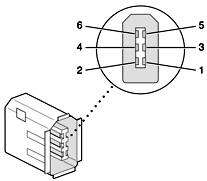
When the computer is on, the power pin provides a maximum voltage of 18.5 V (no load) and up to 8 W total power.
The FireWire PHY is powered as long as the computer is connected to AC power.
Pin 2 of the 6-pin FireWire connector is ground for both power and inner cable shield. If a 4-pin connector is used on the other end of the FireWire cable, its shell should be connected to the wire from pin 2.
The signal pairs are crossed in the cable itself so that pins 5 and 6 at one end of the cable connect with pins 3 and 4 at the other end. When transmitting, pins 3 and 4 carry data and pins 5 and 6 carry clock; when receiving, the reverse is true.
For additional information about the FireWire interface and the Apple APIs for FireWire device control, developers should refer to the resources listed in FireWire Interface.
Target Disk Mode
The user has the option at boot time to put the computer into a mode of operation called Target Disk Mode (TDM).
When the Mac mini is in Target Disk Mode and connected to another Macintosh computer by a FireWire cable, the Mac mini operates like a FireWire mass storage device with the SBP-2 (Serial Bus Protocol) standard. Target Disk Mode has two primary uses:
high-speed data transfer between computers
diagnosis and repair of a corrupted internal hard drive
The Mac mini can operate in Target Disk Mode as long as the other computer has a FireWire port and either Mac OS X (any version) or Mac OS 9 with FireWire software version 2.3.3 or later.
To put the Mac mini into Target Disk Mode, restart the Mac mini and hold down the T key until the FireWire icon appears on the display. Then connect a FireWire cable from the Mac mini to the other computer. When the other computer completes the FireWire connection, a hard disk icon appears on its desktop.
If the FireWire cable is disconnected or the Mac mini is turned off while in Target Disk Mode, an alert appears on the other computer.
To take the Mac mini out of Target Disk Mode, drag the hard-disk icon on the other computer to the trash, then press the power button on the Mac mini.
Ethernet Port
The Mac mini has a built-in 10/100 Mbps Ethernet port. The user can connect it to either a 10Base-T or a 100Base-T hub; the port will automatically sense which type of hub is connected.
The connector for the Ethernet port is a an RJ-45 connector located on the I/O panel. Table 3-3 shows the signals and pin assignments on the connector.
The Ethernet interface in the Mac mini conforms to the ISO/IEC 802.3 specification, where applicable.
Internal Modem
Except for the education configurations, the Mac mini has an internal, fax modem. The telephone connector for the modem is an RJ-11 connector on the I/O panel. A telephone cable is included with the computer.
The internal modem has the following features:
modem bit rates up to 56 Kbps (supports V.92 and K56 flex modem standards)
Group 3 fax modem bit rates up to 14.4 Kbps
The internal modem is an I2S device that responds to typical AT commands. The modem delivers audio to the host where it is converted to analog for call progress monitoring. The modem also supports the “Wake up on Ring” feature.
AirPort Extreme Card
The Mac mini supports the AirPort Extreme Card, an internal wireless LAN module connected to the PCI bus. The AirPort Extreme Card is available as a build-to-order option or as an Apple Authorized Service Provider upgrade.
By communicating wirelessly with a base station, the AirPort Extreme Card can be used for Internet access, email access, and file exchange. A base station provides the connection to the Internet or the bridge between the wireless signals and a wired LAN or both. The AirPort Extreme Base Station has connectors for a wired LAN or WAN, a DSL or cable modem, and a standard telephone line using the built-in 56 Kbps modem that is available on some base station configurations.
AirPort Extreme transmits and receives data at speeds up to 54 Mbps, comparable to wired networking speeds. AirPort Extreme is compatible with earlier AirPort systems as well as other devices that conform to the IEEE 802.11b and 802.11g standards, including PCs. For more information about Wi-Fi and compatibility, see the reference at Wireless Networks.
Data Security
AirPort Extreme has several features designed to maintain the security of the user’s data:
In 802.11b mode, the system uses direct-sequence spread-spectrum (DSSS) technology that uses a multi-bit spreading code that effectively scrambles the data for any receiver that lacks the corresponding code.
The system can use an Access Control List of authentic network client ID values (wireless and MAC addresses) to verify each client’s identity before granting access to the network.
When communicating with a base station, AirPort Extreme uses 64-bit and 128-bit WEP encryption and WPA personal and enterprise modes to encode data while it is in transit. Additional security features may be available via firmware upgrades as 802.11 enhancements are ratified by IEEE.
The AirPort Extreme Base Station can be configured to use NAT (Network Address Translation), protecting data from Internet hackers.
The AirPort Extreme Base Station can authenticate users by their unique Ethernet IDs, preventing unauthorized computers from logging into your network. Network administrators can take advantage of RADIUS compatibility, used for authenticating users over a remote server. Smaller networks can offer the same security using a local look-up table located within the base station.
As an additional data security measure, VPN can be used in conjunction with the AirPort Extreme data security.
AirPort Extreme Hardware
The AirPort Extreme Card is a wireless LAN module compliant with the IEEE specification of the 802.11g standard using both OFDM (orthogonal frequency-division multiplexing) and DSSS technologies. Using DSSS, AirPort Extreme is interoperable with PC-compatible wireless LANs that conform to the 802.11b standard at speeds of 11 Mbps, 5.5 Mbps, 2 Mbps, and 1 Mbps. Using OFDM, AirPort Extreme is compatible with all 802.11g standard speeds.
When the AirPort Extreme option is installed, the antenna is located in the computer’s internal frame.
AirPort Extreme Software
Software that is provided with the AirPort Extreme Card includes:
AirPort Extreme Setup Assistant, an easy-to-use program that guides users through the steps necessary to set up AirPort Extreme or set up an AirPort Extreme Base Station.
Users can switch between wireless networks and can create and join peer-to-peer networks. These functions are accessed via the AirPort Extreme status menu.
AirPort Extreme Admin Utility, a utility for advanced users and system administrators. With it the user can edit the administrative and advanced settings needed for some advanced configurations.
Bluetooth Technology
Available as a fully-integrated, build-to-order option, Bluetooth is an open specification that enables short-range wireless connections between desktop and laptop computers and a host of other peripheral devices. Bluetooth support is built into Mac OS X and compliant with Bluetooth specification v1.1. It operates on a globally available 2.4 GHz frequency band (ISM band) for worldwide compatibility and has a maximum throughput of 3 Mbps.
The Bluetooth technology supports the following profiles:
serial port (SPP) —provides a wireless serial connection to other Bluetooth devices
dial-up networking (DUN) — enables a mobile phone to act as a modem
object push (OPP) —enables the transfer of files between Bluetooth devices
human interface device (HID) — enables the use of Bluetooth input devices (keyboards and mice)
Bluetooth file transfer profile (FTP) — enables browsing of the file system of other Bluetooth devices which support Bluetooth FTP
hardcopy cable replacement profiler (HCRP) — describes how to send rendered data over a Bluetooth link to a device, such as a printer. Although other profiles can be used for printing, the HCRP is specially designed to support hardcopy applications.
headset profile (HSP) — enables the use of Bluetooth-enabled wireless headsets for applications such as iChat. This profile does not enable use of Apple Speech Recognition due to the fact that it is a low-precision audio channel.
Bluetooth is available as a build-to-order option or as an Apple Authorized Service Provider upgrade, which is installed as a fully integrated module. Accessing the Bluetooth capabilities without purchasing the integrated module will require a third-party USB device.
When the Bluetooth option is installed, the antenna is located in the computer’s internal frame.
For more information on Bluetooth technology, refer to Bluetooth.
Hard Disk Drive
The Mac mini has an internal hard disk drive storage capacity of 40 GB or 80 GB with a build-to-order option of 80 GB. The internal hard disk drive operates at ATA-100 and conforms to the ATA/ATAPI-6 standard. It is set as device 0 on the host’s ATA port.
The software that supports the internal hard disk is similar to that in previous Macintosh models and includes DMA support. To obtain information about that software and about the ANSI standard for the Ultra DMA ATA interface, see ATA Devices.
Combo Drive
The Mac mini has a slot-loading combination DVD-ROM and CD-RW drive. The Combo drive reads and writes CD media and reads DVD media as shown in Table 3-4.
Media type | Reading speed | Writing speed |
|---|---|---|
DVD-ROM | 8x (CAV) | – |
DVD-R | 8x max (CAV) | _ |
CD-R | 24x (CAV) | 24x max |
CD-RW | 24x (CAV) | 16x (CLV) |
CD-ROM | 24x (CAV) | – |
Digital audio signals from the Combo drive can be played through the sound outputs under the control of System Preferences.
The Combo drive is cable-select as device 1 on the ATA port. The device is capable of Multiword DMA Mode 2, which is a maximum of 16 megabytes per second. This interface is compatible with ANSI-NCITS industry standard ATA/ATAPI-6.
SuperDrive
The Mac mini is available with an optional slot-loading SuperDrive. The drive can read and write CD and DVD media as shown in Table 3-5.
Digital audio signals from the SuperDrive can be played through the sound outputs under the control of System Preferences.
The SuperDrive is cable-select as device 1 on the ATA port. The device is capable of Multiword DMA Mode 2, which is a maximum of 16 megabytes per second. This interface is compatible with ANSI-NCITS industry standard ATA/ATAPI-6.
DVI Port
The Mac mini has a DVI-I (DVI with analog) port. Figure 3-3 shows the contact configuration for the DVI connector. Table 3-6 lists the signals and pin assignments.
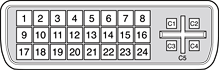
The graphics data sent to the digital monitor use transition minimized differential signaling (TMDS). TMDS uses an encoding algorithm to convert bytes of graphics data into characters that are transition-minimized to reduce EMI with copper cables and DC balanced for transmission over fiber optic cables. The TMDS algorithm also provides robust clock recovery for greater skew tolerance with longer cables or low-cost short cables.
The Mac mini supports DVI video output for digital resolutions up to 1920x1200 with a maximum pixel clock of 154MHz coherent TMDS or 135MHz non-coherent TMDS. The Mac mini fully supports both the 23-inch Apple Cinema HD display and 20-inch Apple Cinema display.
For information about TMDS, see the reference listed in Digital Visual Interface.
DVI to Video Adapter
The Mac mini supports an optional DVI to S-video/composite adapter that provides S-video and composite output to an NTSC or PAL (default is NTSC) video monitor or VCR. When a display is connected by way of the video adapter, the computer detects the type of adapter and enables the composite and S-video outputs. The settings for the resolutions and standards (NTSC or PAL) are then selectable in the System Preferences Displays pane.
The video output connector is a 7-pin S-video connector. Figure 3-4 shows the arrangement of the pins and Table 3-7 shows the pin assignments on the composite out and S-video connector.
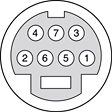
Pin number | S-video output connector |
|---|---|
1 | Analog GND |
2 | Analog GND |
3 | Video Y (luminance) |
4 | Video C (chroma) |
5 | composite video |
6 | Unused |
7 | Unused |
The Mac mini provides video output at desktop sizes and frame rates compatible with the NTSC and PAL standards; the desktop sizes are listed in Table 3-8. Those desktop sizes produce under-scanned displays on standard monitors.
Sound System
The sound system provides output through the built-in speaker and the headphone/audio line-out jack.
To maintain the highest level of fidelity, all signals within the computer, including audio CD playback, are maintained in digital form before being sent to the internal speaker or the headphone jack.
The sound system’s input, output, and CODEC are described in the following pages.
Sound Input
The sound system accepts inputs from the following sources:
sound from USB audio devices
sound from FireWire audio devices
Sound Output
The computer sends analog audio signals to the following destinations:
The computer can send digital audio data to the following destinations:
USB audio device
FireWire audio device
Internal Speaker
The computer integrates an internal monoral speaker. The internal speaker is muted under the following conditions:
when headphones/line-out port is in use
another device is selected for sound output in the Sound Preferences Output pane
during sleep mode
The speaker subsystem has the following electrical characteristics:
output power: 0.5 Wrms
frequency response: 400 Hz to 15 kHz +/-3db
Headphone and Line-out Jack
The headphone/line-out jack is located on the I/O panel on the rear of the computer.
The headphone/line-out jack has the following electrical characteristics:
output level: 1.42Vrms / +5dbu
frequency response: 20Hz to 20KHz, +/-0.5db
S/N ratio: >90 db unweighted
distortion: <0.005%
output power: 40 mW per channel into 32 ohms
channel separation: >70 db at 1 kHz, 1 mW
output impedance: 10 ohms
The minimum recommended headphone impedance is 32 ohms. Headphones with an impedance lower than 32 ohms may experience a higher level of distortion.
Audio CODEC
The audio CODEC in the Mac mini has the following specifications:
24-bit, 32 to 96 kHz D/A converter
filtered analog line-level output
I2S digital audio interface
Copyright © 2005 Apple Computer, Inc. All Rights Reserved. Terms of Use | Privacy Policy | Updated: 2005-04-05