Using the Wizard
After you create a new project of the type "Webobjectsapplication" the WebObjects Application Wizard displays a succession of screens. The sequence of screens that you see depends on the options you select. The following sequence shows those screens that are displayed when you request a Java Client application that includes a newly created model and uses a EOF "skeletal" application template.-
Select the type of WebObjects application and the primary language.
Select Java Client under Available Assistance.
Select Java under Primary Language.
You could also select Objective-C or WebScript as the primary language, but these languages are valid only for objects on the server. As noted earlier, objects on the client must always be implemented in Java.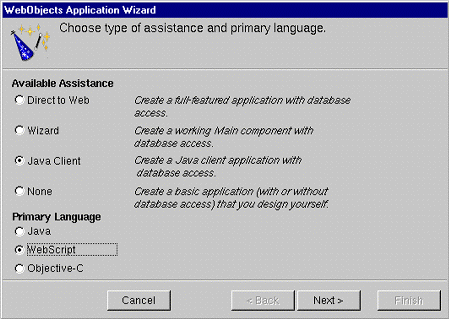
-
Create or select a model for your application.
For this tutorial, click "Create new model" and then click Next.
If you already have a model file, you can select "Open existing model file" and type the file system path to that file in the Model File field; or you can also click Browse and navigate to the file using a browser. This tutorial, however, invites you to follow a sequence of wizard screens that deal with creating a model file. If you chose an existing model file, go to Selecting the Application Template . You can find a Movies model file (Movies.eomodeld) in NEXT_ROOT/Developer/Examples/EnterpriseObject/AppKit/Movies. Related Concepts: What is a Model?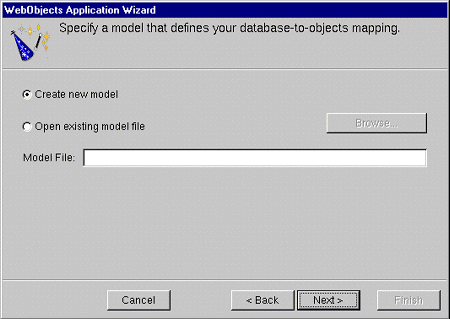
Creating a Model
Selecting the Application Template
© 1999 Apple Computer, Inc. – (Last Updated 13 Sep 99)


