Customizing a Motion XML Project File
This chapter provides three examples of editing a Motion XML project file. You can use these examples as a starting point to develop your own routines or tools to automate Motion offline editing or management tasks.
The examples in this chapter are:
Modifying Text
Modifying Text
Suppose a Motion project contains a Motion text object whose text is set to “Welcome to Texas”. This text is written with two different fonts: Stone Sans Sem OS ITCTT (a system font) for “Welcome To,” and Script (a LiveFont) for “Texas.” Also, there is carriage return after the word “to.”
In this example, the goal is to change the word “Texas” to “California” and the font for “California” to Sunflower.
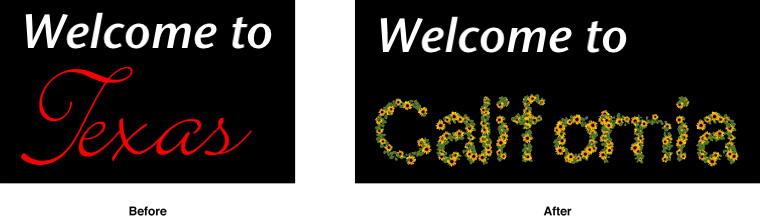
A Motion text object primarily relies on the following elements to specify its characteristics:
textobjectstyleRunstyle
In general, Motion text objects are subelements of a scenenode. If a Motion project contains multiple Motion text objects, each scenenode element with a Motion text object contains its own style, styleRun, text and object elements. To modify a text object, you need to first accurately identify its scenenode and then change the subelements.
Modifying the text Element
First, change the text element. Depending on your XML editor, it appears as:
<text>Welcome to |
Texas</text> |
Change this to:
<text>Welcome to |
California</text> |
Modifying the object Elements
Motion contains one object element for every glyph in the associated text object:
Listing 7-1 Initial Glyphs in the Text Object
<object value=”87”><! letter "W" --> |
<parameter name=”Kerning” id=”1” flags=”16” value=”0” /> |
</object> |
<object value=”101”><! letter "e" --> |
<parameter name=”Kerning” id=”2” flags=”16” value=”0” /> |
</object> |
<object value=”108”><! letter "l" --> |
<parameter name=”Kerning” id=”3” flags=”16” value=”0” /> |
</object> |
. . . |
<object value=”84”><! letter "T" --> |
<parameter name=”Kerning” id=”12” flags=”16” value=”0” /> |
</object> |
<object value=”101”><! letter "e" --> |
<parameter name=”Kerning” id=”13” flags=”16” value=”0” /> |
</object> |
<object value=”120”><! letter "x" --> |
<parameter name=”Kerning” id=”14” flags=”16” value=”0” /> |
</object> |
. . . |
Note the following:
The
value=attribute of eachobjectelement represents the decimal ASCII value of the character for each glyph. The ASCII value should match the associated letter in the text element.The
id=of theKerningparameter is equal to the index of each glyph, starting with 1.For “Welcome to Texas,” there are 16 object elements, one for every character in the text element. As well, newline, tab, space and other whitespace characters require an object element.
Modifying the glyphs for “Welcome to California,” results in these object elements (partially shown):
Listing 7-2 Changed Glyphs in the Text Object
<object value=”87”><! letter "W" --> |
<parameter name=”Kerning” id=”1” flags=”16” value=”0” /> |
</object> |
<object value=”101”><! letter "e" --> |
<parameter name=”Kerning” id=”2” flags=”16” value=”0” /> |
</object> |
<object value=”108”><! letter "l" --> |
<parameter name=”Kerning” id=”3” flags=”16” value=”0” /> |
</object> |
. . . |
<object value=”67”><! letter "C" --> |
<parameter name=”Kerning” id=”12” flags=”16” value=”0” /> |
</object> |
<object value=”97”><! letter "a" --> |
<parameter name=”Kerning” id=”13” flags=”16” value=”0” /> |
</object> |
<object value=”108”><! letter "l" --> |
<parameter name=”Kerning” id=”14” flags=”16” value=”0” /> |
</object> |
. . . |
Modifying the styleRun Element
Motion uses styleRun elements to specify the range that text style elements refer to. Without properly specified styleRun elements, style elements, which encode font information, do not have any effect.
In the original project file, the styleRun elements appear as follows:
<styleRun style=”10032” offset=”0” length=”11” /> |
<styleRun style=”10107” offset=”11” length=”5” /> |
The style= attribute refers to the id= attribute of a style element. The length= attribute indicates the span of the styleRun.
The first styleRun element in this listing refers the style element that whose font is Stone Sans OS ITCTT. The first 11 characters snap the text “Welcome to “ (including the newline character).
The second styleRun element begins on the 12th character and spans 5 characters: “Texas”.
In the modified project file, the length of the string changes (since “Texas” changes to “California”). The styleRun elements then change as follows:
<styleRun style=”10032” offset=”0” length=”11” /> |
<styleRun style=”10107” offset=”11” length=”10” /> |
Note the following:
The
offset=attribute of the firststyleRunelement, which refers to the first character the indicated style affects, is 0.When the lengths of the text strings change, it is important to modify the appropriate
styleRunelement to ensure that the appropriate text style is applied to the new characters.Every character in a text object must be associated with a
styleRun. It is important to check for consistency across allstyleRunelements and to ensure there are no overlaps and no gaps in the range of characters affected.
Modifying the style Elements
You can change the font applied to “Texas” from Script to Sunflower by modifying the appropriate style element. In the original project file, there are two style elements for the text object.
<style name=”Style” id=”10032” factoryID=”1”> |
<font type=”0”>StoneSansOSITCTT-SemiIta</font> |
... |
</style> |
<style name=”Style1” id=”10107” factoryID=”1”> |
<font type=”1”>Pro Series/Script</font> |
... |
</style> |
Since each font has a unique name and a different type, you can use the font element’s type= attribute to identify the font element you want to change. In this case, it is in the second style element with an id= 10107. (If the two style elements have similar characteristics, you can use the id= attribute and the associated styleRun element to identify the correct font element to change.)
The second font element, whose type attribute refers to a LiveFont and whose contents is the system name of the Script font, pertains to the style element that is associated with the styleRun element spanning the characters in “Texas.” It is then changed to the following:
<style name=”Style” id=”10032” factoryID=”1”> |
<font type=”0”>StoneSansOSITCTT-SemiIta</font> |
... |
</style> |
<style name=”Style1” id=”10107” factoryID=”1”> |
<font type=”1”>Pro Series/Sunflower</font> |
... |
</style> |
The id= of the second style element is 10107 and corresponds to the style= attribute of the styleRun element. This element applies to the word “California,” which now appears in the Sunflower font.
Importing Camera Data
You can import camera data from a third-party application into Motion by editing Position, Rotation, and other relevant parameters for a Motion camera. The goal is to generate position and rotation information that conforms to Motion’s channel XML structure.
Suppose the camera data you want to import contains position and rotation information for each frame.
Motion curve and keyframe Elements
Since Motion supports manual keyframing of parameters, the Position parameter of the Camera is represented as a curve with m keypoint elements. M is the number of frames for which camera data is available. The interpolation for each keypoint in the curve would is constant.
If the camera data has 300 frames, the XML for the Position parameter’s X channel would look like this:
<parameter name=”X” id=”1” flags=”16”> |
<curve type=”1” round=”0”> |
<numberOfKeypoints>300</numberOfKeypoints> |
<keypoint interpolation=”1” flags=”32” |
<time>0</time> |
<value>20</time> |
</keypoint> |
<keypoint interpolation=”1” flags=”32”> |
<time>1</time> |
<value>20.5</time> |
</keypoint> |
<keypoint interpolation=”1” flags=”32”> |
<time>2</time> |
<value>21.5</time> |
</keypoint> |
... |
<keypoint interpolation=”1” flags=”32”> |
<time>299</time> |
<value>90</time> |
</keypoint> |
</curve> |
</parameter> |
Note the following points:
The
Xchannel does not contain avalue=attribute. Keyframed parameters do not have a constant value and thevalue=attribute is not relevant. Thecurvesubelement specifies all the position and time information for theXchannel. See curve for more details.The
curveelement contains anumberOfKeypointssubelement specifying the number of data points being imported (300, in this case). Thecurveelement then has 300keypointelements.Each
keypointelement containstimeandvaluesubelements that represent the frame at which the data was recorded and the X position for that frame, respectively. Theinterpolation=attribute is set to 1, indicating constant interpolation across each keypoint.The
keypointelements do not contain the usual subelements specifying the input and output tangent times and values. Since theinterpolation=attribute is set to a constant, tangent information is not necessary.The
timevalue for the firstkeypointis 0. Internally, Motion refers to the first frame of any project as frame 0.
To finish importing the camera data, you would need to encode information for the Y and Z channels of the camera’s Position parameter, as well as the X, Y and Z channels for the Rotation parameter.
Replacing Media Files
The Motion XML project file encodes a variety of links between scene objects and the media files they incorporate. If you understand these links, you can develop tools to automatically replace media files in a project. You can then easily create multiple copies of a project with different footage for each copy.
Top-level Media Elements
Here is an XML example that displays top-level elements that are relevant to media and that are not described elsewhere in this document:
Listing 7-3 Top-level Media Elements
<ozml version=”3.0”> |
... |
<scene> |
<sceneSettings> |
... |
<frameRate>30</frameRate> |
<NTSC>1</NTSC> |
... |
</sceneSettings> |
... |
<timeRange offset=”0” duration=”4172” /> |
<playRange offset=”0” duration=”4172” /> |
... |
</scene> |
</ozml> |
scene: encodes scene settings, export settings, and the Motion scene graph. This element is a subelement of theozmldeclaration element.sceneSettings: encodes Motion scene settings. This element is a subelement ofscene.frameRate(unsigned integer): encodes the frame rate of a Motion project. This element is a subelement ofsceneSettings. Note that the frame rate is saved as an integer rate. The true framerate for the project is determined by theNTSCelement.NTSC(Boolean): indicates if the project is an NTSC project. This element is a subelement ofsceneSettings. When theNTSCelement is set to TRUE, the value inframeRateis adjusted internally to conform with NTSC standards. For example, 30 fps is adjusted to 29.97 fps.timeRange: the visible time range on the Motion Canvas. This element is a subelement ofsceneand contains the following attributes:offset=(frame): the frame at which the visible time range begins;duration=(unsigned integer): the number of frames visible on the time range.playRange: the playable time range on the Motion timeline. This element is a subelement ofsceneand contains the following attributes:offset=(frame): the frame at which playback begins;duration=(unsigned integer): the number of frames to play.
Steps for the Task
Suppose there is a Motion project with a media file named “oldMovie.mov” and that you want to replace it with a different file called “newMovie.mov.” (You will use the new footage at its default frame rate without retiming.)
The steps to follow are:
Identify the
scenenodereferring to the relevant footage.Replace the old footage with new footage.
Modify the accompanying audio data if necessary.
Modify the scenenode referring to the relevant footage if necessary.
Identify the scenenode
The following XML example displays the scenenode with the relevant information:
Listing 7-4 Finding the scenenode
<scenenode name=”My movie object” id=”1056774” factoryID=”1” version=”3”> |
... |
<linkedobjects>1056776</linkedobjects> |
<timing in=”0” out=”4171” offset=”0” /> |
... |
<parameter name=“Properties” id=”1” flags=”4112”> |
... |
<parameter name=”Media” id=”300” flags=”65552” value=”1056770” /> |
... |
</parameter> |
... |
</scenenode> |
... |
<footage name=”Media Layer” id=”1056771”> |
<clip name=”oldMovie” id=”1056770”> |
<pathURL>file://localhost/Users/steve/Movies/oldMovie.mov</pathURL> |
... |
</footage> |
Note these points:
This
scenenodeelement contains aPropertiesparameter that, in turn, contains aMediaparameter. Thevalue=attribute of thisMediaparameter (1056770) references theid=attribute of aclipelement. This clip element specifies the media that you want to change.The
linkedObjectselement references anaudioTrackelement that contains audio information related to theclipelement.
Swap in New Media
In general, a media file in Motion is specified by a clip element that is a subelement of a footage element. (See clip.)
Here is the XML specifying the current media file (“oldMovie”):
Listing 7-5 Current Media File
<footage name=”Media Layer” id=”1056771”> |
<clip name=”oldMovie” id=”1056770”> |
<pathURL>file://localhost/Users/steve/Movies/oldMovie.mov</pathURL> |
<missingWidth>1920</missingWidth> |
<missingHeight>816</missingHeight> |
<missingDuration>139.1808475</missingDuration> |
<creationDuration>4172</creationDuration> |
... |
<timing in=”0” out=”4171” offset=”0” /> |
... |
<parameter name=”Object” id=”2” flags=”4176”> |
... |
<parameter name=”Frame Rate” id=”107” flags=”64” value=”23.976” /> |
... |
<parameter name=”Fixed Width” id=”114” flags=”66” value=”1920” /> |
<parameter name=”Fixed Height” id=”115” flags=”66” value=”816” /> |
... |
</parameter> |
</footage> |
To swap in the new media file:
name=: As appropriate, change thename=attribute of theclipelement to reflect the name of the new clip.pathURL: Set the value of this element to a URL pointing to the new media file.relativeURL: If applicable, set the value of this element to a relative URL pointing to the new media file.missingWidth: Set the value of this element to the image width of the new media file.missingHeight: Set the value of this element to the image height of the new media file.missingDuration: Set the value of this element to the duration of the new media file, in seconds. If the current media file is a still image, the value should be the reciprocal of the project frame rate.creationDuration: Set the value of this element to the number of frames this media file represents in the Motion project. This value is equal tomissingDurationmultiplied by the project’s frame rate, rounded up to the nearest integer.The project’s frame rate is set in the
frameRatesubelement of thesceneSettingselement, which itself is a subelement of thesceneelement. (See Listing 7-3.)For NTSC projects, the frame rate must be adjusted to match standard NTSC framerates (for example, a 30 fps project will be 29.976 fps). The
NTSCsubelement of thesceneSettingselement is set to 1 if the project is an NTSC project.timing: Set thein=andout=attributes to the desired beginning and end points for the clip. If the length of the new media file differs from the media file it replaces, you should modify this element to ensure that the entire media file plays back.Frame Rate: Set this parameter to match the frame rate of the media file. A value differing from the media file’s natural frame rate may introduce timing discrepancies during playback or export.Fixed Width,Fixed Height: Set the value of these parameters to the media file’s width and height, respectively.
The current clip (“oldMovie.mov”) is a 23.976 fps HD movie 139.18 seconds in length. The new clip ( “newMovie.mov”) is a 29.976 fps HD movie that is 111.14 seconds long.. Making all the appropriate changes in the clip element to swap in the new clip results in the following XML:
Listing 7-6 New Media File
<footage name=”Media Layer” id=”1056771”> |
<clip name=”newMovie” id=”1056770”> |
<pathURL>file://localhost/Users/steve/Movies/newMovie.mov</pathURL> |
<missingWidth>1920</missingWidth> |
<missingHeight>816</missingHeight> |
<missingDuration>111.14</missingDuration> |
<creationDuration>3332</creationDuration> |
... |
<timing in=”0” out=”3331” offset=”0” /> |
... |
<parameter name=”Object” id=”2” flags=”4176”> |
... |
<parameter name=”Frame Rate” id=”107” flags=”64” value=”29.976” /> |
... |
<parameter name=”Fixed Width” id=”114” flags=”66” value=”1920” /> |
<parameter name=”Fixed Height” id=”115” flags=”66” value=”816” /> |
... |
</parameter> |
</footage> |
Modify the Audio Track
Media files that contain audio may require modifying the audiotrack element associated with the clip element.
Listing 7-7 Current Audio
<audio name=”Audio Layer” id=”1056777”> |
<audioTrack name=”oldMovie” id=”1056776”> |
... |
<linkedObjects>1056774</linkedObjects> |
<timing in=”0” out=”4171” offset=”0” /> |
... |
<parameter name=”Properties” id=”1” flags=”4112”> |
<parameter name=”Media” id=”104” flags=”65552” value=”1056770” /> |
... |
<parameter name=”Retime Value” id=”109” flags=”131090”> |
<curve type=”1” round=”0” retimingExtrapolation=”1”> |
<numberOfKeypoints>2</numberOfKeypoints> |
<keypoint interpolation=”1” flags=”32”> |
<time>0</time> |
<value>1</value> |
... |
</keypoint> |
<keypoint interpolation=”1” flags=”32”> |
<time>4172</time> |
<value>4173</value> |
... |
</keypoint> |
</curve> |
</parameter> |
<parameter name=”Retime Value Cache” id=”109” flags=”131090”> |
<curve type=”1” round=”0” retimingExtrapolation=”1”> |
<numberOfKeypoints>2</numberOfKeypoints> |
<keypoint interpolation=”1” flags=”32”> |
<time>0</time> |
<value>1</value> |
... |
</keypoint> |
<keypoint interpolation=”1” flags=”32”> |
<time>4172</time> |
<value>4173</value> |
... |
</keypoint> |
</curve> |
</parameter> |
... |
</parameter> |
... |
</audioTrack> |
</audio> |
Note these points:
As appropriate, you can modify the
name=attribute of theaudioTrackelement.Because you are replacing the contents of a
clipelement, thevalue=attribute of theMediaparameter should equal to theid=attribute of theclipelement, and not require modification.Additionally, the
audiotrackelement contains alinkedObjectselement that specifies the associatedscenenode, and does not require modification.If the duration of the new movie file differs from the old movie file, you will need to change the timing information in the
audioTrackelement.The
timingelement contains the timing information playing audio in constant time. In this example, the audio track is the same length as the new media file.The
Retime ValueandRetime Value Cacheparameters are not used when an audio track is played in constant time. But they may be modified to maintain consistency when variable timing is selected in the Inspector.Both the
Retime ValueandRetime Value Cacheparameters are represented as curves with two keypoint subelements corresponding to the first and last frames in the file, in that order.The
timeandvaluesubelements of the secondkeypointelement need to match the last frame in the new media file. Note that time is 0-based, while value is 1-based. That is, if the new media file is 3000 frames long, the value specified bytimewill be 2999 andvaluewill be 3000.Because the audio track is not retimed, normal, inputTangentTime, inputTangentValue, outputTangentTime, and outputTangentValue are not used in this example and can be left as is.
The revised audioTrack element appears as follows:
Listing 7-8 New Audio
<audio name=”Audio Layer” id=”1056777”> |
<audioTrack name=”newMovie” id=”1056776”> |
... |
<linkedObjects>1056774</linkedObjects> |
<timing in=”0” out=”3331” offset=”0” /> |
... |
<parameter name=”Properties” id=”1” flags=”4112”> |
<parameter name=”Media” id=”104” flags=”65552” value=”1056770” /> |
... |
<parameter name=”Retime Value” id=”109” flags=”131090”> |
<curve type=”1” round=”0” retimingExtrapolation=”1” |
<numberOfKeypoints>2</numberOfKeypoints |
<keypoint interpolation=”1” flags=”32”> |
<time>0</time> |
<value>1</value> |
... |
</keypoint> |
<keypoint interpolation=”1” flags=”32”> |
<time>3331</time> |
<value>3332</value |
... |
</keypoint> |
</curve> |
</parameter> |
<parameter name=”Retime Value Cache” id=”109” flags=”131090”> |
<curve type=”1” round=”0” retimingExtrapolation=”1”> |
<numberOfKeypoints>2</numberOfKeypoints> |
<keypoint interpolation=”1” flags=”32”> |
<time>0</time> |
<value>1</value> |
... |
</keypoint> |
<keypoint interpolation=”1” flags=”32”> |
<time>3331</time> |
<value>3332</value> |
... |
</keypoint> |
</curve> |
</parameter> |
... |
</parameter> |
... |
</audioTrack> |
</audio> |
Modify the scenenode Object
Because the id= attribute of the clip referencing the new media file is unchanged, there is no need to modify the Media parameter or the linkedObjects subelement of the scenenode element. However, if the media length differs, you may need to change the timing subelement in the same way you may need to change the timing element of the clip to ensure that the entire movie file is played back.
The Retime Value and Retime Value Cache parameters are not used when a movie clip is played in constant time. But you may need modify them to maintain consistency if variable timing is selected in the Inspector.
As well, you may need to modify layer elements above this scenenode in the XML hierarchy, including the timeRange and playRange subelements of the scene element. (See Listing 7-3.)
Add Media Files
Rather than replacing media files in a Motion project, you may wish to add a media file to a project. Here are some relevant points :
To add a new
clipelement, you must set the value of itsid=attribute to a unique unsigned integer not used by any other scene object, media file, or audio track in the project.To add a new
audiotrackelement, you must set theid=attribute to unique unsigned integer not used by any other scene object, media file, or audio track in the project. Additionally, you must set theMediaparameter to theid=of the newclipelement, and the value of thelinkedObjectselement must be an unsigned integer matching theid=of the relevantscenenodeelement.To modify the relevant
scenenodeelement, you must set theMediaparameter to equal theid=attribute of the newclipelement. As well, you must set the value of thelinkedObjectssubelement to theid=attribute of the newaudioTrackelement.
Copyright © 2010 Apple Inc. All Rights Reserved. Terms of Use | Privacy Policy | Updated: 2010-06-24