Leaderboards, Achievements, and Challenges
Creating a game is more than putting a bunch of sprites and graphics on the screen. A game needs to engage your players and creates an environment that encourages to continue playing. Game Center provides the following ways for you to interact with your players:
Achievements— Provides players with feedback during gameplay along with optional goals for the player to persue.
Leaderboards— Allows players to see how well they are doing compared to their friends and the rest of the world.
Challenges— Provides players with the ability to challenge their friends to beat a high score or accomplish a specific achievement.
By incorporating these Game Center options into your game, you expand the replayability of your game while making the game more engaging for your players.
Achievements
Achievements are a great way to track what a player has done in your game and to give the player more incentive to keep playing your game. An achievement represents a quantitative goal that the player can accomplish in your game. As the local player plays your game, they make progress towards completing the achievement. When the player meets or exceeds the goal, the achievement is considered earned, and the player is rewarded. Your game defines the goal and the game mechanics that describe how a player earns the achievement. In practice, Game Center does not need to know anything about your game design; it only knows what progress the player has made towards an achievement.
In Game Center, an achievement earns a player achievement points. When you define an achievement, you decide how many points it is worth. A player can see the total number of points that can potentially be earned in your game as well as how many points he or she has currently earned. The Game Center app allows players to compare their achievements with those of friends; this comparison screen includes the total points earned.
When you add an achievement to your game, you configure how the achievement is granted and how it is described to the player. You also design the game mechanics that allow the player to make progress towards completing the achievement.
Checklist for Supporting Achievements
To add achievements to your game, you need to take the following steps:
Before you add achievements, add code to authenticate the local player. See Working with Players in Game Center.
Design your game’s achievements. See Designing an Achievement.
Go to iTunes Connect and configure the achievements for your game. You provide all of the data needed to display achievements to the player. See Configuring Achievements in iTunes Connect.
Add code to report the local player’s progress to Game Center. By storing the progress on Game Center, you also make the player’s progress visible in the Game Center app. See Reporting Achievement Progress to Game Center.
Add code to load the local player’s previous progress on achievements from Game Center. The local player’s progress should be loaded shortly after the player is successfully authenticated. See Loading Achievement Progress.
Designing an Achievement
The design of an achievement starts with a simple statement of the achievement’s goal. Here are some example goals that can define a game:
Capture 10 pirates.
Defeat 1 boss.
Find 1000 gold coins.
Earn first place in 5 races.
Earn first place on 5 different race tracks.
A goal statement describes a triggering condition (“Earn first place on a different race track”) and a quantity (5). The triggering condition is essential as it defines something your game logic needs to track. In the racing example, your game must check the victory conditions at the end of each race, but it also needs to record which tracks a player has defeated.
The quantity usually defines how granular the task is for the player. With some achievements, quantity is irrelevant; the achievement is either earned or not. For example, “Defeat the end-game boss” is not a goal that the player generally earns partial credit towards completing. In contrast, a goal of “Capture 10 pirates” is a more granular task. Your game needs to track the number of pirates captured and use this count to report progress to Game Center.
When you design an achievement, consider a few other characteristics: value, visibility, and repeatability. These characteristics affect more than the design of your game; later, when you define your achievement in iTunes Connect, you’ll set attributes based on these characteristics:
The value of an achievement is a measure of how difficult you believe it will be for a player to earn the achievement. Some achievements are easily earned in a few minutes of play. Difficult achievements might require hours of focused gameplay or require the player to develop advanced playing skills or strategies to earn the achievement.
The visibility of an achievement determines whether a player can see the achievement at the start of play or whether the achievement must be discovered during play. By default, achievements are visible to the player. This is helpful, because a player can scan the list of available achievements and see what actions earn rewards. However, some achievements can be more useful if hidden. For example, if your game includes a story or plot, listing all of the achievements at the start of play may reveal too much of the story to the player. Achievements critical to the story can be marked as hidden so that you can choose when the player sees them.
An achievement is normally not repeatable. After the achievement is earned, the player sees no further messages about that achievement. If an achievement is marked as repeatable, then each time your game reports that the player has completed the achievement, the player sees the appropriate reward banner.
You have a lot of room to be creative with the kinds of achievements you create. Here are some common strategies for designing achievements that can guide you through the process.
Create Achievements That Show the Different Things Players Can Do in Your Game
When experienced players purchase new games, they examine the list of achievements to see what’s possible in those games. Your list of achievements should strongly communicate what you want players to think about or do while playing your game. You want achievements to provide a variety of different goals a player can strive towards. When you provide a variety of goals and achievements, players continue to play your game.
Create Achievements That Require Different Levels of Skill or Dedication
Provide achievements for both new players and experienced players—and the players in between. Achievements are a reward to the player for playing your game. If all of your game’s achievements are too easy to beat, the rewards will seem cheap and the player won’t feel challenged. On the other hand, if all the achievements are too difficult to earn, then players may not be rewarded often enough to continue playing your game. Strive to include achievements that can be earned when learning how to play the game and also achievements that reward players for learning how to play your game well.
Another reason to include more difficult challenges is that they encourage players to use them when challenging other players. See Challenges.
Create Achievements for Different Sections Or Modes Present in Your Game
For various reasons, you might choose to partition the gameplay into smaller games or game modes. Some reasons include:
Distinct sets of game rules or rule variants (capture the flag, survival)
Distinct game levels or maps
A game with an underlying story separated into distinct acts or story arcs
If your game does partition its gameplay into smaller mini-games, define achievements for each as it encourages players to try each of the game modes or to complete your game.
Use Hidden Achievements to Delight and Reward the Player
Hidden achievements should be used sparingly. Usually, you want players to know what’s expected of them in your game, so that they can actively set goals for themselves. And hidden achievements cannot be used to create new challenges. However, a hidden achievement can be a great opportunity to surprise a player with something unexpected. For example, any of the following might be places where a hidden achievement could be helpful:
An unexpected element in the plot or a story.
The player succeeds at a crazy stunt.
You can flip the convention from an achievement being something the player tries hard to earn into something more ignoble, earned when they fail spectacularly. The achievement then represents a way to inject humor into the situation. For example, an achievement called Hot Foot that might appear after the player has fallen into lava 20 times.
Save Some of Your Budget for Later Versions of Your Game
There are limits to how many achievements you can create in your game and how many points you can reward to the player:
Each game can have up to 100 achievements.
Each game can award up to 1000 points.
No individual achievement can award more than 100 points.
Avoid spending all of your budget on the initial version of your game. Save some of your budget to support updates and new content.
Configuring Achievements in iTunes Connect
When you are ready to add achievements, you define them first in iTunes Connect. For each achievement, you provide values for all of the properties listed in Table 4-1. Further, for each language you plan to localize the achievement into, you provide data for all of the properties listed in Table 4-2.
Property | Description |
|---|---|
Achievement Reference Name | An internal name that you must provide for each achievement, used only in iTunes Connect. This is the name you will use if you search for the achievement in iTunes Connect. |
Achievement ID | A chosen alphanumeric identifier for your achievement. This ID is limited to 100 characters. Your achievement ID is a permanent setting and therefore cannot be edited at a later date. The achievement ID is used inside your game to refer to this achievement. |
Point Value | The points that your achievement is worth. |
Hidden | Achievements marked as Hidden remain hidden to a player on Game Center until after the first time you report progress for that achievement. |
Achievable More Than Once | Indicates whether the user can earn the achievement multiple times. |
Property | Description |
|---|---|
Language | The language in which you would like this achievement to appear. |
Title | The localized title of this achievement as you would like it to appear in Game Center. |
Pre-earned Description | The description of your achievement as it appears to a Game Center player before he or she earns it. |
Earned Description | The description of your achievement as it appears to a Game Center player after he or she earns it. |
Image | A localized image that represents the achievement. The image must be a |
For more information on setting up your leaderboards in iTunes Connect, see Achievements.
Adding Achievement Support to Your Game
When you are ready to implement achievements in your game, you do so using the classes listed in Table 4-3.
Class Name | Description |
|---|---|
Holds information about the player’s progress towards completing an achievement. Your game creates | |
Holds the localized text and images for an achievement. The data for achievement descriptions is retrieved from Game Center at runtime and is based on the data you provided to iTunes Connect when you created your achievement there. | |
Provides a standard user interface to display Game Center content to the player. This content includes an achievements page. | |
Provides a standard user interface to display an achievements page. If the |
Reporting Achievement Progress to Game Center
Your game should report progress to Game Center whenever the player makes progress towards completing an achievement. By storing progress information in Game Center, you gain a few benefits:
The Game Center app can display the player’s progress towards the achievement.
If a player has multiple devices, your game on another device can retrieve the player’s progress towards achievements.
You store the a user’s progress towards an achievement using the percentComplete property. When you report progress to Game Center, two things happen:
If the achievement was previously hidden, it is revealed to the player. The achievement is revealed even if your player has made no actual progress on the achievement (a percentage of
0.0).If the reported value is higher than the previous value reported for the achievement, the value on Game Center is updated to the new value. Players never lose progress on achievements.
When the progress reaches 100 percent, the achievement is marked as completed, and both the image and completed description appear when the player views the achievements screen.
Whether reporting progress on a single achievement or on multiple achievements at once, your game rarely needs to do anything specific when an error occurs. If an error occurs, such as when a network is not available, Game Kit automatically resends the data at an appropriate time.
Best Practices for Reporting Achievement Progress
When designing a game that uses Game Center achievements, you need to balance the need to be responsive to the player against your goal to use as few device resources as possible. With those two concepts in mind, consider the following practices:
Report progress on an achievement as soon as the player makes progress. Don’t delay reporting until a later time; if a player earns an achievement, the banner should be displayed immediately.
Report progress only when the player has actually made further progress. Do not report changes to Game Center if the player has not made progress, because it consumes network resources without actually changing the state of the data on Game Center.
If your game displays a custom banner or indicator when a player earns an achievement, set the
showsCompletionBannerproperty toNObefore reporting the achievement to Game Center.
Loading Achievement Progress
You load the local player’s current progress information from Game Center by calling the loadAchievementsWithCompletionHandler: method. If the operation completes successfully, it returns an array of GKAchievement objects, one object for each achievement your game previously reported progress for.
Resetting Achievement Progress
You may want to allow the player to reset their progress on achievements in your game. See resetAchievementsWithCompletionHandler: for information on how to reset the player’s progress.
When your game resets a player’s progress on achievements, all progress information is lost. Hidden achievements, if previously shown, are hidden again until your game reports progress on them. For example, if the only reason those achievements were originally hidden was that they were associated with an In-App Purchase, then you would reveal those achievements again.
Leaderboards
Many games offer scoring systems that measure how well a player does in the game. Scores are not just a way for players to measure their own progress; they also provide a way for players to compare their skills with those of other players. In Game Center, a leaderboard is a database of score data. Your game posts scores to a leaderboard so that the player can later view those scores.
When you add leaderboards to your game, you define what a score means in your game and how score data is formatted for display.
Checklist for Supporting Leaderboards
To add leaderboards to your game, you need to take the following steps:
Before you add leaderboards, add code to authenticate the local player. See Working with Players in Game Center.
Decide how you want to use leaderboards in your game. You choose how many leaderboards to use and how each leaderboard interprets its score data. You are free to design a different scoring mechanism for each leaderboard. See Leaderboards Require a Scoring Mechanism.
Go to iTunes Connect and configure the leaderboards for your game. For each leaderboard, you configure the kind of score recorded and how the score is formatted for display. Leaderboard formatting can be localized for different languages and regions. See Working with Leaderboards in iTunes Connect.
Add code to report scores to Game Center. See Reporting Scores to Game Center.
Add code to display a leaderboard to the local player. See Working with the Default Leaderboard.
Optionally, you can retrieve score data from Game Center and use it to create your own custom leaderboard user interface. See Retrieving Score Data.
Leaderboards Require a Scoring Mechanism
To include leaderboards into your game, you must have a gameplay mechanism that allows your game to calculate a score. You are free to design your gameplay and scoring mechanism however you want. The only restriction is that your scoring mechanism must return a 64-bit integer value. When you report a score, you report this integer value to Game Center so it can be stored.
How can you make the integer into something more interesting? As part of the development process, you configure a leaderboard description in iTunes Connect so that Game Center understands what scores mean in your leaderboard. You describe to Game Center what type of score is stored in the leaderboard and how to convert your score into a string for display. An advantage of this mechanism is that the same description is used by the Game Center app to show your game’s scores.
The most critical decision to make is what kind of score is stored in the leaderboard. Game Center provides three basic formatting types:
An abstract number, such as an integer or a fixed point number.
A time value, such as minutes or seconds.
A monetary value, such as dollars or euros.
You also decide the order in which scores are ranked. When scores are ranked low-to-high, a lower score is considered a better score—for example, a racing game that records the time it took to complete the race. In this circumstance, a faster time—that is, a lower score—is better, so a sorting order of low-to-high is appropriate. In contrast, a game that adds points to the player’s total for each successful action taken in the game expects that a higher score is better, so a high-to-low sorting order would be more appropriate.
Once you have the formatting type and sorting order chosen, you also customize the final results with a localized formatting string. For example, if you chose to represent the score as an integer, you might choose “ point” and “ points” as the English localization for singular and plural values of scores stored in that leaderboard. Other games might use the same score type, but use different localized strings (“ laps”, “ cars”).
When you design a scoring mechanism, make sure that you consider the range of possible (legal) score values. When you create the leaderboard description, you can also provide minimum and maximum values for scores reported to it. Providing a score range adds a layer of security onto your leaderboard, as it reduces the likelihood that a player can cheat if they discover a way to report an absurdly high score.
A Game Can Have Multiple Leaderboards
You can define up to 100 different leaderboards for a game (or game group) if your game does not support leaderboard sets. The number of different leaderboards allowed increases to 500 leaderboards per game when leaderboard sets have been enabled. See Leaderboard Sets for more information. Each leaderboard has its own score type, sorting order, and formatting information. When you implement multiple leaderboards, you choose what sort of score data to record in each leaderboard, which essentially means that each leaderboard may have its own scoring mechanism, if desired.
Here are a few possibilities on how you can use different leaderboards in your game:
A game with multiple levels of difficulty can have a different leaderboard for each level of difficulty.
A game with different maps (levels, tracks) can have a different leaderboard for each map.
A game with different play modes (rule sets) can have a different leaderboard for each play mode.
You might create multiple scoring mechanisms that evaluate the player’s skill in different ways, and create a different leaderboard for each. For example, a racing game might evaluate the player’s best track time, best lap time, as well as a score based how well the player drifts while driving around the track. Evaluating players in different ways allows players to find multiple ways to improve their skills.
To allow leaderboards to be differentiated from each other in your game, you assign each leaderboard a leaderboard ID. Your game uses a leaderboard ID to report the score to the appropriate leaderboard. For example, if your game included three leaderboards for different levels of difficulty, you might use myGame.easy, myGame.normal and myGame.hard as the leaderboard IDs.
One Leaderboard Is the Default Leaderboard
When you define your leaderboards in iTunes Connect, one leaderboard is designated as the default leaderboard. When your game performs a leaderboard task without specifying a leaderboard, the default leaderboard is automatically chosen.
The initial value for the default leaderboard is the value you assign in iTunes Connect. However, as a player plays your game, you can set a different default leaderboard for that player. You can change the default leaderboard automatically when reporting a new score or you can change the default leaderboard independent of score reporting. For example, if your game has multiple sequential levels and a leaderboard for each level, you can change the default leaderboard each time the local player advances to a higher level. That way, future scores (or displayed leaderboards) automatically show the best level the player has played.
Combined Leaderboards Gather Scores from Multiple Single Leaderboards
A combined leaderboard is a special type of leaderboard that combines scores reported to multiple leaderboards into one leaderboard. The individual leaderboards continue to exist and are where you report scores to. You don’t report scores to combined leaderboards. For example, if your game offers multiple race tracks, you can create a single leaderboard for each race track and a combined leaderboard that shows the best time earned on any track.
When deciding whether to set up one or more combined leaderboards for your game, keep the following guidelines in mind:
Only non–combined leaderboards can be included in a combined leaderboard. That is, you cannot combine other combined leaderboards into a combined leaderboard.
A non–combined leaderboard can only be attached to one combined leaderboard.
The non–combined leaderboards that are attached to a combined leaderboard must have the same score format type and sort order. And, in practice, they should share the same scoring mechanism in your game.
Working with Leaderboards in iTunes Connect
After you’ve considered the design of your scoring mechanism, you go to iTunes Connect to precisely define each leaderboard. Defining a leaderboard is a critical step; once your game ships to customers, many pieces of the leaderboard cannot be changed. It’s important to note that the information you enter into iTunes Connect must match your game’s implementation. As such, you should exercise caution when creating your leaderboards and test your game thoroughly before releasing it.
For complete details on managing your game’s leaderboards and leaderboard sets see Game Center Configuration Guide for iTunes Connect. However, for your convenience, Table 4-4 describes the properties you use to define a single leaderboard. Table 4-5 lists the properties you set for each language you plan to localize your game into.
Property | Description |
|---|---|
Leaderboard Reference Name | An internal name for your leaderboard, used only in iTunes Connect. This is the name that you use to search for your leaderboard in iTunes Connect. |
Leaderboard ID | A chosen alphanumeric identifier for your leaderboard. This ID is limited to 100 characters. Your leaderboard ID is a permanent setting and cannot be edited at a later date. |
Score Format Type | Choose the type of format in which you want scores to be expressed in the leaderboard—for example, integer, elapsed time, or money. |
Sort Order | Choose between “Low to High” or “High to Low” for the display of your leaderboard scores. Choose “Low to High” if you want lowest scores displayed first. Choose “High to Low” if you want highest scores displayed first. |
Score Range | Define the score range using 64-bit signed integers. The values must be between the long min (-2^63) and long max (2^63 - 1). Any scores outside of this range will be deleted. Score range values are optional, but if they are added then both values must be set and they must not be equal. When first adding a score range, or when changing it in the future to a smaller range that will restrict data, all data outside of the range will be lost and can’t be recovered. |
Property | Description |
|---|---|
Language | This is the language in which your leaderboard appears. |
Name | The name of the leaderboard that appears in the standard leaderboard user interface. |
Score Format | This property determines how your scores are displayed when the leaderboard is displayed in the specified language. For example, if your leaderboard stores a score as money, you may want to specify different types of money based on the language you select. The permitted values for this property are based on your Score Format Type. |
Score Format Suffix (Singular) | This suffix is added to the end of scores displayed in the singular form. This suffix is optional, but is useful for clarifying the type of score stored in the leaderboard. Examples include “point,” and “ hit.” |
Score Format Suffix (Plural) | This suffix is added to the end of scores displayed in the plural form. This suffix is optional, and is useful for clarifying the type of score stored in the leaderboard. Examples include “ points,” “ coins,” and “ hits.” |
Image | A localized image that represents the leaderboard. This property is optional; if specified, the image is displayed as part of the standard leaderboard user interface. The image must be a |
For more information on setting up your leaderboards in iTunes Connect, see Leaderboards and Leaderboard Sets.
Reporting Scores to Game Center
Your game transmits scores to Game Center by creating an array of GKScore objects, whether you are reporting a single score or multiple scores. A score object has properties for the player that earned the score, the date and time the score was earned, the identifier for the leaderboard the score should be reported to, and the actual score that was earned. You allocate and initialize a new score object for each score, configure their properties, and then call the reportScores:withCompletionHandler: method to send the data to Game Center.
The score object is initialized with the leaderboard ID for the leaderboard it reports its score to and then your score reporting method sets the value property to the score the player earned. The leaderboard ID must be the identifier for a leaderboard you configured in iTunes Connect. The player who earned the score and the time the score was earned are set automatically when the score object was created. Scores are always reported for the local player.
Your game should create the score object and report the score to Game Center immediately after the score is earned. This sets the date and time accurately and ensures that the score is reported correctly. If for some reason the score could not be reported because of a network error, Game Kit automatically resends the data when the network becomes available.
Security and Score Reporting
When you design a game that reports scores to Game Center, you should also consider the security needs of your game. You want scores reported to Game Center to be an accurate accounting of how players are doing. Here are two suggestions:
Store your game’s preferences and saved games in a secure format, rather than in clear text. If your game’s data is stored in clear text, a player can download the saved game data using iTunes, modify it, and resync it back to the device. This may allow the player to achieve a higher score than you intended.
Always set reasonable minimum and maximum values for a leaderboard.
Working with the Default Leaderboard
The default leaderboard is set when you create your leaderboards in iTunes Connect. However, the default leaderboard is a per-player setting also; as a player plays your game you can update the default leaderboard shown to that player.
The most common time to update the default leaderboard is when you report a score, and Game Kit provides a convenient way to set the default leaderboard as you report the score. Create the score object, and then set its shouldSetDefaultLeaderboard property to YES. When the score is reported, the value in the score object’s leaderboardIdentifier property becomes the new default leaderboard ID.
However, you can also use the GKLocalPlayer object to update the default leaderboard directly by calling the setDefaultLeaderboardIdentifier:completionHandler: method.
Displaying the Standard Leaderboard
In addition to sending scores to Game Center, you should also allow players to view scores within your game. The simplest way to do this is with a GKGameCenterViewController object. You can adjust the behavior of a Game Center view controller so the initial content it displays is the leaderboard page. Configure the other properties to show the leaderboard page, displaying only scores earned in the last day. You then present the view controller. In OS X, you use the GKDialogController class to display the view controller, as described in Displaying Game Center User Interface Elements.
When the player finishes looking at the leaderboard, the delegate is called. Override the gameCenterViewControllerDidFinish: method and dismiss the presented view controller.
Retrieving Score Data
There are times when you want to retrieve score data from Game Center. The most common reason to download the score data is when you want to create a custom leaderboard user interface. Your game uses a GKLeaderboard object to retrieve score data. In this case, the leaderboard object represents a query on the data stored on Game Center. You set properties on the GKLeaderboard object to filter which scores are returned to your game, then tell the object to load the scores.
Retrieving a subset of leaderboard data stored on Game Center has the following steps:
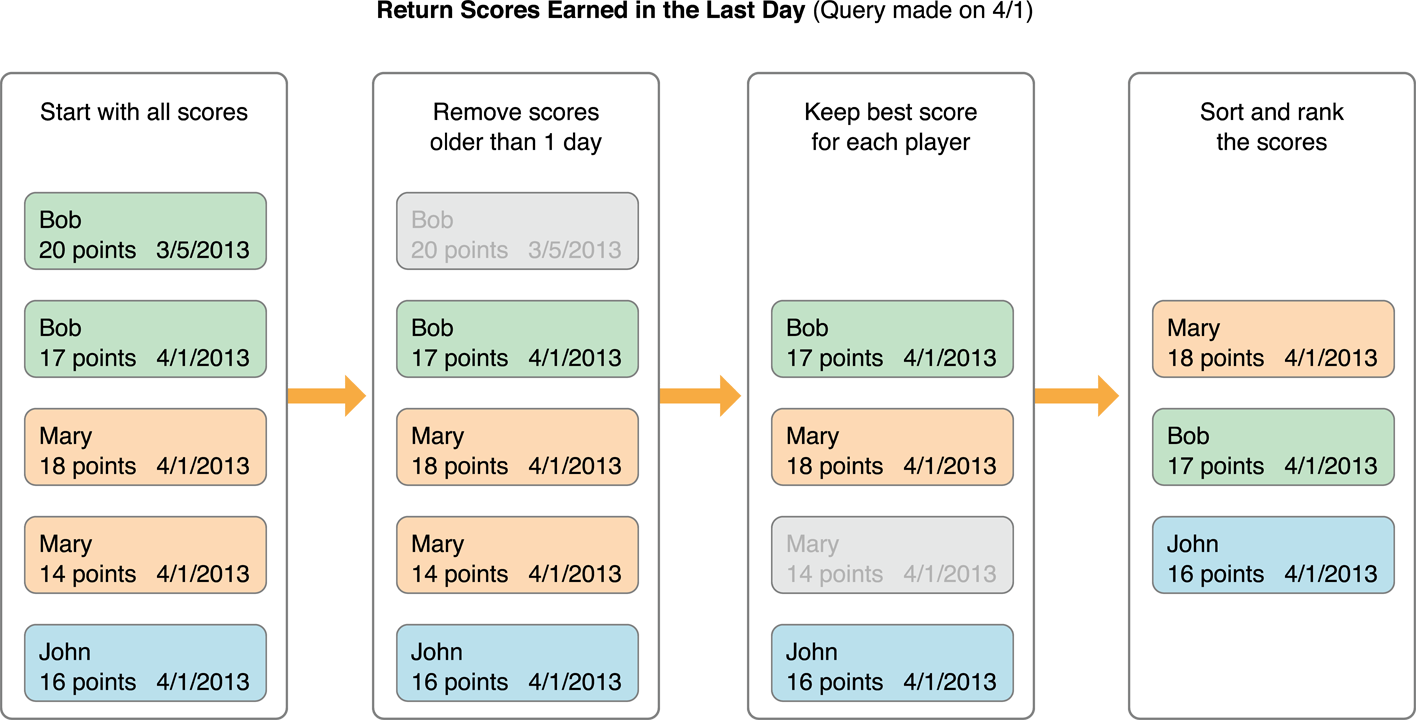
Start with the set of all scores stored in the leaderboard.
Discard any scores that do not match the
playerScope,timeScopeandidentifierproperties.Keep only the best remaining score for each player.
Sort the list of scores from best to worst.
Return the subset of scores requested by the
rangeproperty.
Figure 4-1 shows an example of one possible search. In this example, scores more than a day old are ignored. Then, from the remaining set of scores, we see that Mary has two scores, so only her best score is kept. Finally, the scores are sorted and ranked. The selected range is then returned to the game.
If you provide a leaderboard identifier that matches a combined leaderboard, all of the scores in the single leaderboards are pooled together before filtering and sorting occurs. Figure 4-2 shows the same scores as in the earlier example, but now you can see that the scores are actually stored in two different leaderboards that make up a combined leaderboard.
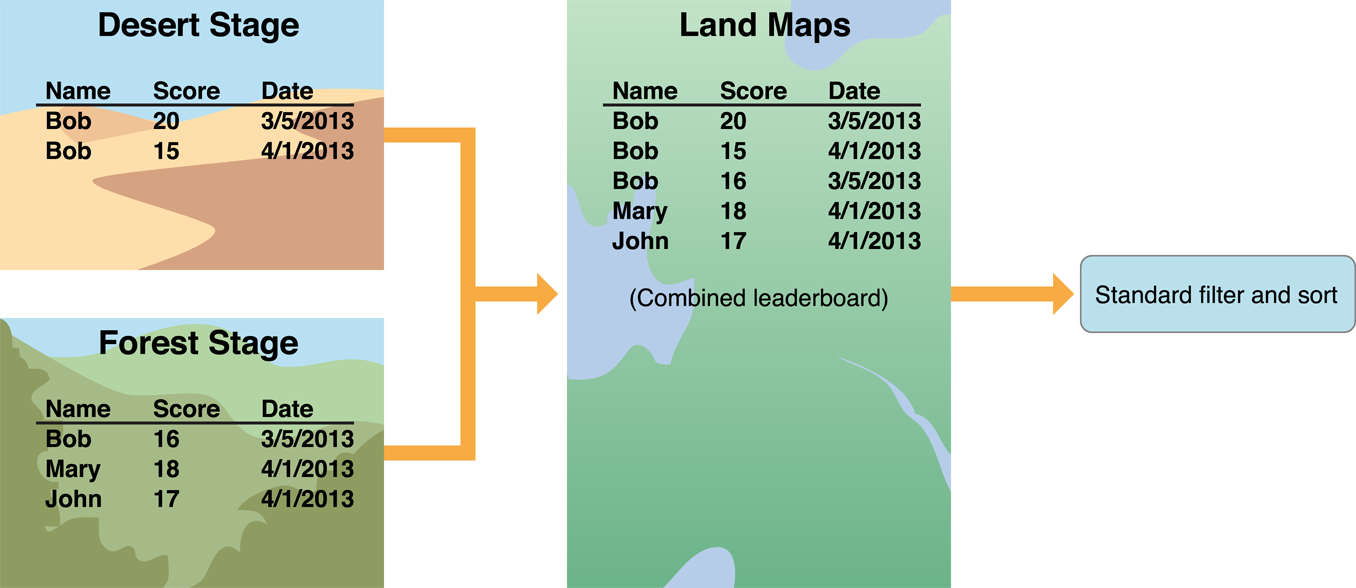
It is important to note that combined leaderboards are set up in iTunes Connect and are considered a unique leaderboard. You can not determine where the scores from a combine leaderboard come from inside of your app. You need to query each leaderboard individually through their leaderboard ID and manually determine what scores were used to create the combined leaderboard if you want to display that information.
Extending Leaderboards Using Score Contexts
Although the score and formatting system allows you to create interesting leaderboards, you may want to extend the leaderboard system to include other information specific to your game. You do this using score contexts. A GKScore object has a context property that holds a 64-bit integer. The value stored in this property is stored along with the score. Game Center doesn’t use this value at all, nor does it affect score formatting. Your game is free to use this integer to store whatever information you want.
Here are a few possibilities:
You can use the
contextproperty to store flags that provide additional content. For example, in a racing game, use the flags to store what kind of car the person completed the racetrack with. Then, in your own custom leaderboard user interface, you could display the appropriate car image next to each score.Record the user’s actions and other data in to a file. You then design your game engine to be able to replay the contents of that file. You store the file on your own server and use the context field as an index to reference the file. Your custom leaderboard user interface can then offer the ability to see exactly how someone earned the score.
You can implement the replay directly into your gameplay. For example, in the hypothetical racing game, you could use a player’s replay file to display a phantom car for the current player to race against.
Leaderboard Sets
Leaderboard sets offer developers the ability to combine several leaderboards into a single group. iOS developers are able to create leaderboard sets starting with iOS 7. Leaderboard sets are not supported in OS X v10.9.
The following example shows why you would want to incorporate leaderboard sets in your game.
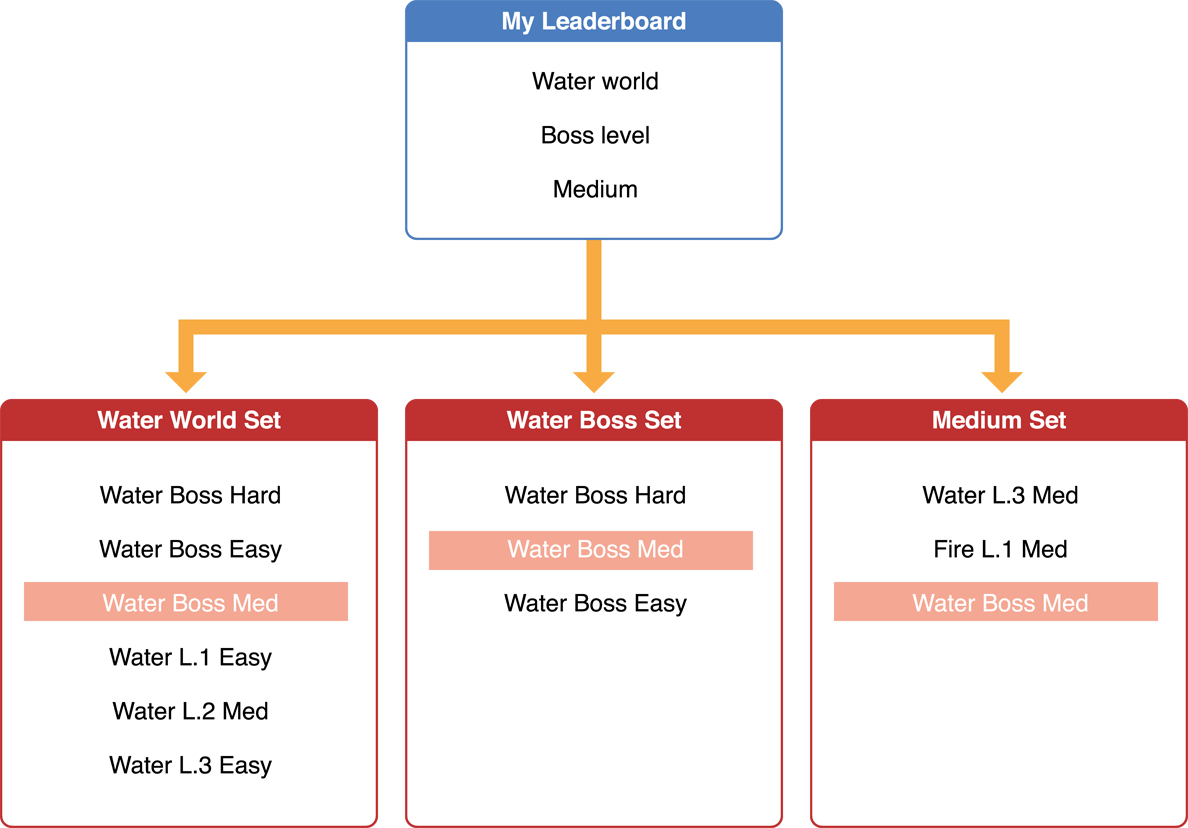
The created game has several different worlds with each world containing several leaderboards—for example, a leaderboard for most coins collected, highest score obtained, and most enemies captured.
The developer combines the different leaderboards into a single leaderboard set for each world.
Users can see a displayed list of world leaderboard sets. Opening a set shows the leaderboards contained in the set.
Figure 4-3 shows the leaderboards for each world combined into a leaderboard set.
Checklist for Supporting Leaderboard Sets
To add leaderboard sets to your game, you need to take the following steps:
Before you add achievements, add code to authenticate the local player. See Working with Players in Game Center.
Ensure that your game contains at least one leaderboard. See Leaderboards for information on creating leaderboards.
Go to iTunes Connect and configure leaderboard sets for your game. For each leaderboard set, add the desired leaderboards to the leaderboard set. See Working with Leaderboard Sets in iTunes Connect.
Add code to load the leaderboard sets associated with the current game. See Adding Leaderboard Set Support to Your Game.
A Game Can Have Multiple Leaderboard Sets
You can define up to 100 different leaderboard sets for your game. Each leaderboard set can contain up to 100 leaderboards with a maximum of 500 leaderboards for your game. You choose which leaderboards are placed inside of each leaderboard set. Games that don’t use leaderboard sets are limited to 100 leaderboards.
Here are a few possible ways to use different leaderboard sets in your game:
A game with multiple scoring mechanisms for each world (score, enemies captured, coins collected) can combine the leaderboards for each world into a leaderboard set.
A game with multiple scoring mechanisms for each world (score, enemies captured, coins collected) can combine all of the leaderboards for a single scoring mechanism into a leaderboard set.
A game with multiple playable characters (warrior, archer) can combine all of the leaderboards for a particular character into a single leaderboard set.
You can combine the number of leaderboards and leaderboard sets in any format as long as the individual maximums are not exceeded. The following are all allowable combinations:
5 leaderboard sets, each containing 100 leaderboards
100 leaderboard sets, each containing 5 leaderboards
3 leaderboards sets, each containing 50 leaderboards; 2 leaderboard sets, each containing 100 leaderboards; 1 leaderboard set containing 1 leaderboard
Game Group Leaderboard and Leaderboard Set Limits
The number of leaderboards and leaderboard sets within a group is limited only by the number of apps within the group. Each game within a group can have a number of leaderboard sets and leaderboards, as stated in A Game Can Have Multiple Leaderboard Sets. For example, if a group has three apps inside of it, then the group can have a total of 300 leaderboard sets and 1500 leaderboards. However, an individual app is still limited to 100 leaderboard sets and 500 leaderboards.
Working with Leaderboard Sets in iTunes Connect
After you have decided to use leaderboard sets in your game, you must configure the leaderboard sets in iTunes Connect. In iTunes Connect you can create new leaderboard sets and move your leaderboards into them. For complete details on managing your game’s leaderboards and leaderboard sets see Leaderboards and Leaderboard Sets.
Adding Leaderboard Set Support to Your Game
To implement leaderboard set support in your game, you use the classes listed in Table 4-6.
Class Name | Class Function |
|---|---|
A | |
A | |
A | |
The | |
The |
Before you can load the leaderboards contained within a set, you must load the set itself. Retrieve the list of leaderboard sets for your game from Game Center and display their titles. Use the loadLeaderboardSetsWithCompletionHandler: method to retrieve the leaderboard sets for your app. You can then load the leaderboards for a specific leaderboard set using the loadLeaderboardsWithCompletionHandler: method.
Challenges
Achievements and leaderboards both allow players to measure their progress playing your game. But it is also common for players to want to test their progress against each other. It’s more satisfying to beat a friend’s score than to merely achieve a decent score. Game Center embraces this idea in the form of challenges. Players on Game Center can challenge other Game Center members to beat earned scores or achievements. Challenges represent a different style of multiplayer experience where players compete against each other indirectly.
When a challenge is issued by one player to another, a push notification is sent to the challenged player. The challenged player can then accept or refuse the challenge. If the player accepts the challenge, the challenge is placed on a list of challenges associated with that player. Later, if the player beats the challenge, Game Center notifies both the challenged player and the challenger that the challenge is complete.
Game Center supports two kinds of challenges:
A score challenge is issued based on a leaderboard score previously earned by the challenger. The challenge is completed when the challenged player earns a better score. When the challenged player beats a score challenge, Game Center automatically issues a new score challenge to the original challenger. Score challenges continue to pass back and forth between the two players as they work to beat each other’s scores.
An achievement challenge is issued from an achievement that the challenger has already completed. The challenge is completed when the challenged player completes the achievement.
If your game supports achievements or leaderboards, it automatically supports challenges without requiring any additional code. In this case, players go to the Game Center app to challenge their friends. However, you can also customize your game to directly support challenges:
You can allow players to challenge other players from within your game.
You can retrieve the list of open challenges for the local player.
Your game can receive notifications when players tap banners for new challenges.
Your game can receive notifications when players receive or complete challenges. You can even prevent challenge banners from being displayed when your game is running, allowing you to completely control the user interface displayed when a challenge event is received by your game.
You can determine whether your game shows challenge banners inside of the game by adding
GKShowChallengeBannersto yourInfo.plist. See Cocoa Keys for details.
Checklist for Supporting Challenges
To add challenges to your game, you need to take the following steps:
First, add support for leaderboards or achievements to your game. See Leaderboards and Achievements.
Optionally, add code to allow a player to send challenges within your game. See Issuing Challenges from Your Game
Optionally, add code to receive and act on challenge notifications. See Issuing Challenges from Your Game.
Each type of challenge is defined by a distinct subclass of GKChallenge. Table 4-7 lists the subclasses and how to retrieve the remaining information needed to display the challenge to the player.
Subclass | Description |
|---|---|
Read the | |
Read the |
Issuing Challenges from Your Game
You issue a challenge from within your game using either a GKScore object or a GKAchievement object. Both classes implement an issueChallengeToPlayers:message: method with a similar signature. Issuing a challenge does not display a user interface to the player issuing the challenge; this is code you need to implement yourself. The following section shows a series of methods you can use to issue an achievement challenge.
The design for score-based challenges is similar. Create a score object, submit the score, then use it to generate a challenge request.
Displaying the Challenge User Interface
Listing 4-1 begins the challenge process. This method is called when the player completes an achievement. The first thing the code does is create a new achievement object to tell Game Center that the achievement has been completed. If the player completes multiple achievements for a challenge at once, create a new object for each achievement and add the achievement to an array. Note that a challenge can only be performed on a completed achievement. It disables the achievement’s default completion banner because it plans to display a custom challenge screen instead. The method reports the progress to Game Center and then triggers a segue to display the game’s custom challenge user interface.
Listing 4-1 Displaying the challenge user interface
- (void) bossMonsterDefeated |
{ |
GKAchievement *achievement = [[GKAchievement alloc] initWithIdentifier:@"MyGame.bossDefeated"]; |
achievement.percentComplete = 100.0; |
achievement.showsCompletionBanner = NO; |
[achievement reportAchievements: [NSArray arrayWithObjects:achievement, nil] WithCompletionHandler:NULL]; |
[self performSegueWithIdentifier:@"achievementChallenge" sender:achievement]; |
} |
Displaying and Dismissing the Challenge View Controller
Listing 4-2 shows the issuing view controller’s prepareForSegue:sender: method. When the method detects that this is a segue to show the achievement user interface, it sets the issuing view controller as a delegate. The achievement object is also provided to the challenge view controller so that it can customize its user interface to match the earned achievement.
Listing 4-2 Preparing the challenge view controller
- (void )prepareForSegue:(UIStoryboardSegue *)segue sender:(id)sender |
{ |
if ([segue.identifier isEqualToString:@"achievementChallenge"]) |
{ |
MyAchievementChallengeViewController* challengeVC = (MyAchievementChallengeViewController*) segue.destinationViewController; |
challengeVC.delegate = self; |
challengeVC.achievement = (GKAchievement*) sender; |
} |
} |
Listing 4-3 shows the issuing controller’s implementation of the delegate method. When the user dismisses the challenge view controller, the delegate is called. The delegate method takes a parameter that states whether the player issued a challenge. If the player issued a challenge, then the method retrieves the list of players and the message from the challenge view controller and issues the challenge. Note that this design gives control over issuing the challenge to the original view controller. If your design does not need this additional flexibility, you can simply issue the challenge directly from the challenge view controller instead.
Listing 4-3 Dismissing the challenge view controller
- (void) challengeViewController:(MyAchievementChallengeViewController*)controller wasDismissedWithChallenge:(BOOL)issued |
{ |
[self dismissViewControllerAnimated:YES completion:NULL]; |
if (issued) |
{ |
[controller.achievement issueChallengeToPlayers:controller.players message:controller.message]; |
} |
} |
Best Practices for Issuing Challenges
The local player must always have control over when and how a challenge is issued. Your game must never issue a challenge on the player’s behalf without the player first approving the challenge. When you implement your custom user interface for challenges, you must ensure that the player has the option to not issue a challenge. Even when a player issues a challenge, the player needs to be in control of who receives the challenge and what message is displayed to those players.
Ideally, your game should provide default behavior that matches a player’s expectations. The default message and list of players should be reasonable choices that a player might make. For example, when a player wants to issue a score challenge, your first impulse might be to include all of a player’s friends in the challenge. In practice, that may not be the best answer. Some of the player’s friends may have already earned much higher scores. Instead, consider something like the algorithm in Listing 4-4. It searches the leaderboard using a friends-only filter. The resulting friends list is then filtered so that only players who have not earned as high of a score are challenged.
Listing 4-4 Retrieving the list of players with lower scores than the one just earned
- (void) challengeLesserMortalsForScore: (int64_t) playerScore inLeaderboard: (NSString*) leaderboard |
{ |
GKLeaderboard *query = [[GKLeaderboard alloc] init]; |
query.leaderboardIdentifier = leaderboard; |
query.playerScope = GKLeaderboardPlayerScopeFriendsOnly; |
query.range = NSMakeRange(1,100); |
[query loadScoresWithCompletionHandler:^(NSArray *scores, NSError *error) { |
NSPredicate *filter = [NSPredicate predicateWithFormat:@"value < %qi",playerScore]; |
NSArray *lesserScores = [scores filteredArrayUsingPredicate:filter]; |
[self presentChallengeWithPreselectedScores: lesserScores]; |
}]; |
} |
Your challenge view controller can then use the score data to populate its user interface. For example, it can use the player identifiers embedded in the score to load the name and photo of each challenged player. You can perform a similar operation for achievement challenges using the selectChallengeablePlayers:withCompletionHandler: class method. Listing 4-5 shows a possible implementation of this.
Listing 4-5 Determining the list of players who can complete an achievement challenge
- (void) challengePlayersToCompleteAchievement: (GKAchievement*) achievement |
{ |
[achievement selectChallengeablePlayers:[GKLocalPlayer localPlayer].friends withCompletionHandler:^(NSArray *challengeablePlayerI, NSError *error) { |
if (challengeablePlayers) |
{ |
[self presentChallengeWithPreselectedPlayers: challengeablePlayers]; |
} |
}]; |
} |
Copyright © 2016 Apple Inc. All Rights Reserved. Terms of Use | Privacy Policy | Updated: 2016-06-13