

-
巧用触控打造出色的游戏
深入了解相关技巧,为你的游戏构建引人入胜的触控体验。我们将分享从独立游戏开发到 3A 游戏开发的专家见解,探索打造直观触控操作的最佳做法,并介绍如何利用 Touch Controller 框架和 Metal 等 Apple 技术实现出色性能。
章节
资源
相关视频
Meet with Apple
-
搜索此视频…
嗨!我是Yu Keyi 来自游戏技术团队
借助 Game Porting Toolkit 4 将游戏从 Mac 移植到 iOS 非常简便 有了它,移植过程轻松高效 玩家已经可以在 各种 Apple 设备上使用 多种游戏控制器 包括 Mac、iPad 和 iPhone 玩家喜欢随时随地 畅玩自己喜爱的游戏 他们会掏出 iPhone 在任何地方随时进入你的游戏
但在这些即兴时刻 他们不一定手边 都有控制器 那么如何确保 他们仍能获得极佳的流畅体验? 答案是为游戏 提供出色的触控控件
Black Salt Games 开发的 Dredge 就是一个完美示例 展示了触控控件 如何将原本引人入胜的 体验提升到新高度 玩家可以获得 游戏与平台操作的无缝融合 一切都感觉自然直觉 让玩家专注于探索冒险
我将逐步引导你了解 如何在 iOS 和 iPadOS 上 设计和实现出色的触控控件 以我的游戏为例
计划如下: 我将为游戏设置触控控件 创建灵活的布局
在屏幕上设计流畅的交互 并为玩家提供丰富的反馈
第一步是设置 触控控制器 如果你的游戏 已经支持游戏控制器 或支持键盘和鼠标 你可能已经熟悉 Game Controller 框架
在此基础上 Touch Controller 框架 将支持扩展到了触控输入
Game Controller 框架 的核心很简单
它会对 GCController 对象的 连接和断开 发出通知并作出响应 然后轮询活跃设备 以获取其输入状态 或设置值变化处理程序 以便在输入状态变化时收到通知
一旦使用 GCController 实现了游戏逻辑 你就可以在其基础上 添加触控控件 使用 Touch Controller 框架
Touch Controller 框架 提供丰富的按钮类型 和行为 以支持 最常见的游戏输入
此外 每个按钮的外观 都可以自定义 以最佳匹配你的游戏
API 直接与 Metal 集成 确保尽可能高的性能
在游戏中启用 Touch Controller 后 它会显示为一个 GCController 对象 你可以轮询其状态 或设置处理程序 监听输入更新 就像操作任何其他控制器一样 这是我的游戏 它已有游戏控制器支持 现在我来添加触控控件支持
我先来创建 一个通过描述符创建的 触控控制器对象 然后启用触控控制器 这会自动启用 游戏控制器逻辑
启用触控控制器后 我需要处理两件事
第一 在 UIView 中 添加触控输入处理程序 这会在玩家开始 结束和移动触控时 通知触控控制器 第二 在 Metal 渲染器中 在屏幕上渲染触控控件
在代码中 我将使用描述符 创建一个触控控制器对象
使用 connect API 启用 touchController
然后使用 touchController 的 render API 渲染所有控件
在 UIKit 中 touchesBegan 函数 报告视图或窗口中 发生一个或多个新触控的时机 我会覆盖它 改为调用 handleTouchBegan touchesEnd 和 touchesMove 也需要做同样的处理
最后 我将设置轮询状态 和 valueChangedHandler
还有一件事需要完成 将所有控件 添加到触控控制器对象
但应该放在哪里? 如何以最佳方式 为玩家提供最佳体验? 关键是设置灵活的布局
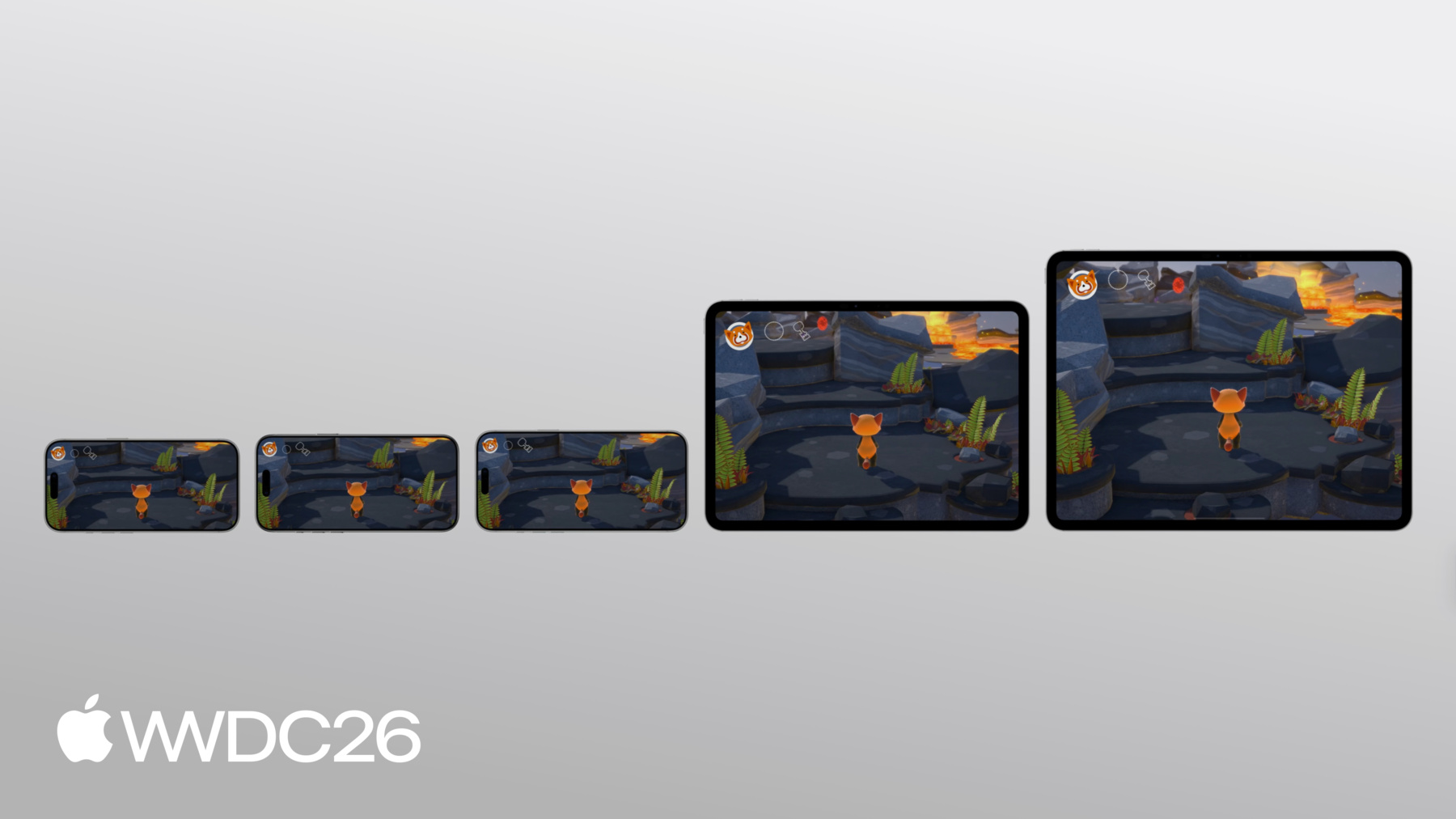
灵活的布局意味着 游戏在任何屏幕尺寸上都感觉舒适
借助 Apple 统一的游戏平台 玩家可以在各种 设备上找到你的游戏 关键是要尽早规划 设计能在所有设备上 优雅适配的自适应游戏界面 Touch Controller 框架 让这一切变得简单
它为每个布局 提供九个锚点 为控件指定锚点后 可以使用相对于锚点的偏移量 来定位控件 你可以将相关控件 分组到一个区域 并为该区域内的 每个控件指定相同的锚点 当设备形状发生变化时 每个区域与其锚点的 大小和距离保持一致
这使控件保持 对移动玩家舒适的物理尺寸 同时最有效地利用 可用屏幕空间 覆盖所有设备
你还需要确保 控件始终可见 做到这一点的方法 是为全屏模式进行设计
在 iPad 和 iPhone 上 设计全屏游戏体验意味着 需要考虑安全区域
安全区域是显示屏中 可以安全放置 UI 的区域 这样 UI 就不会与 硬件或软件功能重叠 在 iPad 和 iPhone 上 安全区域帮助你避免将 UI 放置在 设备圆角可能 遮挡的位置 它们还帮助你避开 系统主屏幕指示条 和 iPhone 上的灵动岛 这两者都可能与 控件的点击区域重叠
在 iOS 和 iPadOS 上 可以从 UIKit 中的任何 UIView 读取 safeAreaInsets 然后将 safeAreaInsets 添加到要放置在屏幕上的 控件偏移量中 避开安全区域只是开始 我还需要仔细放置控件 确保它们不会干扰 游戏的游玩区域
我想避免将控件放置在 预期发生移动 或摄像机输入的位置
当然 我也不想遮挡角色 所以不会在 屏幕中央放置任何控件 这就留下了拇指附近的区域 非常适合放置 高频或重要操作 以及屏幕顶部的区域 这是放置不常用控件的 绝佳位置 比如菜单按钮 这样 我就清楚地知道 该在哪里放置触控控件了 现在 我将在游戏中 实现这些控件 使用之前设置好的 触控控制器 Touch Controller 框架 提供了便捷的 API 用于创建控件 它们都遵循类似的模式 使用描述符 为控件设置相关属性 部分控件具有通用属性 部分属性则是 特定控件类型独有的 然后 使用描述符 创建控件 将其添加到 TCTouchController
对于我的游戏 我需要实现这些控件 以匹配控制器支持 我从创建 B 按钮开始
这里我将创建 一个标准圆形 B 按钮 首先 初始化 TCButtonDescriptor 将其标签设置为 TCControlLabel.buttonB 这将其映射到 游戏控制器上的物理 buttonB
由于我的游戏已经处理了 来自物理控制器的输入 我不需要在这里 编写任何额外的游戏逻辑 已经处理好了! 只需将按钮放置在屏幕上 将其锚定在右下角区域 并设置固定偏移量
我还需要设置 按钮的视觉内容 使其实际显示在屏幕上 最后 在 touchController 上 调用 addButton 并传入此描述符
由于我的游戏是全屏的 我将使用 safeAreaInsets 调整偏移量 避免任何裁剪
B 按钮以圆形出现 在右下角 所有其他控件 都遵循类似的模式 将所有控件添加到 触控控制器对象后 它们出现在游戏中了
由于我对偏移量应用了 安全区域 灵动岛不会与 任何控件重叠 控件也不会遮挡主角 保持游戏区域整洁
但这些控件 感觉不太对 我创建了与物理控制器 一对一的直接映射 这使屏幕上的控件 争夺空间 显得杂乱 但我可以改进 在这一部分 我将清理杂乱 设计出原生触控感的控件 因为当交互感觉流畅自然时 玩家会沉浸在 游戏体验中
这里有几个选择 真的能带来显著差异 我从使用动态控件开始 与物理游戏控制器按钮不同 你可以轻松更改 屏幕上控件的外观
你可以选择一个图标 真实呈现 控件功能的含义 由于我的控件使用 系统资源 我只需将系统资源的名称 从 buttonB 改为 显示表示实际操作的图标
现在 B 按钮 显示攻击动作的图标
替换所有系统资源后 布局更加直观 玩家立即知道 每个控件的功能 无需查看设置 或在游戏过程中阅读提示
当控件的行为 根据上下文发生变化时 应同步更新其图标
在我的游戏中 除了默认的攻击能量 单个 B 按钮还可以 表示火球或水元素能量 因此当玩家选择能量时 图标应更新为 火焰或水滴图像
我将创建一个辅助函数 更新 B 按钮的内容 然后在 cyclePower 函数中 用每种能量类型的 正确 symbolName 调用它 这向玩家清晰展示 他们正在使用的操作
现在 玩家选择能量后 右下角的 B 按钮 会自动显示正确图标 对应该能量
重要的是 当某个操作不可用或不相关时 将其从屏幕上完全移除 不要让玩家无法使用的 控件保持可见 在我的游戏中 我是这样应用的
虚拟摇杆在未被触摸时隐藏 拾取按钮仅在附近有 可拾取物品时出现
即时反应事件 按钮仅在 实际发生即时反应事件时 才显示
瞄准和释放能量按钮 仅在 选择了特定能量时显示
隐藏不在使用中的 虚拟摇杆很简单 创建虚拟摇杆时 只需将 hidesWhenNotPressed 设置为 true
对于其他控件如按钮 将 isEnabled 设置为 false 来隐藏它们
拾取按钮略有不同 它应该出现在 需要拾取的物品旁边 所以每次显示时 我都会更新其位置
当需要关闭它时 我将按钮从 touchController 中完全移除
隐藏虚拟摇杆、拾取按钮 和即时反应事件按钮后 在不需要时 屏幕干净多了
触控控件的真正优势之一是 它们既可以作为输入 也可以作为输出 因此 无需显示叠加层 并循环切换操作 可以直接将这些操作 显示为触控控件
在 buttonX 的按下处理程序中 我将直接打开 能量轮控件 而不是显示 能量轮叠加层
在 openPowerWheel 函数中 根据当前可用的能量 将每个能量控件添加到触控控制器 基于当前可用的能量 然后为每个控件 设置值变化处理程序
由于这些控件并非 一直使用 如果三秒内未作选择 我会自动关闭它们
现在玩家可以 直接从触控控件选择能量 不需要叠加层了!
流畅的角色和摄像机移动 是游戏体验良好的关键 那么如何将其从 物理控制器适配到触控?
我将全屏用于 角色和摄像机移动 对于冲刺 我将使用单个左虚拟摇杆 无需额外按钮
我还会将 右虚拟摇杆替换为触控板
物理摇杆尺寸固定 但在触控屏上 完全不受这些约束
因为玩家无法通过触感感受到 手指相对于 视觉控件的位置 尽可能扩大输入区域 至关重要
我将 colliderShape 设置为 leftSide 或 rightSide 这使虚拟摇杆可以访问 屏幕整个半边 用于触控检测
现在屏幕整个左半边 都响应玩家的触控
让我们看看 另一个我想解决的问题: 角色冲刺时的情况
在我的游戏中 冲刺要求玩家 按住左虚拟摇杆 同时移动它 在物理控制器上这没问题 但在触控上意味着 同时使用至少两根手指 这真的很难做到
为了解决这个问题 我将摇杆按钮的功能 直接嵌入到摇杆本身 我将使用倾斜幅度 来判断冲刺
小幅倾斜意味着 角色以正常速度移动 大幅倾斜时 角色将冲刺
在 pollInput() 函数中 从 GCController 读取 leftThumbstick 并从中获取倾斜值
然后进行快速幅度检查 判断倾斜是否足够大 以触发冲刺 现在玩家可以 仅用摇杆实现冲刺 无需第二根手指!
我想解决的 另一个问题是摄像机控制
在触控上直接将 右虚拟摇杆映射到摄像机移动 可能导致过度旋转 感觉迟钝 触控板兼顾了 速度和精准度 摄像机立即响应移动 玩家不需要等待 它缓慢转动 移动距离与 手指移动距离完全一致 手势开始和结束时 无延迟或漂移
Touch Controller 框架 提供 TCTouchpad 来实现这一点 我初始化描述符 将标签设置为 rightThumbstick 映射到现有的摄像机逻辑 将 colliderShape 设置为 rightSide 覆盖屏幕右半边 并将 reportsRelativeValues 设置为 true 使其无论玩家触摸 屏幕哪个位置都能正常工作 然后将其添加到 touchController 现在玩家使用触控板 控制摄像机时 屏幕上没有可见控件干扰 为游戏本身留出更多空间 移动手指时 也不会出现过度旋转 大多数现代游戏都有 一些复杂的控制组合 在物理控制器上没问题 但在触控上需要重新思考
重要的是 认真思考这些问题
在我的游戏中 有两个值得处理的情况 即时反应事件 和瞄准释放能量
这些事件通常需要 同时使用两根或多根手指 在物理控制器上可行 但触控有更好的方式
我从即时反应事件开始 有一个即时反应事件 是大 Boss 冻结你的角色时触发的 玩家需要按住 L1 和 R1 来挣脱 同时使用左虚拟摇杆 远离 Boss 仅靠两根手指 要完成这些操作太多了!
考虑将这两个按钮 合并为单个即时反应事件按钮 并在事件未发生时 将其完全隐藏
在我的游戏中 我在设置期间添加此即时反应事件按钮一次 与出现在不同位置的 拾取按钮不同 即时反应事件按钮 总是出现在同一位置 所以我使用 isEnabled 来显示和隐藏按钮 而不是每次都添加 和移除它
现在玩家可以按住 即时反应事件按钮来逃脱 同时用左虚拟摇杆移动
另一个挑战 是瞄准使用能量 这是现代游戏中的常见事件 投掷火球时 玩家需要使用 两根以上手指来瞄准 同时移动并释放能量 在繁忙的游戏中 这非常有挑战性 解决方案是将瞄准和释放 合并为单个操作按钮
在代码中 我将移除 瞄准和释放按钮 转而在 buttonB 的 valueChangedHandler 中 根据按下状态 调用 releasePower 函数 要实现按住并拖动 在按住 B 按钮时 捕获原始触控增量 这必须在 touchesMoved 中进行 因为它是独立追踪的 与按钮的按下状态本身无关 现在 如果玩家想投掷火球 按住 B 按钮并拖动瞄准 同时用左虚拟摇杆移动 松开 B 按钮时 火球飞出 这次重新设计后 交互感觉流畅多了
现在玩家可以触摸 屏幕任意位置 向他们清晰反馈 他们触摸的内容同样重要 你创建的每个触控控件 都应有可见的按下状态 Touch Controller 框架 默认为你处理这一切 虚拟摇杆移动时会动画显示 按钮按下时会高亮 但在视觉繁杂的游戏中 你可能希望进一步 添加自定义视觉反馈
在我的游戏中 玩家冲刺时 得到的反馈很少 我将用强视觉指示器来改善 我将在左虚拟摇杆 外圈添加发光光环 当冲刺激活时 为此 我手动创建 TCControlContents 首先 我从光环 Metal 纹理生成 光环环形 TCControlImage 其尺寸略大于 虚拟摇杆背景
TCControlContents 本质上是一个图层数组 我将光环控件图像 叠加在标准背景图像上方 然后 当冲刺激活时 切换到带光环的新 TCControlContents 不激活时 恢复为正常背景 现在 当玩家冲刺时 摇杆周围的发光光环 立即清晰地表明 角色处于冲刺模式
太好了! 目前为止 我已设置触控控制器 重新设计控件 并在游戏中 使用 Touch Controller 框架 实现了设计 来看看它在游戏中 整体效果如何!
这是我的起点 物理控制器上的每个按钮 直接映射到屏幕上 使游戏杂乱不堪
经过今天课程中 所有的改进 游戏视图清晰 控件简单易用 左虚拟摇杆在玩家 触摸屏幕时出现 拾取按钮在附近有 可拾取物品时显示 屏幕右半边是触控板 用于摄像机控制 无过度旋转 只需按下按钮 选择玩家刚拾取的能量 按住并拖动单个操作按钮 进行瞄准和释放
冲刺指示器 大幅提升了游戏体验!
玩家可以随时随地 仅用两根手指畅玩我的游戏 现在轮到你来设计触控控件了 做得好的话 可以让游戏 对在手机上体验的玩家 焕然一新 使用 Touch Controller 框架 实现这些出色的控件 更多内容请观看 《为手持游戏设计出色界面》 和《借助 Apple 游戏技术 提升水平》 非常感谢观看!
-
-
2:04 - GCController polling vs. change handlers
// Polling if (button.isPressed) { // ... } // Change handlers pressedInput.pressedDidChangeHandler = { (element: any GCPhysicalInputElement, input: any GCPressedStateInput, pressed: Bool) // ... } -
3:14 - Set up a TCTouchController
// Set up a TCTouchController private(set) var touchController: TCTouchController? let descriptor = TCTouchControllerDescriptor(mtkView: mtkView) if TCTouchController.isSupported { touchController = TCTouchController(descriptor: descriptor) } touchController?.connect() touchController?.render(using: renderEncoder) override func touchesBegan(_ touches: Set<UITouch>, with event: UIEvent?) { for touch in touches { touchControls.handleTouchBegan(at: touch.location(in: view), index: touch.hash) } } buttonA?.valueChangedHandler = { (_ button: GCControllerButtonInput, _ value: Float, _ pressed: Bool) in // ... } -
8:33 - Create a standard circular button B
// Create a standard circular button B let buttonBDesc = TCButtonDescriptor() buttonBDesc.label = TCControlLabel.buttonB buttonBDesc.anchor = .bottomRight buttonBDesc.offset = adjustedOffset(CGPoint(x: -35, y: -106), for: buttonBDesc.anchor) buttonBDesc.contents = .buttonContents(forSystemImageNamed: "b.circle", size: buttonBDesc.size, shape: .circle, controller: touchController) // Set other properties ... touchController.addButton(descriptor: buttonBDesc) func adjustedOffset(_ offset: CGPoint, for anchor: TCControlLayoutAnchor) -> CGPoint { // Adjust offset for other anchors ... case .bottomRight: x -= safeArea.right y -= safeArea.bottom } -
10:48 - Change icon image
// Change icon image buttonBDesc.contents = .buttonContents(forSystemImageNamed: "figure.fencing", size: buttonBDesc.size, shape: .circle, controller: touchController) -
11:51 - Update contents for button B based on context
// Update contents for button B based on context func setButtonBContents(symbolName: String) { for button in touchController.buttons { if button.label == TCControlLabel.buttonB { button.contents = .buttonContents(forSystemImageNamed: symbolName, size: buttonSize, shape: .circle, controller: touchController) } } } func cyclePower() { // Get the current power type ... switch currentPower { case .strike: touchControls?.setButtonBContents(symbolName: "figure.fencing") case .fireball: touchControls?.setButtonBContents(symbolName: "flame.fill") case .waterBlaster: touchControls?.setButtonBContents(symbolName: "drop.fill") } } -
13:01 - Hide left thumbstick when not touched
// Hide left thumbstick when it is not touched let leftStickDesc = TCThumbstickDescriptor() leftStickDesc.hidesWhenNotPressed = true // Set other properties ... touchController.addThumbstick(descriptor: leftStickDesc) -
13:19 - Show/hide the pick-up button
// Show pickup button when there's an item nearby func showPickupButton(at projectedPosition: CGPoint) { // Calculate the position(ptX, ptY) for pickup button ... descriptor.offset = CGPoint(x: ptX, y: ptY) // Set other properties ... touchController.addButton(descriptor: descriptor) } func hidePickupButton() { for button in touchController.buttons { if button.label == TCControlLabel.buttonY { touchController.removeControl(button) } } } -
13:56 - Show power options as touch controls
// Show power options as touch controls buttonX?.pressedChangedHandler = { (_ button: GCControllerButtonInput, _ value: Float, _ pressed: Bool) -> Void in if pressed { self.openPowerWheel() } } func openPowerWheel() { touchControls?.showPowerWheelButtons(fireballCount: fireballCount, has: hasWaterBlaster) wirePowerWheelHandlers() DispatchQueue.main.asyncAfter(deadline: .now() + 3.0) { [weak self] in guard let self = self, self.powerWheelActive else { return } self.closePowerWheel() } } -
15:34 - Use the left half of the screen for character movement
// Use the left half of the screen for character movement let leftStickDesc = TCThumbstickDescriptor() leftStickDesc.colliderShape = .leftSide // Don't set as .circle // Set other properties ... touchController.addThumbstick(descriptor: leftStickDesc) -
16:39 - Calculate thumbstick tilt magnitude to trigger sprint
// Calculate left thumbstick's tilt magnitude to trigger sprint func pollInput() { if let gamePad = gameController.extendedGamepad { let gamePadLeft = gamePad.leftThumbstick var moveInput = simd_make_float2(gamePadLeft.xAxis.value, -gamePadLeft.yAxis.value) let magnitude = simd_length(moveInput) if magnitude > 0.8 { self.runModifier = 1.3 } self.characterDirection = moveInput } } -
17:36 - Replace right thumbstick with a touchpad
// Replace right thumbstick with touchpad let touchpadDesc = TCTouchpadDescriptor() touchpadDesc.label = TCControlLabel.rightThumbstick touchpadDesc.colliderShape = .rightSide touchpadDesc.reportsRelativeValues = true // Set other properties ... touchController.addTouchpad(descriptor: touchpadDesc) -
19:30 - Collapse two QTE buttons into one
// Collapse 2 QTE buttons into 1 single button func setupControls() { let desc = TCButtonDescriptor() desc.label = TCControlLabel(name: "escape_button", role: .button) // Set up other properties ... touchController.addButton(descriptor: desc) } func showEscapeButton() { // Find escape button in touchController ... escapeButton.isEnabled = true } func hideEscapeButton() { // Find escape button in touchController ... escapeButton.isEnabled = false } -
20:28 - Use button B to aim, move, and release power
// Use button B to aim, move, and release power buttonB?.valueChangedHandler = { (_ button: GCControllerButtonInput, _ value: Float, _ pressed: Bool) -> Void in self.releasePower(pressed: pressed) } override func touchesMoved(_ touches: Set<UITouch>, with event: UIEvent?) { for touch in touches { let point = touch.location(in: metalView) // Handle touch input ... if let gc = gameController, gc.isAiming { let prev = touch.previousLocation(in: metalView) gc.aimTouchDelta += simd_float2(Float(point.x - prev.x), Float(point.y - prev.y)) } } } -
21:52 - Add a halo effect with custom TCControlContents
// Add a halo effect around left thumbstick with customized TCControlContents
let haloLayer = TCControlImage(texture: haloTexture, size: haloSize, highlight: nil,
                               offset: .zero, tintColor: tint)
let normalBgImages = TCControlContents.thumbstickStickBackgroundContents(size: bgSize,
                                                                         controller: controller).images
haloThumbstickBg = TCControlContents(images: [haloLayer] + normalBgImages)
thumbstick.backgroundContents = active ? haloThumbstickBg : normalThumbstickBg
-