

-
터치 기능으로 멋진 게임 만들기
게임에서 매력적인 터치 경험을 선사하기 위해 사용할 수 있는 기법을 자세히 살펴보세요. 인디 개발부터 AAA 게임 개발까지 전문가의 인사이트를 공유하고, 직관적인 터치 제어 항목을 위한 모범 사례를 살펴보며, Touch Controller 프레임워크와 Metal 같은 Apple 기술을 활용하여 멋진 성능을 구현하는 방법을 안내합니다.
챕터
- 0:00 - 소개
- 1:42 - 터치 컨트롤러 설정
- 4:52 - 유연한 레이아웃 설계
- 10:17 - 매끄러운 상호작용 설계
- 21:16 - 다양한 피드백 제공
- 23:49 - 다음 단계
리소스
관련 비디오
Meet with Apple
-
비디오 검색…
안녕하세요! 저는 Game Technology 팀의 Keyi Yu입니다
Mac에서 iOS로 게임을 포팅하는 일은 매우 간단합니다 Game Porting Toolkit 4를 활용하면요 플레이어는 이미 다양한 게임 컨트롤러를 Apple 기기 전반에서 사용하고 있습니다 Mac, iPad, iPhone이 모두 그렇죠 플레이어는 좋아하는 게임을 어디서나 즐기길 원합니다 iPhone을 꺼내 언제 어디서나 게임에 바로 뛰어들 수 있죠
하지만 그런 즉흥적인 순간에는 컨트롤러를 항상 지참하지 못할 수도 있습니다 그렇다면 어떻게 해야 여전히 훌륭하고 빠른 반응의 경험을 줄 수 있을까요? 답은 게임에 훌륭한 터치 컨트롤을 제공하는 것입니다
Black Salt Games의 Dredge는 터치 컨트롤이 어떻게 경험을 한층 높일 수 있는지 보여주는 완벽한 예입니다 플레이어는 게임플레이와 플랫폼 상호작용의 원활한 조화를 경험합니다 모든 것이 자연스럽고 직관적으로 느껴져 플레이어는 모험에만 집중할 수 있습니다
단계별로 안내해 드리겠습니다 iOS와 iPadOS에서 훌륭한 터치 컨트롤을 설계하고 구현하는 방법을 제 게임을 예시로 설명하겠습니다
계획은 이렇습니다 제 게임에 터치 컨트롤을 설정하고 유연한 레이아웃을 만들며
화면에서 부드러운 인터랙션을 설계하고 플레이어에게 풍부한 피드백을 제공합니다
첫 번째 단계는 터치 컨트롤러를 설정하는 것입니다 게임에 이미 게임 컨트롤러 지원이 있다면 또는 키보드와 마우스 지원이 있다면 Game Controller 프레임워크에 이미 익숙하실 겁니다
이를 기반으로 Touch Controller 프레임워크는 해당 지원을 터치 입력까지 확장합니다
Game Controller 프레임워크의 핵심은 간단합니다
GCController 객체가 연결되거나 해제될 때 알림에 반응하고 활성 기기를 폴링하여 입력 상태를 확인하거나 value-changed 핸들러를 설정하여 입력 상태 변경 시 알림을 받습니다
GCController를 사용해 게임 로직을 구현했다면 그 위에 터치 컨트롤을 추가할 준비가 된 것입니다 Touch Controller 프레임워크를 사용해서요
Touch Controller 프레임워크에는 다양한 버튼 유형이 포함되어 있으며 가장 일반적인 게임 입력을 지원하는 동작도 포함되어 있습니다
게다가 각 버튼의 외관을 게임에 최적화하여 커스터마이즈할 수 있습니다
그리고 API는 Metal과 직접 통합되어 최고 수준의 성능을 보장합니다
게임에서 Touch Controller가 활성화되면 GCController 객체로 나타납니다 따라서 상태를 폴링하거나 핸들러를 설정하여 입력 업데이트를 수신하세요 다른 컨트롤러와 마찬가지로요 제 게임입니다 이미 게임 컨트롤러를 지원하므로 이제 터치 컨트롤 지원을 추가하겠습니다
먼저 디스크립터에서 터치 컨트롤러 객체를 만들겠습니다 그런 다음 터치 컨트롤러를 활성화합니다 이렇게 하면 게임 컨트롤러 로직이 자동으로 활성화됩니다
터치 컨트롤러가 활성화된 후에는 두 가지 작업을 할 것입니다
첫 번째로 UIView에서 터치 입력 핸들러를 추가합니다 이것은 플레이어가 터치를 시작할 때 터치 컨트롤러에 알립니다 종료하고 이동할 때도 마찬가지입니다 두 번째로 Metal 렌더러에서 터치 컨트롤을 화면에 렌더링합니다
코드에서 디스크립터를 사용하여 터치 컨트롤러 객체를 만들겠습니다
connect API를 사용하여 touchController를 활성화합니다
그런 다음 touchController의 render API를 사용하여 모든 컨트롤을 렌더링합니다
UIKit에서 touchesBegan 함수는 뷰나 윈도우에서 새로운 터치가 발생했을 때 보고합니다 이를 오버라이드하여 handleTouchBegan을 호출합니다 touchesEnd와 touchesMove에도 동일하게 적용하세요
마지막으로 폴링 상태와 valueChangedHandler를 설정합니다
아직 해야 할 일이 하나 더 있습니다 터치 컨트롤러 객체에 모든 컨트롤을 추가하는 것입니다
그런데 어디에 배치해야 할까요? 그리고 플레이어에게 최고의 경험을 주는 방식으로 어떻게 할 수 있을까요? 핵심은 유연한 레이아웃을 설정하는 것입니다
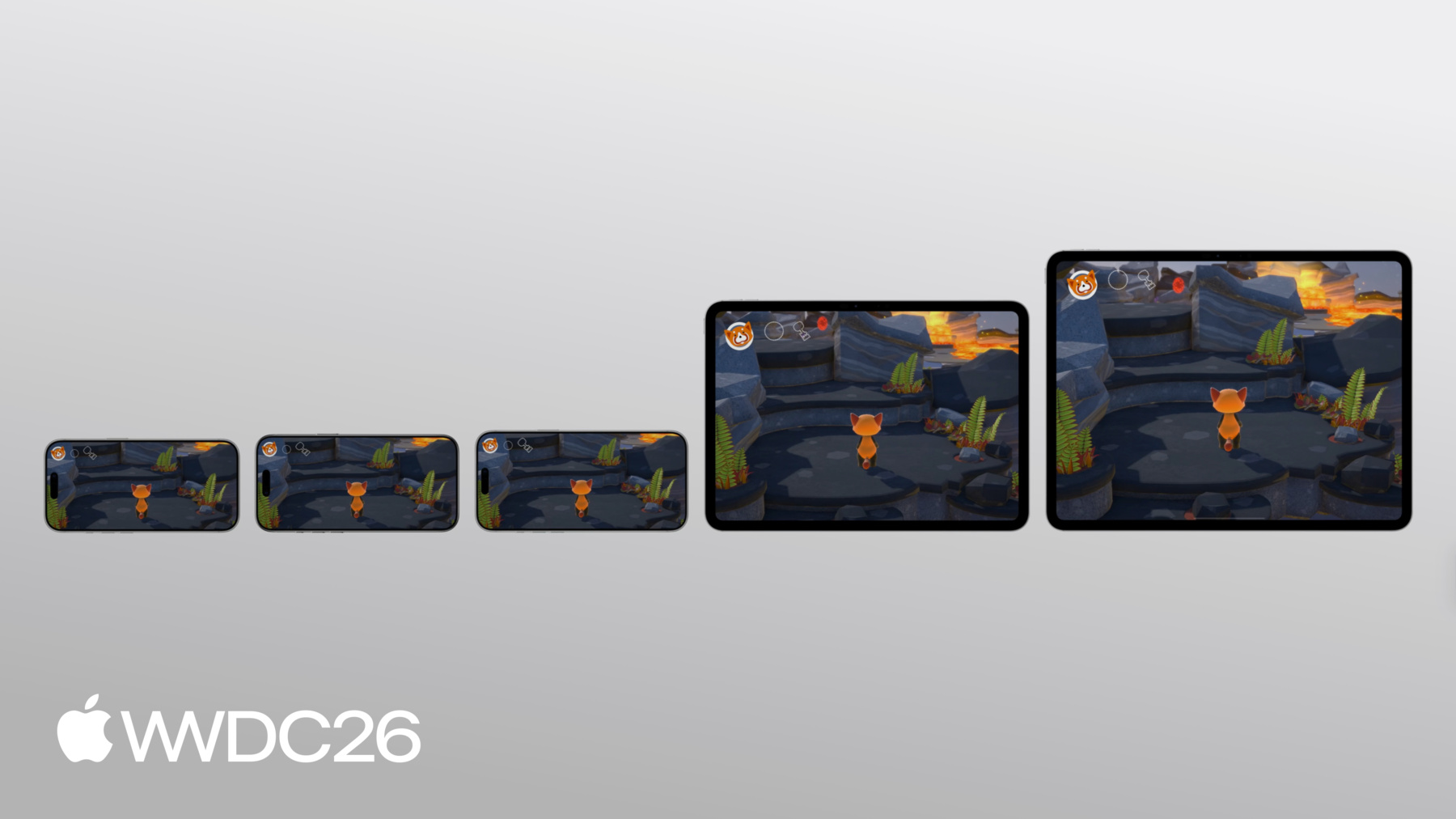
유연한 레이아웃은 게임이 모든 화면 크기에서 편안하게 느껴짐을 의미합니다
Apple의 통합 게임 플랫폼을 통해 플레이어는 다양한 기기에서 게임을 찾을 수 있습니다 핵심은 일찍 계획하고 모든 기기에서 원활하게 확장되는 적응형 게임 인터페이스를 설계하는 것입니다 Touch Controller 프레임워크를 사용하면 이를 쉽게 구현할 수 있습니다
각 레이아웃에 9개의 앵커 포인트를 제공합니다 컨트롤에 앵커를 지정하면 앵커를 기준으로 한 오프셋으로 배치할 수 있습니다 관련 컨트롤을 섹션으로 묶고 해당 섹션의 모든 컨트롤에 동일한 앵커 포인트를 지정할 수 있습니다 그러면 기기 형태가 바뀌어도 각 섹션은 앵커 포인트로부터 일정한 크기와 거리를 유지합니다
이를 통해 컨트롤이 모바일 플레이어에게 물리적으로 편안한 크기를 유지하고 사용 가능한 화면 공간을 최대한 활용합니다 모든 기기에서요
또한 컨트롤이 항상 보이도록 확인해야 합니다 이를 위한 방법은 전체 화면을 위해 설계하는 것입니다
iPad와 iPhone에서는 전체 화면 게임 경험을 설계하려면 안전 영역을 염두에 두어야 합니다
안전 영역은 UI를 안전하게 배치할 수 있는 화면 영역입니다 하드웨어나 소프트웨어 기능과 겹치지 않도록 하기 위해서입니다 iPad와 iPhone에서 안전 영역은 UI를 배치하지 않도록 도와줍니다 기기의 둥근 모서리가 가릴 수 있는 곳에는요 또한 시스템 홈 인디케이터를 피할 수 있도록 도와줍니다 iPhone의 Dynamic Island와도요 이 둘 모두 컨트롤의 탭 타겟과 겹칠 수 있습니다
iOS와 iPadOS에서는 UIKit의 모든 UIView에서 safeAreaInsets를 읽을 수 있습니다 그런 다음 safeAreaInsets를 추가하여 화면에 배치할 컨트롤의 오프셋에 반영할 수 있습니다 안전 영역을 피하는 것이 시작입니다 하지만 컨트롤을 신중하게 배치해야 합니다 게임의 플레이 영역을 방해하지 않도록요
이동 입력이 예상되는 곳에는 컨트롤을 배치하지 않으려 합니다 카메라 입력도 마찬가지입니다
물론 캐릭터를 가리고 싶지 않으므로 화면 중앙에는 어떤 컨트롤도 배치하지 않겠습니다 엄지손가락 근처 영역이 남는데 이곳은 자주 사용하거나 중요한 동작에 적합합니다 그리고 화면 상단 영역은 덜 자주 사용하는 컨트롤을 놓기에 좋은 장소입니다 메뉴 버튼 같은 것들이요 이렇게 해서 터치 컨트롤을 어디에 배치할지 정확히 알았습니다 이제 게임에서 이 컨트롤을 구현하겠습니다 앞서 설정한 터치 컨트롤러를 사용해서요 Touch Controller 프레임워크는 편리한 API를 제공합니다 컨트롤을 만들기 위한 API입니다 모두 비슷한 패턴을 따릅니다 디스크립터를 사용하여 컨트롤의 관련 속성을 설정합니다 일부 컨트롤은 공통 속성을 가집니다 특정 유형의 컨트롤에만 있는 고유한 속성도 있습니다 그런 다음 디스크립터를 사용하여 컨트롤을 만듭니다 TCTouchController에 추가합니다
제 게임에서는 이러한 컨트롤을 구현해야 합니다 컨트롤러 지원과 일치시키기 위해서입니다 버튼 B를 만드는 것부터 시작하겠습니다
표준 원형 버튼 B를 만들겠습니다 먼저 TCButtonDescriptor를 초기화합니다 레이블을 TCControlLabel.buttonB로 설정합니다 이것은 게임 컨트롤러의 물리적 buttonB와 매핑됩니다
이미 물리적 컨트롤러의 입력을 처리하고 있었으므로 여기서 더 이상 게임 로직을 작성할 필요가 없습니다 이미 처리되어 있습니다! 버튼을 화면에 배치하기만 하면 됩니다 bottomRight 영역에 앵커를 지정하고 고정 오프셋을 설정합니다
버튼의 시각적 콘텐츠도 설정해야 화면에 실제로 표시됩니다 마지막으로 touchController에서 addButton을 호출하고 이 디스크립터를 전달합니다
게임이 전체 화면이므로 safeAreaInsets를 사용하여 오프셋을 조정하여 잘리지 않도록 합니다
버튼 B가 오른쪽 하단에 원형 모양으로 나타납니다 다른 모든 컨트롤도 비슷한 패턴을 따릅니다 모든 컨트롤을 터치 컨트롤러 객체에 추가하면 게임에 나타납니다
오프셋에 안전 영역을 적용했으므로 Dynamic Island가 어떤 컨트롤과도 겹치지 않습니다 컨트롤이 주인공 캐릭터를 가리지 않아 게임 영역이 깔끔하게 유지됩니다
하지만 이 컨트롤들이 썩 좋지 않게 느껴집니다 물리적 컨트롤러를 그대로 일대일로 매핑했기 때문입니다 컨트롤이 화면에 가득 차 서로 공간을 차지하게 됩니다 하지만 이를 개선할 수 있습니다 이 섹션에서는 혼잡함을 정리하겠습니다 터치에 자연스럽게 맞는 컨트롤을 설계할 것입니다 인터랙션이 유동적이고 자연스럽게 느껴지면 플레이어는 게임 경험에 몰입합니다
여기서 실제로 차이를 만드는 몇 가지 선택이 있습니다 동적 컨트롤을 사용하는 것부터 시작하겠습니다 물리적 게임 컨트롤러 버튼과 달리 화면 상의 컨트롤 외관을 쉽게 바꿀 수 있습니다
글리프를 선택하여 컨트롤의 기능을 실제로 나타낼 수 있습니다 컨트롤에 시스템 에셋을 사용하고 있으므로 시스템 에셋 이름을 buttonB에서 실제 동작을 나타내는 아이콘으로 바꾸겠습니다
이제 버튼 B는 타격 동작의 아이콘을 표시합니다
모든 시스템 에셋을 교체하고 나면 레이아웃이 훨씬 더 직관적이 됩니다 플레이어는 각 컨트롤이 무엇을 하는지 즉시 알 수 있습니다 설정을 확인하거나 게임플레이 중 힌트를 읽지 않아도 됩니다
컨트롤의 동작이 맥락에 따라 변경될 때는 아이콘도 그에 맞게 업데이트해야 합니다
제 게임에서는 기본 타격 파워 외에도 단일 버튼 B가 불덩이나 물 파워를 나타낼 수 있습니다 따라서 플레이어가 파워를 선택하면 아이콘이 불꽃이나 물방울 이미지로 업데이트되어야 합니다
버튼 B의 콘텐츠를 업데이트하는 헬퍼 함수를 만들겠습니다 그런 다음 cyclePower 함수에서 각 파워 유형에 맞는 symbolName으로 호출합니다 이렇게 하면 플레이어가 어떤 동작으로 플레이하는지 정확히 보여줍니다
플레이어가 파워를 선택하면 오른쪽 하단의 버튼 B가 자동으로 올바른 아이콘을 표시합니다 해당 파워에 맞는 아이콘으로요
중요한 점은 동작이 사용할 수 없거나 관련 없을 때는 화면에서 완전히 제거하세요 사용할 수 없는 컨트롤을 보이는 상태로 두지 마세요 제 게임에서는 이렇게 적용합니다
썸스틱은 터치하지 않을 때 숨겨집니다 픽업 버튼은 근처에 줍기 아이템이 있을 때만 나타납니다
그리고 Quick Time Event 버튼은 Quick Time Event가 실제로 발생할 때만 표시됩니다
조준 및 파워 방출 버튼은 특정 파워가 선택될 때만 나타납니다
사용하지 않을 때 썸스틱 숨기기는 간단합니다 썸스틱을 만들 때 hidesWhenNotPressed를 true로 설정하세요
버튼 같은 다른 컨트롤은 isEnabled를 false로 설정하여 숨깁니다
픽업 버튼은 조금 다릅니다 주울 아이템 바로 옆에 나타나야 합니다 그래서 표시할 때마다 위치를 업데이트합니다
버튼을 닫을 때가 되면 touchController에서 버튼을 완전히 제거합니다
썸스틱, 픽업 버튼, QTE 버튼을 필요 없을 때 숨기고 나면 화면이 훨씬 깔끔해집니다
터치 컨트롤의 진정한 장점 중 하나는 입력과 출력 모두로 활용할 수 있다는 것입니다 따라서 오버레이를 표시하고 동작을 순환하는 대신 그 동작을 터치 컨트롤로 직접 표시할 수 있습니다
buttonX 누르기 핸들러에서 파워 휠 오버레이를 표시하는 대신 파워 휠 컨트롤을 직접 열겠습니다
openPowerWheel 함수에서 현재 사용 가능한 파워에 따라 각 파워 컨트롤을 터치 컨트롤러에 추가합니다 어떤 파워가 현재 사용 가능한지에 따라 그런 다음 각각에 대한 value-changed 핸들러를 설정합니다
그리고 이 컨트롤은 항상 사용되는 것이 아니라서 선택이 없으면 3초 후에 자동으로 닫습니다
이제 플레이어는 터치 컨트롤에서 직접 파워를 선택할 수 있습니다 오버레이는 필요 없습니다!
부드러운 캐릭터와 카메라 이동은 훌륭한 게임 경험에 필수입니다 그렇다면 물리적 컨트롤러에서 터치로 어떻게 적응시킬까요?
캐릭터와 카메라 이동 모두에 전체 화면을 사용하겠습니다 달리기에는 단일 왼쪽 썸스틱을 사용하겠습니다 별도의 버튼 없이요
오른쪽 썸스틱은 터치패드로 교체하겠습니다
물리적 썸스틱은 크기가 고정되어 있습니다 하지만 터치 화면에서는 그런 제약에 전혀 얽매이지 않습니다
플레이어는 시각적 컨트롤을 기준으로 손가락이 어디 있는지 물리적으로 느낄 수 없으므로 입력 영역을 최대한 넓히는 것이 중요합니다
colliderShape를 leftSide나 rightSide로 설정하여 썸스틱이 화면의 절반 전체에 접근할 수 있게 합니다 터치 감지를 위해서요
이제 화면 왼쪽 절반 전체가 플레이어의 터치에 반응합니다
해결하고 싶은 또 다른 문제를 살펴보겠습니다 캐릭터가 달릴 때의 문제입니다
제 게임에서는 달리기 위해 플레이어가 왼쪽 썸스틱을 누른 채로 동시에 움직여야 합니다 물리적 컨트롤러에서는 괜찮지만 터치에서는 최소 두 손가락을 동시에 사용해야 합니다 이것은 정말 어려운 일입니다
이를 해결하기 위해 썸스틱 버튼의 기능을 썸스틱 자체에 내장하겠습니다 직접적으로요 그리고 기울기 크기를 사용하여 달리기를 결정합니다
작은 기울기는 캐릭터가 일반 속도로 이동함을 의미합니다 큰 기울기면 캐릭터가 달립니다
pollInput() 함수에서 GCController의 leftThumbstick을 읽고 기울기 값을 가져옵니다
그런 다음 빠른 크기 확인을 합니다 기울기가 달리기를 유발할 만큼 충분히 큰지 결정합니다 이제 플레이어는 썸스틱만으로 달릴 수 있습니다 두 번째 손가락이 필요 없습니다!
해결하고 싶은 또 다른 문제는 카메라 컨트롤입니다
오른쪽 썸스틱을 터치에서 카메라 이동에 직접 매핑하면 과다 회전이 생기고 느리게 느껴질 수 있습니다 터치패드는 속도와 정밀도를 모두 제공합니다 카메라가 즉시 이동합니다 플레이어가 회전할 때까지 기다릴 필요가 없습니다 손가락이 이동하는 만큼 정확하게 이동합니다 제스처의 시작이나 끝에서 지연이나 드리프트가 없습니다
Touch Controller 프레임워크는 이를 위해 TCTouchpad를 제공합니다 디스크립터를 초기화하고 레이블을 rightThumbstick으로 설정합니다 기존 카메라 로직과 매핑되도록요 colliderShape를 rightSide로 설정하여 화면 오른쪽 절반을 덮고 reportsRelativeValues를 true로 설정합니다 플레이어가 화면 어디를 터치하든 작동하도록요 그런 다음 touchController에 추가합니다 이제 플레이어가 터치패드로 카메라를 조작하면 화면을 어지럽히는 시각적 컨트롤이 없습니다 게임 자체를 위한 공간이 더 많아집니다 손가락을 움직일 때 과다 회전도 없습니다 대부분의 현대 게임에는 복잡한 컨트롤 조합이 있습니다 물리적 컨트롤러에서는 괜찮지만 터치를 위해 재고해야 합니다
신중하게 접근하는 것이 중요합니다
제 게임에는 살펴볼 만한 두 가지 사례가 있습니다 Quick Time Event와 조준하여 파워를 사용하는 것입니다
이런 이벤트는 보통 두 개 이상의 손가락을 동시에 사용해야 합니다 물리적 컨트롤러에서는요 하지만 터치에서는 더 좋은 방법이 있습니다
Quick Time Event부터 시작하겠습니다 한 QTE는 큰 보스가 캐릭터를 얼릴 때 발생합니다 플레이어는 L1과 R1을 눌러 탈출해야 합니다 동시에 왼쪽 썸스틱으로 보스에게서 멀어져야 합니다 손가락 두 개만으로 관리해야 할 것이 많습니다!
대신 두 버튼을 단일 QTE 버튼으로 합치는 것을 고려하세요 이벤트가 발생하지 않을 때는 완전히 숨깁니다
제 게임에서는 설정 시 이 QTE 버튼을 한 번 추가합니다 다른 위치에 나타나는 픽업 버튼과는 달리 QTE 버튼은 항상 같은 위치에 나타납니다 그래서 isEnabled를 사용하여 버튼을 표시하고 숨깁니다 매번 추가하고 제거하는 대신요
이제 플레이어는 QTE 버튼을 눌러 탈출할 수 있습니다 동시에 왼쪽 썸스틱으로 이동하면서요
또 다른 도전은 파워를 사용하기 위해 조준하는 것입니다 이것은 현대 게임에서 흔한 이벤트입니다 불덩이를 던지려면 플레이어가 조준하기 위해 두 개 이상의 손가락을 사용해야 합니다 이동하고 파워를 동시에 발동시키면서요 바쁜 게임에서는 매우 어렵습니다 해결책은 조준과 발동을 단일 동작 버튼으로 결합하는 것입니다
코드에서 조준과 발동 버튼을 제거합니다 대신 buttonB의 valueChangedHandler에서 눌린 상태에 따라 releasePower 함수를 호출합니다 누르고 드래그를 구현하기 위해 버튼 B를 누르는 동안 원시 터치 델타를 캡처합니다 이것은 touchesMoved에서 처리해야 합니다 독립적으로 추적되기 때문입니다 버튼의 눌린 상태와는 별도로요 이제 플레이어가 불덩이를 던지려면 버튼 B를 누른 채 드래그하여 조준하고 왼쪽 썸스틱으로 이동할 수 있습니다 버튼 B를 놓으면 불덩이가 발사됩니다 이 재설계로 인터랙션이 훨씬 부드럽게 느껴집니다
이제 플레이어가 화면 어디든 터치할 수 있으므로 무엇을 터치하고 있는지 명확한 피드백을 주는 것이 중요합니다 만드는 모든 터치 컨트롤에는 눌린 상태가 보여야 합니다 Touch Controller 프레임워크는 기본적으로 이를 처리합니다 썸스틱은 이동 시 애니메이션되고 버튼은 눌리면 강조됩니다 하지만 시각적으로 복잡한 게임 환경에서는 커스텀 시각적 피드백으로 더 나아가고 싶을 수 있습니다
제 게임에서 달리기 중에 플레이어는 피드백이 많지 않습니다 강력한 시각적 인디케이터로 이를 개선하겠습니다 달리기가 활성화될 때 왼쪽 썸스틱의 바깥 링 주위에 빛나는 헤일로를 추가합니다 달리기가 활성화될 때요 이를 위해 TCControlContents를 수동으로 만듭니다 먼저 Metal 헤일로 텍스처에서 헤일로 링 TCControlImage를 생성합니다 썸스틱 배경보다 약간 크게 크기를 설정합니다
TCControlContents는 본질적으로 레이어 배열입니다 표준 배경 이미지 위에 헤일로 컨트롤 이미지를 쌓습니다 그런 다음 달리기가 활성화되면 헤일로가 있는 새 TCControlContents로 교체하고 비활성화되면 일반 배경으로 되돌립니다 이제 플레이어가 달릴 때 썸스틱 주변의 빛나는 헤일로가 캐릭터가 달리기 모드임을 즉시 알려줍니다
훌륭합니다! 지금까지 터치 컨트롤러를 설정하고 컨트롤을 재설계하고 설계를 구현했습니다 게임에서 Touch Controller 프레임워크로요 게임 전반에서 어떻게 작동하는지 확인해 보겠습니다!
여기서 시작했습니다 물리적 컨트롤러의 모든 버튼이 화면에 직접 매핑되어 게임이 복잡해졌습니다
오늘 세션에서 다룬 모든 개선 사항으로 게임 화면이 깔끔하고 컨트롤이 사용하기 간단합니다 왼쪽 썸스틱은 플레이어가 화면을 터치할 때 나타납니다 픽업 버튼은 근처에 줍기 아이템이 있을 때 나타납니다 오른쪽 절반 화면은 과다 회전 없이 카메라 조작을 위한 터치패드입니다 버튼을 눌러 방금 획득한 파워를 선택합니다 단일 동작 버튼을 누른 채 드래그하여 조준하고 발동시킵니다
달리기 인디케이터가 게임플레이를 크게 향상시킵니다!
플레이어는 두 손가락만으로 언제 어디서나 게임에 바로 뛰어들 수 있습니다 이제 터치 컨트롤을 설계할 차례입니다 잘 만들면 게임이 완전히 새롭게 느껴질 수 있습니다 폰으로 게임을 즐기는 플레이어에게요 그리고 Touch Controller 프레임워크로 훌륭한 컨트롤을 구현하세요 자세한 내용은 "핸드헬드 게임을 위한 훌륭한 인터페이스 설계"를 시청하세요 그리고 "Apple 게임 기술로 레벨업하세요"도요 시청해 주셔서 감사합니다!
-
-
2:04 - GCController polling vs. change handlers
// Polling if (button.isPressed) { // ... } // Change handlers pressedInput.pressedDidChangeHandler = { (element: any GCPhysicalInputElement, input: any GCPressedStateInput, pressed: Bool) // ... } -
3:14 - Set up a TCTouchController
// Set up a TCTouchController private(set) var touchController: TCTouchController? let descriptor = TCTouchControllerDescriptor(mtkView: mtkView) if TCTouchController.isSupported { touchController = TCTouchController(descriptor: descriptor) } touchController?.connect() touchController?.render(using: renderEncoder) override func touchesBegan(_ touches: Set<UITouch>, with event: UIEvent?) { for touch in touches { touchControls.handleTouchBegan(at: touch.location(in: view), index: touch.hash) } } buttonA?.valueChangedHandler = { (_ button: GCControllerButtonInput, _ value: Float, _ pressed: Bool) in // ... } -
8:33 - Create a standard circular button B
// Create a standard circular button B let buttonBDesc = TCButtonDescriptor() buttonBDesc.label = TCControlLabel.buttonB buttonBDesc.anchor = .bottomRight buttonBDesc.offset = adjustedOffset(CGPoint(x: -35, y: -106), for: buttonBDesc.anchor) buttonBDesc.contents = .buttonContents(forSystemImageNamed: "b.circle", size: buttonBDesc.size, shape: .circle, controller: touchController) // Set other properties ... touchController.addButton(descriptor: buttonBDesc) func adjustedOffset(_ offset: CGPoint, for anchor: TCControlLayoutAnchor) -> CGPoint { // Adjust offset for other anchors ... case .bottomRight: x -= safeArea.right y -= safeArea.bottom } -
10:48 - Change icon image
// Change icon image buttonBDesc.contents = .buttonContents(forSystemImageNamed: "figure.fencing", size: buttonBDesc.size, shape: .circle, controller: touchController) -
11:51 - Update contents for button B based on context
// Update contents for button B based on context func setButtonBContents(symbolName: String) { for button in touchController.buttons { if button.label == TCControlLabel.buttonB { button.contents = .buttonContents(forSystemImageNamed: symbolName, size: buttonSize, shape: .circle, controller: touchController) } } } func cyclePower() { // Get the current power type ... switch currentPower { case .strike: touchControls?.setButtonBContents(symbolName: "figure.fencing") case .fireball: touchControls?.setButtonBContents(symbolName: "flame.fill") case .waterBlaster: touchControls?.setButtonBContents(symbolName: "drop.fill") } } -
13:01 - Hide left thumbstick when not touched
// Hide left thumbstick when it is not touched let leftStickDesc = TCThumbstickDescriptor() leftStickDesc.hidesWhenNotPressed = true // Set other properties ... touchController.addThumbstick(descriptor: leftStickDesc) -
13:19 - Show/hide the pick-up button
// Show pickup button when there's an item nearby func showPickupButton(at projectedPosition: CGPoint) { // Calculate the position(ptX, ptY) for pickup button ... descriptor.offset = CGPoint(x: ptX, y: ptY) // Set other properties ... touchController.addButton(descriptor: descriptor) } func hidePickupButton() { for button in touchController.buttons { if button.label == TCControlLabel.buttonY { touchController.removeControl(button) } } } -
13:56 - Show power options as touch controls
// Show power options as touch controls buttonX?.pressedChangedHandler = { (_ button: GCControllerButtonInput, _ value: Float, _ pressed: Bool) -> Void in if pressed { self.openPowerWheel() } } func openPowerWheel() { touchControls?.showPowerWheelButtons(fireballCount: fireballCount, has: hasWaterBlaster) wirePowerWheelHandlers() DispatchQueue.main.asyncAfter(deadline: .now() + 3.0) { [weak self] in guard let self = self, self.powerWheelActive else { return } self.closePowerWheel() } } -
15:34 - Use the left half of the screen for character movement
// Use the left half of the screen for character movement let leftStickDesc = TCThumbstickDescriptor() leftStickDesc.colliderShape = .leftSide // Don't set as .circle // Set other properties ... touchController.addThumbstick(descriptor: leftStickDesc) -
16:39 - Calculate thumbstick tilt magnitude to trigger sprint
// Calculate left thumbstick's tilt magnitude to trigger sprint func pollInput() { if let gamePad = gameController.extendedGamepad { let gamePadLeft = gamePad.leftThumbstick var moveInput = simd_make_float2(gamePadLeft.xAxis.value, -gamePadLeft.yAxis.value) let magnitude = simd_length(moveInput) if magnitude > 0.8 { self.runModifier = 1.3 } self.characterDirection = moveInput } } -
17:36 - Replace right thumbstick with a touchpad
// Replace right thumbstick with touchpad let touchpadDesc = TCTouchpadDescriptor() touchpadDesc.label = TCControlLabel.rightThumbstick touchpadDesc.colliderShape = .rightSide touchpadDesc.reportsRelativeValues = true // Set other properties ... touchController.addTouchpad(descriptor: touchpadDesc) -
19:30 - Collapse two QTE buttons into one
// Collapse 2 QTE buttons into 1 single button func setupControls() { let desc = TCButtonDescriptor() desc.label = TCControlLabel(name: "escape_button", role: .button) // Set up other properties ... touchController.addButton(descriptor: desc) } func showEscapeButton() { // Find escape button in touchController ... escapeButton.isEnabled = true } func hideEscapeButton() { // Find escape button in touchController ... escapeButton.isEnabled = false } -
20:28 - Use button B to aim, move, and release power
// Use button B to aim, move, and release power buttonB?.valueChangedHandler = { (_ button: GCControllerButtonInput, _ value: Float, _ pressed: Bool) -> Void in self.releasePower(pressed: pressed) } override func touchesMoved(_ touches: Set<UITouch>, with event: UIEvent?) { for touch in touches { let point = touch.location(in: metalView) // Handle touch input ... if let gc = gameController, gc.isAiming { let prev = touch.previousLocation(in: metalView) gc.aimTouchDelta += simd_float2(Float(point.x - prev.x), Float(point.y - prev.y)) } } } -
21:52 - Add a halo effect with custom TCControlContents
// Add a halo effect around left thumbstick with customized TCControlContents
let haloLayer = TCControlImage(texture: haloTexture, size: haloSize, highlight: nil,
                               offset: .zero, tintColor: tint)
let normalBgImages = TCControlContents.thumbstickStickBackgroundContents(size: bgSize,
                                                                         controller: controller).images
haloThumbstickBg = TCControlContents(images: [haloLayer] + normalBgImages)
thumbstick.backgroundContents = active ? haloThumbstickBg : normalThumbstickBg
-