

-
Build shared experiences for visionOS
Learn how to build media apps, games, and experiences for visionOS that can be shared with others using SharePlay and FaceTime. Learn how to work with spatial Personas, enable simultaneous playback, hand off virtual objects, place people in scenes, and help people connect with local and faraway participants. And find out how you can combine these APIs as we prototype an all-new shared experience for visionOS.
This session was originally presented as part of the Meet with Apple activity “Create immersive media experiences for visionOS - Day 1.” Watch the full video for more insights and related sessions.리소스
관련 비디오
Meet with Apple
-
비디오 검색…
Hello, my name is Ethan Custers and I'm an engineer on the visionOS FaceTime team. Today I'll be joined by my colleague Alex Rodriguez, and we are really excited to talk to you all about how to build compelling shared experiences for Apple Vision Pro.
One of the most powerful features of visionOS is its deep integration with FaceTime and SharePlay, that allow apps to create a shared context among participants in a group activity. You can build experiences where people who are both nearby and remote see the same virtual content in the same place, and visionOS does all the heavy lifting of creating that shared space for you.
I'll kick things off today with an intro to SharePlay. The underlying technology that enables shared experiences on visionOS.
Next, we'll take a look at some existing SharePlay experiences available today and how they intersect with the API available to you to build similar functionality into your own apps.
Finally, I'll hand things off to Alex, who will dive into a case study prototyping a shared escape room for Vision Pro.
So what is SharePlay? Well, SharePlay is the core technology that enables real time collaboration with others on Apple platforms. If you've ever played Apple Music or watched Apple TV together with someone on a FaceTime call, you've used SharePlay. Typically, SharePlay sessions happen as part of a FaceTime call. For example, if you're in a FaceTime call and start to play a song in Apple Music, the app will prompt you and ask if you'd like to SharePlay that song with the group. If you decide to SharePlay it, the music app will be launched on everyone's devices and everyone will hear the selected song played in sync across the group together.
visionOS takes SharePlay even further by allowing participants to experience these activities together in a shared coordinate system. So when you watch TV with someone on visionOS, the player window is in the same position for all participants.
I think it will be helpful to take a high level look at how developers actually adopt SharePlay in their apps. Starting with the Non-spatial components of a SharePlay session.
When adding SharePlay support to an app, you start with group activities. The core framework that powers SharePlay. Within group activities, you'll find a number of helpful APIs. But to start, you should be aware of at least two. That's group session and group session. Messenger A group session is provided to your app whenever SharePlay is active, and it provides information about the state of the activity. It's also where you'll access the session's group session messenger, which is used to send messages between participants to synchronize the app's state.
An important thing to understand about SharePlay is that state synchronization is entirely up to your app, and it's done in a distributed way. Let's walk through an example of how a music SharePlay session might work.
Here Alex is in a FaceTime call with Willem and Gabby.
Gabby recently started playing music and when prompted, decided to share it with the group, starting a SharePlay session.
Alex's device then receives a message about the new activity, causing FaceTime to launch the music app on his behalf and providing the app with a group session.
At this point, Alex's music app is unaware of Willem and Gabby, but then it joins the group session and the system establishes a communication channel with the other devices.
So this is now a representation of an active music SharePlay session with three participants. Notice that each participant is running their own independent copy of the music app, just as they would outside of SharePlay.
So the only thing that makes this a SharePlay session from the music apps perspective is that it was given a group session and has access to a group session messenger.
Next, let's say one participant, Alex, presses pause on his music player.
His music app will pause the song locally, and then we'll send a message to the other participants informing them of the new state. They'll receive that message, process it, and each pause their own local players so that it feels like Alex has direct control of a single copy of the music app that is just shared among three participants.
If Willem decides to press play, the same thing will happen from his perspective. His local player starts playing and a message is sent to Gabby and Alex so that they know to match his state.
You can imagine. Then the music app implementing support for a number of messages for controlling play, pause state, track selection, shuffle mode, and more. There might also be state that the music app decides to not synchronize. Maybe the team decides it makes for a better user experience. If one person can be reading lyrics without activating lyric mode for all participants.
A major benefit of this architecture versus something like screen mirroring, is that group activities allows the experience to scale across different platforms. I can be on FaceTime on my .Mac and SharePlay, the music app with my friend on an iOS device, and we'll both have a great app experience designed for the platform we're on.
A huge reason to build for visionOS with the native SDK. Adopting technologies like SwiftUI and RealityKit directly is that SharePlay is integrated into many of the APIs you'll be using, and this is especially true for the media experiences that many of you are working on. So if you were building a music player experience, the platforms built in player API has SharePlay support that handles all of the synchronization I just talked about for you.
I'm going to be covering many of these APIs in the next section. But first, let's take a closer look at the spatial component of SharePlay on visionOS.
On visionOS, SharePlay apps are placed in a shared coordinate system, allowing you to make use of a shared context with both spatial and visual consistency.
When you're in a FaceTime call on visionOS using your spatial Persona, you'll be able to point and gesture at content in the shared app, and all other participants will see that content in the exact same place. It really creates an incredible sense of presence with others.
And with visionOS 26, those participants can be a mix of people who are nearby, appearing naturally via pass through and remote people who appear as their spatial Persona.
Critically, your app doesn't need to do anything to get this. Windowed apps like Freeform in this video are automatically placed by the system in a single coordinate system that guarantees spatial consistency.
So, as serenity points to an object on the board, a niche knows exactly what she's referencing, and you can also choose to support multiple platforms. Here I'm joining the call from macOS, and I'm able to seamlessly collaborate with Serenity and Anish.
When building for visionOS. There are two additional API you should be aware of and group activities. The System Coordinator is an API unique to visionOS that enables apps to coordinate the spatial placement of elements in a SharePlay activity.
A key thing you'll configure there is your spatial template preference, which is how you influence where spatial participants are placed relative to your app.
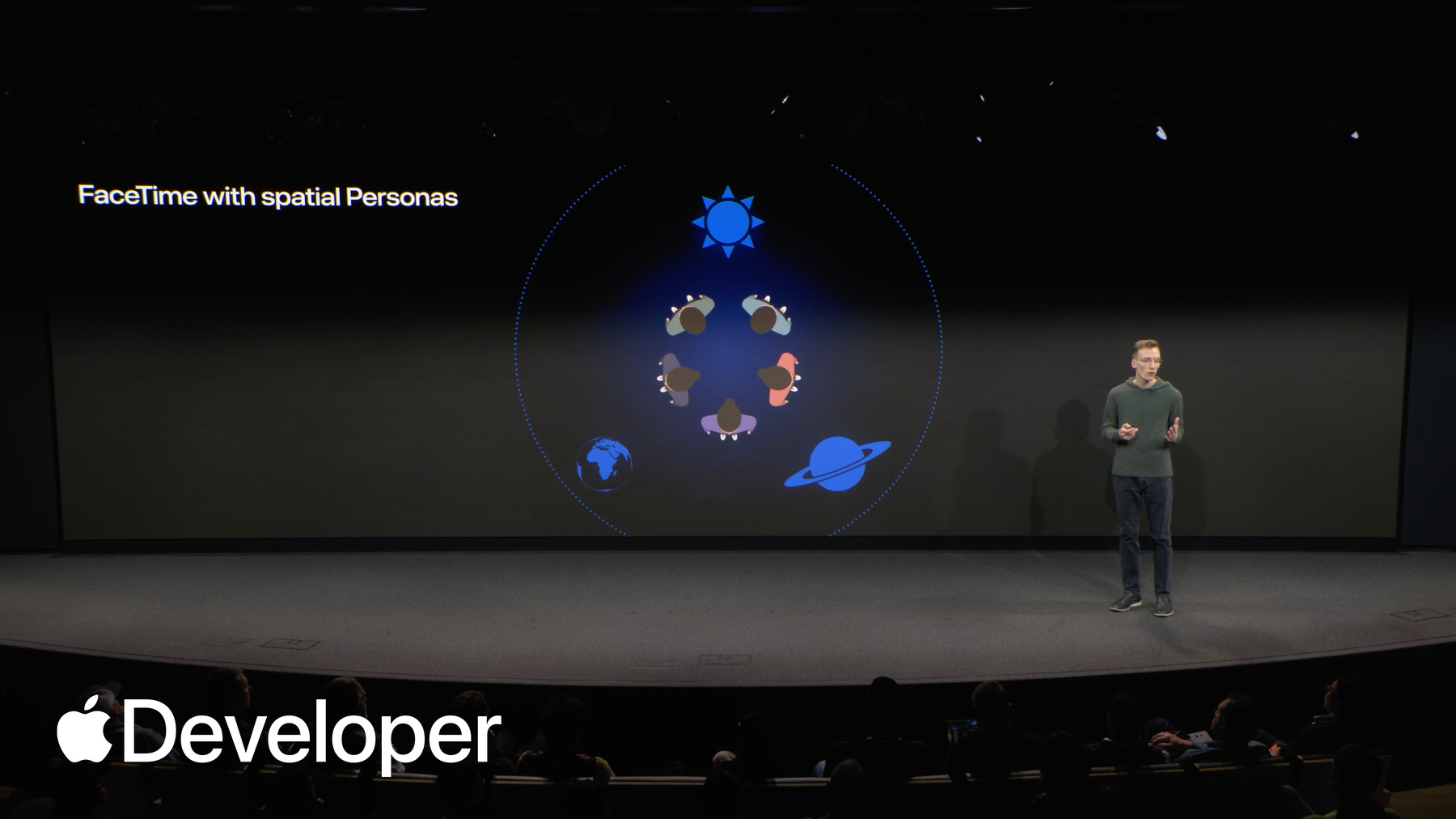
So a typical visionOS FaceTime call with spatial personas begins with them arranged in a circle, allowing participants to easily interact with one another.
But at any moment, a participant could start a SharePlay activity and the call will transition into a spatial template, rearranging each participant's spatial persona relative to that newly shared app.
This placement is handled automatically by the system and is what establishes spatial consistency among participants.
Importantly though, this template is just defining the starting point or seat of each participant.
Participants can get up and walk around leaving their assigned seat, but maintaining the spatial consistency.
If a participant recenters by holding down their Digital Crown, or if the app changes its spatial template preference, the participant will be placed back in their seat.
There are a handful of templates provided to you by group activities that your app can use to influence the way spatial personas are arranged relative to your content during SharePlay. And if you're building something that doesn't fit into a system standard template, you can design your own custom template, deciding exactly where each persona in the session should be placed. Alex will cover this in more detail later on.
This shared context doesn't just apply to windowed apps either. Immersive apps also benefit from the system's handling of shared placement and the use of spatial templates, allowing you to decide where participants should be placed in a shared immersive space with a shared coordinate system.
So that SharePlay. And what makes SharePlay special on visionOS. I think it's time to dig into some more concrete examples. Let's start with media playback.
The TV app is a great way to watch both immersive and non immersive media together. It really exemplifies how to build a cohesive end to end SharePlay experience.
A critical piece of TV is synchronized real time media playback. It's so important that all participants are seeing the exact same frame of video and hearing the same audio at the same time. Fortunately, there's system standard API for this.
AVPlayer is an API provided by the AVFoundation framework, and is the most common way to play media on Apple platforms. It's a powerful and flexible API, and in my opinion, one of its coolest features is SharePlay support.
You're already familiar with group session. This is your link to group activities and SharePlay.
So to synchronize media playback across your group, you just pass that group session to your AVPlayer via the coordinate with session method. With just this handful of APIs, you can create a really compelling shared media experience for visionOS. Your shared window will be placed in the same location for all participants. The correct spatial template will be applied to give every participant a good view of each other and the app and AVFoundation will synchronize playback as participants pause and play, creating the illusion that all participants are looking at the same video window together.
I know many of you are especially interested in Apple Immersive video playback, while AVPlayer supports shared playback of immersive video as well. When playing content like AIV that has a single good viewpoint, it will automatically hide spatial personas so that all participants can be placed in the ideal viewing location. Playback of the video will still be in perfect sync, and participants will be able to hear each other as they view the content in their private, immersive space.
If you're building a more custom, immersive experience and you'd like to include spatial personas, you'll likely want to use RealityKits. Video player component.
You can use Video Player Component to embed an AVPlayer into a RealityKit entity and create fully custom video experiences like 180 degree wraparound video, or projecting video onto a 3D model and the placement of your immersive space will be synchronized across the SharePlay session, meaning all participants will see each other and the entities in the space in the same place.
Now this is all great if your media is stored on a server or ships with your app. But what if you want to bring personal media into a SharePlay session? Experiences like photos that involve sharing your own media can be really powerful, especially when combined with the feeling of physical presence provided by spatial personas and nearby sharing group activities. Provides a dedicated API for use cases like photos, where participants can share larger files with each other. The Group session journal enables efficient file transfer between participants and solves common problems like providing files to participants who joined even after that file was initially shared. You can think of Group Session Journal as a companion to Group Session Messenger. You should use the messenger for small real time messages and the journal for larger experience establishing file transfer.
I'd really encourage you to think of the types of experiences the journal unlocks. Participants can bring their own media to an experience, or even create media on the fly that is shared with others.
Finally, for a bit of extra magic, I recommend checking out the image presentation component. You can use this component to generate a spatial scene from an existing 2D image, and these scenes can be even more amazing when viewed with others.
Possibly my favorite new experience with visionOS, 26, is sharing a 3D model with someone nearby. Physically handing a virtual object to someone standing next to me is just truly mind bending.
The gestures used by Quicklook to enable these kinds of interactions are available as APIs, so you can integrate them into your own apps.
If you're building an experience that involves manipulating 3D content, you should start by looking at the Manipulation Component API offered by RealityKit. Adarsh went in depth on this earlier today. You can use this API to enable rich gestures that will be familiar to your users.
Manipulation component is designed for local interactions though, so you'll need to observe your entities transform as it's being manipulated, and use Group Session Messenger to synchronize those updates to remote participants. By default, any interactions done with the manipulation component will only be seen by the person actually performing the interactions.
When you're using group session Messenger to synchronize real time interactions like this, I recommend taking a look at the unreliable delivery mode. This removes some of the network overhead involved in the Messenger's default mode. So for scenarios like this where you're sending a lot of transform updates in real time and none of the individual transforms are very important, it's perfect.
Use of the unreliable mode is a place where your app can really differentiate itself. It will make your app more complicated, but when done correctly, the performance improvements can be the difference between an experience that feels lifelike and real time, and one that feels slow and immersion breaking.
Game room is a standout SharePlay experience on the platform. I love getting together with friends who might be across the country and playing hearts or Battleship or chess while catching up and feeling like we're all actually together. This is an experience that works really well with a mix of people who are nearby and remote, and this is partly due to its use of a volume based virtual tabletop. This design pattern of placing interactive elements on a virtual tabletop is a great one to consider when building any kind of interactive experience for visionOS, whether it's a game or not.
With visionOS two, we released a new purpose built framework to make it even easier to build experiences like this. It's called tabletop.
TabletopKit automatically handles state synchronization during SharePlay by keeping items like player tokens and scenery in perfect sync during a multiplayer session, and it has great support for gestures as well.
If you can think of a way to model your experience in the language of a tabletop game, TabletopKit can solve a lot of problems for you.
Beat punch is one of my personal favorite SharePlay experiences. It's a great example of an app that really pushes the limits of what's possible with shared experiences on visionOS, and the result is something really special. It's thrilling to look over and see a friend struggling to keep up with the beat, in perfect sync with me and my experience, and it scales really well up to five spatial personas, making it great for group get togethers.
I think this example is really relevant for this audience in particular, even if you're not thinking of building a game. The combination of a custom spatial template with a large virtual environment where the app is placing personas and custom locations around the space is really inspiring to me.
Beat punch is the first app we've looked at today that uses a group immersive space.
Group immersive spaces are really powerful on visionOS. When your app has an active SharePlay session and opens an immersive space, the system can automatically position your space so that its origin is in the center of your spatial template, and all participants have a shared context to opt into this behavior. You just set the supports group immersive space flag on the system coordinator, and the system will move your immersive space to a shared origin. This means that with no additional changes to your app, you can go from an incredible solo environment to a shared one.
You can combine this with a custom spatial template to place participant spatial personas in specific positions of your immersive space. So in and Beet Punch. They are able to place each player on their own platform while maintaining the immersion of a fully custom environment.
Finally, if you're considering building an immersive interactive experience, I would definitely take a look at AV Delegating Playback coordinator. This is maybe the API I'm most excited about for this audience.
It's an API from AVFoundation that gives you direct access to the underlying system that powers AV players sync, and allows you to apply it to any time based synchronization.
So, for example, if your immersive space contains some animations, you can use AV Delegating Playback Coordinator to guarantee that everyone in the session sees the same frame of that animation at the same time.
Okay, so that was a lot. Before I hand things off to Alex to take us through the prototyping process for designing a new SharePlay app, I'd like to really encourage you to check out our SharePlay sample code. If you go to the sample code section of Developer.apple.com and look for a guessing game, you'll find the Guess Together sample app, which is a really great end to end example of how to build a SharePlay experience for visionOS.
I think it will help put a lot of the API I've been talking about in context, and it's the way I recommend all developers get started with SharePlay on the platform.
With that, let's see how we can put these APIs together in a new app. My colleague Alex has been working on Alex.
Thanks, Ethan. So we just took a look at several great SharePlay experiences already available on visionOS today. Now I want to walk you through my process for prototyping a new experience built from the ground up for excellent SharePlay support and collaboration.
The first core principle of a great SharePlay experience on visionOS is shared context. Spatial personas have a unique ability to allow participants to interact with virtual content as if it was really physically there. I can point at features on a window or in an immersive space, and everyone will see exactly what I'm gesturing at. I can draw directly on a canvas in Freeform, and everyone will see my strokes appear at the end of my personas fingertip. I can even pick up a chess piece in game room, and everyone will see exactly where I place it on the board.
SharePlay will handle positioning the shared app in the same place for all participants, but it's the developer's responsibility to preserve shared context within your app. Shared context consists of two key pieces.
First, visual consistency. Visual consistency means that everyone will see the same UI at the same time. Think back to the Freeform example. Freeform handles placing each sourdough image in the same place for everyone. So when one person resizes a drawing, everyone will receive an update and Freeform will resize the image as well.
Second, spatial consistency. Spatial consistency means all content will be placed in the same place for all participants. Think of the Quicklook example. When one participant picks up the airplane model, the others see it in their hand directly. The developer must preserve both of these types of consistency by syncing transforms and state updates to maintain shared context in their app.
The second core principle is to avoid surprises. SharePlay and visionOS let developers control so much all of the API we've explored today. Enable amazing custom experiences, but I can easily overwhelm a SharePlay participant by trying to do too much all at once.
So here's a few good strategies for trying to avoid surprises in your experience.
First, it's always best to minimize transitions. For example, let participants initiate big transitions like switching their template seed beat punch does a great job of this by offering a dedicated button to allow players to enter their custom spatial template.
Second, consider placements of all content in your experience. Don't assume anything about a player's physical space. They might be in a small bedroom or in a giant conference room. When you place your content, don't require the players to have to physically move to interact with your UI, either present your UI close enough to read and to touch, or offer ways to virtually move throughout your space.
And finally, if your app is immersive, it's always best to start out simple. Try starting with a window or a volume before you transition into your immersive space. Beat punch starts at SharePlay activity with a window, which gives players a great chance to get set up in their physical space before diving into some pretty intense punching.
And the final principle is to simplify whenever you can. We have talked a ton about all of the excellent API available to build exactly the experience you're imagining, but that doesn't mean you have to customize everything all the time. APIs like AVPlayer give you great SharePlay experiences out of the box, and system templates like Side by Side often are a great fit for the type of window you're trying to share.
So where do I start? Maybe you have a great single player experience you want to bring personas into. Or maybe you're starting from scratch with a new multiplayer story, or maybe you're just excited about a type of interaction you've imagined based off of some new visionOS API. Let me show you how I prototype my SharePlay experiences by bringing together storytelling and the unique capabilities of visionOS as a platform.
Today I'm going to go into a design, a sci fi themed escape room that uses all of the API we've talked about today to tell an exciting story with three great interactive puzzles. My players are a ragtag crew of astronauts adrift in space. Their warp drive is broken when all of a sudden an alien craft appears.
Players will first work together to decode a secret message the aliens are broadcasting. Then they will work together to use the transmitter to respond to the aliens. And finally, if the aliens are satisfied with their response, they will lend them a battery so that they can repair the warp drive and return to their home planet.
So, to give an overview of the prototype I'm designing, I'm going to start out with a waiting room where players can get set up before they enter their immersive space. Next, I'm going to design the space itself and all of the mechanics necessary for the players to move between puzzles and start solving the escape room for the puzzles. I'm going to work with our AVKit APIs to play the decoded message. Then I'll work with the players local content to transmit the message. And finally, I'll make each piece of the engine manipulable so players can interactively work together to repair it. But before we throw players into the deep end, I want to make sure that I give them a good, simple experience to start. I'll start my app with a window where players can get started, talk about the game, and hear about the background story of the escape room. So first, I'll start out with a simple text field where players can enter their username. I'll also add a start button so that players can start sharing their game, and when they do, I can call activate on the group activity to start SharePlay. As players join the SharePlay activity, I'll be able to display their username on the window, just like a waiting room in any other game.
Then, since I now have an active group session, I can use AVPlayer and AVPlaybackCoordinator to coordinate with the session to play synced playback. Here I can now play a video from Ground Control, where they tell the astronauts about their mission and the broken warp drive. This way, if players arrive late, the team can pause and rewind and make sure that everyone's seen anything they might have missed? And then finally, I'll let a liftoff button so that everyone can mark themselves as ready before they jump into the escape room. Once everyone presses it, I'll get a final countdown and we'll jump into the immersive space.
So that's the waiting room. Now I have to build the ships actual immersive space.
I'm going to start out with a little bit of brainstorming, using Image Playground to get a futuristic spaceship that I have in mind for my escape room. So now that I have it, I can jump into Reality Composer Pro to construct a reality scene just like you just heard about. And Reality Composer Pro will give me all the amazing abilities like scene editing and timelines and animations, but it will also let me place excellent assets for each one of my puzzles throughout my scene. First, I can place a futuristic monitor in one corner where players can go to decode the secret message. Then I can place a radio in another corner where players can transmit the response to the aliens. And then finally, I'll have an engine model where players can come together to reassemble the engine before they return home. So with my spaceship complete, I now need to configure my group session to support an immersive space. This way, players will be able to see the ship's immersive space with shared context. When one player starts and enters the ship, all the rest will automatically follow so that everyone preserves their shared context, whether that's the window or the ship itself. And then inside the spaceship, they'll see each puzzle in the same place, and if one points to a puzzle, everyone else will see exactly what they're pointing at.
Now I have the immersive space itself, and I need to design the mechanics for players to be able to solve the escape room. So I'm starting out with three puzzles spread out throughout my immersive space the Secret Message, the transmitter, and the Warp drive. Now I can leverage custom spatial templates via spatial template Preference custom to allow players to move throughout the room. I first need a place for players to arrive when they enter the space, so I'll set up a row of seats facing all three of the puzzles.
I'll preconfigure five seats so that no matter how many players or spatial and FaceTime, there is always enough seats for everyone to enter the immersive space.
Next, I want to be able to let players move from the starting area to any puzzle they want to work on. So to do this, I can set up specific seats next to each puzzle with spatial template roles in visionOS, participants with spatial personas can have spatial template roles. These roles assign a purpose to a participant, whether that's a specific team on a board game or a presenter in a slideshow app. I can then specify seats with these roles in my custom spatial template, and allow participants to move into the correct position for their role in the shared experience. In the context of my escape room, participants will have roles corresponding to the puzzle they're trying to solve. Then I can add seats next to each puzzle for those corresponding roles.
So let's take a closer look at my custom spatial template. I'll start out by putting five seats next to the message monitor. This way, if everyone wants to come work on the monitor at the same time, there's enough space for everyone. From there, I can add five seats by the transmitter and then another five seats by the engine.
So for my escape room, players are going to come together to solve these puzzles one at a time. But all of these seats let each player explore the entire immersive space however they want. This way, they can discover which puzzle comes first and the order that they need to solve them to truly make it feel like a real escape room.
So now if we zoom back out a little bit, all players will start without an assigned role. This means that they will start in the seats that I set up at the beginning.
And if a player wants to work on a specific puzzle, for example, maybe the secret message puzzle, my app just needs to assign the correct role to the player, and SharePlay will handle automatically moving that player into an open seat next to the puzzle. But how will players choose which puzzle they want to work on. This is where I can utilize private UI for choosing your position in the room. I can make a custom control panel with buttons for each puzzle in the room, and then I can present my panel with the utility panel window placement.
This way, visionOS will automatically handle presenting my controls close to the player in a convenient place for them to quickly switch between whichever puzzle they want to work on. Here, I can also abstract away the concept of custom spatial roles to just allow players to pick exactly which puzzle they want to work on, or if they want to be in the audience.
So, for example, if one player wants to work on the secret message monitor, they collect the monitor button and my app will assign the role to them. From there, SharePlay will automatically move them into the seats corresponding to the puzzle for the monitor.
Great. So now we have a rich, immersive space and a great set of mechanics for player to easily move between puzzles and explore the spaceship. Let's jump into building some of the actual puzzles themselves. We're going to start out with the secret message puzzle for the first puzzle. Players will receive a cryptic transmission from an alien craft, and just like I did in the waiting room, I can use the AVPlayer coordinator to coordinate with the session to sync the video across all the players as the aliens play it.
This time though, we're inside of an immersive space and I already have an excellent 3D asset for my monitor. So here I can use the video player components to actually render the video itself inside of my monitor model. This way, the secret message puzzle will truly feel like part of the immersive space that players are in, but it's a trick. Aliens don't speak English, so the players can't possibly understand what they're saying in the recording. So I'm actually going to encode the secret message via morse code in the monitor's power button. I'll make a monitor light blink the code of the message. But then how will I sync the message for all of the players? I can't just use AVPlayer here because it's not a video.
This is where Avi delegating playback coordinator comes in. By coordinating with the session, I can sync any time series content between players in the group session. That way I can play the power light blinking for all players in sync so that they can work on decoding it together.
So now if the player successfully decode the message, they'll discover that the question is does your planet have water? And now we have one puzzle complete we can jump into the next. How do the players respond to this message? When players decode the message, they now need to provide proof that their planet has water. So to do this, if a player interacts with my transmitter model, I'll open the photos picker to allow them to transmit a photo from their own private library as proof that their planet contains water.
But I want to give the whole team say in which photo they choose to respond to the aliens with. So this is where I can use the group session journal to share locally generated content like photos with other players. In the SharePlay session, one player can upload a photo of them swimming, for example, and then my app can distribute that shared photo via the group session journal and display it in everyone's immersive space.
So even though we're building an experience for a great, great SharePlay interaction, we can also utilize all of the other frameworks available on visionOS. So when the team agrees to transmit their image, my app can use the Vision framework to classify the image. I can make a classify image request and check for classified keywords for containing water. I'll look for keywords like harbor or swimming pool or river to see if the photo has the correct information. Then, if the player succeed in choosing the correct photo, I'll apply the image presentation component to convert their picture into a spatial scene. This will give a satisfying conclusion to the puzzle and really make the photo feel like part of the immersive space.
So now we only have one puzzle left. The engine itself.
So, thanks to the player's smart decoding, the aliens have been kind enough to donate a charged battery to return to Earth. And so my first step for this puzzle is to make sure that each piece of the engine becomes interactive.
To do this, I can apply the manipulation component to each engine entity to let a player directly grab and reposition pieces into the right configuration. But there's a problem. The manipulation component is designed for local interactions, so if one player comes to visit another while they're working on the warp drive puzzle, they won't see each other's movements if one is holding and moving around the engine pieces. This is where shared context gets broken, and it's so critical to SharePlay to preserve shared context and visionOS that we must make sure that we sync this context. Players will end up very confused if they come see, and one player is moving a piece that they can't see. So here we need to make sure that we have collaboration. So I need to sync each piece of the engine as it's being manipulated. So the group session messenger is actually a perfect use case for this, since it's easy to send quick updates of the positions of each piece. It even has the unreliable delivery mode so that I can get the best network performance and the smoothest movements as players move the pieces.
This way, as one player moves an engine piece, they can quickly send the position to other players who can then have their apps update the parts in real time. It'll really feel like players are working with the same exact pieces. So now players can finally come together to complete the warp drive and finish the escape room.
So as they finish the escape room, they can return back to Earth and hopefully they make sure the aliens don't follow them, because that would make for a pretty interesting sequel to my escape room.
So earlier, Ethan showed you some of the amazing visionOS apps available today and some of the powerful API that backed those similar experiences. And now I've taken you through a prototype process to conceptualize a similar SharePlay experience.
We started out our prototype using AVPlayer and coordinating with the session to play our tutorial video. Then I drew out the custom spatial template for our ship, and I talked about the role API I'd use to enable movement around the ship.
And then we used AVPlayer again, but with Avi delegating playback coordinator to not just sync video, but my own custom secret message.
And then we incorporated the group session journal so that players could transmit their own private photos as part of the aliens response.
And then finally, I used the group session messenger and the manipulation component together to allow players to repair their warp drive in a truly hands on way.
In just one escape room, we touched on almost all of the API. Ethan showcased earlier. It really goes to show that some of the richest and most exciting experiences on visionOS. Bring together many of these tools to build entirely new stories. So what's next for you? I really hope this talk got you excited to go bring your assets and your media into visionOS. For a great overview of SharePlay, go check out our session from 2023. And for custom spatial template information, go check out 2024. And finally, to come up with creative ways to incorporate others nearby with you. Take a look at our most recent talk from 2025.
There are so many countless ways to combine all of the API available on visionOS and spatial personas and others nearby truly bring another level of presence to your experience. So think back on old stories, or maybe look forward to new ones, because truly, the best experiences are the ones that are worth sharing with others. Thank you.
-