

-
Discover Core Image debugging techniques
Find and fix rendering and optimization issues in your Core Image pipeline with Xcode environment variable. Discover how you can set the environment variable for visualizing your Core Image graphs. You'll learn how to generate Core Image graphs and how to interpret them to discover memory, color, and performance issues and better improve and optimize your Core Image pipeline.
리소스
관련 비디오
WWDC21
WWDC20
-
비디오 검색…
Hello and welcome to WWDC.
Welcome, everyone. My name is David Hayward, and I'll be giving a short presentation today that will show you some powerful Core Image debugging techniques. This debugging feature will give you new insights on how Core Image works in your application. The debugging feature I will describe in detail is called CI_PRINT_TREE. In this presentation, I will tell you what CI_PRINT_TREE is, how to enable and control it in your application, and then I will demonstrate how to get and interpret the files it produces.
So, let's get started with, what is CI_PRINT_TREE? It is based on the same infrastructure that gives Core Image Quick Look support in Xcode. This gives developers immediate visualization of Core Image graphs...
and it is beautifully integrated into the Xcode debugger.
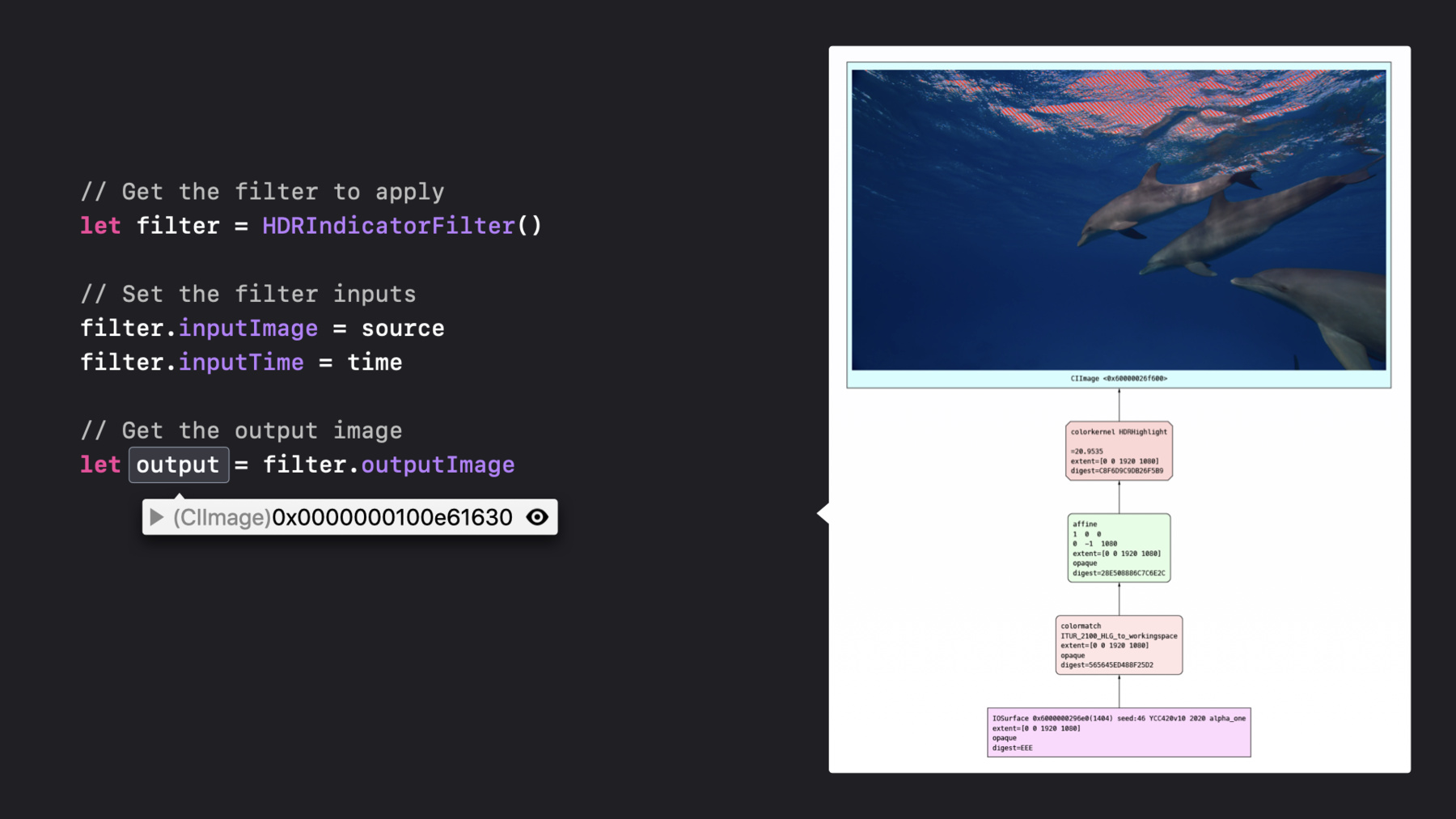
Let me show you how this works. Imagine you were debugging some code that creates a filter, sets its input properties, and then gets its output image property.
If while debugging, you hover over a CI image variable, a small popover will appear that shows the object's address. Then if you click on the small eye symbol, a new window will appear that shows a visual representation of the recipe that makes the image. But Quick Look of images is just the beginning. CI_PRINT_TREE is a flexible environment variable with several modes and operations...
which allows you to see how Core Image optimizes and renders images. The first thing you'll need to know is how to enable CI_PRINT_TREE. There are two ways to enable the CI_PRINT_TREE environment variable. The most common is to edit your Xcode target scheme. Go to the arguments pane and add it to the Environment Variable list.
You can also enable CI_PRINT_TREE environment variable in Terminal.app by setting it before launching your application's executable.
The next thing you will need to know is how to control CI_PRINT_TREE.
The value of CI_PRINT_TREE is a string of this form: A , an and . I will describe what each part does in the following slides.
Graph types represent the three stages of a Core Image render. Specify type one if you want to see the initial state of each image render. This is useful for seeing, among other things, what color spaces are used. Specify type two if you want to see how Core Image optimizes a render. This is useful for seeing how Core Image reorders, combines, and prunes the stages of each render.
And specify type four if you want to see how Core Image concatenates the stages into GPU programs. This is useful for seeing how many intermediate buffers each render requires.
Lastly, the above values can be combined. So, for example, specifying seven will print graphs one, two and four. Output type can be either PDF or PNG.
If you specify "either," then for every render, Core Image will save the tree as a document. On macOS, the documents will be saved to the temporary items directory. On iOS, they will be saved to the documents directory, and if that's not possible, the temporary directory.
If output type is not specified, then Core Image will output the tree in a compact text only format to standard out. You can also have the text go to Console.app by setting CI_LOG_FILE="oslog". This can be more convenient when developing for iOS. Lastly, you can also specify a variety of additional options. Using "context==name" will limit the output so only the output for a specific named CI context is logged.
Similarly, frame-number will limit the output so that only the nth render of each context is logged.
There are also options that request that the inputs, intermediates and output images be included in the documents. These options can provide very useful debugging information, but they should be used with caution because they increase the time and memory to produce the documents. The next thing you will need to know is how to get the CI_PRINT_TREE files.
On macOS, this is very easy. You just need to go to the temporary directory, and there you will find the documents made by Core Image. Note that sandboxed applications will have a unique temporary directory. To make getting the files just as easy when debugging your iOS application, there is one important setting you should use.
Go to your app's Custom iOS Target Properties. Once there, you should make sure the application supports iTunes file sharing key as the value "yes." With this setting, all you need to do is connect your iOS device, select the finders sidebar and go to the files pane. Once there, you can see your application's documents and then drag them to your Mac's drive. The next thing you'll need to know is how to interpret the CI_PRINT_TREE files.
Here are some tips for how to read the CI_PRINT_TREE documents.
Firstly, inputs are at the bottom, and output is at the top.
Green nodes represent warp kernels, and red nodes represent color kernels.
It is easy to look for colormatch nodes in the graph in the initial tree. Here you can see the name of the colorspace. In this case, the input image is colormatched from the HLG colorspace to the Core Image linear working space.
Every node also displays its ROI, which stands for "region of interest." This shows the area of each node that was needed for this render.
If you use 4 and dump-intermediates, then the concatenated graph document will show the intermediate buffers for every pass but the output pass. This can be very helpful to track down where in the render an error was introduced. If you don't see an intermediate image in the tree, then Core Image did not need to render it because it was cached from an earlier render.
And if you look closely, the document can show you the execution time of each pass as well as the pixel count and pixel format of each intermediate. This can be useful to help you understand which passes are using the most time and memory.
So that concludes my step-by-step description of how to use CI_PRINT_TREE as a Core Image debugging technique. I hope that this allows you to further understand and improve the visual effects in your applications, images and videos. Thank you very much, and enjoy the rest of WWDC 2020.
-