

-
Ensuring Beautiful Rich Links
Website links received in Messages can be made vastly more inviting than a simple text URL. By providing small amounts of metadata in your web pages, links to your website can include rich content such as icons, images and even video. Learn how visitors to your website can share links that look as good as your website.
리소스
관련 비디오
WWDC21
WWDC19
-
비디오 검색…
Hi, I'm Tim Horton from the Safari and WebKit team, and today I'm going to show you how easy it is to ensure that users get beautiful, rich presentations when sharing links to your website in Messages and elsewhere on the system.
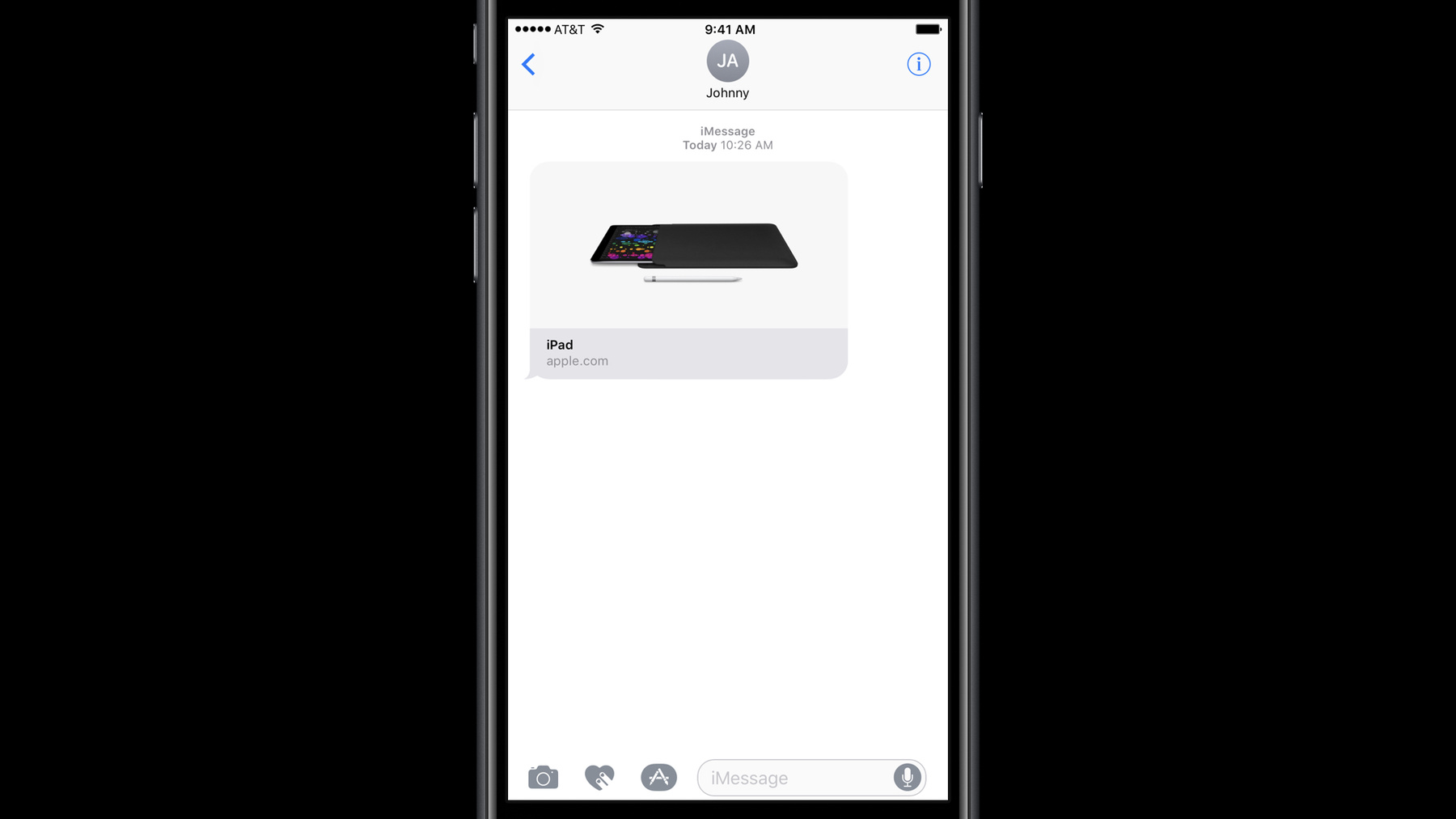
Imagine that a user of your site is reading about your latest new product, and wants to share a link to it with their friend. They'll use the Share Sheet in Safari and send it via Messages.
On the other side, their friend will see a very inviting link to tap on.
I'm going to walk you through the straightforward steps you need to take to get your link looking just as good as these. First, we'll talk about customizing the title. Then, about adding helpful icons. And then large images, to make our links really pop. Then we'll go a step beyond the links we've seen so far and add autoplaying inline video. And finally, we'll finish up with a few other resources you can use to help improve your site. So, let's jump right in by customizing the title of our link. You likely already have an HTML tag in the of your pages, and that will work just fine. There is a little bit of unnecessary duplication between the title and the domain, though. We could change the page's title, but in this case, we still want the window title in Safari to have the Apple suffix. So instead, we can add another tag to our page's . This is a tag, with the name "og:title". The "og" there stands for "Open Graph," which is the standard that specifies the names of these tags. The web browser will still use the tag for the window title, but the rich link will use the "og:title" instead. Now we have a nice title with no redundancy. It's best to keep titles unique and informative so that rich links contain at least as much context as the URL would have provided. You should also avoid duplicating the site name in the title, since the domain name is also provided on the second line of the link. It's important to keep in mind that JavaScript does not run when creating rich links, so the Open Graph tags need to be in the source of the page and cannot be generated dynamically. Next, we can spruce up our link a bit by adding an icon. There are many ways to specify icons, from favicons to Apple touch icons, and it's likely your site already uses one of them. If it doesn't, the best way to add an icon is by adding a "link rel equals icon" tag to your site's . And this is what our link looks like now. For some pages, this is all you need. If a large hero image doesn't make sense, you can stop here. But in our case, we have a nice big image that is specific to this page, so let's continue on and make our link even nicer. To provide an image for a rich link, we can add another Open Graph meta tag to our -- this time, "og:image". The content is just the URL of the image. Now our link looks just like the real one on apple.com! You may have noticed that we don't show the icon if we have an image. It's still a good idea to specify both, because there are times when we'll fall back to the icon -- for example, in cases of poor network connectivity.
You should only use "og:image" for interesting images that are specific to the particular page. Generic fallback images -- like your company's logo or a user's avatar -- should be icons instead. Images should not include text. Rich links are presented at many sizes, across many devices. The same image will be shown all the way from Apple Watch to iPad Pro, and text in an image will not scale well across all of those. And as I mentioned before, you should still specify an icon even if you also have an image.
Now we'll take our link a step beyond images and introduce an autoplaying, autolooping video. All that's needed for inline video is yet another Open Graph tag. This time, "og:video". The URL should point to a small, downloadable video file of any format that iOS and macOS can natively play.
As you see, the video plays inline. If the video contains audio, it starts out muted but with the option to unmute it. If you can't host a video file yourself, you can instead point your og:video at a YouTube embed URL. YouTube videos won't autoplay, but the user can tap to play them. It's important to note that this is specific to YouTube; other embedded players will not work.
When adding video metadata to your site, it's important to keep the size in mind. The icon, image, and video together are limited to 10 megabytes, and the smaller they are, the faster the link will appear and the happier your users will be. You should use directly referenced video files for the ideal autoplaying behavior. And like I said earlier, except for YouTube, embedded video that requires HTML or plug-ins is not supported. I hope you'll take this information and go and add Open Graph metadata to your website to make sure that when your users share links to it, they get the best possible experience. For more information and additional resources about what we've talked about, use the links in the Resources section associated with this video.
-