

-
Aprimore seu jogo com recursos de toque
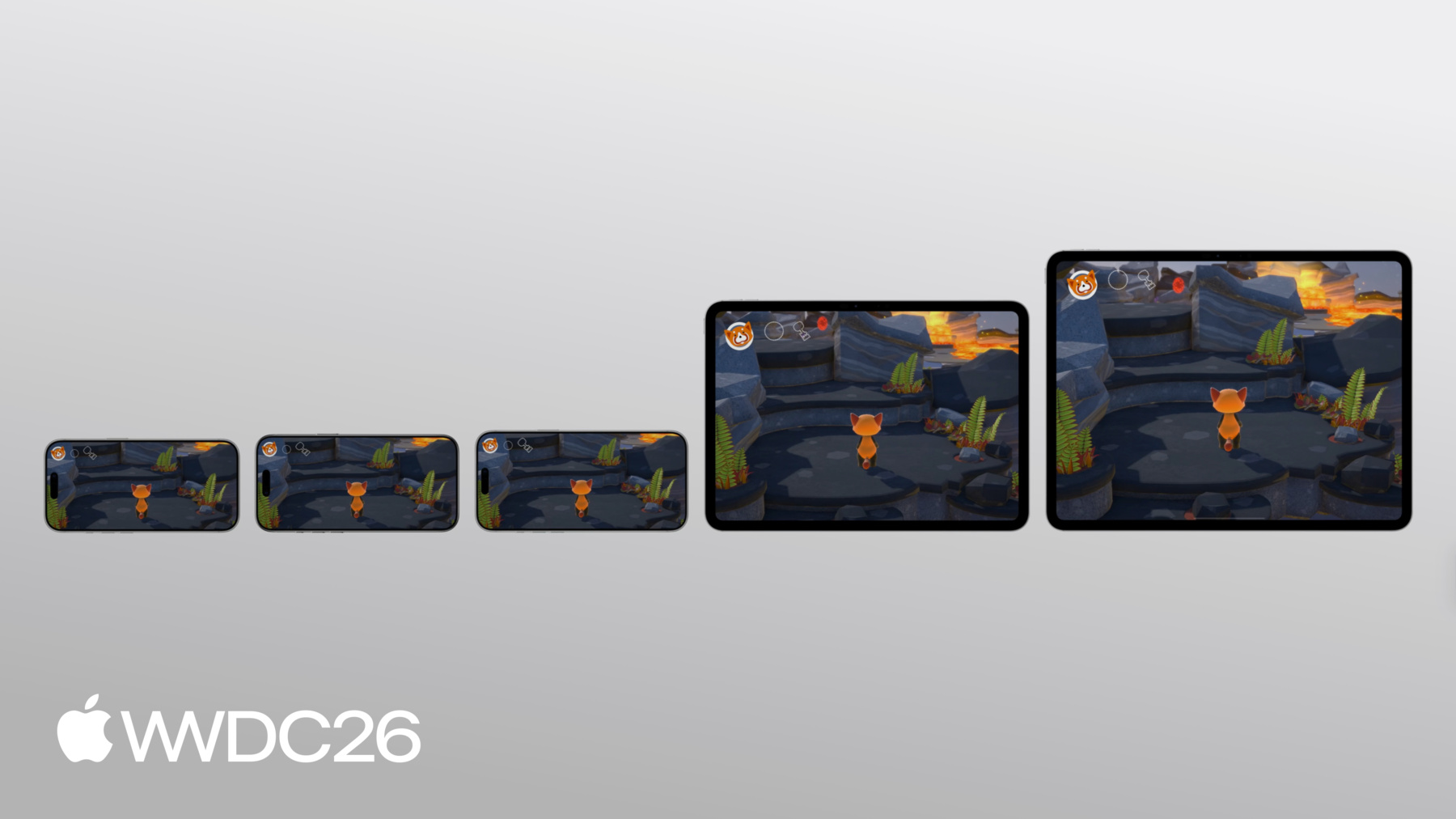
Conheça as técnicas que você pode usar para criar experiências de toque envolventes nos seus jogos. Vamos compartilhar insights de especialistas que abrangem desde o desenvolvimento de jogos indie até AAA, explorar as práticas recomendadas para controles de toque intuitivos e mostrar como aproveitar as tecnologias da Apple, como o framework Touch Controller e o Metal, para alcançar ótimo desempenho.
Capítulos
- 0:00 - Introdução
- 1:42 - Configure um controle tátil
- 4:52 - Projete layouts flexíveis
- 10:17 - Projetar interações fluidas
- 21:16 - Forneça feedback rico
- 23:49 - Próximas etapas
Recursos
Vídeos relacionados
Meet with Apple
-
Buscar neste vídeo...
-
-
2:04 - GCController polling vs. change handlers
// Polling if (button.isPressed) { // ... } // Change handlers pressedInput.pressedDidChangeHandler = { (element: any GCPhysicalInputElement, input: any GCPressedStateInput, pressed: Bool) // ... } -
3:14 - Set up a TCTouchController
// Set up a TCTouchController private(set) var touchController: TCTouchController? let descriptor = TCTouchControllerDescriptor(mtkView: mtkView) if TCTouchController.isSupported { touchController = TCTouchController(descriptor: descriptor) } touchController?.connect() touchController?.render(using: renderEncoder) override func touchesBegan(_ touches: Set<UITouch>, with event: UIEvent?) { for touch in touches { touchControls.handleTouchBegan(at: touch.location(in: view), index: touch.hash) } } buttonA?.valueChangedHandler = { (_ button: GCControllerButtonInput, _ value: Float, _ pressed: Bool) in // ... } -
8:33 - Create a standard circular button B
// Create a standard circular button B let buttonBDesc = TCButtonDescriptor() buttonBDesc.label = TCControlLabel.buttonB buttonBDesc.anchor = .bottomRight buttonBDesc.offset = adjustedOffset(CGPoint(x: -35, y: -106), for: buttonBDesc.anchor) buttonBDesc.contents = .buttonContents(forSystemImageNamed: "b.circle", size: buttonBDesc.size, shape: .circle, controller: touchController) // Set other properties ... touchController.addButton(descriptor: buttonBDesc) func adjustedOffset(_ offset: CGPoint, for anchor: TCControlLayoutAnchor) -> CGPoint { // Adjust offset for other anchors ... case .bottomRight: x -= safeArea.right y -= safeArea.bottom } -
10:48 - Change icon image
// Change icon image buttonBDesc.contents = .buttonContents(forSystemImageNamed: "figure.fencing", size: buttonBDesc.size, shape: .circle, controller: touchController) -
11:51 - Update contents for button B based on context
// Update contents for button B based on context func setButtonBContents(symbolName: String) { for button in touchController.buttons { if button.label == TCControlLabel.buttonB { button.contents = .buttonContents(forSystemImageNamed: symbolName, size: buttonSize, shape: .circle, controller: touchController) } } } func cyclePower() { // Get the current power type ... switch currentPower { case .strike: touchControls?.setButtonBContents(symbolName: "figure.fencing") case .fireball: touchControls?.setButtonBContents(symbolName: "flame.fill") case .waterBlaster: touchControls?.setButtonBContents(symbolName: "drop.fill") } } -
13:01 - Hide left thumbstick when not touched
// Hide left thumbstick when it is not touched let leftStickDesc = TCThumbstickDescriptor() leftStickDesc.hidesWhenNotPressed = true // Set other properties ... touchController.addThumbstick(descriptor: leftStickDesc) -
13:19 - Show/hide the pick-up button
// Show pickup button when there's an item nearby func showPickupButton(at projectedPosition: CGPoint) { // Calculate the position(ptX, ptY) for pickup button ... descriptor.offset = CGPoint(x: ptX, y: ptY) // Set other properties ... touchController.addButton(descriptor: descriptor) } func hidePickupButton() { for button in touchController.buttons { if button.label == TCControlLabel.buttonY { touchController.removeControl(button) } } } -
13:56 - Show power options as touch controls
// Show power options as touch controls buttonX?.pressedChangedHandler = { (_ button: GCControllerButtonInput, _ value: Float, _ pressed: Bool) -> Void in if pressed { self.openPowerWheel() } } func openPowerWheel() { touchControls?.showPowerWheelButtons(fireballCount: fireballCount, has: hasWaterBlaster) wirePowerWheelHandlers() DispatchQueue.main.asyncAfter(deadline: .now() + 3.0) { [weak self] in guard let self = self, self.powerWheelActive else { return } self.closePowerWheel() } } -
15:34 - Use the left half of the screen for character movement
// Use the left half of the screen for character movement let leftStickDesc = TCThumbstickDescriptor() leftStickDesc.colliderShape = .leftSide // Don't set as .circle // Set other properties ... touchController.addThumbstick(descriptor: leftStickDesc) -
16:39 - Calculate thumbstick tilt magnitude to trigger sprint
// Calculate left thumbstick's tilt magnitude to trigger sprint func pollInput() { if let gamePad = gameController.extendedGamepad { let gamePadLeft = gamePad.leftThumbstick var moveInput = simd_make_float2(gamePadLeft.xAxis.value, -gamePadLeft.yAxis.value) let magnitude = simd_length(moveInput) if magnitude > 0.8 { self.runModifier = 1.3 } self.characterDirection = moveInput } } -
17:36 - Replace right thumbstick with a touchpad
// Replace right thumbstick with touchpad let touchpadDesc = TCTouchpadDescriptor() touchpadDesc.label = TCControlLabel.rightThumbstick touchpadDesc.colliderShape = .rightSide touchpadDesc.reportsRelativeValues = true // Set other properties ... touchController.addTouchpad(descriptor: touchpadDesc) -
19:30 - Collapse two QTE buttons into one
// Collapse 2 QTE buttons into 1 single button func setupControls() { let desc = TCButtonDescriptor() desc.label = TCControlLabel(name: "escape_button", role: .button) // Set up other properties ... touchController.addButton(descriptor: desc) } func showEscapeButton() { // Find escape button in touchController ... escapeButton.isEnabled = true } func hideEscapeButton() { // Find escape button in touchController ... escapeButton.isEnabled = false } -
20:28 - Use button B to aim, move, and release power
// Use button B to aim, move, and release power buttonB?.valueChangedHandler = { (_ button: GCControllerButtonInput, _ value: Float, _ pressed: Bool) -> Void in self.releasePower(pressed: pressed) } override func touchesMoved(_ touches: Set<UITouch>, with event: UIEvent?) { for touch in touches { let point = touch.location(in: metalView) // Handle touch input ... if let gc = gameController, gc.isAiming { let prev = touch.previousLocation(in: metalView) gc.aimTouchDelta += simd_float2(Float(point.x - prev.x), Float(point.y - prev.y)) } } } -
21:52 - Add a halo effect with custom TCControlContents
// Add a halo effect around left thumbstick with customized TCControlContents
let haloLayer = TCControlImage(texture: haloTexture, size: haloSize, highlight: nil,
                               offset: .zero, tintColor: tint)
let normalBgImages = TCControlContents.thumbstickStickBackgroundContents(size: bgSize,
                                                                         controller: controller).images
haloThumbstickBg = TCControlContents(images: [haloLayer] + normalBgImages)
thumbstick.backgroundContents = active ? haloThumbstickBg : normalThumbstickBg
-