You have detailed tutorials describing the process.
Here is one of them: h t t p s : / / w w w.hackingwithswift.com/example-code/uikit/how-to-localize-your-ios-app
1 - Localize everything via my project's main.storyboard 2 - Localize programmatically aka ViewController.swift
Approach 1 is much preferable.
A few steps:
-
use NSLocalizing everywhere in code
-
Add languages :
- select project name in navigation panel
- select Project > Info
- select Use Base internationalization
- add languages with the + button
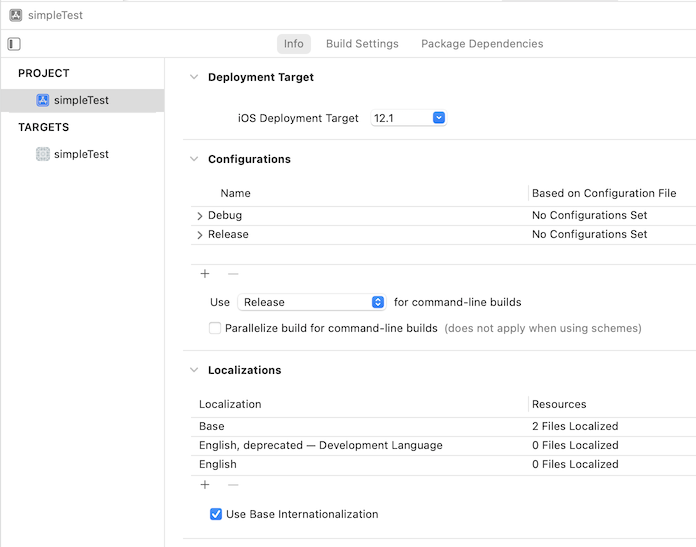
3. Select storyboard
- In the File inspector, click the languages you want to support
- you will immediately see the change in the File browser panel on the left:
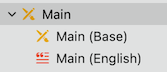
4. Select Main (english) and translate.
But with that, I'm not sure how to reload a new feature, in case I change sth on the base storyboard.
5. Now, when you add objects in storyboard, you have to complete those files.
- you can do it using Export / Import localisation from the Product Menu (recommended)
- You can do it another way: add entry manually in the file ; for instance if you add a button, copy a similar entry:
/* Class = "UIButton"; normalTitle = "Go Tab 1"; ObjectID = "40k-P5-pRD"; */
"40k-P5-pRD.normalTitle" = "Go Tab 1";
- And replace what needs to be: ObjectID = "-xx-" in "40k-P5-pRD.normalTitle", as well as the comment
- Adapt the text
- Take care not to remove the semi colon
6. See tutorial to localize Strings