

-
Use the camera for keyboard input in your app
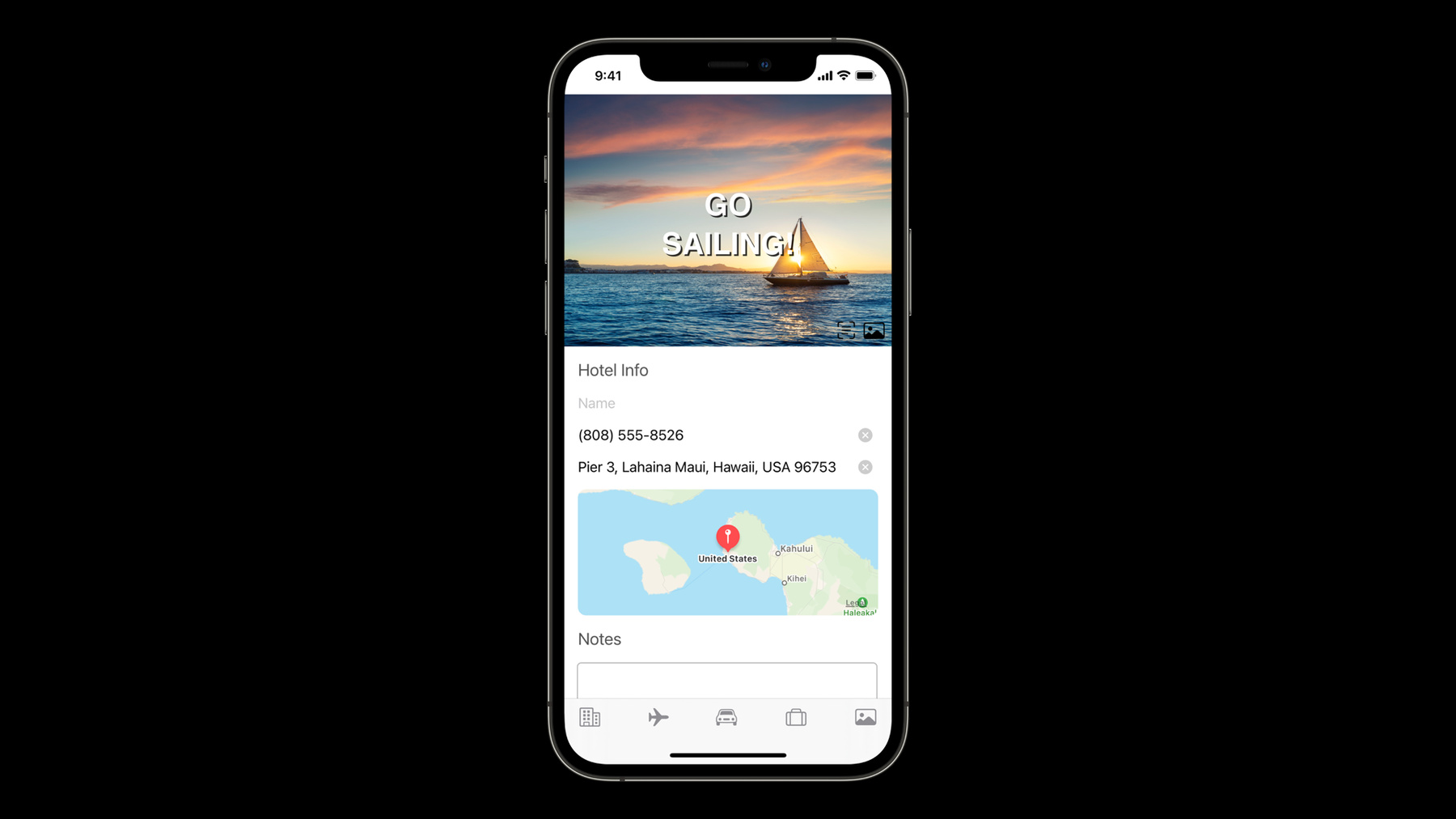
Learn how you can support Live Text and intelligently pull information from the camera to fill out forms and text fields in your app. We'll show you how to apply content filtering to capture the correct information when someone uses the camera as keyboard input and apply it to a relevant UITextField, helping your app input data like phone numbers, addresses, and flight information. And we'll explore how you can create a custom interface, extend other controls like UIImageViews to support this capability, and more.
For more on supporting Autofill in your app, we recommend watching “Autofill everywhere” from WWDC20 and “The Keys to a Better Text Input Experience” from WWDC17.Ressources
Vidéos connexes
WWDC23
WWDC21
WWDC20
WWDC18
-
Rechercher dans cette vidéo…
-
-
3:33 - Filtering text field input
phone.keyboardType = .phonePad phone.autocorrectionType = .no address.textContentType = .fullStreetAddress -
5:07 - Custom action to capture text from camera
let textFromCamera = UIAction.captureTextFromCamera(responder: self.notes, identifier: nil) -
5:41 - Adding custom UIAction for capture text to a menu
let textFromCamera = UIAction.captureTextFromCamera(responder: self.notes, identifier: nil) let choosePhotoOrVideo = UIAction(…) let takePhotoOrVideo = UIAction(…) let scanDocuments = UIAction(…) let cameraMenu = UIMenu(children: [choosePhotoOrVideo, takePhotoOrVideo, scanDocuments, textFromCamera]) let menuToolbarItem = UIBarButtonItem(title: nil, image: UIImage(systemName: "camera.badge.ellipsis"), primaryAction: nil, menu: cameraMenu) -
9:59 - Implementing UIKeyInput on a custom image view
class HeadlineImageView: UIImageView, UIKeyInput {
    var headlineLabel: UILabel = UILabel()
    var hasText: Bool = false

    override init(image: UIImage?) {
        super.init(image: image)
        initializeLabel()
    }

    func insertText(_ text: String) {
        headlineLabel.text = text
    }

    func deleteBackward() { }
}
-