

View in English

  • Apple Developer
    • Get Started

    Explore Get Started

    • Overview
    • Learn
    • Apple Developer Program

    Stay Updated

    • Latest News
    • Hello Developer
    • Platforms

    Explore Platforms

    • Apple Platforms
    • iOS
    • iPadOS
    • macOS
    • tvOS
    • visionOS
    • watchOS
    • App Store

    Featured

    • Design
    • Distribution
    • Games
    • Accessories
    • Web
    • Home
    • CarPlay
    • Technologies

    Explore Technologies

    • Overview
    • Xcode
    • Swift
    • SwiftUI

    Featured

    • Accessibility
    • App Intents
    • Apple Intelligence
    • Games
    • Machine Learning & AI
    • Security
    • Xcode Cloud
    • Community

    Explore Community

    • Overview
    • Meet with Apple events
    • Community-driven events
    • Developer Forums
    • Open Source

    Featured

    • WWDC
    • Swift Student Challenge
    • Developer Stories
    • App Store Awards
    • Apple Design Awards
    • Apple Developer Centers
    • Documentation

    Explore Documentation

    • Documentation Library
    • Technology Overviews
    • Sample Code
    • Human Interface Guidelines
    • Videos

    Release Notes

    • Featured Updates
    • iOS
    • iPadOS
    • macOS
    • watchOS
    • visionOS
    • tvOS
    • Xcode
    • Downloads

    Explore Downloads

    • All Downloads
    • Operating Systems
    • Applications
    • Design Resources

    Featured

    • Xcode
    • TestFlight
    • Fonts
    • SF Symbols
    • Icon Composer
    • Support

    Explore Support

    • Overview
    • Help Guides
    • Developer Forums
    • Feedback Assistant
    • Contact Us

    Featured

    • Account Help
    • App Review Guidelines
    • App Store Connect Help
    • Upcoming Requirements
    • Agreements and Guidelines
    • System Status
  • Quick Links

    • Events
    • News
    • Forums
    • Sample Code
    • Videos
 

Vidéos

Ouvrir le menu Fermer le menu
  • Collections
  • Toutes les vidéos
  • À propos

Plus de vidéos

  • À propos
  • Code
  • Create rich documentation with Swift-DocC

    Learn how you can take advantage of the latest features in Swift-DocC to create rich and detailed documentation for your app or framework. We'll show you how to use the Xcode 15 Documentation Preview editor to efficiently iterate on your existing project's documentation, and explore expanded authoring capabilities like grid-based layouts, video support, and custom themes.

    To get the most out of this session, you should have a working knowledge of the basics of Swift-DocC documentation.

    Chapitres

    • 0:00 - Introduction and overview of Swift-DocC
    • 3:33 - Building and browsing documentation in Xcode
    • 6:21 - Documenting Swift extensions
    • 8:05 - Activating the Documentation Preview editor
    • 9:44 - Adding an image to your documentation
    • 12:06 - Organizing documentation pages into Topic Groups
    • 13:53 - Using Swift-DocC directives to create rich documentation pages
    • 25:12 - Theming the online version of your documentation
    • 28:29 - Publishing and browsing documentation on the web
    • 31:02 - Quick navigation

    Ressources

    • DocC
      • Vidéo HD
      • Vidéo SD

    Vidéos connexes

    WWDC23

    • What’s new in Xcode 15

    WWDC22

    • Improve the discoverability of your Swift-DocC content
    • What's new in Swift-DocC

    WWDC21

    • Build interactive tutorials using DocC
    • Elevate your DocC documentation in Xcode
    • Meet DocC documentation in Xcode
  • Rechercher dans cette vidéo…
    • 8:52 - Documenting a Swift extension

      import SwiftUI
      
      /// An extension that facilitates the display of sloths in user interfaces.
      public extension Image {
          /// Create an image from the given sloth.
          ///
          /// Use this initializer to display an image representation of a
          /// given sloth.
          ///
          /// ```swift
          /// let iceSloth = Sloth(name: "Super Sloth", color: .blue, power: .ice)
          ///
          /// var body: some View {
          ///     Image(iceSloth)
          ///         .resizable()
          ///         .aspectRatio(contentMode: .fit)
          ///     Text(iceSloth.name)
          /// }
          /// ```
          ///
          /// ![A screenshot of an ice sloth, with the text Super Sloth underneath.](iceSloth)
          ///
          /// This initializer is useful for displaying static sloth images.
          /// To create an interactive view containing a sloth, use ``SlothView``.
          init(_ sloth: Sloth) {
              self.init("\(sloth.power)-sloth")
          }
      }
    • 16:31 - Creating a grid-based layout

      @Row {
          @Column(size: 2) {
              First, you customize your sloth by picking its 
              ``Sloth/power-swift.property``. The power of your sloth influences
              its abilities and how well they cope in their environment. The app
              displays a picker view that showcases the available powers and
              previews your sloth for the selected power.
          }
          
          @Column {
              ![A screenshot of the power picker user interface with four powers displayed – ice, fire, wind, and lightning](slothy-powerPicker)
          }
      }
      
      @Row {
          @Column {
              ![A screenshot of the sloth status user interface that indicates the the amount of sleep, fun, and exercise a given sloth is in need of.](slothy-status)
          }
          
          @Column(size: 2) {
              Once you've customized your sloth, it's ready to ready to thrive.
              You'll find that sloths will happily munch on a leaf, but may not be as 
              receptive to working out. Use the activity picker to send some
              encouragement.
          }
      }
    • 18:16 - Creating a tab navigator

      @TabNavigator {
          @Tab("English") {
              ![Two screenshots showing the Slothy app rendering with English language content. The first screenshot shows a sloth map and the second screenshot shows a sloth power picker.](slothy-localization_eng)
          }
          
          @Tab("Chinese") {
              ![Two screenshots showing the Slothy app rendering with Chinese language content. The first screenshot shows a sloth map and the second screenshot shows a sloth power picker.](slothy-localization_zh)
          }
          
          @Tab("Spanish") {
              ![Two screenshots showing the Slothy app rendering with Spanish language content. The first screenshot shows a sloth map and the second screenshot shows a sloth power picker.](slothy-localization_es)
          }
      }
    • 19:07 - Adding a video

      @Video(poster: "slothy-hero-poster", source: "slothy-hero", alt: "An animated video showing two screens in the Slothy app. The first screenshot shows a sloth map and the second screenshot shows a sloth power picker.")
    • 19:50 - Specifying a page's "Call to Action" link

      @Metadata {
          @CallToAction(purpose: link, url: "https://example.com/slothy-repository")
      }
    • 20:29 - Specifying a page's kind as "Sample Code"

      @Metadata {
          @CallToAction(purpose: link, url: "https://example.com/slothy-repository")
          @PageKind(sampleCode)
      }
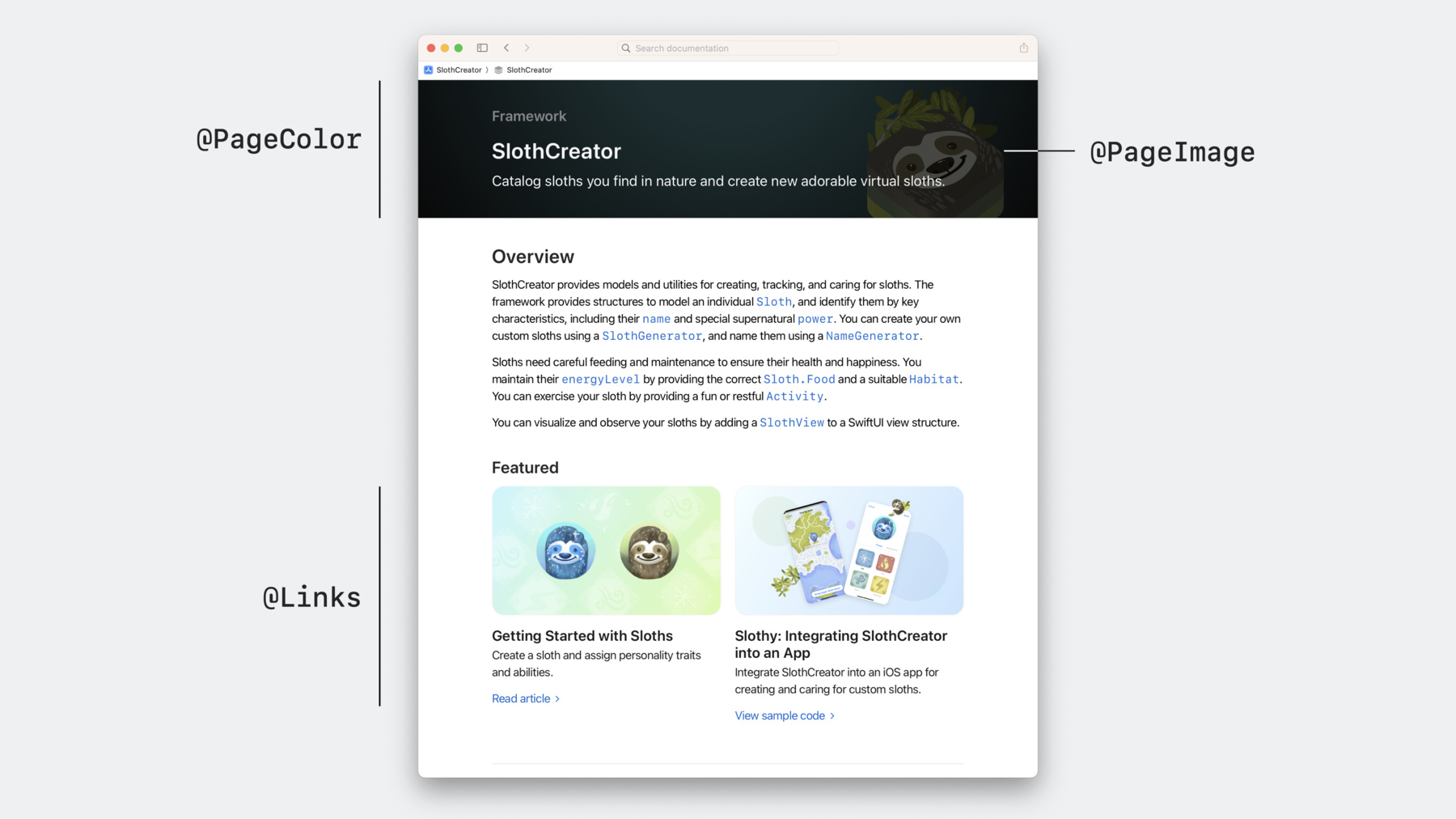
    • 21:55 - Using the "Links" directive to feature content

      @Links(visualStyle: detailedGrid) {
          - <doc:GettingStarted>
          - <doc:SlothySample>
      }
    • 22:55 - Specifying a page's card image

      @Metadata {
          @PageImage(
              purpose: card, 
              source: "slothy-card", 
              alt: "Two screenshots showing the Slothy app. The first screenshot shows a sloth map and the second screenshot shows a sloth power picker.")
      }
    • 23:41 - Specifying a page's icon image

      @Metadata {
          @PageImage(
              purpose: icon, 
              source: "slothCreator-icon", 
              alt: "A technology icon representing the SlothCreator framework.")
      }
    • 23:42 - Specifying a page's color

      @Metadata {
          @PageColor(green)
      }
    • 27:04 - theme-settings.json

      {
          "theme": {
              "color": {
                  "standard-green": "#83ac38"
              },
              "typography": {
                  "html-font": "serif"
              }
          }
      }

Developer Footer

  • Vidéos
  • WWDC23
  • Create rich documentation with Swift-DocC
  • Open Menu Close Menu
    • iOS
    • iPadOS
    • macOS
    • tvOS
    • visionOS
    • watchOS
    • App Store
    Open Menu Close Menu
    • Swift
    • SwiftUI
    • Swift Playground
    • TestFlight
    • Xcode
    • Xcode Cloud
    • Icon Composer
    • SF Symbols
    Open Menu Close Menu
    • Accessibility
    • Accessories
    • Apple Intelligence
    • Audio & Video
    • Augmented Reality
    • Business
    • Design
    • Distribution
    • Education
    • Games
    • Health & Fitness
    • In-App Purchase
    • Localization
    • Maps & Location
    • Machine Learning & AI
    • Security
    • Safari & Web
    Open Menu Close Menu
    • Documentation
    • Downloads
    • Sample Code
    • Videos
    Open Menu Close Menu
    • Help Guides & Articles
    • Contact Us
    • Forums
    • Feedback & Bug Reporting
    • System Status
    Open Menu Close Menu
    • Apple Developer
    • App Store Connect
    • Certificates, IDs, & Profiles
    • Feedback Assistant
    Open Menu Close Menu
    • Apple Developer Program
    • Apple Developer Enterprise Program
    • App Store Small Business Program
    • MFi Program
    • Mini Apps Partner Program
    • News Partner Program
    • Video Partner Program
    • Security Bounty Program
    • Security Research Device Program
    Open Menu Close Menu
    • Meet with Apple
    • Apple Developer Centers
    • App Store Awards
    • Apple Design Awards
    • Apple Developer Academies
    • WWDC
    Read the latest news.
    Get the Apple Developer app.
    Copyright © 2026 Apple Inc. All rights reserved.
    Terms of Use Privacy Policy Agreements and Guidelines