

-
Novedades de widgets
WidgetKit mejora tu app con actualizaciones de widgets, Actividades en Vivo y controles. Descubre cómo llevar tus widgets a visionOS, usarlos en carretera con CarPlay y hacer que se vean lo mejor posible con modos de renderizado acentuados. Además, descubre cómo se pueden mostrar widgets relevantes en la Pila Inteligente (en watchOS) y descubre cómo se pueden usar las notificaciones push para mantener tus widgets actualizados.
Capítulos
- 0:00 - Introducción
- 1:03 - Widgets en nuevos lugares
- 15:31 - Widgets de relevancia
- 18:12 - Actualizaciones del widget Push
Recursos
- Updating widgets with WidgetKit push notifications
- Updating your widgets for visionOS
- Optimizing your widget for accented rendering mode and Liquid Glass
- RelevanceKit
- Increasing the visibility of widgets in Smart Stacks
Videos relacionados
WWDC25
WWDC24
WWDC23
WWDC20
-
Buscar este video…
-
-
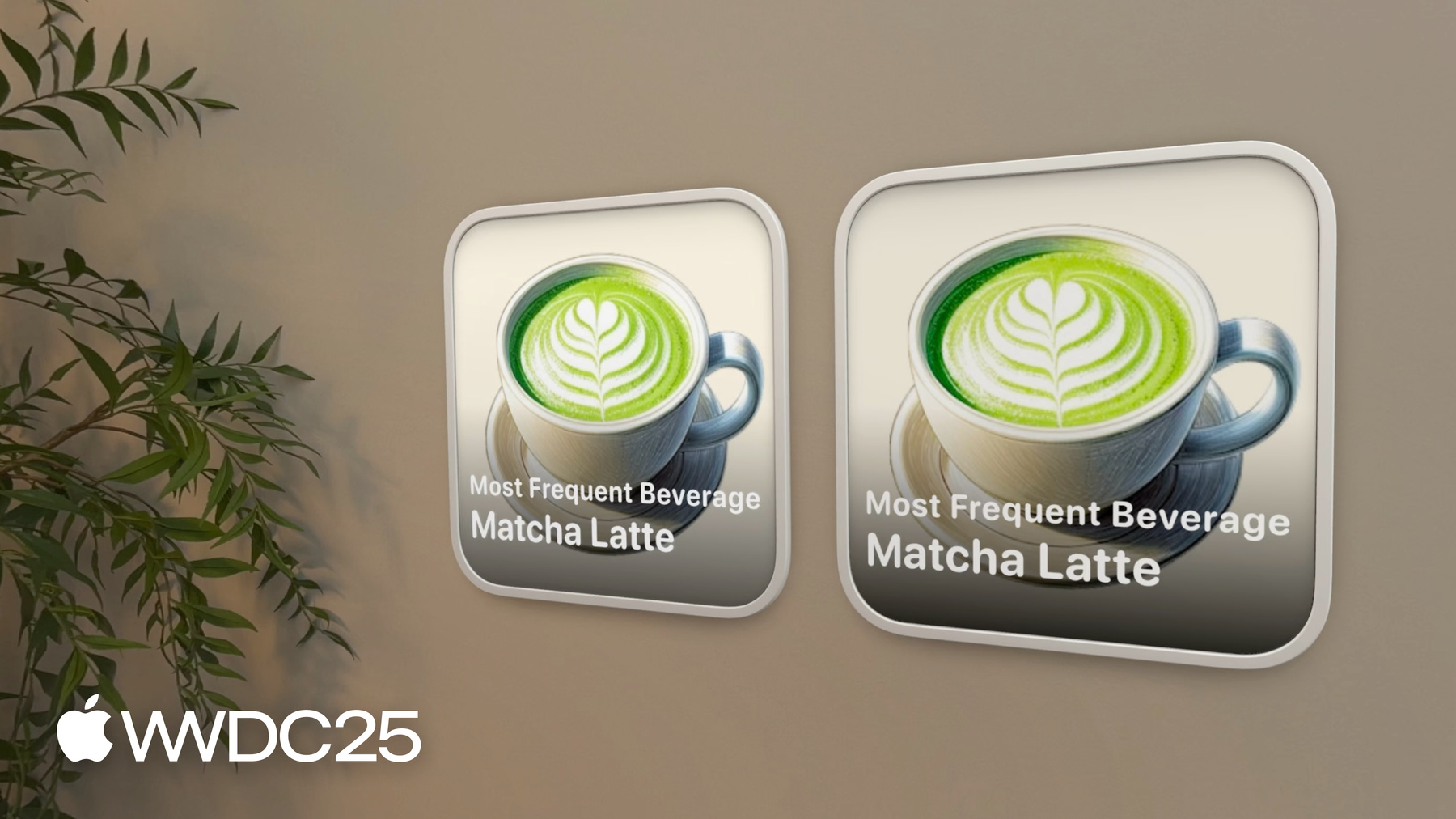
2:44 - Observe .widgetRenderingMode
struct MostFrequentBeverageWidgetView: View { @Environment(\.widgetRenderingMode) var renderingMode var entry: Entry var body: some View { ZStack { if renderingMode == .fullColor { Image(entry.beverageImage) .resizable() .aspectRatio(contentMode: .fill) LinearGradient(gradient: Gradient(colors: [.clear, .clear, .black.opacity(0.8)]), startPoint: .top, endPoint: .bottom) } VStack { if renderingMode == .accented { Image(entry.beverageImage) .resizable() .widgetAccentedRenderingMode(.desaturated) .aspectRatio(contentMode: .fill) } BeverageTextView() } } } } -
6:08 - visionOS Widget Configuration
struct CaffeineTrackerWidget: Widget { var body: some WidgetConfiguration { StaticConfiguration( kind: "BaristaWidget", provider: Provider() ) { entry in CaffeineTrackerWidgetView(entry: entry) } .configurationDisplayName("Caffeine Tracker") .description("A widget tracking your caffeine intake during the day.") .supportedMountingStyles([.elevated]) .widgetTexture(.paper) .supportedFamilies([.systemExtraLargePortrait]) } } -
8:56 - LevelOfDetail - CaffeineTrackerWidgetView
struct CaffeineTrackerWidgetView : View { @Environment(\.levelOfDetail) var levelOfDetail var entry: CaffeineLogEntry var body: some View { VStack(alignment: .leading) { TotalCaffeineView(entry: entry) if let log = entry.log { LastDrinkView(log: log) } if levelOfDetail == .default { LogDrinkView() } } } } -
9:46 - LevelOfDetail - TotalCaffeineView
struct TotalCaffeineView: View { @Environment(\.levelOfDetail) var levelOfDetail let entry: CaffeineLogEntry var body: some View { VStack { Text("Total Caffeine") .font(.caption) Text(totalCaffeine.formatted()) .font(caffeineFont) } } var caffeineFont: Font { if levelOfDetail == .simplified { .largeTitle } else { .title } } var totalCaffeine: Measurement<UnitMass> { entry.totalCaffeine } } -
11:49 - Add .supplementalActivityFamilies
struct ShopOrderLiveActivity: Widget { var body: some WidgetConfiguration { ActivityConfiguration(for: Attributes.self) { context in ActivityView(context: context) } dynamicIsland: { context in DynamicIsland { DynamicIslandExpandedRegion(.leading) { ExpandedView(context: context) } } compactLeading: { LeadingView(context: context) } compactTrailing: { TrailingView(context: context) } minimal: { MinimalView(context: context) } } .supplementalActivityFamilies([.small]) } } -
12:27 - Add .activityFamily
struct ActivityView: View { @Environment(\.activityFamily) var activityFamily var context: ActivityViewContext<Attributes> var body: some View { switch activityFamily { case .small: ShopOrderSmallView(context: context) default: ShopOrderView(context: context) } } } -
16:20 - Define relevance widget with RelevanceConfiguration
struct HappyHourRelevanceWidget: Widget { var body: some WidgetConfiguration { RelevanceConfiguration( kind: "HappyHour", provider: Provider() ) { entry in WidgetView(entry: entry) } } } -
16:41 - Implement RelevanceEntriesProvider
struct Provider: RelevanceEntriesProvider { func placeholder(context: Context) -> Entry { Entry() } func relevance() async -> WidgetRelevance<Configuration> { let configs = await fetchConfigs() var attributes: [WidgetRelevanceAttribute<Configuration>] = [] for config in configs { attributes.append(WidgetRelevanceAttribute( configuration: config, context: .date(interval: config.interval, kind: .default))) } return WidgetRelevance(attributes) } func entry(configuration: Configuration, context: RelevanceEntriesProviderContext) async throws -> Entry { Entry(shop: configuration.shop, timeRange: configuration.timeRange) } } -
21:13 - Handle push token and widget configuration changes
struct CaffeineTrackerPushHandler: WidgetPushHandler { func pushTokenDidChange(_ pushInfo: WidgetPushInfo, widgets: [WidgetInfo]) { // Send push token and subscription info to server } } -
21:30 - Add pushHandler to WidgetConfiguration
struct CaffeineTrackerWidget: Widget { var body: some WidgetConfiguration { StaticConfiguration( kind: Constants.widgetKind, provider: Provider() ) { entry in CaffeineTrackerWidgetView(entry: entry) } .configurationDisplayName("Caffeine Tracker") .pushHandler(CaffeineTrackerPushHandler.self) } } -
22:29 - Push Notification Request Body
{
    "aps": {
        "content-changed": true
    }
}
-
-
- 0:00 - Introducción
Obtén información sobre las actualizaciones de WidgetKit, incluidas nuevas formas de incorporar tu app al sistema, mostrar contenido relevante en Pila Inteligente y mantener la app actualizada.
- 1:03 - Widgets en nuevos lugares
Los widgets tienen nuevas opciones de estilo y están disponibles en nuevos lugares. Consulta algunos consejos para que tus widgets se vean geniales con el modo de renderizado acentuado. Los widgets están disponibles en más lugares, incluidos visionOS 26 y CarPlay. Los widgets en visionOS 26 se pueden agregar a salas y fijar a superficies. Estos widgets se pueden personalizar para admitir diferentes estilos de montaje, texturas y niveles de detalle según la proximidad. CarPlay y macOS 26 ya admiten actividades en vivo. Los controles están disponibles en macOS Tahoe y watchOS 26.
- 15:31 - Widgets de relevancia
Los widgets relevantes aparecen en Pila Inteligente en watchOS 26 cuando son más relevantes según las rutinas de las personas, la ubicación y más. Estos widgets aparecen en Pila Inteligente solo cuando son relevantes y pueden aparecer varias instancias al mismo tiempo, como en el caso de eventos de calendario superpuestos o happy hours. Crea widgets relevantes especificando cuándo el widget es más relevante, como en un momento particular o en un tipo de ubicación.
- 18:12 - Actualizaciones del widget Push
Los widgets en todas las plataformas WidgetKit se pueden actualizar mediante actualizaciones push a través de APNS. Existen múltiples herramientas para mantener los widgets actualizados y la mejor herramienta para cada caso de uso está determinada por cómo se actualizan los datos de su widget. Las líneas de tiempo son buenas para actualizar datos periódicamente. Los cambios impulsados por la interacción en una app deben recargar AllTimelines. Para la sincronización entre dispositivos o cambios de datos externos, como desde un servidor, utilice actualizaciones push del widget. Las actualizaciones push de los widgets ayudan a mantener los widgets más actualizado, pero no son un reemplazo directo de otras experiencias de notificación. Considera si una notificación de usuario, una actividad en vivo o un widget es lo mejor para cada caso de uso.