

-
Deliver workout insights with HealthKit workout zones
HealthKit makes it easier to provide workout insights — like heart rate and cycling power zones — in your app. Learn to leverage the built-in, personalized zones or create custom ones. Discover how to use the current zone and time spent in each zone to provide meaningful guidance during and after workouts.
Chapters
- 0:01 - Introduction
- 2:17 - Accessing workout zones
- 6:19 - Live zone updates
- 8:11 - Preferred zones
- 9:00 - Custom zones
Resources
-
Search this video…
Hello! My name is Seth and I am an engineer on the HealthKit team.
There are many health and fitness apps in the App Store that help people plan, track, and visualize their fitness goals. When people grant your app permission, your app can leverage HealthKit's centralized, secure database and powerful APIs to create workouts and access the underlying health data.
Workout zones can leverage health data, to help people train smarter by tracking time spent at specific intensity levels. Heart rate zones are a training resource that's personalized to an individual. They are calculated by considering one's age and resting heart rate.
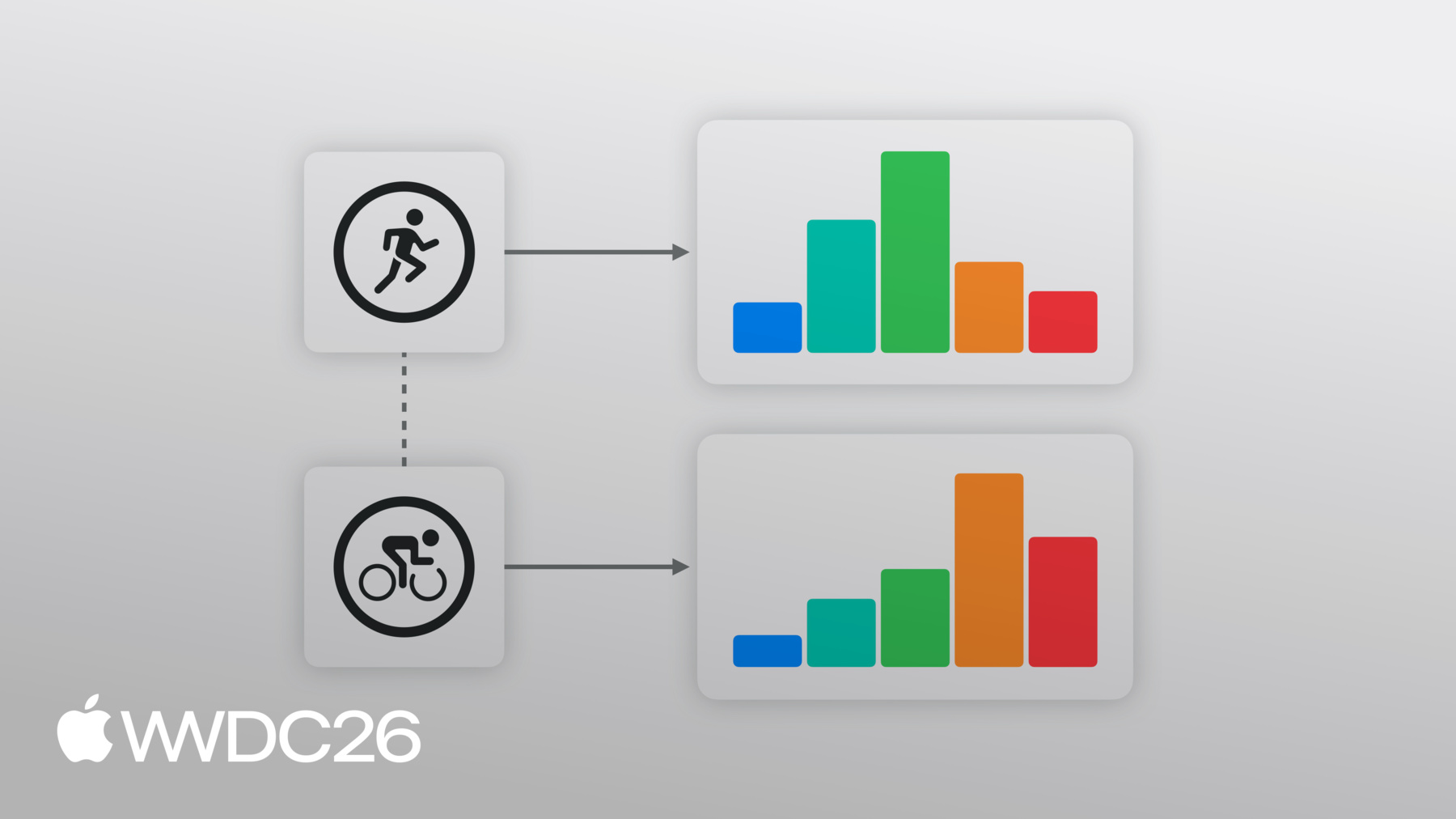
Typically, people use 5 heart rate zones to track their effort level in a workout.
Each heart rate sample, like 135 beats per minute, falls into the boundaries of a particular zone, like Zone 3, which indicates the intensity level.
These ranges can be a guide to plan or track exertion levels in activities like running, cycling, high intensity interval training and rowing.
Similarly, cycling power zones, help cycling enthusiasts measure their power output in watts, based on a personalized functional threshold power.
In iOS 27 and watchOS 27, heart rate and cycling power zones support has been integrated into HealthKit.
I have a sample app that can create, track, and provide a summary for workout sessions. Throughout this session, I'll show you how you can incorporate workout zones into your app, using this sample app as a guide. In this session, I will demonstrate adding heart rate zone support to the sample app. When adopting cycling power zones in your app, you will find they follow a similar structure.
In this session, I'll go over - accessing zone data from completed workouts, registering for live zone change updates during a workout session, accessing people's preferred zone configurations, and how to provide custom zone configurations for workouts in your app. Workout zones turn raw data, like heart rate samples, into actionable training guidance. Many workout plans have intensity goals for each workout. For endurance training, a person might want to stay below a certain threshold. However, an interval training exercise might require a person to stay at, or above a specific level, for a period of time.
Zones also help with recovery and load balance. For instance, a workout that is largely spent in higher zones, like zone 4, or zone 5, suggests a hard effort. You can use this information, to offer guidance, or classify the intensity of a workout.
With workout zones now integrated into HealthKit, people can share heart rate and cycling power zone information, directly with your app. The time in each zone is automatically calculated by HealthKit, based on incoming samples during the workout.
Workout zones, follow a similar authorization flow as other HealthKit data types. Before accessing workout zone data, request HealthKit authorization for the relevant quantity types. In this case workouts, heart rate, and cycling power.
Let's look at how you can retrieve heart rate zones from a completed workout in HealthKit.
My app currently tracks live workouts and displays a summary, once the workout completes. To help people visualize their intensity and effort, I now want to display the total time spent, in each heart rate zone for the completed workout. I can use the HealthKit APIs, to help graph out the time in each heart rate zone in my app's summary view.
To retrieve zone data after a workout, access the zoneGroupsByType dictionary, on either the HKWorkout or an individual HKWorkoutActivity, passing the appropriate HKQuantityType. Here I want heart rate zones, so I will supply the heart rate quantity type. In iOS 27 and watchOS 27, HealthKit supports workout zones for heart rate and cycling power, and they share a similar structure. To receive cycling power zones, just update the associated quantity type.
If heart rate zones are available, this will return an HKWorkoutZoneGroup structure. Let's take a look, at what all this contains.
HKWorkoutZoneGroup contains two properties, a Configuration and an array of zone durations.
The HKWorkoutZoneConfiguration, describes the set of zones and how they were created. It contains the HKQuantityType for the zones. In this case, it's heart rate.
The source is an enum that tells us how the workout zone thresholds were configured. Whether they were created automatically by the System. If they were set manually, by the User in settings. Or if they were custom supplied by an App at the time of the workout. I will go over the Source, in more detail, later in the session.
The Configuration also contains an array of zones ordered by the zones' boundaries. Each zone contains an index and a minimum and maximum HKQuantity. The first zone has no lower bound and the last has no upper bound, ensuring the full range of values is always covered. Zones are guaranteed to be contiguous and non-overlapping.
HKWorkoutZoneGroup, also contains an array of zone durations.
This is an array, where each element contains the zone and the time spent in each zone, ordered by the zone threshold values.
I can use these zone durations to populate a graph in my app.
When the person ends the workout in my app, I can chart the time spent in each heart rate zone.
Workout zones are available on HKWorkout and HKWorkoutActivity. This means your app can display zones for the entire duration of the workout all at once, or, in the case of multi-sport workouts, break them up by individual activities.
Some workout plans require a person to stay in or below specific zones. In these cases it would be great if my app could display the current heart rate zone, and notify the person if it changes, allowing them to adjust their intensity level, in order to stay in their target zone. I can use the live workout zone updates to handle zone changes in my app.
During a live workout, HealthKit receives incoming heart rate samples. HealthKit processes each heart rate sample to identify the heart rate zone. When there's a change, like from Zone 2 to Zone 3, HealthKit sends a notification to your app, as the samples are processed.
HKLiveWorkoutBuilderDelegate is the protocol apps use to receive updates about a live workout. The workout is tracked by HealthKit. When something important happens, like a new activity begins, or a data type that I'm tracking updates, HealthKit passes that update to my delegate, and I can make changes in my app, like update the UI. To process changes in heart rate zone, I'll use the didUpdateWorkoutZone method. Each update will include the Current zone and Previous zone. Updates are only sent when the Current zone changes, like from Zone 2 to Zone 3, as well as the zone group, containing the entire zone configuration and the current total time in each zone.
Finally, it includes a timestamp for the last sample processed. This is helpful to display a running timer of the time in the current zone.
Once my delegate processes the zone update, I make changes in my app, to highlight the new current zone.
I'll adopt this in my app, so I can handle zone changes within a workout.
In my app, I can now highlight the person's current zone and notify them, if their current zone changes.
By default, HealthKit uses the preferred workout zone thresholds, configured in Health Settings. With preferred zones, people receive a consistent experience across apps and devices, since these zones sync across devices via HealthKit.
Preferred zones include those calculated by the system. These zones are periodically calculated, based on user metrics, if available. For instance, heart rate zones are automatically calculated, based on factors such as the person's age and resting heart rate.
Preferred zones can also be manually configured in Health Settings.
Before starting a zone workout, make sure the person has a preferred zone configuration set. You can query for the preferred zone configurations on either the HKHealthStore, or the HKWorkoutBuilder. Custom zones are the right choice, when your app has specific zone definitions that differ from zone preferences in Health Settings, such as a training platform with a proprietary zone model. I can use these two concepts in my app, to provide a custom set of heart rate zones, if they have not been configured directly.
First, I can check if a preferred heartRate zoneConfiguration has been set. If not, I can use an array of zone thresholds, and the associated HKUnit to create an array of HKQuantity zone boundaries.
I can use the boundaries and the heartRate quantityType, to create the default HKWorkoutZoneConfiguration. The zone boundary units must match and be compatible with the zone configurations quantity type. HealthKit creates zones based on the provided boundaries. The first zone starts at 0 and the last is unbounded. Between 3 and 9 zones are required.
Next, I will provide the custom configuration to the HKWorkoutBuilder. Custom zones must be added to the builder before calling beginCollection in your app.
There are a few important things to keep in mind, when using custom zone configurations. Custom zone configurations are only saved within the context of the workout. Your app is responsible for saving, and syncing custom zone configurations, if needed.
Workout zone configurations can contain varying thresholds and numbers of zones. This is common for cycling power zones. For instance, the system defaults to 6 zones, but some training apps use 5 and others use 7 or 8. This is important to keep in mind if your app compares efforts with different numbers of zones.
If your app compares time-in-zone across multiple workouts, with different amounts of zones, this zone information, can immediately be compared. For instance, zone 3 in a 5-zone workout, may reflect different values than zone 3 in a 7-zone workout. Each zone represents a different range of values.
Instead, make sure to normalize zones, based on each workout's number of zones and their boundaries. Do this by taking the original samples on the workout, then sorting them into the appropriate number of buckets for your app. In this case, 7! Workout zones enable richer, more actionable fitness apps. Whether your building a postworkout summary screen, a live coaching experience, or a long-term training dashboard, HealthKit offers a simplified interface for your app to access this data.
To get started. Adopt the workout zones API in your app. You can use the provided sample app as a guide. Chart or graph zone data in your app, so people can visualize their workout effort. And handle live zone changes, to keep people informed, as their intensity levels adjusts throughout a workout.
I love using your apps to help me pursue my fitness goals. Thank you for being a part of the developer community and empowering people to take charge of their health. Thank you for watching.
-
-
3:54 - Reading Heart Rate Zones from a completed workout
// Read heart rate zones from the completed workout if let heartRateZoneGroup = workout.zoneGroupsByType?[HKQuantityType(.heartRate)] { let zones = ZoneDisplayData( zoneCount: heartRateZoneGroup.configuration.zones.count, currentZoneIndex: nil, durations: heartRateZoneGroup.zoneDurations.map(\.duration) ) -
7:57 - Handling Live Zone Updates
func workoutBuilder(_ workoutBuilder: HKLiveWorkoutBuilder, didUpdateWorkoutZone zoneUpdate: HKLiveWorkoutZoneUpdate) { guard let zoneGroup = zoneUpdate.zoneGroup else { return } if let currentIndex = zoneUpdate.currentZoneDuration?.zone.index { let data = ZoneDisplayData( zoneCount: zoneGroup.configuration.zones.count, currentZoneIndex: currentIndex, durations: zoneGroup.zoneDurations.map(\.duration) ) Task { @MainActor in self.heartRateZones = data } } } -
9:19 - Check if Preferred Zone has been set
if try await builder.zoneConfiguration(for: HKQuantityType(.heartRate)) == nil { -
9:24 - Create Zone Boundaries
let defaultHeartRateZoneThresholds = [91.0, 114.0, 136.0, 158.0] let bpmUnit = HKUnit.count().unitDivided(by: HKUnit.minute()) let boundaries = defaultHeartRateZoneThresholds.map( {HKQuantity(unit: bpmUnit, doubleValue:$0)} ) -
9:33 - Create Default Workout Zone Configuration
let heartRate = HKQuantityType(.heartRate) let defaultConfiguration = try HKWorkoutZoneConfiguration(quantityType: heartRate, zoneBoundaries: boundaries) -
9:58 - Set Custom Zone Configuration
try await builder.setCustomZoneConfiguration(defaultConfiguration, for: heartRate) } -
10:03 - Begin Data Collection
// Begin data collection let startDate = Date() try await builder.beginCollection(at: startDate)
-
-
- 0:01 - Introduction
Workout zones turn biometric data into actionable training guidance, helping people understand their effort and intensity in a workout. In iOS and watchOS 27, heart rate and cycling power zone support is built directly into HealthKit, providing a new way to help people train smarter.
- 2:17 - Accessing workout zones
Use the zoneGroupsByType dictionary on a completed HKWorkout or HKWorkoutActivity to access the zones for a particular HKQuantityType, like heart rate. Explore the HKWorkoutConfiguration (describing the quantity type, source, and contiguous zone boundaries) and an array of zone durations which represents the time spent in each zone during the workout. This data can be used to provide meaningful insights, like rendering a post-workout zone chart or classifying effort.
- 6:19 - Live zone updates
To receive real-time notifications when someone's heart rate changes into a new zone during a workout, adopt the didUpdateWorkoutZone method on HKLiveWorkoutDelegate. Each update includes the current and previous zone, the cumulative zone data with running totals for the workout, and a timestamp of the last processed sample. Use these zone updates to provide timely guidance in a workout, like highlight the active zone and send an alert if someone drifts from their target zones.
- 8:11 - Preferred zones
HealthKit uses the preferred zone thresholds from Health Settings by default, which can either be automatically calculated from user metrics like age and resting heart rate, or then be manually configured. These settings sync across devices. Before starting a workout that will consider zones information, query for a preferred zone configuration on HKHealthStore or HKWorkoutBuilder to confirm one has been set.
- 9:00 - Custom zones
When your app uses a proprietary zone model, rather than the preferred zones from Health Settings, configure each workout with a custom HKWorkoutZoneConfiguration. Create the configuration and supply it to the HKWorkoutBuilder before calling beginCollection. Custom configurations are scoped to individual workouts and not persisted by HealthKit.