

-
What’s new in image understanding
Unlock powerful image understanding with the latest Vision framework and Foundation Models framework updates. The new tap-to-segment request lets you segment images in new ways, and Vision now supports watchOS. Combine the new image support in Apple Foundation Model together with OCR, barcode scanning and your own tools to deliver LLM-powered visual understanding in your app.
Chapters
- 0:00 - Introduction
- 1:36 - Segment images with tap-to-segment
- 5:50 - Image inputs for Foundation Models
- 7:57 - Image-based tool calling
- 13:09 - Vision on watchOS
- 14:39 - Next steps
Resources
- Segmenting objects using taps, scribbles or rectangles
- Implementing saliency-based image cropping in iOS and watchOS
Related Videos
WWDC26
WWDC25
WWDC24
-
Search this video…
Hi, I'm Megan Williams, from the Vision framework team.
This year there are some powerful advancements in image understanding, which you can now use to create incredible experiences in your apps. I'll talk about a few of them, starting with what's new - Oh, that's weird, my agenda is missing. Let me see if I can create one quickly.
I made notes of the topics I want to cover. I bet AI can help me make an agenda. I'll use this picture of my notes. And ask a large language model to generate an agenda. This is pretty easy to do with the Foundation Models framework. Thankfully, this year Foundation Models is supporting image inputs. Great! The model made me an agenda. Now I can get back to the presentation. This year, there's more ways than ever to bring image understanding to your apps. Starting with what's new in Vision, the tap-to-segment API allows you to isolate any object in an image just by tapping on it. There's also a new and powerful way to analyze images, using large language models. I'll talk about how to do this with the Foundation Models framework. Then I'll show how you can create image-based tools for LLMs that unlock even more possibilities in image understanding. Finally, Vision is also now available on watchOS. I'll show how to use Vision to enhance your watch apps. But first, I'll show you some of the awesome things you can do with the tap-to-segment API.
Vision already has several image segmentation capabilities. For example, there's person segmentation, which will isolate all of the people in an image. But, what if I want to segment something else in the image? Like this flower vase? Now with Vision's tap-to-segment API, I can choose any object in the image to segment. Like this board game, a piece of clothing, or even the floor. There are multiple ways that I can select an object to segment. I'll demonstrate a few of them.
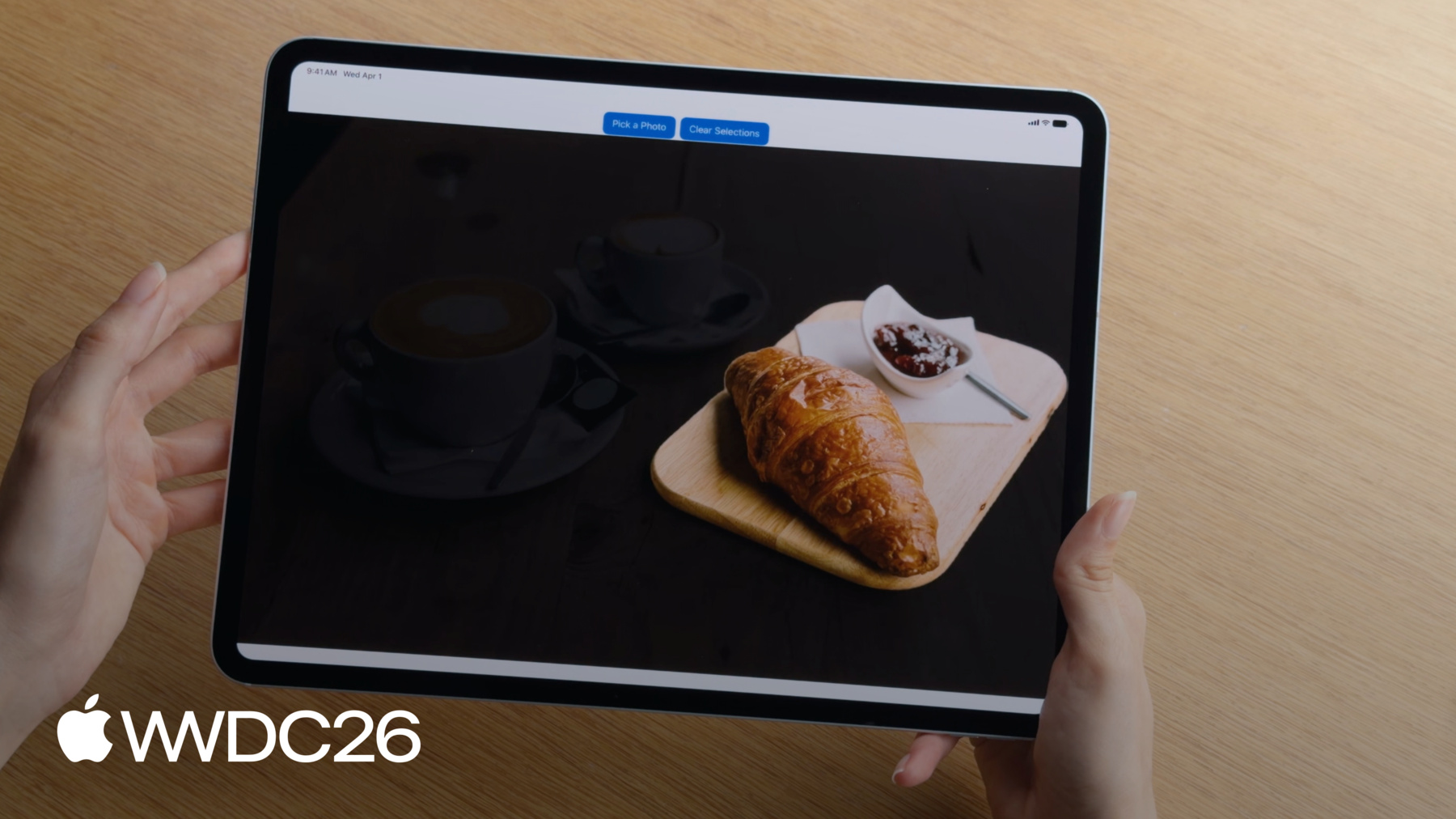
In my app, I have a photo from a cafe and I want to segment the coffee cup on the table. First, I can choose a point on the cup. And now the cup is isolated. This works well for simple objects, but if my subject is complex, then selecting just one point may not be enough. For example, maybe I want to include the plate as well. I can instead draw a bounding box around all of the objects I want to segment.
And now I'm able to get both the cup and the plate.
I can also draw a lasso around an object. I'll use a lasso to segment this croissant.
Another great option is to draw a scribble.
I can scribble over multiple objects to easily segment all of them at once.
Once I have a mask, I can refine the mask by adding or subtracting more points.
I've already segmented this cup with an initial point, and now I want to include the plate. I'll just tap the plate, and now it's included too.
I can also remove sections from my mask. Maybe I only want the coffee, not the cup. I can choose a point on the cup to exclude from my mask, and now I get just the coffee.
To use the API, you'll start with an image. You can use an ImageRequestHandler to hold your image. In Vision, images are processed using requests. To segment an object, you'll use GenerateIterativeSegmentationRequest.
Use the ImageRequestHandler to perform the request.
This generates a mask of the segmented object.
The mask is a PixelBuffer that shows which pixels belong to the segmented object. Here's the code. I'll start with an image and create an ImageRequestHandler. Now I'll create the request, using a point inside the object I want to segment as a starting seed. Then I'll use the ImageRequestHandler to perform the request on the image. This produces a segmentation mask of the object.
I can now refine this mask with a new point if I want.
To do this, I'll just include the point in the request. And then I'll perform the request again. There are a few other things to keep in mind.
Vision uses a normalized coordinates system with the coordinate origin in the lower left hand corner. Points should be normalized to the image width and height, with coordinate values between 0 and 1.
It's also important when you're drawing a lasso, that your stroke width is wide enough. Thin strokes may not produce the best result. The line width should be at least 1% of the total image width.
Lastly, I want to mention that before you perform a segmentation request for the first time on a device, you'll have to download the model.
You can use the downloadAssets API to begin a download.
And if you're not sure whether the model is downloaded or not, you can check assetStatus to see if the model is ready to use.
With tap-to-segment, you can now interactively segment any part of an image you'd like.
Now, I want to talk about a new and exciting way to analyze images using the Foundation Models framework. I showed an example earlier of using a large language model to put together an agenda, using a photo of my sticky notes. But large language models can do a lot more. I can also ask a model to help generate captions for the images in my app. Models tend to do well with descriptive tasks.
It can even help me with my interior decorating, and provide some helpful suggestions for my living room.
And my personal favorite, I can use a large language model to create a recipe from a picture of my fridge.
The possibilities are endless. And the API to do this is really simple.
Here's the code to generate a caption for an image.
I'm using the prompt builder syntax from Foundation Models. I have a text prompt with instructions for the model about how to process the image. Then I'll include the image as an attachment in my prompt.
Now I can ask the model to respond to the prompt, and it will generate a caption for me.
Now you can try this with your own prompts. There are now multiple ways to analyze images, each with their own benefits. The Foundation Models framework leverages large language models, which can do almost anything you ask them. By comparison, traditional image processing frameworks, like Vision, use a fixed set of computer vision APIs. Vision APIs are fined tuned for specific tasks, which they do really well. And Vision is fast. Often fast enough to analyze video frames in real time.
But you don't always have to choose between Vision and Foundation Models to analyze your images. There's a way to leverage Vision's expertise with Foundation Model's versatility using tool calling. I'll demonstrate how you can give large language models access to tools that run traditional image processing APIs, like those in Vision, to take image understanding to new levels. But first, I'll give a quick refresher on tool calling.
Earlier I showed how you can give a prompt to a model and have it generate a response.
With tool calling, your model can now invoke a tool to run external code and get back a result. The model can use this result in its response.
For example, I can have a weather tool, which fetches a weather forecast for a specific day. My prompt is a question about the weather. The model can't answer the question by itself, so it makes a tool call to the weather tool.
When a model makes a tool call, it will generate arguments needed by the tool. In this case, the argument will be the date that the model wants to fetch the weather for.
The tool will then fetch the weather for the requested date and report back to the model.
Now the model can respond to the question about the weather.
For more information on tool calling, check out "Deep dive into the Foundation Models framework".
This year, tool calling supports image arguments. For example, now you can give a photo of a plant and ask a question about it.
If the model can't identify the plant by itself, I could create my own plant identification tool and give the model access.
The model would call the tool on the image to identify the plant. Rather than passing the whole image as an argument, the model would instead pass a reference to the image.
The tool will analyze the image and return the name of the plant. Now the model can respond with the correct information. Here's the code. My tool conforms to the tool protocol from the Foundation Models framework. Tools must define input arguments.
For my plant identifier tool, I want the argument to be an ImageReference. This signals to the model that the argument needs to be a reference to an existing image from the current chat session.
Tools also need to define a call method, which is invoked when the model calls the tool.
Inside the call method, I can access the imageReference from the tool arguments.
But now I need to resolve this reference into an actual image. Each imageReference is only valid in the context of the transcript from which it was generated. To access this transcript, use the history session property.
Using the transcript, the imageReference is resolved back into an imageAttachment.
Now the attachment is converted into a pixelBuffer, so it can be analyzed.
Tools can provide a lot of utility for models, particularly in tasks that models don't do well. While you can write own tools, for common tasks, Vision is providing some tools for you.
Some models struggle to read barcodes and QR codes.
I have an event flyer here, and I'm asking the model to extract information like the date, location, and website registration. Without tools enabled, the model can find the location and the date, but it can't read the QR code. Vision provides a barcode reader tool which will help the model.
Now the model can make a tool call to the barcode reader. The tool will analyze the image and return the website from the QR code. Now the model can read all of the information correctly Vision gives you two tools. You've already seen the barcode reader tool for scanning barcodes and QR codes. There's also an OCR tool which is good for helping models read really fine or dense text. It can read text in over 30 languages.
To use the tools, all you need to do is import Vision, and then configure your language model session with the tools you want to use.
Now the model will be able to call the tool to help answer your prompts. It's also important that you give attached images a label when you want the model to make an image-based tool call.
This label is how the model will identify which image to pass to the tool.
You can also make your own tools using Vision. Vision supports over 30 different types of image analysis. I've mentioned image segmentation, but I'll highlight a few more.
Vision can also do facial analysis, pose estimation, detection and image classification, and even trajectory analysis and object tracking. Check out "Discover Swift enhancements in the Vision framework" to see the full list.
This year, Vision is available in more places than ever. You can even use Vision to enhance your watchOS apps.
I have a watch app that displays information about local wildlife I can look at when I'm on a hike. It has a bunch of different animals I might encounter, and I can select an animal to learn more about it.
The app displays a photo of the animal, but because the watch screen is so small, it's hard to see. Vision can help. I can use Vision's saliency analysis to identify subjects of interest in the photo. Then I can crop the image to feature the main subject more prominently.
Here's the code to generate a crop using Vision. First I'll the create the request. I'm using GenerateObjectnessBasedSaliencyImageRequest. Now I'll perform the request on the image. This produces a saliency observation.
From this observation I can access the bounding boxes of the salient objects detected in the image.
I'll take most prominent object, and use this for my crop.
I've updated my app to display only the salient portion of the image.
Now when I select an animal, I can get a zoomed in view.
That looks much better.
I've covered a lot in this video. Here's a quick recap. Vision's new tap-to-segment API lets you interactively segment objects in an image.
Foundation Models now supports image inputs for large language models, which lets you analyze images in new ways that weren't possible before. And you can create tools that use frameworks like Vision to make your image analysis even better. You can also use Vision to enhance your apps on all platforms, including watchOS.
You can download the watchOS and tap-to-segment sample apps I showed earlier from the developer website. And don't forget to watch "Discover Swift enhancements in the Vision framework" to learn about more Vision APIs. You can also check out "What's new in the Foundation Models framework" to learn about the other ways large language models can enhance your apps. Thanks for watching.
-
-
4:15 - Segment images (tap-to-segment)
// Generate a segmentation mask of an object with a seed point let handler = ImageRequestHandler(image) let request = GenerateIterativeSegmentationRequest(seed: point) let observation = try await handler.perform(request) let mask = observation?.pixelBuffer // Refine the mask with a new point request.addIncludedPoint(newPoint) let refinedObservation = try await handler.perform(request) -
6:41 - Generate an image caption with Foundation Models
// Generate an image caption with Foundation Models import FoundationModels let prompt = Prompt { "Generate a caption for this image" Attachment(image) } let response = try await session.respond(to: prompt) let caption = response.content -
9:55 - Create an image-based tool
// Create an image-based tool struct PlantIdentifierTool: Tool { @SessionProperty(\.history) var history @Generable struct Arguments { var image: ImageReference } func call(arguments: Arguments) async throws -> String { let imageReference = arguments.image let transcript = Transcript(history) guard let imageAttachment = imageReference.resolve(in: transcript) else { throw AppError.imageNotFound } let image = try imageAttachment.pixelBuffer() return classifyPlant(image) } } -
12:09 - Use Vision tools
// Use Vision tools import FoundationModels import Vision let session = LanguageModelSession(model: model, tools: [BarcodeReaderTool()]) let response = try await session.respond(generating: EventInfo.self) { "Get the date, location, and website from this flyer" Attachment(image) .label("flyer") } -
13:54 - Create a crop that highlights a prominent subject (watchOS / saliency)
// Create a crop that highlights a prominent subject
func generateImageCrop(in image: CGImage) async throws -> NormalizedRect? {
    let request = GenerateObjectnessBasedSaliencyImageRequest()
    let observation = try await request.perform(on: image)
    let prominentObjects = observation.salientObjects
    return prominentObjects.first
}
-
-
- 0:00 - Introduction
An overview of the new image understanding capabilities in Vision and Foundation Models this year: the tap-to-segment API, image inputs for large language models, image-based tool calling, and Vision on watchOS.
- 1:36 - Segment images with tap-to-segment
How to use Vision's new tap-to-segment API to interactively isolate any object in an image using point taps, lasso strokes, or combinations. Covers the ImageRequestHandler setup, normalized coordinate system, lasso stroke width best practices, and the on-device model download requirement.
- 5:50 - Image inputs for Foundation Models
How to pass images directly to large language models using the Foundation Models framework for tasks like caption generation, scene understanding, recipe creation, and interior design suggestions. Includes a comparison of when to use Vision versus Foundation Models for image analysis.
- 7:57 - Image-based tool calling
How to extend LLM capabilities with tool calling that accepts image arguments. Covers defining tools conforming to the Tool protocol with image parameters, accessing image references via session history transcripts, and using built-in Vision tools — including the barcode reader and saliency tool — to give models capabilities they cannot perform on their own.
- 13:09 - Vision on watchOS
How to use Vision on watchOS to enhance watch apps. Demonstrates using saliency analysis to automatically identify and crop the subject of interest from wildlife photos, so the most relevant part of an image is always displayed in the compact watch UI.
- 14:39 - Next steps
A recap of all four new image understanding capabilities and links to downloadable sample apps for tap-to-segment and watchOS Vision from the Apple Developer website.