

-
Integrate MusicKit into your app
Bring the power of Apple Music into your app using MusicKit. We'll cover authorization, subscription-status checks, music selection, playback control, and cross-storefront song sharing. Learn how to use the new Music Picker to let people browse the Apple Music catalog and their personal libraries. We'll also break down the differences between SystemMusicPlayer and ApplicationMusicPlayer, and show you how to observe playback state.
Chapters
- 0:00 - Introduction
- 2:11 - Project setup and authorization
- 7:10 - Music items and music picker
- 10:54 - Music players and playback
- 16:26 - Catalog requests
- 20:11 - Next steps
Resources
Related Videos
WWDC23
WWDC22
-
Search this video…
Hi, and welcome to WWDC 2026. I'm Cathy, an engineer on the MusicKit team! Today, my teammate Alan and I want to demonstrate how to integrate MusicKit into an app.
MusicKit is a Swift framework for Apple platforms that offers a set of APIs for your apps to access and play music. Designed with Swift concurrency and SwiftUI in mind, MusicKit streamlines integration with Apple Music. You can build rich, music enhanced experiences, so people can browse and play the Apple Music catalog and a person's media library straight from an app. Alan and I will cover many key MusicKit concepts today while enhancing the workout app he and I made. First, I'll explain how to configure Xcode and handle music access. Then, I will cover what a MusicKit music item is and how I can select one.
Alan will build on my music selection work and prepare selected songs for playback. And lastly, Alan will dive into music catalog requests to further customize the app he and I made. Now, I want to go through the flow of the workout app before diving into MusicKit integration. To follow along, you can find the completed sample code at the developer documentation site.
I'll run the app and go through the current flow. When I start a bike workout, a screen pops up with a stopwatch, along with a button to end my session.
This is a good start, but I'd like to pick music to play during my workouts, so I want to integrate MusicKit! Before I start to code, I need to configure some settings as part of my project setup. One of those settings is registering for a developer token on the developer portal, which is needed to make MusicKit requests. Once you register for a developer token, it's generated on your behalf automatically.
To enable automatic token generation, I'll navigate to the page where I register my App ID. I need to make sure the MusicKit checkbox is checked in the App Services tab.
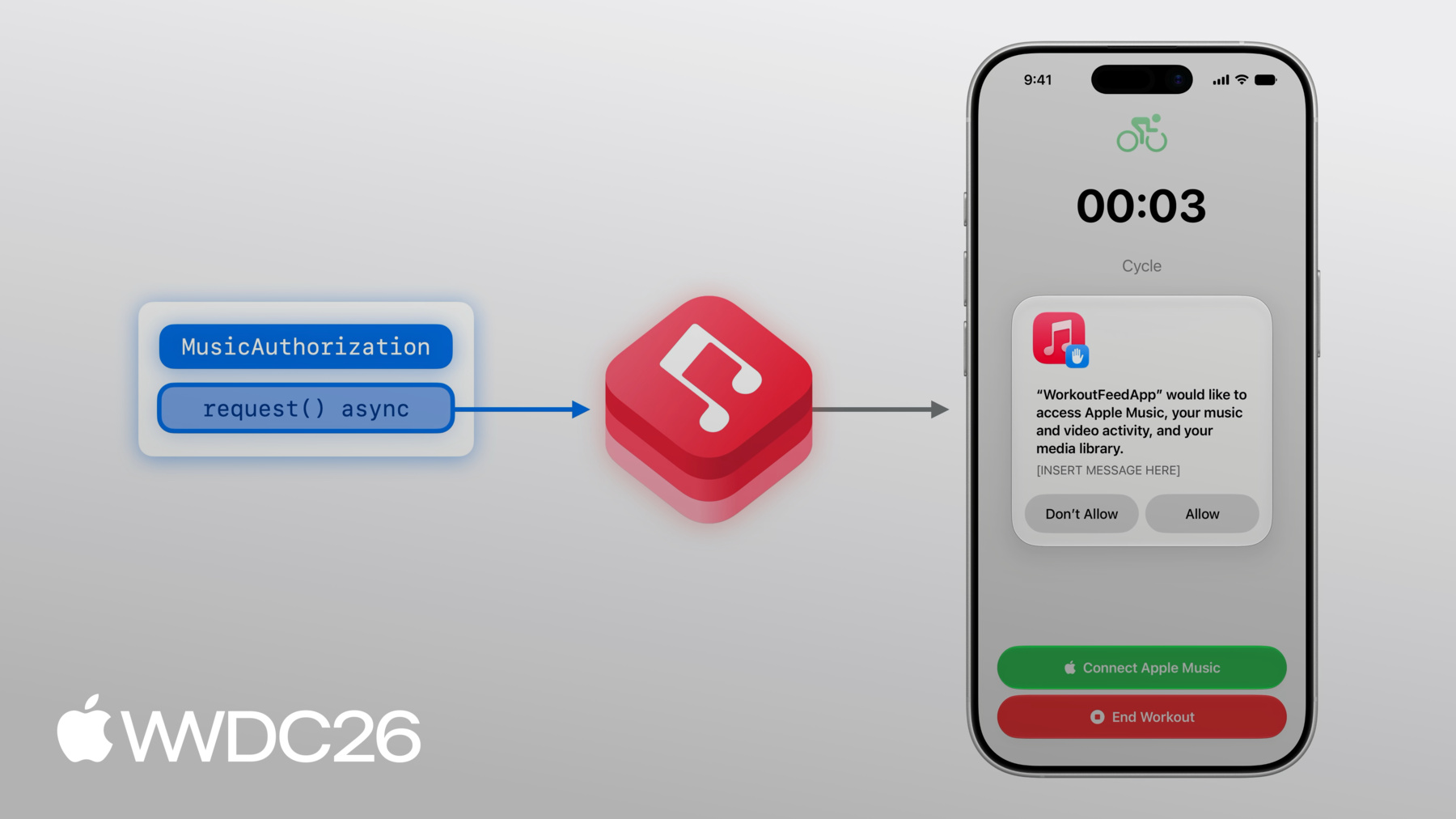
The tokens are associated with my developer account, so I'll want to verify that I'm logged into that same account in Xcode. Now, I'll return back to the app! I'd like to pick music to play during my workout, but before I can pick music, I have to give permission for MusicKit to access my music content. To request authorization, I will use MusicKit's MusicAuthorization request method, which is an asynchronous method that returns whether the app's music access is approved. MusicKit will then prompt the person with a permissions alert. I have the ability to configure the description of this alert with more context for how my app will use the access, which I can do in my project settings.
To provide a reason to access music content, I'll navigate to the Signing & Capabilities tab of my Xcode project, and add the Media Library capability. In the text box, I can describe how my app intends to use the person's music library. This description will appear at the bottom of the permissions alert when you request authorization. If the person isn't subscribed but wants to listen to content in the Apple Music catalog, I want to give them a way to subscribe. An Apple Music subscription is not required to use MusicKit, but the app will only be able to access purchased or synced music without one. If there isn't an active subscription, I can use a MusicKit subscription offer view modifier to give an opportunity to subscribe to Apple Music, without leaving my app. The .musicSubscriptionOffer is a view modifier that accepts an isPresented binding parameter, which changes in this view when the button is tapped.
When presented, the subscription offer UI gives people steps to quickly sign up for an Apple Music subscription. As a developer, you have the potential to earn commissions when someone subscribes to Apple Music through your app, as part of the Apple Services Performance Partner Program. You can specify your information for this program in a MusicSubscriptionOffer.Options structure, and pass it into the view modifier. The options struct also allows you to set a message identifier, which changes what UI is presented. Since my ultimate goal is to play music, I'll set the messageIdentifier for my options as .playMusic.
You can customize the message identifier to have different UI treatments for your use case.
In the main view, I need to declare a @State property representing the subscription status. I only want to have the subscription button if the person isn't subscribed, and has the potential to become subscribed. To update the subscription status, I can add a .task that runs when authorization is granted. In here, I'll grab the current value, as well as listen for any updates that might occur and set the value accordingly.
Now that I'm authorized and subscribed, I can use my subscription to play music from the Apple Music catalog during my workout! First, I need to pick a song to play. Specifically, I am going to pick a MusicKit song object. MusicItems are the building blocks for using MusicKit APIs, so I'll begin with explaining those. Then, I'll explain how to pick music items using the music picker. I'll dive into music items first. An Album music item, for example, is a value type in MusicKit's model layer.
Each music item has Attributes, which are simple built-in properties. An Album object, for example, has attributes that describe the title of the album, or what the album's contentRating is.
Music items also have Relationships which describe related content, like an Album's tracks, another MusicKit music item type.
Associations describe a type's related content as well, but associations generally have weaker ties to the type than a relationship has. One Album association is the otherVersions, which is a collection of other albums.
So far I've focused on Album but there are many other MusicKit music item types, like Genres, Stations, and Playlists. Now that I've covered what music items are, it's time to start using them! To pick music to listen to for my workout, I can utilize the music picker, which surfaces both the Apple Music catalog and the music library in a single, unified interface. The music picker leverages many kinds of MusicKit requests in one place, allowing for several ways to discover music someone may want to pick. To pick a MusicKit song, I need to add the .musicPicker SwiftUI view modifier! I have a base button already, but I need to add some state variables, starting with a toggle for if the picker should be shown. Next, the selected song property represents an initial song selection. I don't have anything selected, so it can be nil here by default.
Now, I can add the modifier.
Now, I'm going to add my musicPickerButton button to my main view where I added the other buttons. The music picker does not require a subscription, which is why I have it regardless of the subscription check. If there is no subscription, the picker will only show music items from the person's library, rather than both the library and catalog. I'll now build and run this! I really like Olivia Dean, so I'll pick my current favorite Olivia Dean song. To do so, I'm going to tap the search bar, and search for the song. Once I find the result I want, I can tap the plus button on the right of the song information, and dismiss the picker. Great, I have "Lady Lady" selected for my bike ride, but for a 30 minute workout, I want to listen to more than one song.
I need to allow for multi-selection in the picker by changing the selection object to an array.
I'll pick 3 songs to start, but I can also select entire albums or playlists by going to their detail pages and pressing the plus button at the top. Okay, I've chosen my songs and can now dismiss the picker.
Now that I've selected music, I want to play it. My teammate, Alan, will take it from here to go over adding playback to the workout app. Thanks, Cathy. Time to play some music, using MusicKit's MusicPlayers! MusicKit offers two different players, SystemMusicPlayer and ApplicationMusicPlayer. Both players are subclasses of MusicPlayer. SystemMusicPlayer controls the system Music app, while ApplicationMusicPlayer plays from your app.
With SystemMusicPlayer, you may only set the queue. You can't see what is in the queue except for the currently playing item. Meanwhile, you have full read and write access to the ApplicationMusicPlayer's queue.
Both music players let you set whether a queue will show up in the Music app's Recently Played and both allow you to set playback state, such as the Repeat and Shuffle mode.
Finally, because SystemMusicPlayer controls the system's Music app, it will continue playing even when your app is backgrounded or quits. For the same backgrounding behavior using ApplicationMusicPlayer, enable the Audio Background Mode capability in the Xcode project settings. A queue consists of a collection of playable music items, such as songs. A queue is set on a MusicPlayer. The MusicPlayer's repeat or shuffle behaviour is configurable by its state.
To start playing, call play() on the MusicPlayer. To stop playing, call pause().
First, the MusicPlayer loads the queue.
Then, the MusicPlayer has to load the audio assets before the player can output music! This may take a bit of time.
If you know ahead of time what to play, buffer the MusicPlayer using prepareToPlay(). This reduces the amount of time needed to output music when you call play().
A queue can be created from any playable music item, such as songs or container types, such as an album or playlist.
Using the special queue initializers for container types allows the music player to lazily load the container's items, further reducing the load time! When music is played using MusicKit, it will generally appear in the person's listening history in the Music app. affectsListeningHistory is an instance property that determines whether the queue will show in the person's Recently Played shelf in the Music app. It defaults to "true" but respects the Use Listening History setting for the Music app. To observe and control the player, both MusicPlayers have observable properties for their playback state and queue.
ApplicationMusicPlayer has a queue where you have full control. These are observable classes that you can use directly in your SwiftUI view . To learn more about observation in Swift, check out the Discover Observation in SwiftUI session from WWDC 2023. In the workout app, I'd like to put the artwork front and center during a workout. I'll also show the title and subtitle of the current song, and a set of controls.
To get the currently playing song, I'll reference the player's queue. Then, if the currently playing song in the queue has an artwork, I'll use MusicKit's ArtworkImage SwiftUI view to display the artwork.
To show the song info, I'll use the title and subtitle of the currently playing entry.
To control play/pause, I'll add a button. I'll read the state of ApplicationMusicPlayer and derive whether it's currently playing by checking playbackStatus.
The button calls "pause" when the player is currently playing and "play" otherwise.
Finally, the Back button calls skipToPreviousEntry to go to the previous song and skipToNextEntry in the Next button.
In the music picker, I can tap on the plus button at the top of my running playlist to choose all the songs in this playlist. Then, I'll tap on Done. The first song is playing now, and the ArtworkImage I just put reflects the currently playing song! I'll tap on Pause, and the player pauses. Tap on Next, and the artwork now shows the next song! I'd like to make it more convenient for those using my app to get their workout going by suggesting some songs that they can tap on in the workout view to quickly start listening! Catalog requests allow your app to query Apple Music and provide music content independent of the person's library, such as curated content for your app.
In MusicKit, structured music catalog requests allow you to fetch content from Apple Music API. MusicKit offers several structured requests, such as getting items based on a specific filter, searching for music, and other Apple Music curated and personalized content! Explore the MusicKit documentation for the full list and how to use them. MusicCatalogResourceRequest is a structured catalog request for a specific resource. In this example, we'll make a request for songs. A request contains some configurations, such as options, if you want to set the behavior of the request. I'll talk more about options in a moment.
You can set properties on the request that specifies relationships and associations you also want to fulfill as part of this songs request. For example, you may also want the Artists relationship of the song.
And, you can set a limit on the number of items to return in the response.
When you call the asynchronous response() method, MusicKit fulfills the request.
The method returns a MusicCatalogResourceResponse which contains the results of the request as a strongly-typed MusicItemCollection. MusicItemCollection is a MusicKit type, containing a collection of music items. In this example, it contains Songs.
MusicItemCollection supports pagination, so if your request produced too many results, hasNextBatch will be "true" and you can get the next page using the asynchronous nextBatch() method. When making resource requests, resource availability depends on the account's settings and storefront or region. For example, a resource you request in one region may have an equivalent resource with a different ID in another region. Additionally, a resource for explicit content may have an equivalent clean resource when the account does not allow explicit content.
I'll make a fetchSongs method that has an input of a collection of song IDs, where the first ID is treated as a featured song. The method uses a MusicCatalogResourceRequest for songs that match the IDs in the songIDs argument.
I'll also add the findEquivalents option flag to enable the resource equivalency behavior I just talked about. Then, I'll call the response() method to fetch the content.
To capture the featured song, I'll use the item(for:) method using the first ID in the input collection of IDs. The catalog request is not guaranteed to return everything that was requested, such as if a resource is unavailable.
Finally, I'll get the other songs in order.
Now I'm ready for my workout! I'll go back to my app, start another workout, and now I have a shelf of some songs that you can quickly pick when you want to get your workout going now! Tapping on one of these artworks will immediately start playing it! That's all you need to know about integrating MusicKit into your app! As Cathy talked about, adopt the music picker view modifier to provide a unified and familiar music picking experience in your app! The Apple Music catalog contains a wealth of content that your app can play. For example, add some background music to enrich your app experience! And, check out other MusicKit APIs, such as requests to browse and modify library content covered in "Explore more content with MusicKit", from WWDC2022. If you're interested in integrating on Android or the web, check out "Meet Apple Music API and MusicKit". Thank you for watching.
-
-
4:47 - Presents the Apple Music subscription offer
@State var showSubscriptionOffer = false let options = MusicSubscriptionOffer.Options( messageIdentifier: .playMusic ) @ViewBuilder var musicSubsriptionButton: some View { Button("Subscribe to Apple Music", systemImage: "music.note") { showSubscriptionOffer = true } .musicSubscriptionOffer(isPresented: $showSubscriptionOffer, options: options) } -
5:59 - Adds subscription button to main view
@State var subscription: MusicSubscription? var body: some View { VStack { // ... if let subscription, subscription.canBecomeSubscriber { musicSubscriptionButton } } .task(id: isAuthorized) { self.subscription = try? await MusicSubscription.current for await subscription in MusicSubscription.subscriptionUpdates { self.subscription = subscription } } } -
8:48 - Add .musicPicker() modifier
@State var showMusicPicker = false @State var selectedSong: Song? = nil @ViewBuilder var musicPickerButton: some View { Button("Pick some Music", systemImage: "music.note.list") { showMusicPicker = true } .musicPicker(isPresented: $showMusicPicker, selection: $selectedSong) } var body: some View { VStack { if let subscription, subscription.canBecomeSubscriber { musicSubscriptionButton } musicPickerButton } } -
14:49 - Artwork
@State var queue = ApplicationMusicPlayer.shared.queue var body: some View { VStack { if let artwork = queue.currentEntry?.artwork { ArtworkImage(artwork, width: 200, height: 200) } else { // Placeholder artwork RoundedRectangle(cornerRadius: 16) .fill(.quaternary) .frame(width: 200, height: 200) } } } -
15:06 - Current entry info
@State var queue = ApplicationMusicPlayer.shared.queue var body: some View { VStack { // ... if let currentSong = queue.currentEntry { Text(currentSong.title) .font(.title3.bold()) if let subtitle = currentSong.subtitle { Text(subtitle) .font(.subheadline) .foregroundStyle(.secondary) } } } } -
15:14 - Playback controls (play, pause)
let player = ApplicationMusicPlayer.shared @State var state = ApplicationMusicPlayer.shared.state var isPlaying: Bool { state.playbackStatus == .playing } var playPause: some View { Button ( isPlaying ? "Pause": "Play", systemImage: isplaying ? "pause.fill" : "play.fill" ) { if isPlaying { player.pause() } else { Task { try await player.play() } } } } -
15:38 - Playback controls (next, previous)
let player = ApplicationMusicPlayer.shared var controls: some View { HStack { Button("Back", systemImage: "backward.fill") { Task { try await player.skipToPreviousEntry() } } // ... Button("Next", systemImage: "forward.fill") { Task { try await player.skipToNextEntry() } } } } -
18:58 - Music catalog resource request
func fetchSongs(songIDs: [MusicItemID]) async throws -> (featured: Song?, other: [Song]) {
    var request = MusicCatalogResourceRequest‹Song>(matching: \.id, memberOf: songIDs)
    request.options = [.findEquivalents]

    let response = try await request.response()

    let featuredSongID = songIDs[0]
    let featuredSong = response.item(for: featuredSongID)

    let others: [Song] = songIDs[1...].compactMap { songID in
        return response.item(for: songID)
    }

    return (featuredSong, others)
}
-
-
- 0:00 - Introduction
An introduction to MusicKit and an overview of how to build a music-enhanced workout app using Swift concurrency and SwiftUI.
- 2:11 - Project setup and authorization
Learn how to configure your Xcode project with the necessary capabilities, request music library authorization, and present Apple Music subscription offers to users.
- 7:10 - Music items and music picker
Explore the properties and relationships of MusicKit music items, and use the music picker view modifier to let users browse and select songs from the Apple Music catalog or their own library.
- 10:54 - Music players and playback
Dive into using SystemMusicPlayer and ApplicationMusicPlayer. Discover how to set up playback queues, observe playback state, and build UI controls for playback in SwiftUI.
- 16:26 - Catalog requests
Use structured catalog requests like MusicCatalogResourceRequest to fetch curated Apple Music content, and learn how to handle localization and content equivalency.
- 20:11 - Next steps
A quick recap of MusicKit capabilities and pointers to related sessions for further learning.