

-
Get the most out of Device Hub
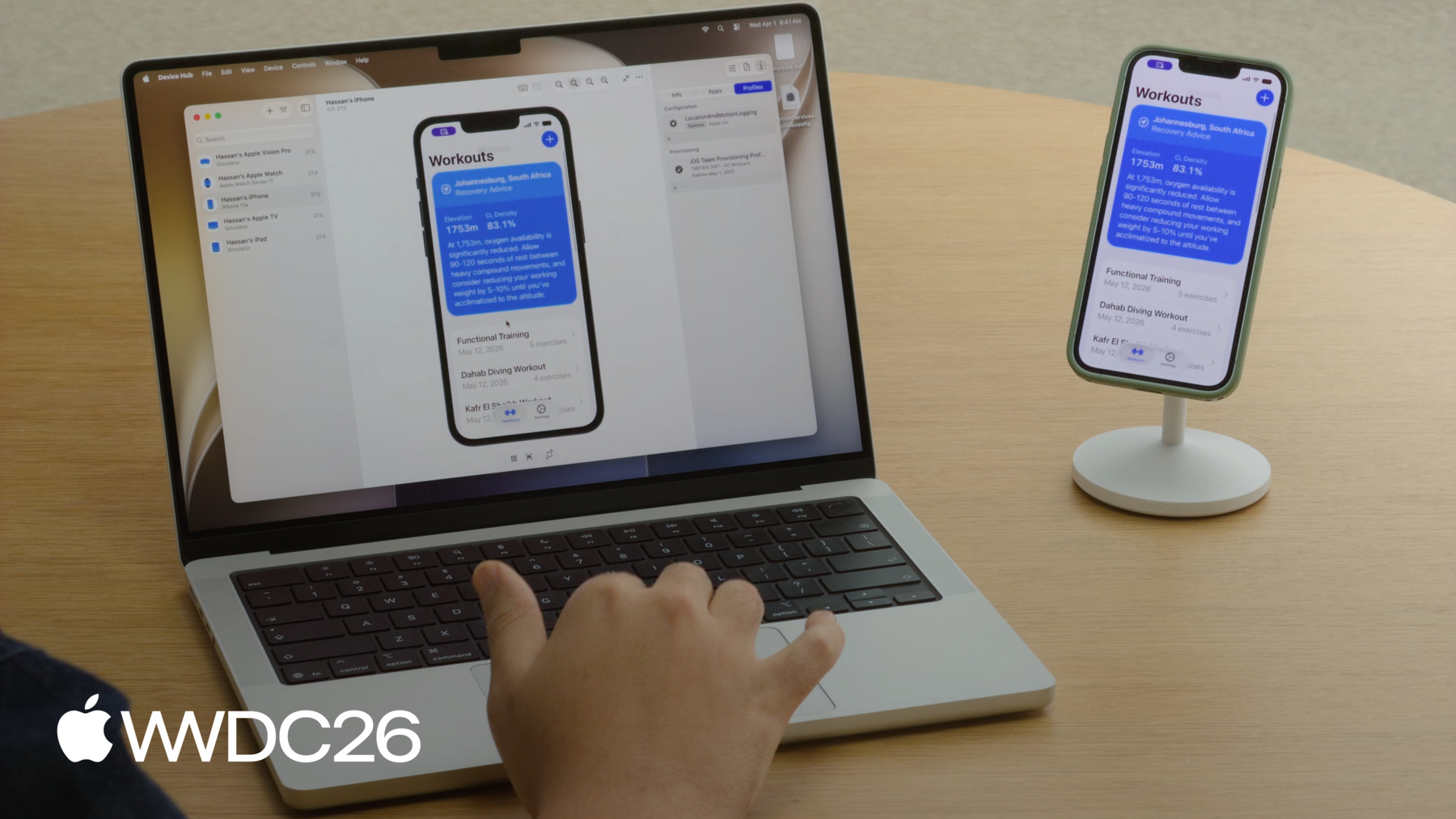
Learn how Device Hub can accelerate your development workflows. We'll take a tour of its features and show you how to diagnose and reproduce issues quickly with devices and simulators.
Chapters
- 0:00 - Introduction
- 1:04 - Device Hub overview
- 3:00 - Control
- 4:39 - Organize
- 6:04 - Configure
- 8:08 - Reproducing a bug
- 15:52 - devicectl
- 16:30 - Next steps
Resources
Related Videos
WWDC26
WWDC19
-
Search this video…
I'm Matt, and I am an engineer on the Devices team. Later, we'll be joined by my colleague - Hassan. We know how important it is to you that your app looks great everywhere - on every device, at every appearance, at every text size, and more. And we also know - that can be a lot to account for. So, in this session, we'll introduce you to Device Hub, an app that makes this easy and we'll walk through everything it can do. Here's our plan. First, an introduction to Device Hub - an app that is your home for working with both devices and simulators. Then, a feature walkthrough - we'll learn how to use it to organize, control, and configure your devices. Finally, you'll see it in action. We'll show you an example. Hassan and I will use Device Hub in a real workflow.
Let's get started. This is Device Hub. It's an app that ships alongside Xcode 27. But you don't need to launch Xcode to use it because it's built for anyone who works with devices, whether you're developing an app, testing across device configurations, or managing an inventory of devices.
It offers the same set of tools - whether you're working with a device or a simulator. You can configure either of them however you need.
If you're developing an app you'll encounter Device Hub right away. When you build and run to a simulator in Xcode it's automatically launched. It presents a window with a live, interactive view of the screen.
This is Device Hub in compact mode. It's a focused and lightweight window. Just the screen and a few essentials.
At the bottom are device controls. Things like the home button, screenshots, and rotation. And, they're contextual, so - they change depending on the device you're viewing. For example, on an Apple TV you'll find controls for both play/pause and navigation. On an Apple Vision Pro - you'll see controls for environment and camera movement. Or, on an Apple Watch, you'll find both the side button - and the Digital Crown. But Device Hub is much more than this. When these essentials aren't enough, click the expand button at the top to transition to the full window. Here, you'll have access to a much broader set of tools. There is a lot going on here in the full window. So, let's walk through all of its features.
They fall into three areas: the ability to control, organize, and configure your devices. To tell you more about how to control your devices, I'll hand it over to Hassan.
Thanks Matt! When developing, my devices can be all over the place, and driving the device from my screen can help me stay focused on my work. Device Hub makes this easier for me by giving me Advanced features to control my devices, They can be found in the canvas at the center of the window. There is a live display of the screen. You can interact with it directly. Click, drag, scroll or use natural trackpad gestures. This works the same whether it's a device or simulator. Take a look here. I have my Apple Watch connected. See how I can control it using Device Hub.
At the bottom there are the same controls as the compact window. And just like them, they are contextual and will change depending on the device. Above the canvas there are controls that are not in the compact window. These allow you to zoom in and out, or snap to one-to-one physical size to see your app at its real world dimensions.
Resize mode, allows you to transform your app's dimensions freely. And that will be discussed in the "Modernize your UIKit app" session. Capture keyboard routes your Mac's keystrokes straight to the device. Making it easy to test key commands and hardware support. And a button allowing you to switch back to compact mode. So, that's the canvas. It's a powerful way to interact with your devices right from Device Hub. Back to Matt, to talk to you about how to organize and configure your devices. Thanks Hassan. I work with dozens of devices and simulators and it can become hard to keep track of all of them. Fortunately Device Hub has tools both to organize them and offer quick access.
They can be found in the sidebar. In it - you can see your full inventory. That's each of your devices and simulators all in one place.
Use the filter menu at the top to change which are visible. Or use it to sort and group your inventory from several different options.
Context-click any device for quick actions. Things like restarting or pairing an iPhone and Apple Watch simulator together. For quick access, you can also view any number of devices at once using either tabs or stand-alone compact windows. For example, say you are building an iOS app, and you want to make sure it looks correct on a few different phone sizes. Select them all, double click them in the sidebar, and you'll get a compact window for each. Making it easy to compare your app across screen sizes. So, I can organize my devices using the tools in the sidebar. But, testing different text sizes, simulating different locations, or installing different profiles - that can still take a lot of time.
So, Device Hub offers deep control over device configuration. It has five different panels to do this.
And, they can be found in the inspector area - on the right.
The first tab contains device settings. Here you can change how your device looks and behaves. The first section contains appearance options. Things like dark mode, text size, and more. And these changes take effect instantly. So there's no need to dig through your device's settings. The second, lets you test how your app responds to different conditions, like a change in location. And the third has audio options for sound levels and I/O.
The middle tab contains diagnostic reports. It's where you will start investigating if your app hangs or crashes. It contains everything your device has logged - such as crashes, spins, and other diagnostics.
The third tab has three panels: device Info, Apps, and Profiles. Let's go through each.
The Info panel contains things such as storage, model, and serial number - stuff that you need at a glance.
The Apps panel lets you install, uninstall, and manage apps, including downloading and replacing their data containers.
And, in the Profiles panel you can manage both configuration and provisioning profiles.
So, that completes our feature walkthrough of Device Hub. It's a feature rich app, and we've covered a lot of ground. From organizing your devices in the sidebar, to controlling them from the canvas, to configuring them with five panels in the inspector.
Now, I'll hand it over to Hassan, - to show you how Device Hub fits into our development workflows. We are going to walk through a scenario: finding a bug on a real device and reproducing it on a simulator. Thanks Matt! Now let's see it all come together.
Matt and I have been building a feature in a workout app.
We will show users recovery advice, based of the altitude of their current location. But this feature has a bug! For example, in landscape mode some of the text gets cut off.
So let's go through my workflow. What features of Device Hub that I use the most? What do I do when I see an issue like this one? There are three things I focus on. Pairing devices, ensuring that I have enough logs, and capturing diagnostics. Our Workout app runs on the Apple Watch and the iPhone. Using Device Hub I can wirelessly pair both of them to my Mac. My iPhone is already paired. Let's look at how I would pair an Apple Watch.
I'll click the add button in the sidebar and choose Pair Nearby Device.
Then I'll follow the instructions on the screen.
My Mac shows up right away on my Apple Watch. I'll select it, tap pair, and finally enter the pin number that appears in Device Hub.
And that's it. My Watch is paired. It shows up right here in the sidebar, just like my iPhone. And from now on whenever it's nearby it'll be available on Device Hub.
Next, since we are working on a location-based feature, I would like to have the CoreLocation logging profile installed. Let's take a look at how to add a configuration profile. I'll go to the Profiles panel, drag and drop the configuration profile and confirm the installation on my iPhone.
Then, I'll make sure to reboot my iPhone for privacy reasons.
Finally, Matt is our UI engineer, so he'll be the best person to investigate this issue. I just don't know what he will need to debug it. So I'm going to collect as many diagnostics as possible. Let's take a look at how to do that. After building and running the app from Xcode, I can see and interact with the app right here on my Mac.
I need to reproduce the bug, so I will rotate the device.
Here's the bug! The recovery recommendation is getting cut off! So first, let me take a screenshot of the bug, so Matt can see that our UI is broken.
Next, in case Matt needs to dig deeper, I'll kick off a sysdiagnose to capture system-level diagnostics.
That'll take some time. While it's running, I'll send the text that's getting clipped to Matt.
I'll select it right here on the device, copy it and paste it into a file on my Mac.
Matt might need my app's data to be able to reproduce this bug. And working with app data containers is a common part of my workflow.
Device Hub gives you everything you need to work with app data containers.
As of now you can inspect a saved state in Finder, restore to a known baseline, or capturing a snapshot for later.
Here's all of the data my app has stored.
I will download that, so Matt can load it into his simulator.
That should be enough. Let's send this all over to Matt so he can take a look. Matt, this UI issue is all you.
Thanks Hassan. So, when I see UI issues like this, that don't affect performance, I like to reproduce them using simulators. There's a few steps that I like to take to do this.
First, I'll need to choose the correct simulator, then match the app's data, and finally mirror the device's configuration. Let's start by selecting a simulator.
Hassan was using an iPhone 17e, and I don't have one. But, I do have a corresponding simulator. I have it here in the sidebar. I'll select it, and verify it says iPhone 17e in the info panel.
Next, I want to ensure that I'm using the same data as the app that reported the bug. Just in case any of it is problematic. So, I need my app to match his app's data. My version of the app is empty. But, Hassan sent me his data container, so I'll go to the Apps inspector and replace mine with his.
Now, when I relaunch the app I can see all of his workouts.
Finally, I want to mirror his config. I want my simulator's settings to match his device's, as much as possible.
Let's go ahead and do that and match any appearance or accessibility settings that could affect the UI. To start, looking at the screenshot he sent over, I can see his phone was in landscape mode. So, I'll mirror that. I can rotate my simulator using the device controls.
Next, I see that his location is set to Johannesburg. It seems like at that high elevation we have a long string for a recovery suggestion. So, I'll simulate his location by navigating to the settings inspector and selecting Johannesburg.
Now, it doesn't seem like we are seeing the same text get truncated like he was. So, something else must be different. Taking another look at the screenshot.
I can see his text size is pretty large. So that might be it, let's match that as well. I'll bump it up and yup! Now we can see that truncation happening. And, I bet if I rotate it back it doesn't happen. So, this bug seems to have been a rather striking confluence of things. The device had to be in landscape, it needed to be at a specific location, and his text size needed to be all the way up. Only with all of these were we able to reproduce the issue. Device Hub let me do all of it. Now, with it reproduced, it is easier to go verify a fix. So that was an example of a workflow: Hassan found a bug, and I reproduced it. All using Device Hub. Thanks for those great diagnostics Hassan! Of course, Matt! Whether you're working with a simulator or a device, Device Hub gives you a consistent experience across both. From live screens and hardware controls to app management, appearance settings, and more. And when something goes wrong, Device Hub gives you everything you need to collect diagnostics and investigate issues But that's not all! For scripts and automation, use devicectl. It's a command line tool based on the same underlying technology as Device Hub. It's great for managing devices in a test environment, managing apps, capturing diagnostics, and more. For example, you can use devicectl to list your devices, install an app onto your device, change settings such as switching between dark and light modes, or getting more information about one of your devices. And if you want a structured output, you can use the json-output option to easily integrate into scripts or CI workflows.
There's a lot more to explore. Download Xcode 27 and try Device Hub for yourself. If you want to integrate into scripts or CI workflows, check out devicectl. See how Device Hub can help you improve your app for resizability in the "Modernize your UIKit app" session. Check out "Getting the Most Out of Simulator" from WWDC 2019. And for everything else, we've linked the Device Hub documentation in the video description.
Thank you for watching. We can't wait to see what you build next.
-
-
- 0:00 - Introduction
An overview of Device Hub, a new app shipping with Xcode 27 for working with devices and simulators.
- 1:04 - Device Hub overview
A tour of Device Hub's two modes — compact and full window — and how it provides a consistent experience across both real devices and simulators.
- 3:00 - Control
Use the canvas to interact with your devices directly, with live display, touch input, hardware controls, zoom, resize mode, and keyboard capture.
- 4:39 - Organize
Manage your full device and simulator inventory from the sidebar, using filters, sorting, grouping, and compact windows to keep track of your devices.
- 6:04 - Configure
Use the five inspector panels to configure appearance, simulate conditions like location, view diagnostics, manage device info, install and manage apps, and handle configuration and provisioning profiles.
- 8:08 - Reproducing a bug
See Device Hub in action as one developer pairs devices, installs a logging profile, captures diagnostics, and shares app data — then another uses a simulator to reproduce the bug by mirroring the device's configuration.
- 15:52 - devicectl
Use the devicectl command-line tool for managing devices, installing apps, capturing diagnostics, and integrating into scripts and CI workflows.
- 16:30 - Next steps
Resources for exploring Device Hub further, including the devicectl documentation, related sessions on simulator and UIKit resizability, and Device Hub documentation.