

-
Discover the Spatial Preview framework
Check out how the new Spatial Preview framework brings content from your Mac directly into visionOS. Discover how to build dynamic workflows with live-syncing and bidirectional editing across both platforms. Learn about the SpatialPreview API, device discovery, 2D and 3D session integration, and new Quick Look capabilities to elevate your Mac apps spatially.
Chapters
- 0:00 - Introduction
- 2:37 - Learn about Spatial Preview
- 3:30 - Document Preview
- 6:36 - USD Preview
- 9:16 - Editing Features
- 13:28 - Next steps
Resources
- Bridging an external USD runtime to Spatial Preview
- Working with content from your Mac app using Spatial Preview
- Reducing the rendering cost of RealityKit content on visionOS
- Spatial Preview
Related Videos
WWDC26
WWDC22
-
Search this video…
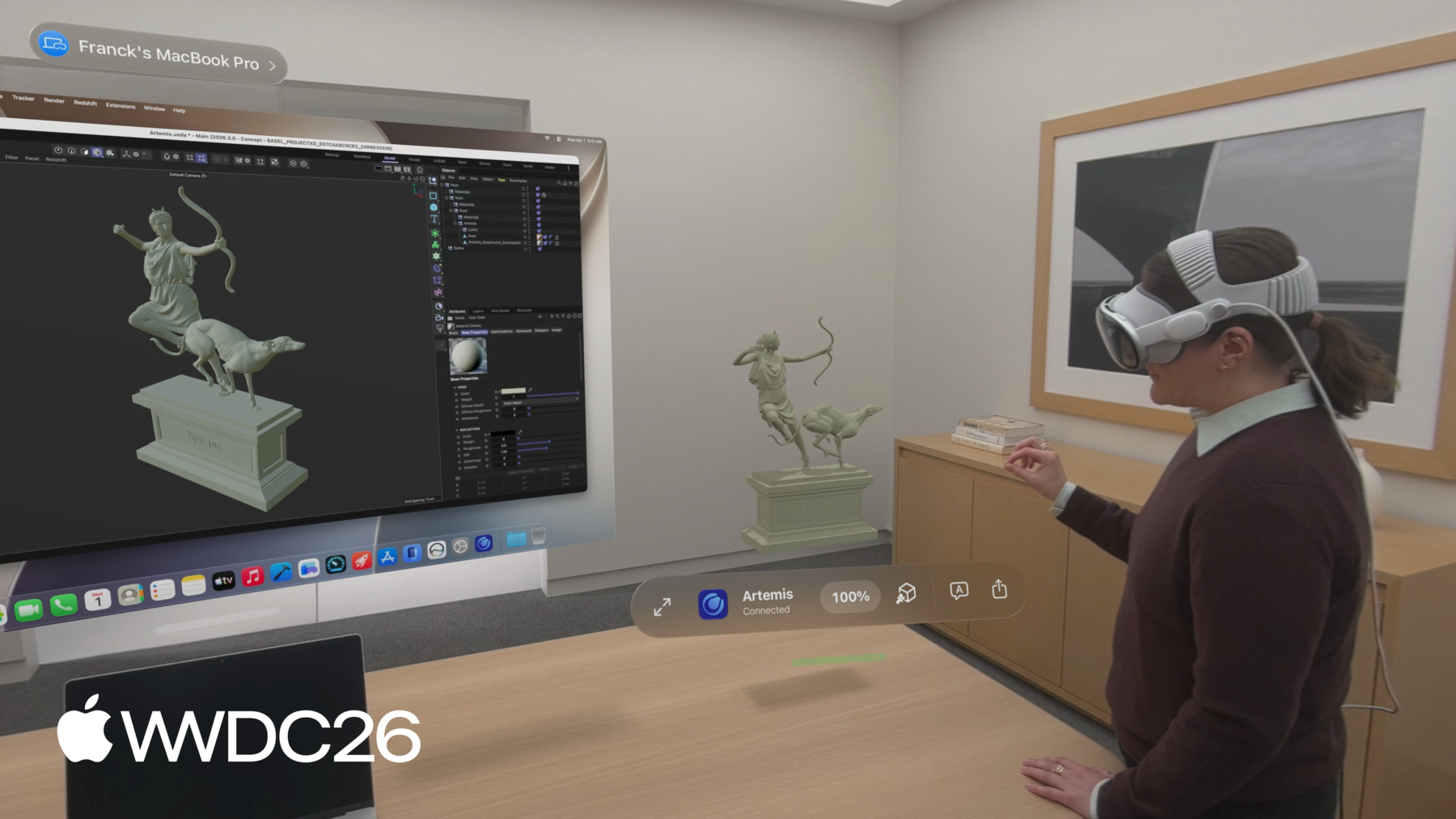
Hi, my name is Quincy German, and I'm a software engineer on the Vision OS team. One of the features I use the most on Apple Vision Pro is Mac Virtual Display, which lets me work on my Mac through a virtual screen provided by Vision Pro. In Mac OS and Vision OS 27, it's even easier to preview content from Mac to Vision Pro. I'm excited to present Spatial Preview. A framework that lets people leverage the spatial computing capabilities of Vision OS when working with content on their Mac. You can check out the Spatial Preview Framework in Action with the Preview app for Mac OS. alongside other features to help people work with spatial content, including 3D content editing, photorealistic rendering, camera viewpoints, and spatial media output like Apple immersive video frames and spatial photos Using Mac Virtual Display, people can share content seamlessly to Vision Pro. On Vision OS, the QuickLook app receives this content and now allows them to work immersively, like moving around to the different cameras setup for this living room scene. These are tools that are very useful to get a sense of scale and layout of a 3D design, like this one. With Spatial Preview, people can now extend content from their Mac into the world around them. And these features aren't just available in the preview app. They're also exposed as an API for you. So you can augment new or existing macOS applications to take advantage of the power of Vision Pro.
These tools enable dynamic workflows with spatial content, including live synchronization and editing across devices With real-time synchronization, apps like Cinema 4D and SketchUp are transforming the creative process, unlocking real-time, collaborative 3D workflows, like iterating on material changes live. And in this session, I'm going to cover how you can too.
I'll start with an overview of the framework, designed for developers building content creation tools or any app that works with spatial content.
Next, I'll walk through an example workflow showing how to share and update documents like Apple Immersive Video Frames in place.
Lastly, I'll show how you can create apps that fully immerse people in the 3D content they're working on, live, by using Universal Scene Description, which is a format used to describe 3D scenes. By the end of this session, you'll have everything you need to leverage the spatial preview framework and enable people to work with content from their Mac on Vision OS.
Now, let's take a look at the components provided by the framework in order to get a sense of just how easy it is to set up The first step is selecting an endpoint that points to a device to share to. If someone's actively using Mac Virtual Display, it's easy to use the device that's already connected. Alternatively, you can add the device picker UI to your app so people can pick from any nearby Vision Pro on the same iCloud account.
Next, create a spatial preview session for the content. There are two types of preview sessions. Document preview sessions, cover types like spatial photos, videos, and document types like PDF. USD preview sessions handle 3D content.
Once the session starts, Quick Look is launched on Vision Pro and the content your app provides to the session appears. No code is required on Vision OS to set this up.
Now that you have an overview of how a spatial preview session works, let's look at an example of how to send and update documents with document preview.
In this example, I'll take a still from an Apple immersive video, which is generated out of the preview app on Mac. Then I'll use the Mac Virtual Display Endpoint to start a document preview session I'll then provide the image to the session so it appears in QuickLook. Let's look at the code to set this up.
First, create a connected spatial endpoint observer to obtain the spatial preview endpoint from Mac Virtual Display.
Then, create a document preview session, specifying the document type and a name for the session.
With the returned endpoint, start the session on the selected device and provide the content URL. Remember, Mac Virtual Display may not always be active, so consider integrating the Spatial Preview device picker as a view in your UI to select a different device. Use a sheet in Swift UI to control when it appears. Then proceed to create the document preview session, just as you saw previously, with the device endpoint selected in the UI. It's this easy to get started with spatial preview. Let's see the result. Putting the code I wrote into a button in the UI launches the content on Vision OS when pressed, and I can view it in immersive mode. This is pretty cool.
Let's take this one step further and build a gallery of immersive architectural renderings.
When you call update contents, you're reusing the same scene that was launched when you started the session. If you make a new document preview session and call start, that will launch a new scene. So for the gallery view, I'm going to want to leverage update contents to ensure I reuse the same scene.
In this view, I'll create a row of buttons for all the video frames in the gallery and make the buttons call update contents on the session to swap to a different file when selected.
I also set up a task that observes the session state. If the scene is closed on Vision OS, I'll receive a state change here that the session has been invalidated. When you're done with a session, call close to end it. Visual S will automatically dismiss that scene. Now, the gallery switches between immersive renderings live within the same scene using Document Preview Session's Update Contents function. This is a great way for people to review design renders and get a better sense of the content they're working on at scale. Beyond Apple immersive video, many other content types work well with spatial preview, including spatial photos. PDFs, standard images and files, and also 3D content. Now that you've seen how easy it is to send and update documents, let's look at how to work with 3D content using USD kit with Spatial Preview If you're new to USD, I recommend starting with the video Understand USD Fundamentals. And to learn how to use the new Swift USD Kit framework, I recommend watching Discover USD Kit and What's New in OpenUSD.
In this section, I'm going to cover how to use USD Kit to work with 3D content from your macOS app on Vision OS. I'll go over how easy it is to set up a USD preview session and start navigating a 3D scene looking through cameras and applying material overrides. I'll then cover how to edit content and how people can interact and make changes to USD on Vision OS, including adding annotations and moving objects around. Last, I'll go over the events and observable properties of a spatial preview session, including events for animation playback and session synchronization progress, and how to customize the features available in a session Creating a USD preview session is similar to a document preview session, except that the content is a USD kit stage. When you call session start, a scene opens on Vision OS and the USD content appears in a volumetric view. People can then choose to go into an immersive view to see it at full scale. Let's see what the code looks like to set this up.
Just like with document sharing, begin by choosing a target device endpoint. Then use USD kit to load USD content into a stage. Provide that stage to a USD preview session, and then start the session on the selected device endpoint.
The content appears in 3D on Vision OS in this bounded view. I can rotate the scene around to inspect it, and then go immersive to see it at full scale.
There are some cameras set up in this scene, as you saw before. So selecting one here will move me to that viewpoint. I can also look more closely at the geometry by overriding the materials to be in wireframe mode This is all functionality built into Vision OS when using Spatial Preview. No additional setup is required from your Mac app. USD scenes can contain incredibly high fidelity content, which might be too complex to render on Vision Pro. By default, Spatial Preview automatically optimizes the USD content before sharing, including mesh decimation, texture downsampling, and potential full scene reconstruction if necessary. all to ensure that it performs well on Vision Pro. If the scene needs to be reconstructed, it won't be editable, but people can still view it and add annotations.
To opt out of this optimization, pass the unmodified parameter when creating the session. However, if optimization is disabled, complex scenes may not be shareable to Vision Pro and an error will be thrown from the start function. For guidance on how to reduce the rendering cost of your content, check out the developer documentation.
Now, let's see how editing USD content works on Mac OS and Vision OS. In a USD preview session, people can make changes from either device. A live USD stage is used to replicate content between Mac OS and Vision OS when calling regular USD kit APIs. This is very useful if someone wants to make changes to the content on their Mac and see them spatially on Vision OS, or capture the edits during a review session on Vision OS.
Before jumping into code, let's go over some details of what a USD stage is and some USD terminology.
A stage is composed of one or many layers, and layers contain USD prims.
A USD Prim is an object that can represent many different features like a 3D transformation or a mesh. Invariant sets can swap in alternative data on a prim.
I've set up some USD variants in this living room scene that change the position and rotation of the furniture using variance sets When I select one of these variants in USD kit, the stage is changed and the edits that move the furniture to different locations are applied and synchronized between Mac OS and Vision OS. The buttons along the toolbar here switch between variants on macOS, and the resulting furniture layout is reflected on Vision OS. I can also select a variant in the QuickLook menu and see this change on Mac. This is a great way to quickly iterate on content from Mac on Vision OS. Now, let's see how to listen for changes coming from Vision OS. Changes to the USD stage are automatically synchronized, and you can observe the updates happening in a session, like when someone adds an annotation, using standard USD notices Here I subscribe to objects did change notices that give information about which USD Prim paths have changed. I can iterate through those paths and find annotations to update them in the UI.
For a text annotation, you'll want information like author and a unique identifier for the annotation in addition to the actual text note. Setting up annotation data in this way allows annotations to show up on Vision OS, as long as they are children of a USD Prim specified as a document annotation group.
In order to have USD prims be editable on Vision OS, using gestures, they need to have the spatial editable metadata set on them.
People can also easily set this up on their USD asset using preview on macOS.
Let's see this in action. When I apply an annotation on Mac OS, it appears on Vision OS. And if I comment here, I like layout A. That is reflected back in the app on Mac OS. And since this furniture has spatial editable metadata, I can move it Say I want to move this chair out the window. That would show up on macOS as well. Let's go over the events you can listen for and the options you can configure within a USD preview session.
You can control what features are available in QuickLook on Vision OS using the options set on USD Preview Session Start. By default, annotations, object manipulation, and USD export are all enabled.
You can also subscribe to non-USD events like animation playback time via spatial preview API events.
You can monitor the sharing progress of a session using Progress Reporter. This is useful if you'd like to display a loading bar on Mac OS while large data is synchronized over Division Pro.
For example, here, I've hooked up the time and playback events provided by USD preview session. Now I can hit the play button and see this hummingbird animate outside the window in both apps. When you adopt spatial preview in your app, you unlock so many new workflows for creators. And SharePlay support is built in on Vision OS, so collaborators can join the same live session to review and edit spatial content simultaneously. Here, my friend Joy flagged an issue with my room layout, so I'll adjust it in real time. Every participant's view updates immediately, eliminating the back and forth of traditional asset review.
So how can you get started with Spatial Preview today? We recommend using the USD kit Swift APIs, as Spatial Preview works seamlessly with it. If you already have USD in your Mac app. You can set up bridging to transfer edits between your USD installation and USD kit. For more information, check out the Spatial Preview Developer Documentation.
Next, explore how you can leverage each type of preview session, document preview session and USD preview session. They integrate easily into your Mac app, whether you're looking to preview and update documents, or work with 3D content immersively. It's only a few lines of code to get started. You can go even deeper with 3D using USD kit and spatial preview to support live editing of a USD stage. Enabling real-time collaboration across devices, including over SharePlay. And finally, take advantage of asset review tools like material overrides, camera viewpoints, object manipulation, variants, and annotations.
The team and I can't wait to see how your apps will take advantage of Spatial Preview, whether you're making a creative app, content review tool, or something entirely new. Thanks for watching.
-
-
3:58 - Document Preview Session with Device Picker
// Send and update documents using the Spatial Preview framework import SwiftUI import SpatialPreview let deviceObserver = ConnectedSpatialEndpointObserver() let previewSession = DocumentPreviewSession(name: "Immersive.aivu", contentType: .aivu) func startPreview(contentURL: URL, endpoint: SpatialPreviewEndpoint) async throws { let endpoint = try await deviceObserver.endpoint try await previewSession.start(endpoint: endpoint) try await previewSession.updateContents(url: contentURL) } @State var showDevicePicker: Bool = false var body: some View { ... .sheet(isPresented: $showDevicePicker) { SpatialPreviewDevicePicker(isPresented: $showDevicePicker) { endpoint in showDevicePicker = false Task { try await startPreview(filename: filename, endpoint: endpoint) } } } } -
5:20 - Update Document Contents
// Send and update documents using the Spatial Preview framework import SwiftUI import SpatialPreview ForEach(contentURLs, id: \.self) { url in Button { Task { try await previewSession?.updateContents(url: url) } } } .task(id: previewSession.map { ObjectIdentifier($0) }) { for await state in Observations({ session.state }) { if state.isInvalidated { previewSession = nil break } } } try await previewSession?.close() -
7:36 - Edit USD Live
// Edit USD live using USDKit and Spatial Preview import SpatialPreview import USDKit let deviceObserver = ConnectedSpatialEndpointObserver() var usdSession: USDPreviewSession? func shareStage(to endpoint: SpatialPreviewEndpoint) async throws -> USDPreviewSession { let endpoint = try await deviceObserver.endpoint let stageURL = Bundle.main.url(forResource: "sampleScene", withExtension: "usdz") let stage = try USDStage.open(stageURL) usdSession = USDPreviewSession(stage: stage) try await usdSession?.start(endpoint: endpoint) } -
8:56 - Opt out of optimization
// Optimization import SpatialPreview let endpoint = try await deviceObserver.endpoint do { try await usdSession.start(endpoint: endpoint, parameters: .unmodified) } catch USDPreviewSession.Error.assetUnshareable { // Handle Asset Unshareable error } -
10:10 - USD Layout Variants
// LayoutVariants.usda #usda 1.0 over "furniture" ( variantSets = "Layout" variants = { string Layout = "LayoutA" } ) { variantSet "Layout" = { "LayoutA" { // Default furniture position and rotation } "LayoutB" { // Moves furniture prims to a different position and rotation } ... } } -
10:17 - Edit USD live using USDKit and Spatial Preview
// Edit USD live using USDKit and Spatial Preview import SpatialPreview import USDKit func applyLayoutVariant(named layoutVariantName: String) throws { let prim = stage.prim(at: SdfPath("/root/furniture")) try prim.variantSets?.setSelection("Layout", variantName: layoutVariantName) } -
10:49 - USD Stage Observations
// Edit USD live using Spatial Preview import SpatialPreview import USDKit let observerToken: ObservationToken observerToken = stage.addObserver(for: UsdStage.ObjectsDidChange.self) { notice in for path in notice.resyncedPaths { let prim = notice.stage.prim(at: path) guard prim.isValid else { continue } if prim.isAnnotation { // Handle annotation change break } } } -
11:13 - Annotation Spec
// Annotation spec example AppleTextAnnotation { // The textual representation of this annotation string text // The identifier for this specific author uniform string author // An identifier that is unique to your data tracking system uniform string identifier } /__documentAnnotationGroup__ -
11:33 - Metadata for Object Manipulation
// Metadata required for object manipulation in Quick Look customData = { dictionary apple = { bool spatialEditable = 1 } } -
12:16 - Session Options and Events
// Spatial Preview session options and events import SpatialPreview import USDKit session.start(endpoint: endpoint, options: [.annotations, .perObjectManipulation, .export]) func listenForEvents(session: USDPreviewSession) async { for await event in session.events { if case .timeChanged(let time) = event { playbackModel.timeCode = time } else if case .playbackStateChanged(let isPlaying) = event { playbackModel.playbackStateChanged(isPlaying) } } } -
12:38 - Observe Session Progress
// Observe Spatial Preview session progress

import SpatialPreview
import USDKit

@State private var sessionProgress: Double = 0

var body: some View {
    ...
    .task(id: usdSession.map { ObjectIdentifier($0) }) {
        guard let session = usdSession else { return }
        for await fraction in Observations({ session.progress.fractionCompleted }) {
            sessionProgress = fraction
        }
    }
    .overlay(alignment: .bottom) {
        ProgressView(value: sessionProgress)
            .padding()
    }
}
-
-
- 0:00 - Introduction
The Spatial Preview framework, which lets developers extend content from Mac into visionOS using Mac Virtual Display. Previews what the session covers: an overview of the framework, document preview, and USD preview for live 3D workflows.
- 2:37 - Learn about Spatial Preview
Explores the core components of the Spatial Preview framework: selecting a spatial endpoint, creating a preview session, and launching Quick Look on visionOS. Covers the two session types—Document Preview Session and USD Preview Session—and explains that no visionOS code is required.
- 3:30 - Document Preview
Walks through using DocumentPreviewSession to send files like Apple Immersive Video frames from a Mac app to visionOS. Covers obtaining a Mac Virtual Display endpoint with ConnectedSpatialEndpointObserver, starting a session, providing content URLs, integrating SpatialPreviewDevicePicker in SwiftUI, and using updateContents to build a gallery experience that reuses the same scene.
- 6:36 - USD Preview
Shows how to share and live-edit USD content from a Mac app on visionOS using USDPreviewSession with a USDKit stage. Covers selecting a device, opening a USD stage, starting the session, and handling unshareable assets via the optimization parameter.
- 9:16 - Editing Features
Covers the rich set of Quick Look editing features available through USD Preview: USD layout variants, annotation authoring with AppleTextAnnotation, object manipulation with spatialEditable metadata, and session options including playback events and progress monitoring via ProgressReporter.
- 13:28 - Next steps
Summarizes how to get started with Spatial Preview using USDKit Swift APIs and bridging for existing USD apps. Encourages developers to explore Document Preview Session, USD Preview Session, live editing, SharePlay collaboration, and the full suite of asset review tools.