

-
Dive into lazy stacks and scrolling with SwiftUI
Discover the inner workings of lazy stacks in SwiftUI. We'll explore how LazyVStack and LazyHStack estimate sizes, lazily load subviews, and prefetch content to deliver smooth scrolling experiences. We'll also cover advanced performance optimizations, state management best practices, and tips for precise programmatic scrolling. To get the most out of this session, we recommend basic familiarity with SwiftUI layout using stacks.
Chapters
- 0:00 - Introduction
- 1:24 - Layout
- 9:13 - Subview loading
- 13:15 - Prefetching
- 17:40 - Programmatic scrolling
- 19:55 - Next steps
Resources
Related Videos
WWDC26
WWDC22
WWDC20
-
Search this video…
Hi, my name is Rens, and I'm a UI Frameworks Engineer.
Lazy stacks are an essential component for any SwiftUI app showing long and custom scrolling content. And they have long been a part of SwiftUI. Like many other SwiftUI components, the power of lazy stacks comes from their simplicity. Different SwiftUI components can be mixed with many other SwiftUI components to build complex apps. For example, from the 2027 releases you can use reorderable to drag and reorder views. You can learn more about that in "Code-along: Build powerful drag and drop in SwiftUI".
And SwiftUI allows swipe actions to be added on views outside list. Of course, both work great when used with lazy stacks. I think it's a good time for a refresh and dive into lazy stacks and scrolling. I'll explain how they work, what you can do with them, and what you may want to avoid. Afterwards, you will have a better understanding of the internals of lazy stacks stacks, that you'll be able to apply to lazy stacks in your own apps.
This video will assume basic familiarity with SwiftUI layout using stacks. If you're new to SwiftUI, I recommend "Stacks, Grids, and Outlines in SwiftUI".
I've been working on an Origami app that shows the instructions to make some popular origami pieces.
In this early version, it's only showing the steps to make a swan. Here is the set-up for the main view. I have a ScrollView, with a LazyVStack inside, that in turn contains a StepView for each step.
The lazy stack allows scrolling through a potentially large number of steps, without loading all views at once immediately. I'll now focus on the LazyVStack.
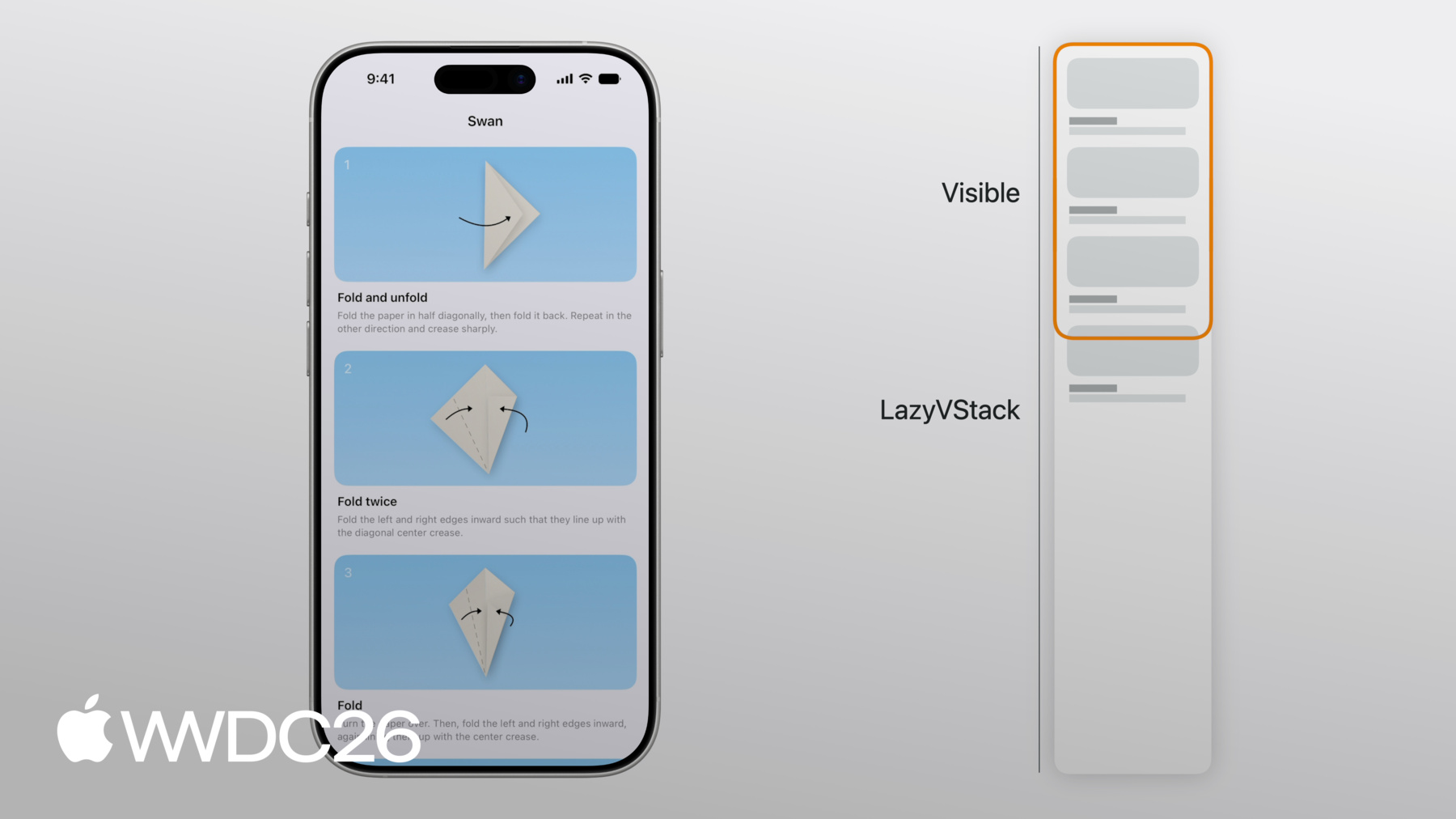
Three of the steps to create an origami swan are fully visible. A small part of the StepView for step 4 is also visible.
Now, the full LazyVStack is a lot larger than the visible views. But, unlike a VStack, a LazyVStack does not evaluate or render views that aren't visible. A LazyVStack simply lays out its views top to bottom, and stops once the visible rect is filled. If you scroll down the LazyVStack adds views as appropriate to make sure the visible rect remains filled, and as views are scrolled out of screen, they are removed from the lazy stack.
By not loading all views at once, a LazyVStack can be more efficient than a VStack. But there is a correctness cost. Since a LazyVStack doesn't load all of its views, the height of the subviews that are off-screen are estimated. This estimated height is based on the average size of views that have been placed before, and the estimated number of remaining subviews. The lazy stack is also unaware of changes in off-screen views, since they aren't loaded.
Similarly, since not all views are loaded, it wouldn't be able to find the maximum width of all views. So the ideal width of a LazyVStack is that of its first subview. In the case of my origami app, the first view is infinitely flexible, so the width of the LazyVStack equals the screen width.
Since the height of the LazyVStack is estimated and not precise, it can change during scrolling as the lazy stack learns more about the layout of new views scrolled onto screen. For example, if you scroll down all the way and the last views are a bit smaller than the other views the lazy stack has to adjust its originally estimated size to account for this.
The space above the visible rect isn't precise either. The scroll position, or content offset of the scroll view, therefore depends on an estimated position of the visible items. One example where the space above the visible region is not precise, is after an orientation change on an iPhone.
StepViews are less tall in landscape than they are in portrait. The subtitle text generally fits on fewer lines in landscape. During the orientation change, the lazy stack will keep the StepView for step 4, the topmost visible view, anchored. The LazyVStack isn't yet aware of the exact layout changes in the first few StepViews, since they aren't loaded. But when scrolling all the way back up, the lazy stack must align to the top of the scroll view. This means it must correct the estimated space above the visible region along the way. It will update the content offset of the ScrollView with the same amount, such that the content offset at the top is zero as well.
The lazy stack and the embedding scroll view coordinate the position and content offset. That way, when the estimations are updated, the relative position of the visible subviews in the scroll view doesn't change.
It's common to compose different types of views or content in the same lazy stack. For my origami app, I think it could be cool if people could share a photo of their creation with others when they are done. I'd like to display these photos at the bottom, in a horizontal scroll view. I've added a Showcase view for these photos.
The Showcase view has a horizontally scrolling ScrollView, with a LazyHStack within.
This means that my app now has a LazyHStack nested inside the outer LazyVStack.
Nesting a LazyHStack in a LazyVStack like this can also be good for performance, since not everyone will scroll this nested scroll view to see the extra views.
For a LazyHStack, the ideal height, and therefore, its height in a vertical ScrollView, is that of the first subview. For my origami app, all photos use the same height. But if every photo had a user description label with a variable number of lines, longer subtitles would be cut off. The LazyHStack cannot know in advance what the largest subtitle of all views is. It hasn't loaded all of them. The best solution is to fix the view heights. For example, for text, you can set a line limit, and reserve space for shorter text.
But I'm actually thinking the photos in my origami app, should be a bit larger. Maybe I should just add them vertically below the steps. If I add them in a section, I could even pin the section header.
To pin section headers, use the pinnedViews parameter on the LazyVStack.
I've added the new Section inside the Showcase view, with a header view. If I scroll down, the Showcase section header sticks to the top.
I'll now discuss some patterns to avoid so the lazy stacks perform at their best. I'll do that using the photos showcase I've just added. It could be nice to add a scroll transition to the photos as they scroll into and out of screen.
Here, I'm using the .scrollTransition modifier to give my steps an effect as they scroll on or off-screen. However, lazy stacks only load views that are on screen, based on their original position. And the transform here is pushing them out of their original frame.
That causes them to disappear when they should be visible, since the lazy stack believes they are off-screen. Here, as you scroll down, the pink swan disappears too soon.
If you apply a scroll transition to views in a lazy stack, make sure that views that wouldn't be normally visible aren't pushed into the visible rect. Here, I'm using a different scale effect.
This works fine. In general, make sure that views that wouldn't normally be visible aren't pushed into the visible rect in a transform. The lazy stack won't be aware of that.
Since you need to scroll down a little to get to the Showcase, I'll also add a button to quickly scroll there.
But the button shouldn't always be visible. I'd like it to only be visible when near the top of the scroll view.
When someone scrolls down, it should disappear.
Here, I'm using an .onScrollGeometryChange on my scroll view to get the absolute content offset.
When I'm scrolled down more than a 100 points, the button disappears.
This works, but since the content offset of a lazy stack is estimated, the exact position where the buttons disappears, can change when the estimations change. Instead, it's better to use the relative positions of subviews in the visible region of the scroll view.
One way to do that, is to use the .onScrollTargetVisibilityChange modifier.
The closure in that modifier is called when the visibility of the subviews in the visible region of the scroll view changes. Here, the visibility of the "Scroll to Showcase" button depends only on which subviews are visible, with a threshold of 80%.
I've now covered the layout of lazy stacks in detail. I've said that lazy stacks add subviews, when they are about to enter the visible part of the scroll view. However, the subviews a lazy stack loads individually, do not always correspond directly to the view structs you define in code. Let's go back to my original code and take another look at the ContentView. In this simple case, there is a 1-to-1 correspondence of StepView instances and the subviews that the LazyVStack sees.
There's a ScrollView, and the ScrollView has a LazyVStack as a subview, and the LazyVStack has the ForEach as a subview. But of course the ForEach isn't just a single view.
It's resolved to one StepView for every step. And in most cases, these are the subviews that the LazyVStack loads.
But here, the StepView is slightly more complicated. And that will be important. The body contains two views, StepDiagram and StepInstructions, at the top level of the body. They're also not embedded in another layout, like a VStack.
In this case, LazyVStack still has the ForEach which is resolved to a StepView for every step. But just like the ForEach resolves to multiple StepViews, each StepView now resolves to two views as well. The LazyVStack evaluates and loads StepDiagram and StepInstructions seperately.
Of course, StepView still needs to be evaluated for the lazy stack to create either of those. Views can also resolve to a dynamic number of views. But that is something you have to watch out for. In this case, StepView is using a detailLevel environment value, to check whether it should be visible.
The ForEach again resolves to a StepView for each step. But each StepView now resolves to either one subview or zero subviews. In this case, step 2 isn't visible given the current detail level, but the first and third steps are.
That works, and the contents of the StepView are loaded lazily, but the StepView itself can be kept alive longer than you may expect.
That is because a LazyVStack addresses the visible subviews using their index.
It now has to keep earlier StepViews around, just in case the detailLevel environment value changes, because that would affect the indices.
In leaf subviews that are created many times in a ForEach, like StepView, avoid creating a dynamic number of subviews.
The example where a detailLevel environment value is used to filter out steps, is therefore not a good idea.
Say that unrelated environment value, like writingStyle, is used in the contents of the StepView body. A change in this environment value can now cause body evaluations for views that are scrolled out of screen, causing unnecessary view updates. The lazy stack also won't release state allocated for the StepView. Instead, filter at the data level. If you're using SwiftData, use a Predicate to filter your Query.
Here, I'm using the detailLevel in the Predicate. This makes the number of subviews immediately clear to the LazyVStack. It doesn't have to construct views to compute view counts or indices.
Note that unwrapping an optional in a view body has the same effect. Here, I'm optionally unwrapping an apiToken Environment variable. The body only returns something if that token isn't nil.
The token is something that could be handled by a NetworkClient model object.
If someone is not authenticated, a view higher up in the hierarchy could show a ContentUnavailableView, instead of showing the lazy stack in the first place.
Since lazy stacks only keep a small part of their data in memory, they do not need to perform a full diff of their contents. They only perform a minimal check for changes in the visible views.
Lazy stacks don't always load a subview all at once. I'll now discuss prefetching, an internal mechanism with which lazy stacks improve the scrolling performance of your apps.
When you scroll in a specific direction, and the visible part of the lazy stack reaches the end of the placed content, the lazy stack already prefetches views before adding them on screen. Prefetching means that lazy stacks will perform part of the work of displaying a view before it's visible.
While scrolling, a ScrollView needs to draw frames at constant rates. That means there is only a limited time available to perform computations, up to a frame deadline. This work includes the ScrollView updating the content offset, your views rendering at a new position, and work your app may do in response to the content offset change. And when the ScrollView contains a lazy stack, it includes the work for evaluating views scrolled on screen, performing the layout, and rendering them. But, the work for placing new views on screen can be expensive.
If the work would take too long, passing the deadline, that would result in a dropped frame. That is visible as a hitch while scrolling so that should be avoided.
Prefetching is used to prevent such dropped frames. While scrolling, the lazy stack already checks if there is enough time available to perform part of the work of rendering a new subview, before it is scrolled on screen.
For example, a lazy stack may be able to evaluate the body and layout of a view about to appear on screen, before it appears.
When the view finally does appear, most of the work has already been performed, broken up across multiple frames.
The work to show a nested LazyHStack in a LazyVStack can be broken up across multiple frames as well. When the view appears, onAppear is called. So generally your view's body is called at one point, and onAppear only a little later, when the view is placed on the screen. If the scroll direction is reversed, it's even possible that the view's body is called as part of prefetching, and onAppear is never called.
Using onAppear in a lazy stack is useful for a number of things, even for data loading. One such use case is infinite scrolling. Here, the origami app fetches more photos from the web, when you scroll to the end. The last view, a ProgressView, has an .onAppear modifier. When that view appears, a new page is fetched.
But, loading everything in onAppear for each view is not a good idea.
In this example, onAppear is used to set-up every view. The size and large parts of the view's contents completely change after it's placed.
The work that prefetching has done earlier will be thrown away, and has to be re-done when the view appears. The lazy stack may also load more views than needed, and scrolling can be affected, as I'll show later.
Instead, set-up the view in the initializer such that it is in a reasonable state before it appears on screen.
Even when it's not essential, it can be useful to load content before views appear.
Here, I'm using the task modifier to remotely load a diagram from the internet when the view appears. But I can actually make use of prefetching to load it slightly earlier, so the chance is higher it's loaded by the time it appears.
For example, I could use a DiagramLoader observable object, connected to a cache. When the cache doesn't contain the data for a specific ID, it could load the data immediately when it's initialized. Since it starts loading the diagram in the initializer, the diagram will be fetched slightly earlier. Views that are scrolled out of screen aren't rendered or updated anymore. But they aren't removed from memory immediately. Lazy stacks keep these around for a number of updates, in case they are scrolled back on screen. When views finally are deleted from memory, state variables are deleted alongside.
Since the data associated with views scrolled out of screen will be deleted, don't depend on view state for data that needs to be kept alive after scrolling. Here, StepView uses an isHighlighted state variable. But if the view is scrolled away, that highlight state will be lost.
Instead, move important state to model objects, or outer views using a binding, as here.
You typically use lazy stacks inside a scroll view. I'd now like to give you some tips to make scrolling work well in lazy stacks. Earlier, I added a button to my origami app, to scroll to the showcase with user photos.
The code to programmatically scroll to the section would look like this. I'm using a ScrollPosition binding to scroll to the showcase's section header.
Programmatic scrolling works in lazy stacks, even if the target view isn't on screen.
Scrolling to an off-screen view requires the lazy stack to estimate its position. In an animated scroll, the lazy stack updates this estimated position on every frame. Still, there are some things that can prevent scrolling from being smooth and fast. For example, also here, having a dynamic number of views in StepView has a performance impact. Programmatic scrolling to a view with an ID is most performant if each view in your ForEach always resolves to one single subview. In that case, the lazy stack can query the ForEach to find the ID to scroll to, without constructing any of the views. Scrolling to a subview near the end is also more performant, if the lazy stack can quickly count its subviews.
As before, instead of filtering out views with a conditional in the view body, you should filter on the data level, for example, with a predicate on a Query.
Programmatic scrolling also becomes less smooth, if too many views change their layout after they appear on screen. A common pattern that does this, is using onGeometryChange, to set a state value that is then used in another layout pass.
Here, StepView has a state variable subtitleHeight, updated in an onGeometryChange on the subtitle.
The view is then evaluated again, and subtitleHeight is used to compute the frame of the diagram. This makes scrolling less reliable. The lazy stack measures the view's original height, but the height changes after the view appears, pushing down other content.
In cases like this, if you cannot use SwiftUI's layout primitives, use a custom layout instead. Here, that custom layout is StepLayout. To learn more about using custom layouts check out "Compose custom layouts with SwiftUI".
Alright, I've shown you many aspects of lazy stacks. I've talked about their layout, how views structs don't always resolve to a single subview and how that affects lazy stacks, how lazy stacks prefetch views for better scrolling performance, and how they allow programmatic scrolling to views off-screen. Along the way, I've given some tips and best practices that you can use for lazy stacks in your apps. For example, avoid using the absolute content size or content offset with lazy stacks, since these are estimated and unstable.
Avoid using conditional view content in leaf views to filter out data, as that can cause SwiftUI views to stay alive longer than expected.
Set up your lazy stack's subviews before onAppear is called where possible to ensure prefetching works best. And don't change the layout of subviews of lazy stacks after they appear, as that can push the lazy stack out of the targeted scroll position.
Understanding some of the mechanisms with which SwiftUI components work helps you excel at using them. And I think, after preparing this video, I now excel at creating swans.
-
-
1:23 - Origami app
// Origami app struct ContentView: View { var body: some View { ScrollView { LazyVStack { ForEach(steps) { step in StepView(step: step) } } } } } struct StepView: View { /* ... */ } -
5:11 - Horizontally scrolling showcase
// Horizontally scrolling showcase struct ContentView: View { var body: some View { ScrollView { LazyVStack { ForEach(steps) { step in StepView(step: step) } Showcase() } } } } struct StepView: View { /* ... */ } struct Showcase: View { var body: some View { ScrollView(.horizontal) { LazyHStack { ForEach(photos) { photo in PhotoView(photo: photo) } } } } } -
6:30 - Showcase section
// Showcase section struct ContentView: View { var body: some View { ScrollView { LazyVStack(pinnedViews: [.sectionHeaders]) { ForEach(steps) { step in StepView(step: step) } Showcase() } } } } struct StepView: View { /* ... */ } struct Showcase: View { var body: some View { Section { ForEach(photos) { photo in PhotoView(photo: photo) } } header: { /* ... */ } } } -
7:04 - Scroll effect
// Scroll effect struct ContentView: View { /* ... */ } struct StepView: View { /* ... */ } struct Showcase: View { var body: some View { Section { ForEach(photos) { photo in PhotoView(photo: photo) .scrollTransition { effect, phase in effect .rotationEffect(.degrees(phase.value * 20)) .scaleEffect(1 + phase.value * 0.2) } } } header: { /* ... */ } } } -
7:36 - Scroll effect
// Scroll effect struct ContentView: View { /* ... */ } struct StepView: View { /* ... */ } struct Showcase: View { var body: some View { Section { ForEach(photos) { photo in PhotoView(photo: photo) .scrollTransition { effect, phase in effect .scaleEffect(1 - abs(phase.value) * 0.1) } } } header: { /* ... */ } } } -
8:20 - Scroll to Showcase button
// Absolute offset struct ContentView: View { @State var isScrollToShowcaseVisible = false var body: some View { ScrollView { /* ... */ } .overlay(alignment: .bottom) { /* ... */ } .onScrollGeometryChange(for: Bool.self) { geo in geo.contentOffset.y <= 100 } action: { _, newValue in self.isScrollToShowcaseVisible = newValue } } } -
8:51 - Scroll to Showcase button
// Absolute offset struct ContentView: View { @State var isScrollToShowcaseVisible = false var body: some View { ScrollView { /* ... */ } .overlay(alignment: .bottom) { /* ... */ } .onScrollTargetVisibilityChange( idType: Step.ID.self, threshold: 0.8 ) { visibleIDs in isScrollToShowcaseVisible = shouldShowScrollButton(visibleIDs: visibleIDs) } } } -
9:29 - One resolved subview
// Origami struct ContentView: View { var body: some View { ScrollView { LazyVStack { ForEach(steps) { step in StepView(step: step) } } } } } struct StepView: View { /* ... */ } -
10:03 - Multiple resolved subviews
// Multiple subviews struct ContentView: View { /* ... */ } struct StepView: View { let step: Step var body: some View { StepDiagram(/* ... */) StepInstructions(/* ... */) } } -
10:52 - Dynamic number of subviews
// Dynamic number of views struct ContentView: View { /* ... */ } struct StepView: View { let step: Step @Environment(\.detailLevel) var detailLevel var body: some View { if step.isVisible(in: detailLevel) { VStack { /* ... */ } } } } -
11:46 - Filtering on the view level
// Dynamic number of views struct ContentView: View { /* ... */ } struct StepView: View { let step: Step @Environment(\.detailLevel) var detailLevel @Environment(\.writingStyle) var writingStyle var body: some View { if step.isVisible(in: detailLevel) { /* ... */ } } } -
12:15 - Filtering on the data level
// Filter at the data level struct ContentView: View { @Query var steps: [Step] init(detailLevel: DetailLevel) { _steps = Query(filter: #Predicate<Step> { step in step.detailLevel >= detailLevel }) } var body: some View { /* ... */ } } struct StepView: View { /* ... */ } -
12:35 - Optional unwrapping
// Optional unwrapping struct ContentView: View { /* ... */ } struct StepView: View { let step: Step @Environment(\.apiToken) var token var body: some View { if let token { /* ... */ } } } -
12:48 - Optional unwrapping
// Optional unwrapping struct ContentView: View { /* ... */ } struct StepView: View { let step: Step @Environment(NetworkClient.self) var networkClient var body: some View { /* ... */ } } -
15:28 - Loading more content
// Loading more content struct Showcase: View { @State var pager = ShowcasePager() var body: some View { ForEach(pager.pages) { page in PageView(page: page) } if !pager.atEnd { ProgressView() .progressViewStyle(.circular) .onAppear { pager.fetchPage() } } } } -
15:53 - Setting up lazy stack subview in onAppear
// onAppear struct StepView: View { let id: Step.ID @State var viewModel = StepViewModel() var body: some View { VStack { if let content = viewModel.content { /* ... */ } } .onAppear { viewModel.configure(with: id) } } } -
16:14 - Lazy stack subview ready before onAppear
// onAppear struct StepView: View { @State var viewModel: StepViewModel init(id: Step.ID) { _viewModel = State(initialValue: StepViewModel(id: id)) } var body: some View { /* ... */ } } -
16:23 - Loading diagram with task modifier
// Diagram loading struct StepView: View { let step: Step @State var diagramLoader = DiagramLoader() @State var diagram: Diagram? var body: some View { VStack { /* ... */ } .task { diagram = await diagramLoader.loadDiagram(id: step.id) } } } -
16:40 - Loading diagram in initializer
// Diagram loading struct StepView: View { let step: Step @State var diagramLoader: DiagramLoader init(step: Step) { self.step = step _diagramLoader = State(initialValue: DiagramLoader(id: step.id)) } var body: some View { /* ... */ } } @Observable class DiagramLoader { /* ... */ } -
17:16 - Highlight @State variable
// Highlighting struct ContentView: View { /* ... */ } struct StepView: View { let step: Step @State var isHighlighted = false var body: some View { /* ... */ } } -
17:33 - Highlight @Binding
// Highlighting struct ContentView: View { @State var highlighted: Set<Step.ID> = [] var body: some View { /* ... */ } } struct StepView: View { let step: Step @Binding var highlighted: Set<Step.ID> var body: some View { /* ... */ } } -
17:58 - Programmatically scroll to showcase
// Programmatically scroll to showcase struct ContentView: View { @State var scrollPosition = ScrollPosition() var body: some View { ScrollView { /* ... */ } .scrollPosition($scrollPosition) .overlay(alignment: .bottom) { Button { scrollToShowcase() } label: { /* ... */ } } } func scrollToShowcase() { withAnimation { scrollPosition.scrollTo(id: "showcase-header") } } } -
18:24 - Dynamic number of views
// Dynamic number of views struct ContentView: View { /* ... */ } struct StepView: View { let step: Step @Environment(\.detailLevel) var detailLevel var body: some View { if step.isVisible(in: detailLevel) { /* ... */ } } } -
18:53 - Filter at the data level
// Filter at the data level struct ContentView: View { @Query var steps: [Step] init(detailLevel: DetailLevel) { _steps = Query(filter: #Predicate<Step> { step in step.detailLevel >= detailLevel }) } var body: some View { /* ... */ } } struct StepView: View { /* ... */ } -
19:16 - Using onGeometryChange in lazy stack subview
// Don't change layout after views appear struct ContentView: View { /* ... */ } struct StepView: View { let step: Step @State var subtitleHeight: CGFloat? var body: some View { VStack { StepDiagram(diagram: step.diagram) .frame(height: diagramHeight(subtitleHeight: subtitleHeight)) Title(step.title) Subtitle(step.subtitle) .onGeometryChange(for: CGFloat.self, of: \.size.height) { _, value in subtitleHeight = value } } } } -
19:17 - Using custom layout in lazy stack subview
// Don't change layout after views appear

struct ContentView: View { /* ... */ }

struct StepView: View {
    let step: Step

    var body: some View {
        StepLayout {
            StepDiagram(diagram: step.diagram)
            Title(step.title)
            Subtitle(step.subtitle)
        }
    }
}

struct StepLayout: Layout { /* ... */ }
-
-
- 0:00 - Introduction
Rens Breur gives an introduction to lazy stacks, an essential SwiftUI component for long and custom scrolling content.
- 1:24 - Layout
How LazyVStack and LazyHStack lay out their subviews: only visible views are added, and the full size of lazy stacks is estimated. See how the lazy stack handles these estimated sizes, how the estimations can change, and how it coordinates the estimated content offset with the embedding ScrollView. Lazy stacks can also be composed to create more complex layouts.
- 9:13 - Subview loading
How view structs are resolved into the individual subviews that the lazy stack sees — the 1-to-1 mapping you might expect isn't always what happens. A view's body can resolve to multiple subviews or to a dynamic number of subviews, which has consequences for what the lazy stack keeps alive.
- 13:15 - Prefetching
Lazy stacks prefetch subviews before they scroll on screen, performing partial render work to avoid hitches. To take advantage of this, don't delay lazy stack subview set-up to onAppear. Lazy stack subviews are kept around a little longer after they are scrolled out of screen but are removed eventually. Move state that must survive being scrolled off screen into model objects or bindings from outer views.
- 17:40 - Programmatic scrolling
Using a ScrollPosition binding to scroll to a target view works even when the target is off-screen, with the lazy stack estimating its position. Same pitfalls apply: dynamic subview counts in a ForEach hurt scroll performance, and layout passes driven by onAppear or onGeometryChange make scrolling less smooth. Sometimes a custom Layout is the better solution.
- 19:55 - Next steps
Avoid absolute content size and offset with lazy stacks, don't filter data with conditional view content in leaf views, set up views in init rather than onAppear, and keep important state outside view structs that may scroll off screen.