

-
SF Symbols 2
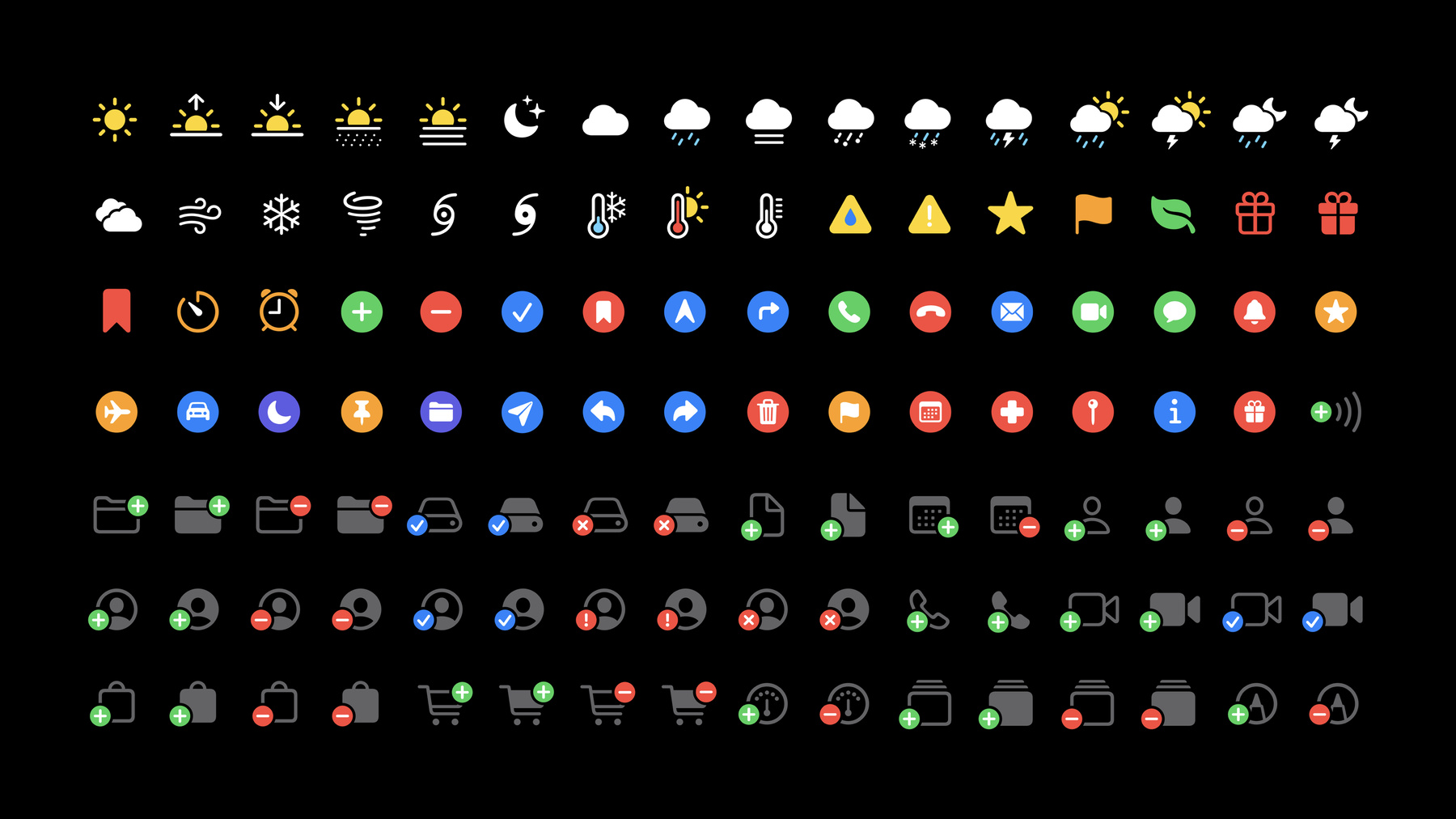
SF Symbols make it easy to adopt high-quality, Apple-designed symbols created to look great with San Francisco, the system font for all Apple platforms. Discover how you can use SF Symbols in AppKit, UIKit, and SwiftUI. Learn how to work with SF Symbols in common design tools and how to use them in code. And we'll walk you through the latest updates, including additions to the repertoire, alignment improvements, changes with right-to-left localization, and multicolor symbols.
This session focuses on the latest features in SF Symbols 2. While not required, we recommend watching "Introducing SF Symbols" from WWDC19. If you're planning to incorporate symbol assets into SwiftUI, you may also benefit from watching “Building Custom Views with SwiftUI."Ressources
Vidéos connexes
WWDC21
WWDC20
WWDC19
-
Rechercher dans cette vidéo…
-
-
5:29 - Symbol usage demo, part 1
// SF Symbols: simple usage and symbol configuration import UIKit class MainPlayerViewController: UIViewController { @IBOutlet weak var playButton: UIButton! @IBOutlet weak var shuffleButton: UIButton! @IBOutlet weak var playImageView: UIImageView! @IBOutlet weak var shuffleImageView: UIImageView! override func viewDidLoad() { super.viewDidLoad() setupButtons() } func setupButtons() { playImageView.image = UIImage(systemName: "") shuffleImageView.image = UIImage(systemName: "") } @IBAction func playAction(_ sender: Any) { } @IBAction func shuffleAction(_ sender: Any) { } } -
6:07 - Symbol usage demo, wrong string to initializer
// do NOT use symbol characters in code let shuffleImage = UIImage(systemName: "") // always use symbol names in code let shuffleImage = UIImage(systemName: "shuffle") -
7:01 - Symbol usage demo, scales
// SF Symbols: simple usage and symbol configuration import UIKit class MainPlayerViewController: UIViewController { @IBOutlet weak var playButton: UIButton! @IBOutlet weak var shuffleButton: UIButton! @IBOutlet weak var playImageView: UIImageView! @IBOutlet weak var shuffleImageView: UIImageView! override func viewDidLoad() { super.viewDidLoad() setupButtons() } func setupButtons() { let buttonConfig = UIImage.SymbolConfiguration(scale: .small) playImageView.preferredSymbolConfiguration = buttonConfig playImageView.image = UIImage(systemName: "play.fill") shuffleImageView.preferredSymbolConfiguration = buttonConfig shuffleImageView.image = UIImage(systemName: "shuffle") } @IBAction func playAction(_ sender: Any) { } @IBAction func shuffleAction(_ sender: Any) { } } -
7:13 - Symbol usage demo, textStyles
// SF Symbols: simple usage and symbol configuration import UIKit class MainPlayerViewController: UIViewController { @IBOutlet weak var playButton: UIButton! @IBOutlet weak var shuffleButton: UIButton! @IBOutlet weak var playImageView: UIImageView! @IBOutlet weak var shuffleImageView: UIImageView! override func viewDidLoad() { super.viewDidLoad() setupButtons() } func setupButtons() { let buttonConfig = UIImage.SymbolConfiguration(textStyle: .headline, scale: .small) playImageView.preferredSymbolConfiguration = buttonConfig playImageView.image = UIImage(systemName: "play.fill") shuffleImageView.preferredSymbolConfiguration = buttonConfig shuffleImageView.image = UIImage(systemName: "shuffle") } @IBAction func playAction(_ sender: Any) { } @IBAction func shuffleAction(_ sender: Any) { } } -
7:44 - SwiftUI symbol usage
// SF Symbols in SwiftUI import SwiftUI struct ContentView: View { var body: some View { Image(systemName: "shuffle") .font(.headline) .imageScale(.small) } } -
8:10 - SF Symbols in SwiftUI (Label)
// SF Symbols in SwiftUI import SwiftUI struct ContentView: View { var body: some View { Label("Sharing location", systemImage: "location.fill") } } -
8:12 - SF Symbols in SwiftUI (Text + Image)
// SF Symbols in SwiftUI import SwiftUI struct ContentView: View { var body: some View { let glyph = Image(systemName: "location.fill") return Text("\(glyph) Sharing location") } } -
8:52 - Using SF Symbols in AppKit
// Using SF Symbols in AppKit if let shuffleImage = NSImage( systemSymbolName: "shuffle", accessibilityDescription: "shuffle") { shuffleImageView.image = shuffleImage // Configure symbols let config = NSImage.SymbolConfiguration(textStyle: .body, scale: .small) let shuffleButtonImage = shuffleImage.withSymbolConfiguration(config) } -
11:45 - Symbol initializer for old and new templates
// loading symbols from Template V1 and V2 let shuffleImage = UIImage(systemName: "shuffle") -
15:44 - Tinting symbols in AppKit
// Tinting symbols if let folder = NSImage( systemSymbolName: "folder.badge.plus", accessibilityDescription: "add folder") { folder.isTemplate = true } if let folder = NSImage( systemSymbolName: "folder.badge.plus", accessibilityDescription: "add folder") { folder.isTemplate = false } -
18:10 - Using symbols in AppKit, recap
// Using SF Symbols in AppKit if let shuffleImage = NSImage( systemSymbolName: "shuffle", accessibilityDescription: "shuffle") { shuffleImageView.image = shuffleImage // Configure symbols let config = NSImage.SymbolConfiguration(textStyle: .body, scale: .small) let shuffleButtonImage = shuffleImage.withSymbolConfiguration(config) } -
18:24 - Using color symbols recap
// Tinting symbols

folder.isTemplate = true

folder.isTemplate = false
-