

-
Design for iPhone Duo
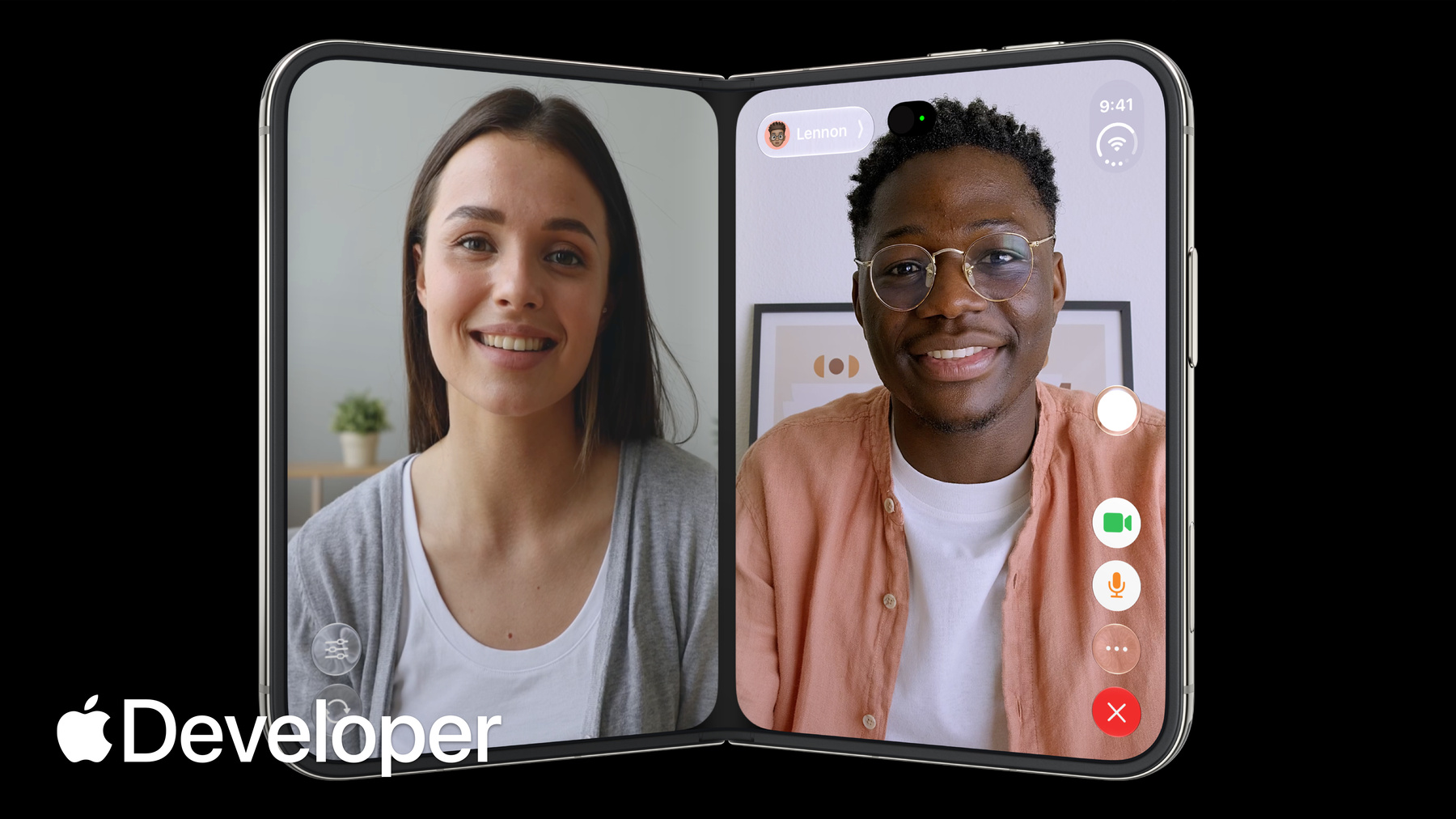
iPhone Duo is the first folding iPhone and comes with a reimagined iOS. Get to know the design principles behind the updated software, explore how controls move between different poses, and learn where your layout needs to adapt and why.
Chapters
- 0:00 - Introduction
- 0:28 - Design principles
- 3:42 - Adapting your design
- 5:07 - Positioning controls
- 6:33 - Designing for the outer display
- 7:34 - Designing for the inner display
- 8:36 - Sheet behavior
- 9:28 - Fold avoidance
- 10:01 - Conclusion
Resources
Related Videos
Tech Talks
-
Search this video…
Hi, welcome to Design for iPhone Duo. I'm Marcos. And I'm Vince. And we're designers on the Apple design team.
In this session, we'll show you how to design apps that feel great on iPhone Duo. We'll start with the design principles behind the device. And then I'll show you how to adapt your apps so that they look great across all the various configurations of iPhone Duo.
When iPhone Duo is closed, it is compact and familiar, and it fits comfortably in your hand.
When open, it reveals the largest, most immersive display ever on an iPhone, the best possible canvas for the apps and content you love in a device that still fits in your pocket.
iPhone Duo can be held and set down in a number of different ways. It can be used partially folded, like a book, seated on a table like a laptop with the inner display facing you, or standing on its own, resting on its edges.
iPhone Duo gives you a lot of flexibility and lets you experience the device the way you want, whatever the situation.
When closed, the display is wider and shorter than a traditional iPhone. Buttons and controls that normally sit at the top and bottom move to the right side of the display in order to maximize vertical space and to make them easier to reach with your right thumb.
creating an uninterrupted area for your content to its left, comparable to the area on an iPhone with more traditional display proportions.
This new space on the side houses the app controls. This includes the tab bar, the app toolbars, and navigation controls like the back button, the new redesigned status bar, and the Dynamic Island, which expands vertically as Live Activities arrive.
This efficient use of space extends to the inner display too. Controls move to the side there as well, maximizing vertical space for your content and keeping them within easy reach.
When you use iPhone Duo partially folded, like a book, the display naturally curves through the center.
When that happens, content automatically moves away from the center region. Text and images shift away from the curve so they are easier to read. Buttons and interactive elements move to the sides, too, where they're easier to target.
This way, the curve becomes a natural divider for the app's layout.
The same goes for portrait orientation.
When the device is partially folded, interactive elements move to the bottom half of the display, making them easier to reach while keeping the device stable on the surface.
iPhone Duo introduces a new way to run two apps side by side. It's built on the iPhone home gesture, and it feels fluid and familiar.
Just drag an app to the side to create a split view.
This new 50/50 split divides the display into two halves that work independently, so you can easily keep a task on one side while using the other half.
In split view, the controls sit along the outer edge. When an app is on the left side, the controls move to the left edge of the display too, keeping them within reach of your thumb and away from the center region.
And when a video is playing in picture-in-picture, you can now pin it to the top of the screen to keep watching it. Your current app resizes vertically to fit the space that's left.
And if you partially fold the device, the video extends to fill half of the screen. So apps adjust vertically to the different video sizes in real time.
So Vince, tell us more about getting apps ready for iPhone Duo. Sure thing.
Let's talk about how to adapt your designs.
People will use iPhone Duo in many different poses, and you'll want your app to look great across all of them. But that doesn't mean designing a custom layout for each pose. Instead, focus on two size classes: compact width on the outer display and regular width on the inner display. Avoid fixed widths, breakpoints, or any metrics tied to a specific screen.
Instead, always target these size classes.
Build your layouts with layout margins and horizontal safe area insets.
If you're already using these tools, you're off to a great start. Your app should already adapt to iPhone Duo. Another way to think about it, design your app to be freely resizable and you'll be in good shape. Now, while I just said there's no need to do custom designs for each pose, there is an optional layout worth considering. iPhone Duo is great for hands-free experiences when seated on a table.
Media can sit at the top, while tappable controls live on a stable base at the bottom.
If you decide to do a special layout for this pose, just be sure it has all the same controls and general hierarchy as other poses.
You don't want to tie functionality to a specific pose.
So controls move to the side for most of those layouts. Can you expand on that? Right. It's something new that, like you mentioned earlier, frees up vertical space. Let's take a look at how it works. On iPhone Duo, controls are positioned along the side of the device, making them easy to reach.
The only pose where we've kept horizontal bars is on the inner display in portrait, because here there's plenty of vertical space for app content.
Keep in mind, it's not just your app controls that have moved to the side. They'll share this vertical space with dynamic elements from the system, including Live Activities and the status bar. If there's not enough room, app controls will automatically collapse into an overflow menu. It might look like a lot to manage, but if you already have an iPhone app, it's simple to map your existing controls over to iPhone Duo, and a lot of it is handled automatically.
Toolbar buttons at the top of your app move to the top of this vertical space, while toolbar buttons on the bottom move to the bottom on iPhone Duo.
And if you have a tab bar, it stays bottom aligned. There are a couple exceptions, though. Not everything moves to the side. Toolbar items that are too wide for the space on the right, like a text button or a segmented control, should stay put in the nav bar on iPhone Duo.
With controls on the side, a lot of layers are now asymmetrical. What do designers need to know about that? Yeah, we learned a lot as we adapted our own apps to iPhone Duo. There are quite a few different approaches that really work well depending on the content style. Now, you're probably used to centering content with the full display. But on iPhone Duo, most content needs an offset so it isn't hidden behind the controls.
If your app aligns to horizontal safe area insets, that offset happens automatically.
Some UI should still center on the full display though, no offset. That works well for immersive, highly visual interfaces that don't scroll, as long as you're sure interactive elements won't be blocked by controls on the right. You can also mix both approaches, a full-width background image or header with scrollable foreground content that's inset. Just to make sure every interactive element lives inside that scrollable area so nothing gets covered up.
Okay, that covers the outer display, but what about the inner display? Ah, great question. You don't want just a stretched out iPhone app.
Let's talk about some of the best approaches. Split views are a great option. They let you surface multiple levels of your app hierarchy at the same time.
Just to make sure your hierarchy doesn't change between the outer and inner displays. Don't limit functionality to one pose or another. People may open and close the device frequently while using your app, so it needs to be predictable and consistent inside and out. Another option is to optimize your content for the wide inner screen.
Following this example from Music, you can have a vertically stacked layout that rearranges itself into a two-column layout when there's more horizontal space.
And a third option for apps with tab bars: You can present your tab bar as a sidebar on the inner display.
Now this isn't for every app. It works best for information-dense apps like this example from Health. Sheets have some new behaviors for this device too.
They adapt in a few different ways that you should know about depending on the pose.
By default on the outer display, sheet controls also move to the side.
But you can keep them from moving if that fits your content better by disabling the vertical bar in the sheet.
This works well for sheets with only a single toolbar button.
If you use this option, sheets stop just short of the front-facing camera and the status bar repositions itself.
On the inside, in both landscape and portrait, sheets use standard horizontal bars.
When iPhone Duo is partially folded, sheets slide over to avoid resting in the fold. And actually, so do a number of other components.
We found buttons are tough to tap when they land right in the fold. So we designed a behavior that nudges interactive elements aside whenever iPhone Duo is partially folded. It's built into a bunch of system components, including sheets, alerts, menus, toolbar buttons, and more. Use these components whenever possible to get the same fold avoidance behavior in your app.
So the idea is to keep interactive elements out of the curve region as much as possible. Exactly. Scrollable content doesn't need to avoid this region. Okay, let's wrap it up.
This is the first time your iOS app will appear on a folding iPhone. Apps should feel like a single experience adapting to the different display sizes and poses.
By adapting your interface to this new form factor, including moving controls to the side and supporting resizability, your app will feel truly at home on iPhone Duo.
We've had a lot of fun designing for iPhone Duo. We hope you will too. Thanks for watching.
-
-
- 0:00 - Introduction
Marcos and Vince from the Apple Design team introduce the design principles behind the device and how to design apps that look and feel great across all the various configurations of iPhone Duo.
- 0:28 - Design principles
iPhone Duo can be used, held and sat down in many different poses. Buttons and controls have been moved to the outer edge of the display to maximize vertical space. When folded, content automatically moves away from the center. Split View multitasking and video PiP mean that apps and their controls can appear at different aspect ratios and should support resizability.
- 3:42 - Adapting your design
Don't design a custom layout for each pose, instead focus on two sizes classes: compact and regular. Build your interface using layout margins and safe area insets to avoid having your UI obscured. If you're considering a bespoke layout for a specific pose, make sure functionality and general hierarchy is preserved.
- 5:07 - Positioning controls
On iPhone Duo, you should position your toolbars, tab bars and controls along the side of the device so they're easier to reach. Controls share this vertical space with dynamic elements like live activities and the status bar. If there's not enough room, controls will collapse into an overflow menu. Exceptions to this rule are controls that are too wide to fit in this vertical space.
- 6:33 - Designing for the outer display
On iPhone Duo, most content needs an offset so it isn't hidden behind controls. Safe area inserts provide this functionality automatically. However, Immersive, highly visual interfaces that don't scroll may still benefit from centering on the full display. You can also mix approaches, like using a full-width background image with written content that's inset.
- 7:34 - Designing for the inner display
Take advantage of the wide inner display to show more content. Split views are a great option to surface more of your app hierarchy. You can also rearrange your UI into a two column layout.
- 8:36 - Sheet behavior
On iPhone Duo, sheets adapt in different ways depending on the pose. On the outer display, they can be presented with vertical controls. On the inner display, they use horizontal bars. When the device is folded, sheets slide over to avoid resting in the fold.
- 9:28 - Fold avoidance
Built into system components is a behavior that nudges interactive elements away from the center when iPhone Duo is partially folded. Except for scrollable content, keep interactive elements away from the hinge as much as possible.
- 10:01 - Conclusion
Your app should feel like a single experience that adapts different display sizes and poses. By supporting resizability, your app will feel at home on iPhone Duo.