App Review Help
App Review Guideline reference 2.3.3 - Show your app in use with screenshots
2.3.3 - Show your app in use with screenshots
Screenshots are often the first thing people see on your app’s product page, so they must show your actual app in use and make its value clear.
App Review Guideline 2.3.3 provides guidance to ensure screenshots accurately communicate your app’s value and experience:
2.3.3
Screenshots should show the app in use, and not merely the title art, login page, or splash screen. They may also include text and image overlays (for example, to demonstrate input mechanisms, such as an animated touch point or Apple Pencil) and show extended functionality on device, such as Touch Bar.
Best practices for screenshots
Show your app in use in the majority of your screenshots.
You can decide how many screenshots to include for each device type supported by your app. App Review takes the set of screenshots submitted for each supported device into account, and will approve only those submissions where more than half of screenshots show the app in use. As long as the majority of the screenshots show the app in use, your other screenshots can exhibit the app’s main benefits and features using marketing materials and other information.
For example, if an app has three screenshots for each supported device, two of the screenshots for each device must show the app in use on that device. If an app has four screenshots for each device, three must show the app in use, and so on.
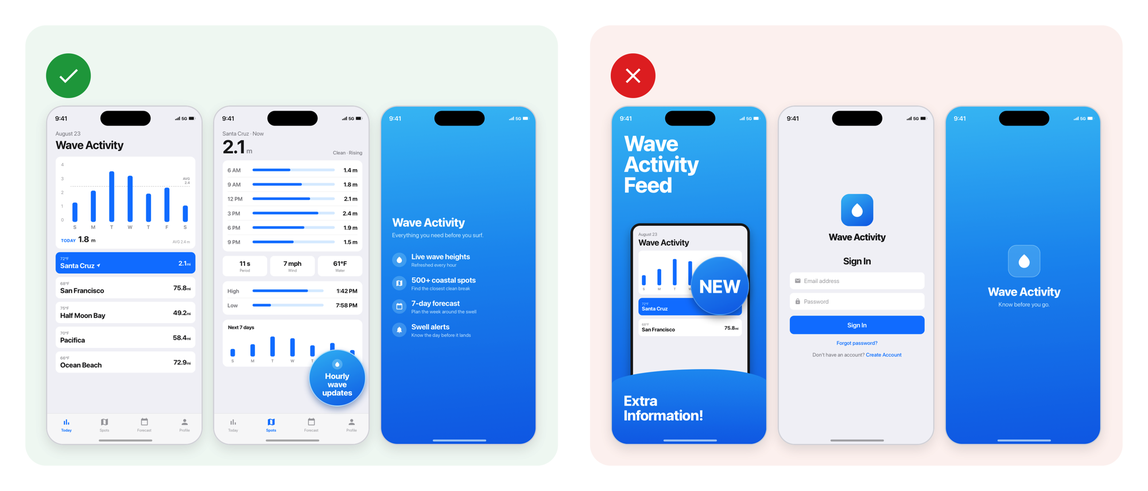
Do
-
Show your app’s main features and functionality in the majority of the screenshots for each device type.
-
Update your screenshots with each new version so they match the current user interface.
-
Include screenshots that show your app operating in different configurations, such as Dark Mode.
-
Include splash screens or marketing text, as long as the majority of screenshots still show the app in use.
Don’t
-
Don’t submit screenshots that only show generic login pages or splash screens.
-
Don’t submit screenshots that misrepresent the app’s actual interface or include misleading marketing or promotional materials.
Include overlays and visuals to show how people interact with your app.
Screenshots can contain more than a plain capture of your interface, provided the screenshot still reflects your app in use. Use text and image overlays to demonstrate input mechanisms. You can include messaging and other visuals, as long as the primary app functionality in the screenshot isn’t obscured.
Do
-
Use overlays to demonstrate input mechanisms.
-
Show extended functionality on device alongside your app in use.
-
Show your app running on another Apple platform when that’s part of the experience.
Don’t
-
Don’t let overlays or marketing visuals crowd out your app.
-
Don’t show only the hardware or an overlay with no app interface behind it.
Note: Screenshots that reference third-party platforms, such as in a status bar, are assessed under App Review Guideline 2.3.10.
FAQs
Do I need the same number of screenshots for every device?
No. The number can differ by device, and one screenshot for a device is sufficient as long as it shows your app in use.
Can my screenshots differ between localizations?
Yes. Screenshots can be tailored to a localization. Each localization’s screenshots are still assessed on whether the majority show your app in use. Learn more about app localization.
Can an image of my app be spread across two or more screenshots?
Yes. An image of an app in use can be displayed across multiple screenshots.