

-
Leverage multiple displays and scenes on iPhone Duo
Discover how to build rich multiwindow and multidisplay experiences for iPhone Duo. Explore how to handle dynamic window sizes and request new scenes in side-by-side multitasking. Learn how to observe hinge angle changes in SwiftUI and UIKit to create interactive effects. And find out how to use scene accessories to present supplementary content across both displays simultaneously.
Chapters
- 0:00 - Introduction
- 0:49 - Respond to the hinge
- 1:18 - Drive a pitch bend with hinge angle
- 2:35 - Hinge data versus layout APIs
- 2:59 - Split view multitasking
- 3:38 - Support multiple scenes
- 4:22 - Scene accessories
- 5:00 - The camera capture accessory
- 5:34 - Build a teleprompter accessory
- 6:44 - Next steps
Resources
Related Videos
Tech Talks
- Build a great camera experience for iPhone Duo
- Prepare your app for iPhone Duo
- Strike a pose with adaptive layouts on iPhone Duo
Meet with Apple
-
Search this video…
iPhone Duo is a groundbreaking new device, offering unique capabilities, while still feeling familiar. When people use your app, they expect it to feel at home on the device they're using. Other videos in this series show how your app can have a first-class experience across devices. We're going to show you how to take advantage of the unique features of iPhone Duo to make your app truly magical. I'm Chris Donegan, an engineering manager in UI Frameworks. And I'm Alex Muller, a system experience engineer.
You'll learn how to respond to the hinge to drive amazing interactions and effects, support rich workflows with split view multitasking, and leverage scene accessories to show UI across multiple displays. Let's open up with the hinge.
Opening iPhone Duo is stunning. Notice how the wallpaper reacts to the angle of the hinge and applies a zoom effect.
Your app can respond to the hinge as well. SwiftUI provides a new onHingeChange modifier, and UIKit provides UIHingeInteraction. Both give you access to the high-level hinge status of: closed, partially open, and fully open. Beyond the discrete status, it provides continuous updates of the hinge angle.
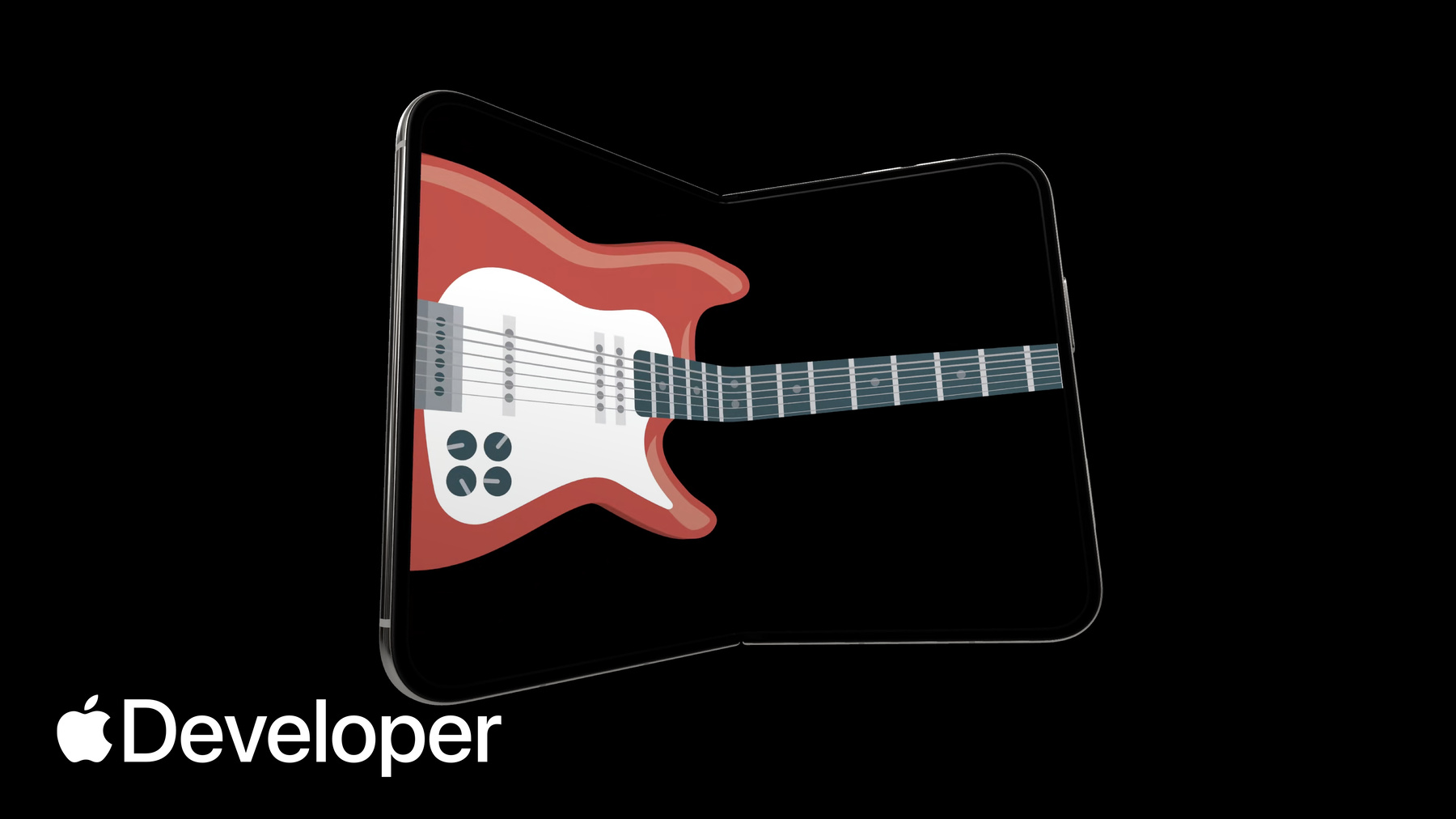
This is an app I've been working on. It has a playable guitar to level up my air guitar sessions.
I have an idea to use the hinge to drive a pitch bend like a whammy bar.
This is my Instrument view. It has the pitch bend value as state, which is passed to the guitar view in the body. I'll start my whammy feature by adding the onHingeChange modifier to the guitar view.
This modifier takes a closure with two arguments: the previous hinge context and the current. In this case, I just need the current context.
Next, I check for a non-null hinge. A null value indicates the app is running on a device without a hinge. In addition to checking availability, I'm also only interested in updates when iPhone Duo is partially open.
I'll make sure to add an else condition, so the pitch bend is reset when the app is not reading the hinge angle.
Finally, I'll calculate the pitch bend using the angle and update the state.
Using the onHingeChange modifier, my guitar app has a new level of expressivity.
Hinge data is observed live, and is ideal for driving interactions or effects. For layout, use the arrangement and region APIs. Check out "Strike a Pose with Adaptive Layouts on iPhone Duo" or more. I'm really excited to see creative ways in which apps use the hinge. I think they're really powerful. Absolutely. But iPhone Duo has so much more up its sleeve.
iPhone Duo brings powerful multitasking features that your app should be ready to handle. All apps participate in multitasking on iPhone Duo, where two apps can be placed in a side-by-side layout. If your app already supports resizing on iPad or iPhone Mirroring, you're off to a great start.
iPhone Duo has a completely new layout, stacking video and apps together. Your app handles both of these layouts the same.
The system makes supporting these layouts easy. It provides tools like size classes and scene geometry to use in your layout decisions.
Follow best practices from "Prepare your app for iPhone Duo." iPhone Duo is the first iPhone to support multiple instances of your app's UI. If your app supports this on iPad, it will on iPhone Duo as well. There is one thing to keep in mind. On iPad, new windows can be created at any time. On the outer display of iPhone Duo, new windows cannot be created. That behavior is reserved for the inner display.
This dynamic availability is unique behavior to iPhone Duo. Make sure you handle errors when requesting new scenes. Use UIWindowSceneActivationAction, which automatically hides when new windows aren't available.
If you're interested in adding support for multiple scenes for the first time, check out the documentation.
Split view multitasking is not the only way to get multiple scenes in your app. Scene accessories allow your app to show content on multiple displays at the same time.
For iPhone and iPad, scene accessories give your app the ability to pair additional content with your app's main UI, like using your iPhone as a controller for a game on an external display.
The system dynamically controls the availability of these accessories. They are enabled by default, but can be toggled at any time.
Respond to changes of an accessory's availability using observation tracking, so your app stays perfectly in sync as system conditions change.
New for camera apps on iPhone Duo, CameraCaptureAccessory allows you to pair additional UI on the outer display, while your app's main UI stays on the inner display. This lets you show content to a person while taking their photo or recording them. The camera capture accessory is available when your app is full screen on the inner display, and your app has an active camera session.
Register your accessory on the same view as your camera UI.
Learn more about the new camera features in "Build a great camera experience for iPhone Duo." To prepare for this talk, I've been building a camera app to help us practice.
I want to show a teleprompter on the outer display to help us learn our lines. To get started, I use the sceneAccessory modifier to add a camera capture accessory.
By adding the accessory on the camera view, the teleprompter will only be visible when the camera view is visible. And that's all the code I need.
Now, while the camera view is on the inner display, the teleprompter view is shown on the outer display. Next, I want to be able to practice from memory, and having a button to toggle the teleprompter would help.
I add a toolbar with a button that updates the enabled state of my teleprompter model, which is then given to the camera capture accessory.
Next, I want to disable the toolbar button when the accessory is not available, like when the device is closed. Adding onAvailabilityChange modifier to the camera capture accessory gives me a callback to observe this change.
And now we have a full-featured rehearsal app that takes advantage of both displays, showing the teleprompter only if we need it.
Thanks for putting that together. It really helped me practice. You needed it.
I hope we've sparked your creativity to make your app magical on iPhone Duo. Update your app to support split view multitasking, use the Hinge API to build impressive interactions and effects, and adopt scene accessories to have your app span multiple displays.
And with that, we come to a close. Thanks so much for tuning in.
-
-
1:33 - Hold pitch bend as state
struct InstrumentView: View { /// Normalized bend, 0 is no bend, 1 is deepest bend @State private var pitchBend: Double = 0 var body: some View { GuitarView(pitchBend: pitchBend) } } -
1:44 - Add the onHingeChange modifier
struct InstrumentView: View { /// Normalized bend, 0 is no bend, 1 is deepest bend @State private var pitchBend: Double = 0 var body: some View { GuitarView(pitchBend: pitchBend) .onHingeChange { _, context in } } } -
1:57 - Check for a hinge and the partially open state
var body: some View { GuitarView(pitchBend: pitchBend) .onHingeChange { _, context in // A null hinge means the device doesn't have one if let hinge = context.hinge, hinge.status == .partiallyOpen { } } } -
2:10 - Reset the pitch bend
var body: some View { GuitarView(pitchBend: pitchBend) .onHingeChange { _, context in if let hinge = context.hinge, hinge.status == .partiallyOpen { } else { pitchBend = 0 } } } -
2:17 - Calculate the pitch bend from the hinge angle
struct InstrumentView: View { /// Normalized bend, 0 is no bend, 1 is deepest bend @State private var pitchBend: Double = 0 var body: some View { GuitarView(pitchBend: pitchBend) .onHingeChange { _, context in if let hinge = context.hinge, hinge.status == .partiallyOpen { pitchBend = calculatePitchBend(angle: hinge.angle) } else { pitchBend = 0 } } } private func calculatePitchBend(angle: Angle) -> Double { ... } } -
5:43 - Register a camera capture accessory
struct CameraRootView: View { @State private var model = TeleprompterModel() var body: some View { CameraView(model: model) .sceneAccessory { CameraCaptureAccessory { TeleprompterView(model: model) } } } } -
6:14 - Add a toolbar toggle
struct CameraRootView: View { @State private var model = TeleprompterModel() var body: some View { CameraView(model: model) .sceneAccessory { CameraCaptureAccessory(isEnabled: $model.isEnabled) { TeleprompterView(model: model) } } .toolbar { TeleprompterToggle(isEnabled: $model.isEnabled) } } } -
6:25 - Observe accessory availability
struct CameraRootView: View {
    @State private var model = TeleprompterModel()

    var body: some View {
        CameraView(model: model)
            .sceneAccessory {
                CameraCaptureAccessory(isEnabled: $model.isEnabled) {
                    TeleprompterView(model: model)
                }
                .onAvailabilityChange { newValue in
                    model.isAvailable = newValue
                }
            }
            .toolbar {
                TeleprompterToggle(isEnabled: $model.isEnabled)
                    .disabled(!model.isAvailable)
            }
    }
}
-
-
- 0:00 - Introduction
Chris Donegan, an engineering manager in UI Frameworks, and Alex Muller, a system experience engineer, introduce how to take advantage of the unique features of iPhone Duo: responding to the hinge, supporting split view multitasking, and using scene accessories across multiple displays.
- 0:49 - Respond to the hinge
SwiftUI provides a new onHingeChange modifier and UIKit provides UIHingeInteraction. Both report the high-level hinge status — closed, partially open, and fully open — as well as continuous updates of the hinge angle.
- 1:18 - Drive a pitch bend with hinge angle
A walkthrough of adding a whammy-bar pitch bend to a playable guitar app. The onHingeChange modifier takes a closure with the previous and current hinge context. Check for a non-null hinge, since null indicates a device without one, and filter for the partially open state — adding an else condition to reset the pitch bend when the angle isn't being read.
- 2:35 - Hinge data versus layout APIs
Hinge data is observed live and is ideal for driving interactions or effects. For layout, use the arrangement and region APIs covered in "Strike a pose with adaptive layouts on iPhone Duo" instead.
- 2:59 - Split view multitasking
All apps participate in multitasking on iPhone Duo, where two apps sit side by side. If your app already supports resizing on iPad or iPhone mirroring, you're off to a great start. iPhone Duo also introduces a new layout stacking video and apps together, which your app handles the same way, using tools like size classes and scene geometry.
- 3:38 - Support multiple scenes
iPhone Duo is the first iPhone to support multiple instances of your app's UI, and apps that support this on iPad will too. One difference: new windows can't be created on the outer display — that's reserved for the inner display. Handle errors when requesting new scenes, and use the UIWindowSceneActivation action, which hides itself automatically when new windows aren't available.
- 4:22 - Scene accessories
Scene accessories let your app show content on multiple displays at once, pairing additional content with your main UI — like using an iPhone as a controller for a game on an external display. The system dynamically controls their availability; they're enabled by default but can be toggled at any time, so respond to availability changes using observation tracking.
- 5:00 - The camera capture accessory
New for camera apps on iPhone Duo, CameraCaptureAccessory pairs additional UI on the outer display while your main UI stays on the inner display — useful for showing content to someone while photographing or recording them. It's available when your app is full screen on the inner display with an active camera session, and you register it on the same view as your camera UI.
- 5:34 - Build a teleprompter accessory
A walkthrough of adding a teleprompter on the outer display of a camera app. The SceneAccessory modifier adds a camera capture accessory to the camera view, so the teleprompter appears only when that view is visible. A toolbar button then toggles the enabled state of the teleprompter model, and the onAvailabilityChange modifier provides a callback to disable that button when the accessory isn't available, such as when the device is closed.
- 6:44 - Next steps
Update your app to support split view multitasking, use the Hinge API to build impressive interactions and effects, and adopt scene accessories so your app can span multiple displays.