

-
優れたタッチ操作によるゲーム体験の向上
ゲームのタッチ体験を魅力的にするための効果的な手法を詳しく解説します。インディーゲームからAAAゲームまでを含む幅広いゲーム開発についての専門的なインサイトを共有します。直感的なタッチ操作を提供するためのベストプラクティスや、Touch ControllerフレームワークやMetalなどのAppleテクノロジーを活用して優れたパフォーマンスを実現する方法を学ぶことができます。
関連する章
- 0:00 - はじめに
- 1:42 - タッチコントロールを設定する
- 4:52 - 柔軟なレイアウト設計
- 10:17 - 滑らかなインタラクションの設計
- 21:16 - 充実したフィードバックの提供
- 23:49 - 次のステップ
リソース
関連ビデオ
Meet with Apple
-
このビデオを検索
こんにちは Game Technologyチームの Keyi Yuです
MacからiOSへのゲームの移植は 非常に簡単です Game Porting Toolkit 4を使えば プレイヤーはすでにAppleデバイス全体で 幅広いゲームコントローラを使えます― Mac、iPad、iPhoneなど プレイヤーはお気に入りのゲームを どこにでも持ち歩きたいと思っています iPhoneを取り出し、いつどこでも ゲームを楽しめます
ただし、そんな突発的な場面では コントローラを持っていないことも あるかもしれません そのような場合でも素晴らしく レスポンシブな体験を提供するには? 答えは、優れたタッチコントロールを ゲームに追加することです
Black Salt GamesのDredgeは タッチコントロールがいかに 魅力的な体験をさらに高められるかの 完璧な例です プレイヤーはゲームプレイと操作が シームレスに融合した体験を得られます すべてが自然で直感的なため プレイヤーは冒険に集中できます
手順を追って説明します iOSとiPadOSで優れたタッチコントロールを 設計・実装する方法を 私のゲームを例に説明します
まず、ゲームにタッチコントロールを 設定します 次に柔軟なレイアウトを作成し
画面上で流動的なインタラクションを 設計します そしてプレイヤーに豊かな フィードバックを提供します
最初のステップは タッチコントローラの設定です ゲームがすでにゲームコントローラに 対応している場合や キーボードとマウスをサポートしている場合 Game Controllerフレームワークに なじみがあるかもしれません
それをベースに Touch Controllerフレームワークが タッチ入力までサポートを拡張します
Game Controllerフレームワークの コアはシンプルです
GCControllerオブジェクトの 接続・切断の通知に反応します アクティブなデバイスの入力状態を ポーリングするか または入力状態の変化を通知する value-changed handlerを設定します
GCControllerでゲームロジックを 実装したら その上にタッチコントロールを 追加する準備が整います Touch Controllerフレームワークを 使うことでです
Touch Controllerフレームワークには 豊富なボタンタイプが含まれており 一般的なゲーム入力を 幅広くサポートします
さらに 各ボタンの外観をゲームに合わせて カスタマイズできます
APIはMetalと直接統合され 最高のパフォーマンスを実現します
ゲームでTouch Controllerを 有効にすると GCControllerオブジェクトとして 表示されます そのため状態をポーリングしたり 入力更新を受け取る handlerを設定したりできます 他のコントローラと同様に 私のゲームを見てみましょう すでにゲームコントローラに対応しているため タッチコントロールを追加します
まず作成から始めます descriptorからtouch controllerオブジェクトを 作成します 次にtouch controllerを有効にします これによりゲームコントローラのロジックが 自動的に有効になります
touch controllerが有効になったら 2つの作業を行います
まずUIViewで、タッチ入力の handlerを追加します これでプレイヤーがタッチを開始したとき 終了、移動したときにtouch controllerに通知されます 次にMetal rendererで 画面上のタッチコントロールをレンダリングします
コードでは、descriptorを使って touch controllerオブジェクトを作成します
connect APIでtouchControllerを 有効にします
次にtouchControllerのrender APIで すべてのコントロールをレンダリングします
UIKitのtouchesBegan関数は ビューまたはウィンドウで 新しいタッチが発生したときに報告します それをオーバーライドして handleTouchBeganを呼び出します touchesEndとtouchesMoveにも 同様に適用してください
最後にポーリング状態と valueChangedHandlerを設定します
もう1つ行う必要があることがあります touch controllerオブジェクトに すべてのコントロールを追加することです
しかし、どこに配置すべきでしょうか? プレイヤーに最高の体験を 提供するにはどうすればいいのでしょうか? 鍵は柔軟なレイアウトの設定です
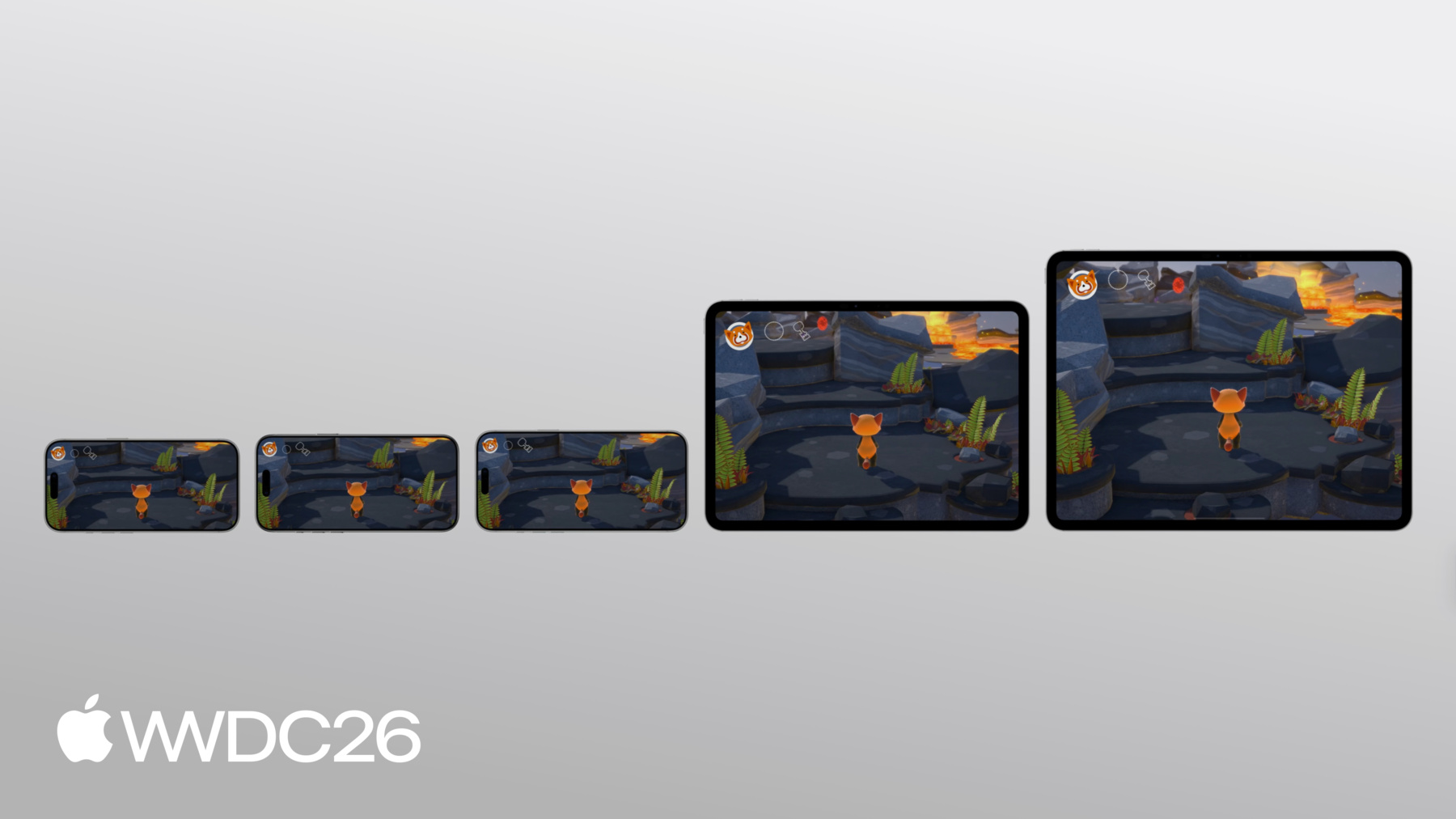
柔軟なレイアウトにより、どのスクリーンサイズでも 快適にゲームを楽しめます
Appleの統合ゲームプラットフォームで プレイヤーは様々なデバイスで あなたのゲームをプレイできます 重要なのは早期に計画を立てること そしてすべてのデバイスに対応する アダプティブなゲームインターフェイスを設計することです Touch Controllerフレームワークを使えば それが簡単にできます
各レイアウトに9つのアンカーポイントを 提供します コントロールにアンカーを割り当てたら アンカーを基準としたオフセットで コントロールを配置できます 関連するコントロールを セクションにまとめて そのセクション内のすべてのコントロールに 同じアンカーポイントを割り当てられます デバイスの形状が変わっても 各セクションはアンカーポイントからの サイズと距離を一定に保ちます
これによりモバイルプレイヤーにとって 物理的に快適なサイズのコントロールを維持します また、すべてのデバイスで 利用可能なスクリーンスペースを 最大限に活用します
コントロールが常に表示されていることも 確認する必要があります そのためにはフルスクリーン向けの 設計が必要です
iPadとiPhoneでは― フルスクリーンゲーム体験を 設計するということは セーフエリアを考慮することを 意味します
セーフエリアはUIを安全に 配置できるディスプレイ領域であり ハードウェアやソフトウェアの機能と 重複しない場所です iPadとiPhoneでは、セーフエリアにより UIの配置場所を適切に選べます デバイスの角丸部分で UIが隠れてしまわないように また、システムのホームインジケータを 避けるのにも役立ちます iPhoneのDynamic Islandも 同様です これらはコントロールのタップターゲットと 重複する可能性があります
iOSとiPadOSでは safeAreaInsetsを読み取ることができ UIKitの任意のUIViewから取得できます そのsafeAreaInsetsを追加して 画面に配置するコントロールのオフセットに 適用できます セーフエリアを避けることは第一歩です しかし、コントロールを慎重に 配置する必要もあります ゲームのプレイエリアと 干渉しないようにするためです
移動や予想される場所には コントロールを配置しないようにします カメラ入力もです
そしてもちろん、キャラクターを 隠してしまうのは避けたいので ディスプレイの中央には コントロールを配置しません 残るのは親指の近くの領域で 頻繁に使うアクションや 重要なアクションに最適です そして画面の上部領域は 使用頻度の低いコントロールを 配置するのに適しています メニューボタンなどです これでタッチコントロールをどこに 配置するかが明確になりました 次に、先ほど設定した touch controllerを使って ゲームにこれらのコントロールを 実装します Touch Controllerフレームワークは コントロールを作成するための 便利なAPIを提供しています どれも同様のパターンに従っています descriptorを使ってコントロールに必要な プロパティを設定します コントロール間で共通のプロパティもあります コントロールの種類に固有の プロパティもあります descriptorを使って コントロールを作成します TCTouchControllerに追加します
私のゲームでは、コントローラのサポートに 合わせてこれらのコントロールを 実装する必要があります まずボタンBを作成します
ここでは標準的な 円形のボタンBを作成します まずTCButtonDescriptorを初期化します ラベルをTCControlLabel.buttonBに設定します これをゲームコントローラの 物理的なbuttonBにマッピングします
ゲームはすでに物理コントローラからの 入力を処理していたため ゲームロジックを 追加記述する必要はありません すでに処理済みです ボタンを画面上に配置するだけです bottomRight領域にアンカーを設定し 固定オフセットを指定します
ボタンの視覚的なコンテンツも 設定する必要があります 画面に表示されるようにするためです 最後にtouchControllerで addButtonを呼び出し このdescriptorを渡します
ゲームはフルスクリーンなので safeAreaInsetsを使ってオフセットを調整し コントロールが切れないようにします
ボタンBが右下に 円形で表示されています 他のすべてのコントロールも 同様のパターンに従います touch controllerオブジェクトに すべてのコントロールを追加すると ゲーム内に表示されます
オフセットにセーフエリアを 適用したため Dynamic Islandがコントロールと 重複しません コントロールがメインキャラクターを 覆うこともなく ゲームエリアがすっきりしています
ただし、これらのコントロールは まだ少ししっくりきません 物理コントローラから 直接1対1でマッピングしただけです これではコントロールが画面を圧迫し 空間の取り合いになってしまいます でも改善できます このセクションでは 煩雑さを解消して タッチに自然に馴染む コントロールを設計します インタラクションが流動的で 自然に感じられると プレイヤーはゲーム体験に 入り込めるためです
ここで大きな効果をもたらす 選択肢がいくつかあります まずダイナミックコントロールの 使用から始めます 物理的なゲームコントローラのボタンと異なり 画面上のコントロールの外観は 簡単に変更できます
グリフを選択できます コントロールの機能を実際に 表すグリフを選べます コントロールにシステムアセットを 使用しているため システムアセットの名前を buttonBから変更するだけで 実際のアクションを示すアイコンに 差し替えられます
これでボタンBに 攻撃アクションのアイコンが表示されます
すべてのシステムアセットを 入れ替えると レイアウトがはるかに直感的になります プレイヤーは各コントロールの 機能をすぐに理解できます 設定を確認したりゲームプレイ中に ヒントを読む必要がありません
コントロールの動作がコンテキストに 応じて変わる場合は それに合わせてアイコンを更新してください
私のゲームでは デフォルトの攻撃力の他に ボタンBひとつで 火球や水の力も表現できます プレイヤーがパワーを選択した際に 炎や水滴のアイコンに 更新する必要があります
ボタンBのコンテンツを更新する ヘルパー関数を作成します 次にcyclePower関数で 各パワータイプに対応したsymbolNameで 呼び出します これでプレイヤーが使用中のアクションを 正確に把握できます
プレイヤーがパワーを選択すると 右下のボタンBに自動的に そのパワーに対応した 正しいアイコンが表示されます
重要なのは、アクションが利用できない または不要な場合 画面から完全に取り除くことです 使えないコントロールを 表示したままにしないでください 私のゲームでの適用例を紹介します
サムスティックは触れていない間 非表示にします 拾うボタンは近くに拾えるアイテムが ある場合にのみ表示されます
Quick Time Eventのボタンは Quick Time Eventが実際に 発生している場合にのみ表示されます
照準と放出のパワーボタンは 特定のパワーが選択されている場合にのみ 表示されます
サムスティックを未使用時に 非表示にするのは簡単です サムスティックを作成する際に hidesWhenNotPressedをtrueに設定するだけです
ボタンなど他のコントロールには isEnabledをfalseに設定して非表示にします
ピックアップボタンは少し異なります 拾い上げるべきアイテムの 真横に表示する必要があります そのため表示するたびに 位置を更新します
非表示にするときは touchControllerからボタンを 完全に取り除きます
サムスティック、ピックアップボタン、 QTEボタンを 不要なときに非表示にすると 画面がはるかにすっきりします
タッチコントロールの本当の強みの ひとつは 入力と出力の両方として 機能できることです オーバーレイを表示して アクションを切り替える代わりに それらのアクションをタッチコントロールとして 直接表示できます
buttonX押下のhandlerで パワーホイールのオーバーレイを表示する代わりに パワーホイールのコントロールを 直接開きます
openPowerWheel関数で 現在利用可能なパワーに基づいて 各パワーコントロールを touch controllerに追加します 次にそれぞれに value-changed handlerを設定します
これらのコントロールは 常時使用するわけではないため 選択がなければ3秒後に 自動的に非表示にします
これでプレイヤーはタッチコントロールから 直接パワーを選択できます オーバーレイは不要です
スムーズなキャラクターとカメラの動きは 優れた体験に不可欠です 物理コントローラからタッチへ どう適応させればよいでしょうか?
キャラクターとカメラ操作の両方に フルスクリーンを活用します スプリントには 左サムスティック1つを使い 追加ボタンは必要ありません
また右サムスティックを タッチパッドに置き換えます
物理的なサムスティックは 固定サイズです しかしタッチスクリーンでは そのような制約はまったくありません
プレイヤーは視覚的なコントロールに対して 指がどこにあるかを 物理的に感じることができないため 入力エリアをできるだけ広げることが 重要です
colliderShapeをleftSideまたはrightSideに 設定することで サムスティックが画面の 半分全体をタッチ検出に 使用できるようになります
これで画面の左半分全体が プレイヤーのタッチに反応します
もうひとつ解決したい 問題を見てみましょう― キャラクターのスプリント中の問題です
私のゲームでは、スプリントのために プレイヤーが左サムスティックを 押しながら同時に動かす必要があります 物理コントローラでは問題ありませんが タッチでは少なくとも2本の指を 同時に使う必要があります これは非常に難しい操作です
これを解決するために サムスティックボタンの機能を サムスティック自体に 直接組み込みます そしてスプリントの判定に 傾きの大きさを使用します
小さな傾きでは キャラクターが通常のペースで動きます 大きな傾きでは キャラクターがスプリントします
pollInput()関数でGCControllerから leftThumbstickを読み取り 傾き値を取得します
次にすばやく大きさをチェックして 傾きがスプリントを発動させるのに 十分かどうかを判断します これでプレイヤーはサムスティックだけで スプリントできます 2本目の指は不要です
もうひとつ解決したい問題は カメラコントロールです
タッチ時に右サムスティックを カメラ操作に直接マッピングすると 過回転が起こったり もたつきを感じたりする場合があります タッチパッドなら スピードと精度の両方が得られます カメラはすぐに動きます プレイヤーが回転を待つ必要はありません 指が動いた分だけ 正確にカメラが動き ジェスチャの開始・終了時に 遅延やドリフトが生じません
Touch ControllerフレームワークはこのためにTCTouchpadを提供しています descriptorを初期化して ラベルをrightThumbstickに設定し 既存のカメラロジックにマッピングします colliderShapeをrightSideに設定して 画面の右半分をカバーし reportsRelativeValuesをtrueに設定します これでプレイヤーが画面のどこに タッチしても動作します そしてtouchControllerに追加します これでプレイヤーがタッチパッドで カメラを操作する際 画面を圧迫する 視覚的なコントロールは表示されません ゲーム自体のための空間が より多く確保されます 指を動かしても 過回転は起こりません 最近のゲームには複雑な コントロールの組み合わせがあります 物理コントローラでは問題なくても タッチでは再考が必要です
それらに慎重に取り組むことが重要です
私のゲームには検討すべき 2つのケースがあります Quick Time Eventと 照準を使ったパワー発動です
これらは通常、物理コントローラで 2本以上の指を同時に使いますが タッチではより良い方法があります
まずQuick Time Eventから始めます 大ボスがキャラクターを凍らせる場面で QTEが発生します プレイヤーはL1とR1を押したまま 脱出する必要があり 同時に左サムスティックで ボスから離れる必要もあります 2本の指だけでは 管理することが多すぎます
代わりに、その2つのボタンを 1つのQTEボタンにまとめることを検討してください そしてイベントが発生していない場合は 完全に非表示にします
私のゲームでは セットアップ時にこのQTEボタンを1回追加します 異なる位置に表示される ピックアップボタンとは異なり QTEボタンは常に 同じ場所に表示されます そのためisEnabledを使って ボタンの表示・非表示を切り替えます 毎回追加・削除するのではなく
これでプレイヤーはQTEボタンを押したまま 脱出できます 同時に左サムスティックで 移動することもできます
もうひとつの課題は パワーを使うための照準操作です これは現代のゲームでよく見られます 火球を投げるには、プレイヤーが 2本以上の指で照準を合わせ 移動とパワー発動を 同時に行う必要があります 忙しいゲームでは非常に難しい操作です 解決策は照準と発動を 1つのアクションボタンに統合することです
コードで照準ボタンと 発動ボタンを削除します 代わりにbuttonBのvalueChangedHandlerで 押下状態に基づいて releasePower関数を呼び出します ホールドとドラッグを実装するには ボタンBを押したまま 生のタッチデルタをキャプチャします これはtouchesMovedで行う必要があります ボタンの押下状態とは独立して 追跡されるためです プレイヤーが火球を投げたい場合 ボタンBを長押しして ドラッグで照準を合わせます 同時に左サムスティックで 移動できます ボタンBを離すと 火球が発射されます この再設計でインタラクションが はるかにスムーズになります
プレイヤーが画面のどこでも タッチできるようになった今 タッチした内容について 明確なフィードバックを与えることも重要です 作成するすべてのタッチコントロールに 押下状態の視覚表示が必要です Touch Controllerフレームワークは デフォルトでこれを処理します サムスティックは動きに合わせてアニメーションし ボタンは押下時にハイライトされます しかし視覚的に忙しいゲームでは カスタムの視覚フィードバックで さらに強化したい場合もあります
私のゲームでは、スプリント中の フィードバックが少なすぎます 強力な視覚インジケータで これを改善します スプリントがアクティブな場合に 左サムスティックの外側リングの周囲に 発光するハローを追加します これを行うためにTCControlContentsを 手動で作成します まずhalo Metal textureから ハローリングのTCControlImageを生成します サイズはサムスティックの背景より 少し大きくします
TCControlContentsは 基本的にレイヤーの配列です 標準の背景画像の上に ハローコントロール画像を重ねます スプリントがアクティブな場合に ハロー付きの新しいTCControlContentsに切り替え 非アクティブな場合は 通常の背景に戻します プレイヤーがスプリント中は サムスティックの周囲に 発光するハローが表示され キャラクターがスプリントモードであることが すぐにわかります
これで完成です これまでにtouch controllerを設定し コントロールを再設計して 実装しました Touch Controllerフレームワークを使って ゲームに組み込みました ゲーム全体でどのように 動作するか確認しましょう
これが開始時の状態です 物理コントローラのすべてのボタンが 画面に直接マッピングされ ゲームが煩雑になっていました
今日のセッションで行ったすべての改善により ゲーム画面がすっきりして コントロールが使いやすくなりました プレイヤーが画面にタッチすると 左サムスティックが表示されます 近くに拾えるアイテムがある場合は ピックアップボタンが表示されます 画面の右半分はタッチパッドで 過回転なくカメラを操作できます ボタンを押すだけで 拾ったばかりのパワーを選択できます 1つのアクションボタンをホールドして ドラッグするだけで照準と発動が可能です
スプリントインジケータで ゲームプレイが大幅に向上しました プレイヤーはいつでもどこでも 2本の指だけでゲームを楽しめます 次はあなたがタッチコントロールを 設計する番です うまく設計すれば、スマートフォンで ゲームを手に取るプレイヤーにとって まったく新しいゲームのように 感じてもらえます Touch Controllerフレームワークを使って 優れたコントロールを実装してください 詳しくは「Design great interfaces for handheld games」と 「Level up with Apple game technologies」をご覧ください ご視聴ありがとうございました
-
-
2:04 - GCController polling vs. change handlers
// Polling if (button.isPressed) { // ... } // Change handlers pressedInput.pressedDidChangeHandler = { (element: any GCPhysicalInputElement, input: any GCPressedStateInput, pressed: Bool) // ... } -
3:14 - Set up a TCTouchController
// Set up a TCTouchController private(set) var touchController: TCTouchController? let descriptor = TCTouchControllerDescriptor(mtkView: mtkView) if TCTouchController.isSupported { touchController = TCTouchController(descriptor: descriptor) } touchController?.connect() touchController?.render(using: renderEncoder) override func touchesBegan(_ touches: Set<UITouch>, with event: UIEvent?) { for touch in touches { touchControls.handleTouchBegan(at: touch.location(in: view), index: touch.hash) } } buttonA?.valueChangedHandler = { (_ button: GCControllerButtonInput, _ value: Float, _ pressed: Bool) in // ... } -
8:33 - Create a standard circular button B
// Create a standard circular button B let buttonBDesc = TCButtonDescriptor() buttonBDesc.label = TCControlLabel.buttonB buttonBDesc.anchor = .bottomRight buttonBDesc.offset = adjustedOffset(CGPoint(x: -35, y: -106), for: buttonBDesc.anchor) buttonBDesc.contents = .buttonContents(forSystemImageNamed: "b.circle", size: buttonBDesc.size, shape: .circle, controller: touchController) // Set other properties ... touchController.addButton(descriptor: buttonBDesc) func adjustedOffset(_ offset: CGPoint, for anchor: TCControlLayoutAnchor) -> CGPoint { // Adjust offset for other anchors ... case .bottomRight: x -= safeArea.right y -= safeArea.bottom } -
10:48 - Change icon image
// Change icon image buttonBDesc.contents = .buttonContents(forSystemImageNamed: "figure.fencing", size: buttonBDesc.size, shape: .circle, controller: touchController) -
11:51 - Update contents for button B based on context
// Update contents for button B based on context func setButtonBContents(symbolName: String) { for button in touchController.buttons { if button.label == TCControlLabel.buttonB { button.contents = .buttonContents(forSystemImageNamed: symbolName, size: buttonSize, shape: .circle, controller: touchController) } } } func cyclePower() { // Get the current power type ... switch currentPower { case .strike: touchControls?.setButtonBContents(symbolName: "figure.fencing") case .fireball: touchControls?.setButtonBContents(symbolName: "flame.fill") case .waterBlaster: touchControls?.setButtonBContents(symbolName: "drop.fill") } } -
13:01 - Hide left thumbstick when not touched
// Hide left thumbstick when it is not touched let leftStickDesc = TCThumbstickDescriptor() leftStickDesc.hidesWhenNotPressed = true // Set other properties ... touchController.addThumbstick(descriptor: leftStickDesc) -
13:19 - Show/hide the pick-up button
// Show pickup button when there's an item nearby func showPickupButton(at projectedPosition: CGPoint) { // Calculate the position(ptX, ptY) for pickup button ... descriptor.offset = CGPoint(x: ptX, y: ptY) // Set other properties ... touchController.addButton(descriptor: descriptor) } func hidePickupButton() { for button in touchController.buttons { if button.label == TCControlLabel.buttonY { touchController.removeControl(button) } } } -
13:56 - Show power options as touch controls
// Show power options as touch controls buttonX?.pressedChangedHandler = { (_ button: GCControllerButtonInput, _ value: Float, _ pressed: Bool) -> Void in if pressed { self.openPowerWheel() } } func openPowerWheel() { touchControls?.showPowerWheelButtons(fireballCount: fireballCount, has: hasWaterBlaster) wirePowerWheelHandlers() DispatchQueue.main.asyncAfter(deadline: .now() + 3.0) { [weak self] in guard let self = self, self.powerWheelActive else { return } self.closePowerWheel() } } -
15:34 - Use the left half of the screen for character movement
// Use the left half of the screen for character movement let leftStickDesc = TCThumbstickDescriptor() leftStickDesc.colliderShape = .leftSide // Don't set as .circle // Set other properties ... touchController.addThumbstick(descriptor: leftStickDesc) -
16:39 - Calculate thumbstick tilt magnitude to trigger sprint
// Calculate left thumbstick's tilt magnitude to trigger sprint func pollInput() { if let gamePad = gameController.extendedGamepad { let gamePadLeft = gamePad.leftThumbstick var moveInput = simd_make_float2(gamePadLeft.xAxis.value, -gamePadLeft.yAxis.value) let magnitude = simd_length(moveInput) if magnitude > 0.8 { self.runModifier = 1.3 } self.characterDirection = moveInput } } -
17:36 - Replace right thumbstick with a touchpad
// Replace right thumbstick with touchpad let touchpadDesc = TCTouchpadDescriptor() touchpadDesc.label = TCControlLabel.rightThumbstick touchpadDesc.colliderShape = .rightSide touchpadDesc.reportsRelativeValues = true // Set other properties ... touchController.addTouchpad(descriptor: touchpadDesc) -
19:30 - Collapse two QTE buttons into one
// Collapse 2 QTE buttons into 1 single button func setupControls() { let desc = TCButtonDescriptor() desc.label = TCControlLabel(name: "escape_button", role: .button) // Set up other properties ... touchController.addButton(descriptor: desc) } func showEscapeButton() { // Find escape button in touchController ... escapeButton.isEnabled = true } func hideEscapeButton() { // Find escape button in touchController ... escapeButton.isEnabled = false } -
20:28 - Use button B to aim, move, and release power
// Use button B to aim, move, and release power buttonB?.valueChangedHandler = { (_ button: GCControllerButtonInput, _ value: Float, _ pressed: Bool) -> Void in self.releasePower(pressed: pressed) } override func touchesMoved(_ touches: Set<UITouch>, with event: UIEvent?) { for touch in touches { let point = touch.location(in: metalView) // Handle touch input ... if let gc = gameController, gc.isAiming { let prev = touch.previousLocation(in: metalView) gc.aimTouchDelta += simd_float2(Float(point.x - prev.x), Float(point.y - prev.y)) } } } -
21:52 - Add a halo effect with custom TCControlContents
// Add a halo effect around left thumbstick with customized TCControlContents
let haloLayer = TCControlImage(texture: haloTexture, size: haloSize, highlight: nil,
                               offset: .zero, tintColor: tint)
let normalBgImages = TCControlContents.thumbstickStickBackgroundContents(size: bgSize,
                                                                         controller: controller).images
haloThumbstickBg = TCControlContents(images: [haloLayer] + normalBgImages)
thumbstick.backgroundContents = active ? haloThumbstickBg : normalThumbstickBg
-