

-
SwiftUIでの高度なグラフィックエフェクトの組み合わせ
SwiftUIのレイアウトとグラフィックスに関するAPIをクリエイティブな方法で組み合わせて、充実したカスタム体験を生み出しましょう。複雑なデザインを分解し、クリエイティブパイプラインを使ってシンプルな構成要素をつなぎ合わせる方法を紹介します。レイヤーシェーダによる描画、タイムラインに沿ったアニメーション、アライメントガイドによるビューのアンカーについても解説します。
関連する章
- 0:00 - はじめに
- 1:40 - デザインの分解
- 4:11 - カバーアートとシェーダエフェクト
- 11:07 - 時間でのアニメーションの制御
- 12:00 - 時間同期トランスクリプトビュー
- 13:18 - アライメントガイドによるフローティングタイムスタンプ
- 16:16 - クリエイティブパイプライン
- 17:13 - 次のステップ
リソース
関連ビデオ
WWDC24
-
このビデオを検索
こんにちは! UI Frameworksチームの エンジニア、Haotianです SwiftUIの誕生以来 SwiftUIはグラフィックスと レイアウト機能を着実に拡張し リッチでカスタムな体験を 提供したい方々に選ばれています Appleデバイス上で AppleもSwiftUIを使って 自社アプリ全体に高度なエフェクトを構築しています 「高度な」という言葉は 難しく聞こえるかもしれません しかし 高度なエフェクトであっても SwiftUIアプリは同じ基本要素を 共有しています パイプラインのようなものです
データは一連の標準的な パイプを流れていきます 入力を受け取り 変換して 次へと渡していきます SwiftUIの段階的な開示設計により 各パイプは単独でも機能します しかし それらを繋げたり 分岐を作ることもできます フローを合流させることもできます そこで創造性が発揮されます 「高度さ」は複雑さではなく 構造の組み合わせにあります ロードマップをご紹介します まずデザインを 分解していきます 次に高度なエフェクトを構築します 最後にこれらのテクニックを アプリに活用する方法を紹介します クリエイティブなパイプラインを使って 制作中のデザインがこちらです
私は自分のポッドキャストアプリを 制作してきました 現在の画面がこちらです 最小限のトランスクリプト表示です これをもっと凝ったものにします Apple Musicのライブ歌詞表示のように アニメーションするカバーアートと 時刻に同期してスクロールするテキストです どこから始めればいいのでしょうか
すでにあるものから始めます 既存のユーザーインターフェースには 必要なデータがすべて含まれています カバーアートや 再生情報やトランスクリプトの テキストがあります 問題は必要なデータではなく パイプラインを使ってどう 変換するかということです いくつかの例をご紹介します
カバーアートから始めます 画像をビジュアライザに変換する パイプが必要です シェーダーパイプが適しています
ビジュアライザは再生状態を 反映するために動く必要があります 動的なビジュアルのために タイムパイプをパイプラインに接続します これで2つのパイプが1つに統合されます
タイムパイプは それ以上のことができます トランスクリプトパイプには タイムスタンプのオーバーレイが追加されています しかし現在時刻を 把握していません そのため正しくスクロールできません
同じタイムパイプを接続することで 時刻同期スクロールが実現できます これで背景に 動的なビジュアルが得られます 前景にはスクロールする トランスクリプトが配置されます この2つの並列パイプを 接続する時が来ました 全体を見渡すと すべてのモディファイアが あらゆるAPIが パイプラインの別のステージです ただ流れていくだけです
今示されたように ポッドキャストアプリには 高度な視覚効果とレイアウトがあります フルスクリーンのカバーアートや シェーダーエフェクトと 時間駆動のアニメーションを適用しています 時刻同期スクロールの トランスクリプト表示もあります フローティングビューの アタッチメントで洗練されています それぞれについて 達成方法を説明していきます カバーアートから始めます
素材はこちらです カバーアートの画像です
カバーアートは美しいですが トランスクリプトの背後に配置します .blurモディファイアで 背景と競合しないよう柔らかくします
カバーアートをぼかしたので 次はシェーダーの魔法を適用します シェーダーとは何でしょうか SwiftUIのコード記述と どう違うのでしょうか 説明しましょう
このアイコンはベクターから始まります GPUにより ピクセルへとラスタライズされます
この段階でGPU上で実行する シェーダーというプログラムを使えます ピクセルに塗る色を 決定するためのものです
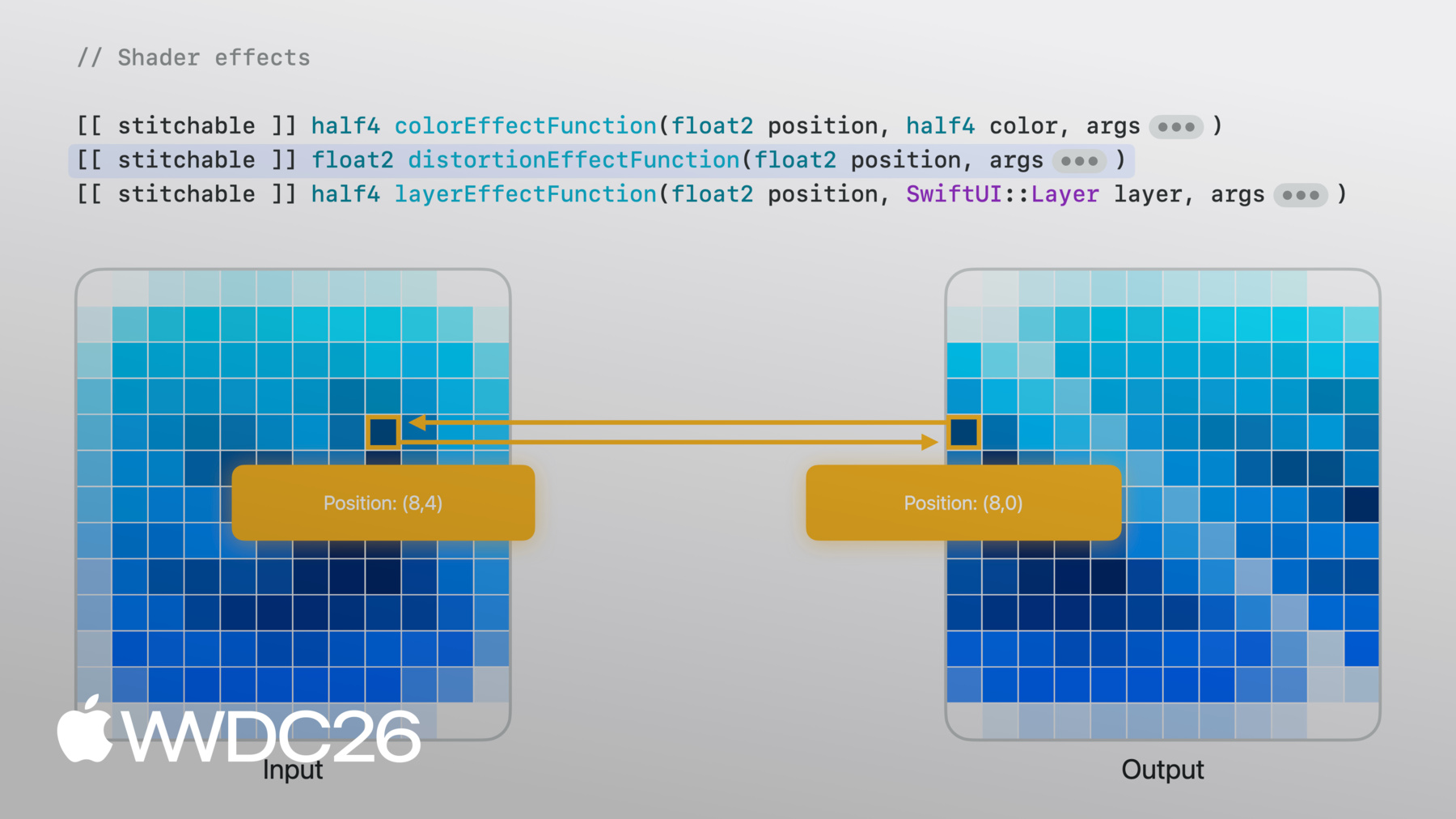
シェーダー関数は並列で実行されます 各ピクセルは独立して実行され 隣接するピクセルを認識しません それを踏まえれば Metalシェーダーの仕組みが明確になります SwiftUIのシェーダーエフェクトAPIから 呼び出せることがわかります シェーダーエフェクトには 3つの種類があります それぞれ異なるメソッドシグネチャを持ち 特定のパラメータが必要です 追加のパラメータを 付け加えることもできます SwiftUIからシェーダーに 転送したい情報のためです
colorEffectは各ピクセルの色を 新しい色に変換することで機能します 各ピクセルにはピクセル位置が 提供されます その位置における 元のビューのピクセルカラーとともに その情報に基づいて 新しい色を返します これはシンプルなエフェクトに役立ちます カラー画像を白黒に 変換するようなものです
distortionEffectの動作は異なります 特定の位置に色を期待する代わりに distortionEffectFunctionは 既存の位置を新しい位置として受け取ります SwiftUIが元の画像から サンプリングする位置です ピクセルカラーは関係しません SwiftUIに「この位置の色は あの位置の色に従う」と伝えます ここに示すシアーエフェクトのような 幾何学的効果に役立ちます
layerEffectが最も柔軟です layerEffectFunctionは 依然ピクセル単位で動作しますが ビュー全体のレイヤが 提供されます 隣接するピクセルや 領域全体をサンプリングできます ブラーのようなエフェクトに役立ちます 出力ピクセルカラーが 複数の入力ピクセルに依存する場合です
私のユースケースでは distortionEffectも使えますが layerEffectの方が 最も柔軟性があります layerEffectモディファイアを追加し 次にbackgroundWarpという シェーダー関数を追加します
今のところ指定された位置で 元のレイヤをサンプリングするだけです 元の画像がそのまま返ってきます しかしこれで構築できる シェーダー関数ができました
layerEffectを使えば 元のビュー全体からサンプリングできます 例えばfloat2ベクトルを シェーダー関数に渡せます サンプル位置をオフセットするために シェーダーで使用します
関数パラメータに合わせるため SwiftUI側からfloat2ベクトルを 渡すようにします
オフセットを増やすと 各ピクセルが このオフセット値でシェーダーを実行します すべてが均一に距離を増しながら サンプリングするようになります
オフセットを0に減らすと 画像が元に戻ります
ただし均一なオフセットのため 固定パターンでシフトした ピクセルしか得られません もっとオーガニックなもの ピクセルごとに変化するものが必要です
オーガニックな変化のために NoiseTextureを使います なめらかなランダム値を 事前計算した画像です
今度はSwiftUI側で ビューのサイズをNoiseTextureと 一緒に画像パラメータとして渡します
Metal側では 画像はtexture2dとして届きます
これからかなり本格的な Metalのコードをご紹介します
まず現在のピクセル位置とサイズを使って uv値を取得します この画像内の相対位置を 表します 絶対位置なしで テクスチャをサンプリングできます
NoiseTextureの中身を見ていきます
RGBチャンネルがあります 赤と緑の チャンネルが興味深いです それぞれが異なる ノイズパターンを含んでいるからです
uvを動かすと 赤と緑の値が変わります この常に変化する2つの値は 都合よく適しています XとYのオーガニックなオフセットに ピクセルごとに異なるためです
Metalシェーダーに戻りましょう
タイル状にするためrepeatモードで サンプラーを作成します 各ピクセルのUV位置で ノイズをサンプリングします 赤と緑のチャンネルが 2次元オフセットを提供します それをスケールして位置に加算し 元のビューからサンプリングします シェーダーが 画像をわずかにねじります
それはピクセルごとの変化ですが もっとリッチなものが欲しいです
そこで試してみます 1回のノイズサンプルの代わりに 2回行ったらどうでしょうか 1回目で初期オフセットを取得します 次にノイズを再びサンプリングします しかし今度は初期オフセットで シフトした位置からです するとこのように オーガニックに流れるような かたまりができます
この重ねたノイズのアプローチは ドメインワーピングと呼ばれる手法です 実装方法を確認するには サンプルアプリをダウンロードしてください プレビューも付いているので パラメータを自由に試せます
シェーダーエフェクトができましたが まだ静止しています 動かす必要があります そこで時間の出番です
SwiftUIのトランザクションベースの アニメーションとは異なり シェーダーはステートレスです 前フレームの記憶を持たず 出力はパラメータのみに依存します アニメーションには時間とともに 変化する値を渡す必要があります
TimelineViewこそ 接続が必要なパイプです アニメーションスケジュールにより タイムスタンプで毎フレーム起動します そのタイムスタンプをシェーダーに渡します 位置に加えて ノイズからサンプリングします パターンが流れ始めます
これが時間駆動の シェーダーアニメーションです トランスクリプト表示でも 時間を組み合わせる必要があります 現在実行中の トランスクリプト行が ハイライトされ スクロールビューの中央に表示されます
トランスクリプトはこちらです ScrollView内のLazyVStackに テキストビューが並んでいます 各行は独立したビューです 見慣れたSwiftUIです 再生状態に 追従させる必要があります
再生タイムスタンプを使って 現在の行を特定します 現在の行は太字でクリアに表示され 他はフェードバックします onChangeモディファイアで 現在行の変化を監視します 現在行を中央に保つように スクロールします
時刻同期スクロールビューが 動くようになりました 次に現在行の小さな タイムスタンプに注目します すべての行のオーバーレイに タイムスタンプがあります しかし現在行のタイムスタンプ だけが表示されます こうすることで レイアウトに干渉しません 常に存在し 表示されるのを待っています
この1行に注目しましょう コンテナの端に 付いたサブビューです どうすればそこに配置できますか offsetモディファイアは両ビューの サイズを知らないとできません
まずアライメントについて説明します すべてのビューにはアライメントがあります レイアウトシステムがビューを 配置するために使う点だと考えてください 両軸で定義されます
サブビューをオーバーレイ コンテナに配置すると レイアウトシステムはデフォルトの 中央アライメントで整列します
両ビューを貫通する ピンのようなものです 各ビューのアライメント点で 両者を固定します
オーバーレイのアライメントを .bottomLeadingに変更します
ピンは各ビューの bottom leading点を貫通します そこで互いに固定されます
現在レイアウトシステムは bottom leadingアライメントを要求します サブビューはbottom leading点を 返してピンを通します
これを明示的に コードで表現するならば アライメントガイドを記述して bottomはbottomを意味するようにします
目標を思い出してください サブビューの上端が コンテナの下端に接する必要があります
サブビューにこう伝えたらどうでしょう レイアウトシステムが bottomアライメントを尋ねたとき デフォルトを使わないでください 代わりにカスタムの オーバーライドがあります bottomアライメントを 上端に移動させます
ピンが貫通しようとすると そのポイントに従います
純粋にセマンティックな オーバーライドを書くだけで ビューを手動でオフセットせずに 結果が得られます このAPIにはさらに機能があります カスタムのアライメントを 独自に定義できます クロージャーから ViewDimensionsが得られます ビューの実際のサイズから 点を計算できます 詳細については 「SwiftUI Alignment」をご覧ください
これが完成形です 最初のシンプルな トランスクリプト表示から シェーダーと時間で動く アニメーション背景に 再生に同期してスクロールする トランスクリプト そしてアライメントガイドで 配置されたフローティングタイムスタンプ
すべてシンプルなパイプから 組み合わさって Appleデバイス全体で動作します
一歩引いて考えてみましょう デザインを取り上げ レイヤに分解しました 各レイヤに合った APIで生データをビューに変換しました 各ステージの出力が 次のステージの入力になります
このようにステージを繋げることを クリエイティブパイプラインと呼びます それはこのポッドキャストアプリで 私が選んだ選択肢です あなたのアプリでは もっとクリエイティブになれます 入力はオーディオの代わりに ジャイロスコープデータでもよかった シェーダーはねじりの代わりに 波紋でもよかった 前景はスクロールビューの代わりに フリーフォームキャンバスでもよかった 組み合わせによって 異なるものが生まれます それがクリエイティブな部分で APIは同じです 何を入力してどう繋げるか それはあなた次第です
あなただけのものを作りましょう サンプルプロジェクトをダウンロードして シェーダーを試してみてください ノイズを変えたりスピードを調整したり 違う画像を試したりしてみてください 自分のアプリで機会を探してください 小さな視覚効果が 大きな違いをもたらす場所を それらのパイプを繋げ始めると シンプルなものがいかに素早く 高度なものになるか驚くでしょう
ご視聴ありがとうございます それではまた!
-
-
4:18 - Cover art image
Image("CoverArt") -
4:24 - Blurred cover art image
Image("CoverArt") .blur(radius: 30) -
7:09 - Applying layer effect in SwiftUI
GeometryReader { proxy in CoverArtView() .layerEffect( ShaderLibrary.backgroundWarp(), maxSampleOffset: .zero ) } .ignoresSafeArea() -
7:21 - Writing layer effect shader in Metal
[[stitchable]] half4 backgroundWarp( float2 position, SwiftUI::Layer layer ) { return layer.sample(position); } -
7:39 - Metal shader with offset parameter
[[stitchable]] half4 backgroundWarp( float2 position, SwiftUI::Layer layer, float2 offset ) { return layer.sample(position + offset); } -
7:55 - SwiftUI layer effect with offset parameter
GeometryReader { proxy in CoverArtView() .layerEffect( ShaderLibrary.backgroundWarp( .float2(.init(x: 0, y: 0)) ), maxSampleOffset: .zero ) } .ignoresSafeArea() -
8:04 - SwiftUI layer effect with full-width offset
GeometryReader { proxy in CoverArtView() .layerEffect( ShaderLibrary.backgroundWarp( .float2(.init(x: proxy.size.width, y: 0)) ), maxSampleOffset: .zero ) } .ignoresSafeArea() -
8:37 - SwiftUI layer effect with noise sampling
GeometryReader { proxy in CoverArtView() .layerEffect( ShaderLibrary.backgroundWarp( .float2(proxy.size), .image(Image("NoiseTexture")) ), maxSampleOffset: .zero ) } .ignoresSafeArea() -
8:55 - Metal shader with noise sampling
[[stitchable]] half4 backgroundWarp( float2 position, SwiftUI::Layer layer, float2 size, texture2d<half> noiseTex ) { constexpr sampler s(address::repeat, filter::linear); float2 uv = position / size; half4 n = noiseTex.sample(s, uv); float2 offset = (float2(n.r, n.g) - 0.5) * 200.0; return layer.sample(position + offset); } -
10:22 - Metal shader with domain warping
[[stitchable]] half4 backgroundWarp( float2 position, SwiftUI::Layer layer, float2 size, texture2d<half> noiseTex ) { constexpr sampler s(address::repeat, filter::linear); float2 uv = position / size; half4 n = noiseTex.sample(s, uv); float2 q = float2(n.r, n.g); n = noiseTex.sample(s, uv + q); float2 offset = (float2(n.r, n.g) - 0.5) * 200.0; return layer.sample(position + offset); } -
11:16 - SwiftUI layer effect with static visual
GeometryReader { proxy in CoverArtView() .layerEffect( ShaderLibrary.backgroundWarp( .float2(proxy.size), .image(Image("NoiseTexture")) ), maxSampleOffset: .zero ) } .ignoresSafeArea() -
11:37 - SwiftUI layer effect with animated visual
@State private var startDate = Date.now TimelineView(.animation) { timeline in let elapsed = timeline.date.timeIntervalSince( startDate ) CoverArtView() .layerEffect( ShaderLibrary.backgroundWarp( .float2(proxy.size), .image(Image("NoiseTexture")), .float(elapsed) ), maxSampleOffset: .zero ) } -
12:15 - Basic transcript view
ScrollView { LazyVStack(alignment: .leading, spacing: 12) { ForEach(sampleTranscript) { line in .font(.title) .fontWeight(.bold) } } } -
12:33 - Time-synced transcript view
@State private var playback = PlaybackState() ScrollViewReader { scrollProxy in ScrollView { LazyVStack(alignment: .leading, spacing: 12) { ForEach(sampleTranscript) { line in Text(line.text) .transcriptLineStyle(isCurrent: line.id == playback.currentLineIndex ) } } } .onChange(of: playback.currentLineIndex, { _, i in scrollProxy.scrollTo(i, anchor: .center) }) } -
13:53 - Overlay with center alignment
Text(line.text) .overlay { Text(line.formattedTimestamp) } -
14:06 - Overlay with bottom leading alignment
Text(line.text) .overlay(alignment: .bottomLeading) { Text(line.formattedTimestamp) } -
14:32 - Overlay with alignment guide override
Text(line.text)
     .overlay(alignment: .bottomLeading) {
          Text(line.formattedTimestamp)
              .alignmentGuide(.bottom) { $0[.top] }
     }
-