App Store Connect Analytics Help
In-App Events
In-App Events are timely events within your app, such as competitions, movie premieres, or major updates, that are discoverable directly on the App Store. They appear as event cards with images or video, a title, and a short description, and help you reach new users, re-engage existing users, and give former users a reason to return.
Analytics reports event impressions, event page views, app opens, downloads, subscriptions, and sales driven by each event. This full-funnel view helps you understand which events resonate most with your audience. You can filter by a variety of dimensions, including territory, source type, or device to evaluate performance across audiences.
Data for each In-App Event will appear once it has received at least 5 first-time downloads.
To export In-App Event data in bulk, use the Analytics reports in the App Store Analytics API. Data about individual In-App Events is only available for export in the detailed reports, which have more rigorous privacy protections than the standard reports.
Analytics has a dedicated section for In-App Event performance. Here, you can analyze the entire event funnel:
-
Discovery: View Event Page Views and Impressions to learn how many people viewed your event card and selected it to learn more.
-
Interest: Measure Reminder and Notification data to learn how many users opted in to be notified when your event starts.
-
Acquisition: Measure Downloads and Redownloads that were directly driven by your event. You can filter all of these metrics by dimensions like territory, source type, and device to understand which events and promotion strategies are most effective.
Learn about configuring In-App Events in App Store Connect.
In-App Event metric definitions
The metrics below are provided to help you analyze your In-App Event activity on the App Store. You can also filter Download, Usage, and Sales metrics by specific In-App Events to learn what happens after a user downloads or redownloads your app from an In-App Event card on the App Store.
|
Metric |
Definition |
||||||||||
|---|---|---|---|---|---|---|---|---|---|---|---|
|
Event Impressions |
The total number of times your In-App Event was viewed on the App Store and Apple Games. Includes event detail page views and event card views. |
||||||||||
|
Event Impressions (Unique) |
The number of unique devices that viewed your In-App Event on the App Store and Apple Games. Includes event detail page views and event card views. |
||||||||||
|
Event Page Views |
The total number of times your In-App Event details page was viewed on the App Store and Apple Games. |
||||||||||
|
Event Page Views (Unique) |
The total number of devices that viewed your In-App Event details page on the App Store and Apple Games. |
||||||||||
|
App Opens |
The number of times users opened your app by selecting a link from your In-App Event card. |
||||||||||
|
Reminders |
The number of times users tapped on the reminder button to request a notification when your app begins. Cancelled reminders are subtracted from the total. |
||||||||||
|
Notification Taps |
The number of times users tapped on a notification that your In-App Event is about to start. |
||||||||||
View In-App Event data
-
In Apps, select the app you want to view.
-
Click the Analytics tab.
-
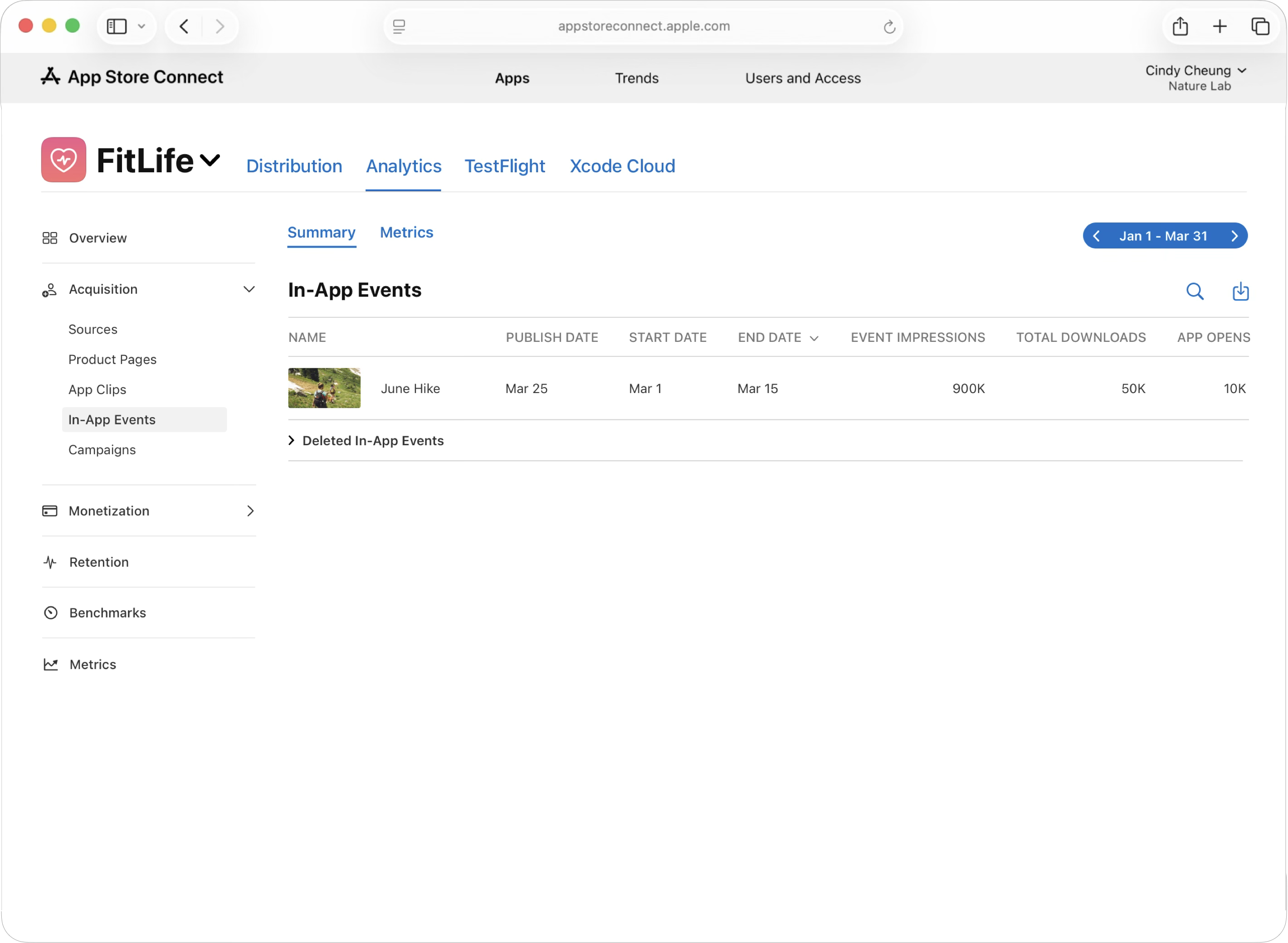
In the sidebar under Acquisition, click In-App Events. The Events dashboard will display all of your In-App Events. Click on an event to view its data.
-
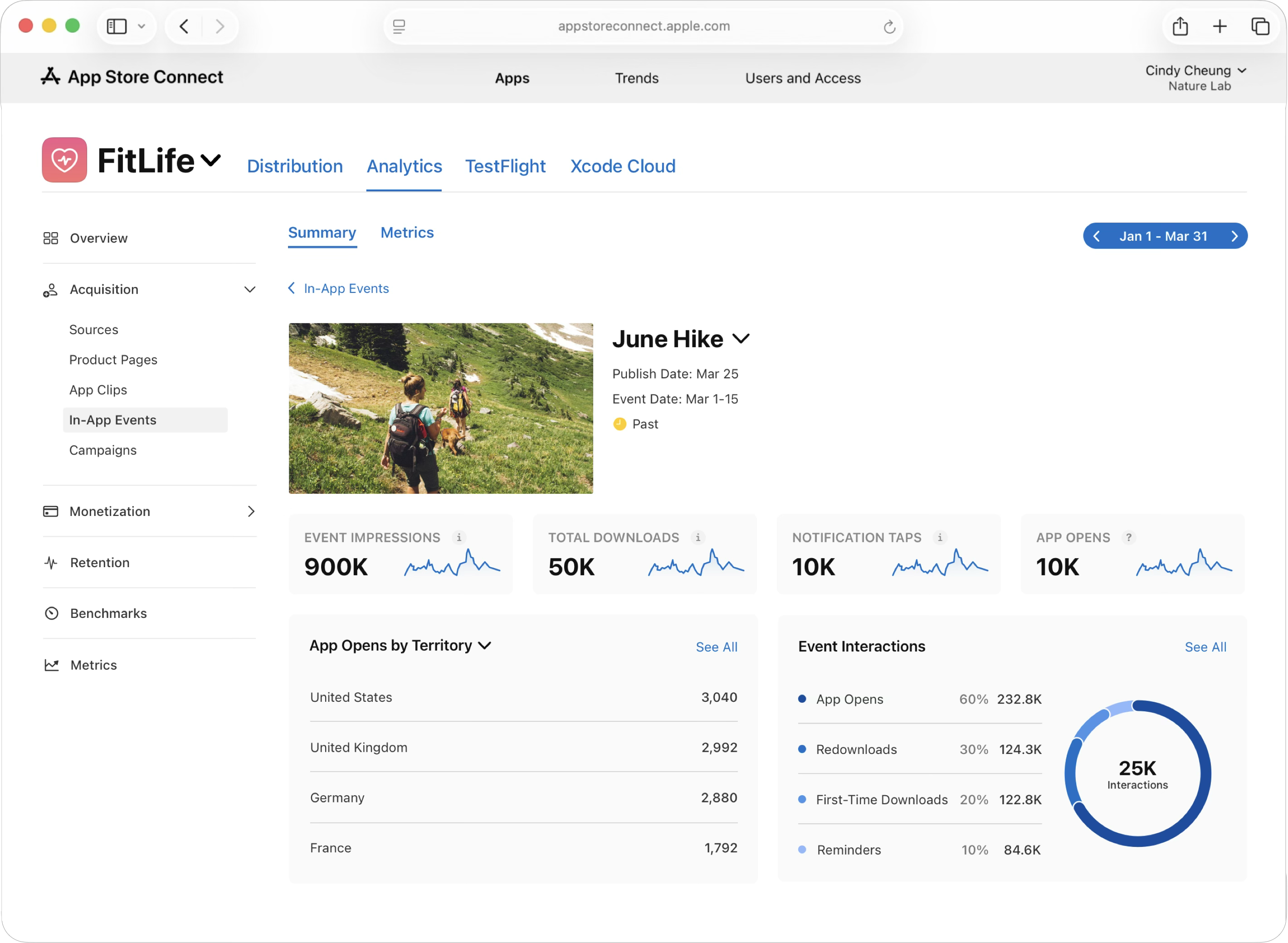
The In-App Events dashboard displays key performance metrics like Event Impressions, Total Downloads, and Notification Taps. Below these, charts show your App Opens by Territory, as well as your overall Event Interactions.
-
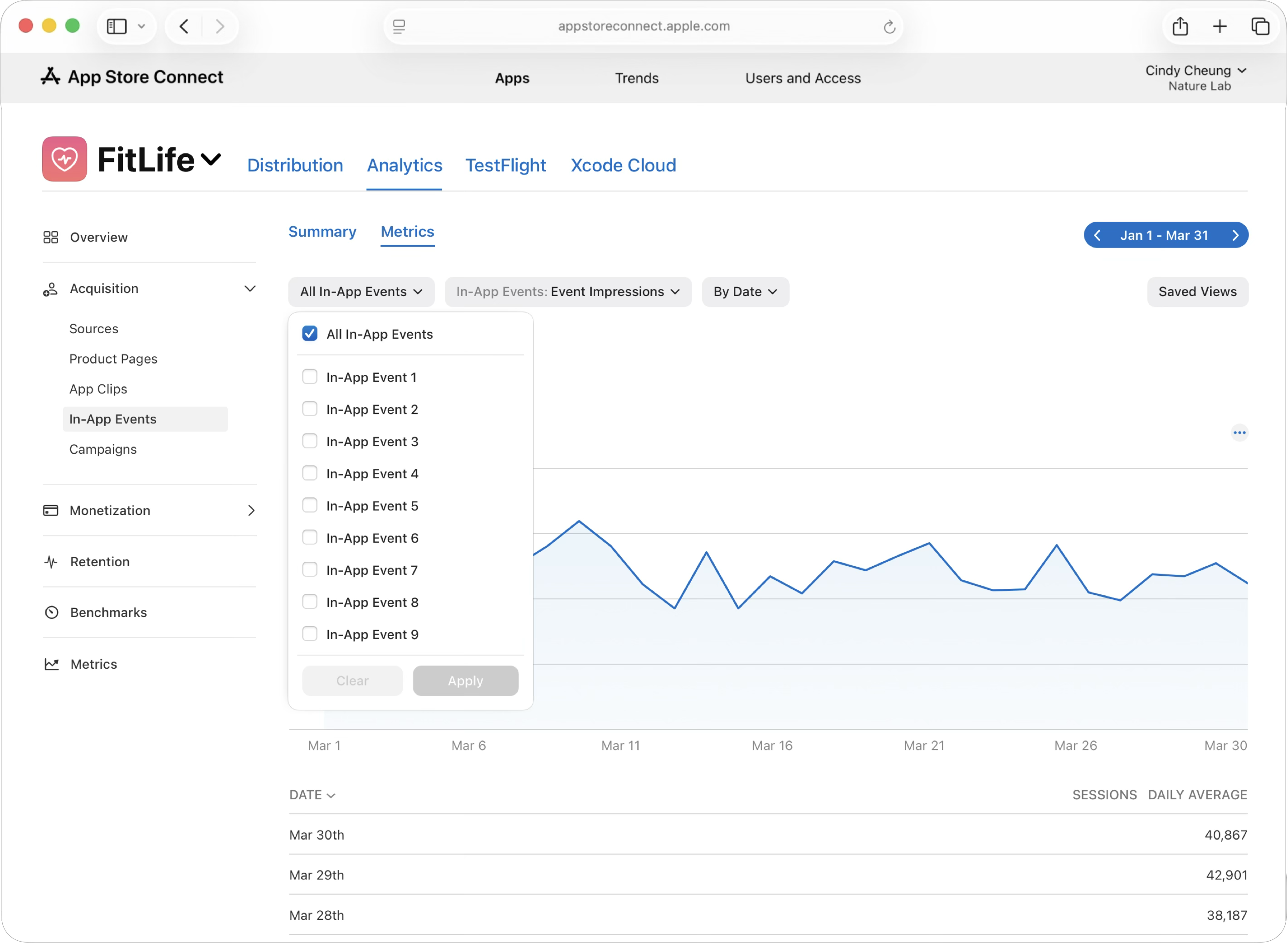
To view data for a specific In-App Event, click the Metrics tab.
-
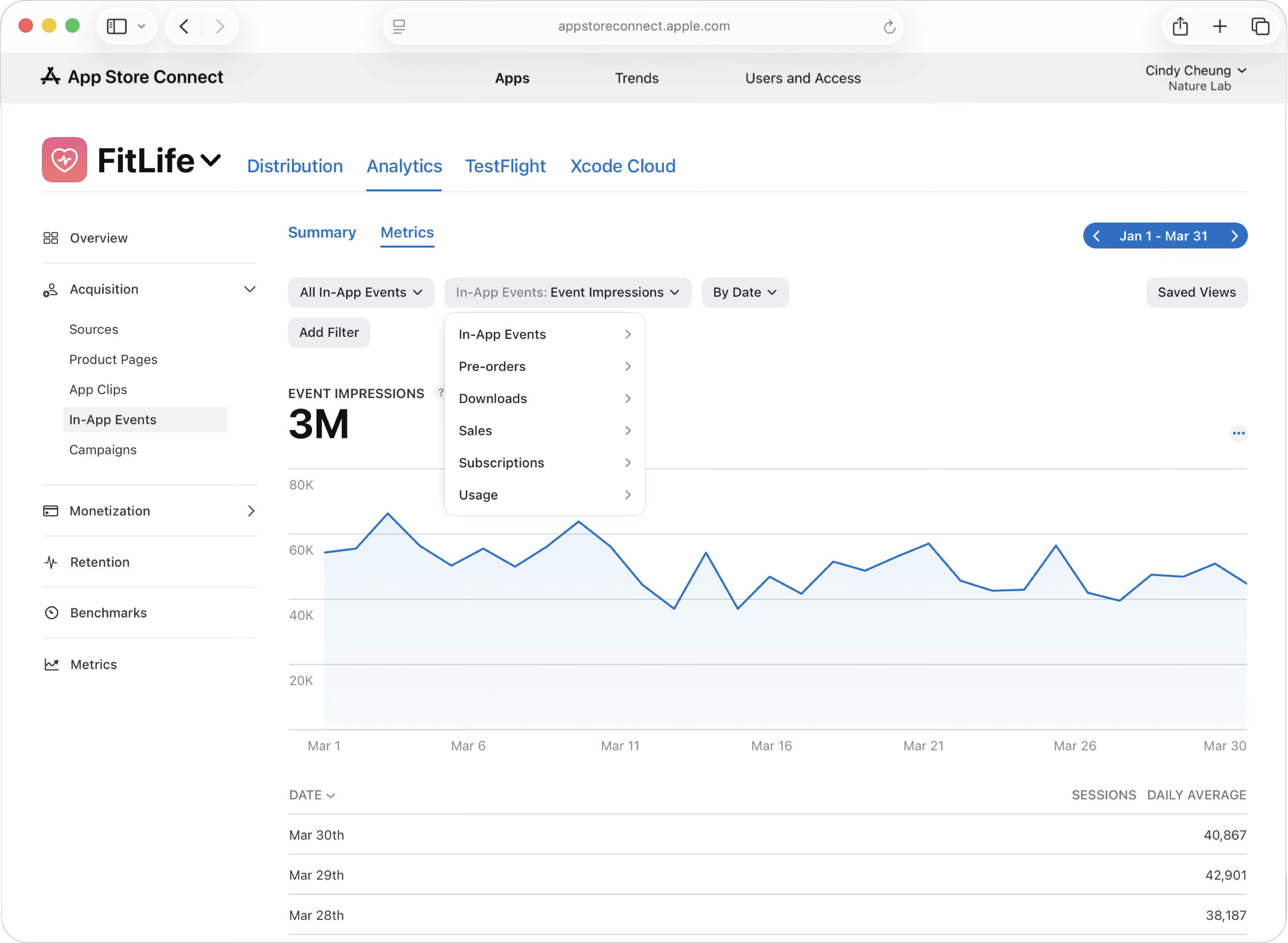
Use the metrics dropdown to select from over 100 metrics, including seven metrics dedicated to In-App Events discovery on the App Store. You can also add filters and segment your results by various dimensions. For example, you can view your data by Territory or Device Type to understand which geographic markets and device types each In-App Event reaches most effectively. Use the date pickers to view data by a specific date range or select a custom time period.