App Store Connect Analytics Help
Offers
Offers enable you to grow, retain, and re-acquire customers by giving them a free or discounted price on your In-App Purchases. Use app Analytics to track the performance of your subscription offers (including introductory, offer codes, promotional, and win-back offers) to understand how effectively these discounts are helping to grow, retain, and re-acquire customers.
To measure the impact of your offers, focus on key metrics including:
-
Offer Volume: Track the volume of new and reactivated offers to understand overall reach and user acquisition.
-
Conversion Rate: Measure the rate at which offers convert to paid subscriptions.
-
Churn Rates: Monitor churn rates from offers to assess the quality of subscribers acquired through promotions and identify potential retention challenges.
-
Offer Lifecycle Metrics: Analyze offer adoption, renewals, and overall engagement to gain a comprehensive understanding of the offer journey.
-
Billing Status: Track billing issues and recoveries to ensure a smooth subscription experience and minimize involuntary churn.
-
Performance by Territory and Source: Break down offer performance by geographic territory and acquisition source to pinpoint where offers are most effective and optimize future strategies.
Learn about configuring Subscription Offers and In-App Purchase offers in App Store Connect.
View Offers Data
-
In Apps, select the app you want to view.
-
Click the Analytics tab.
-
In the sidebar under Monetization, click Offers.
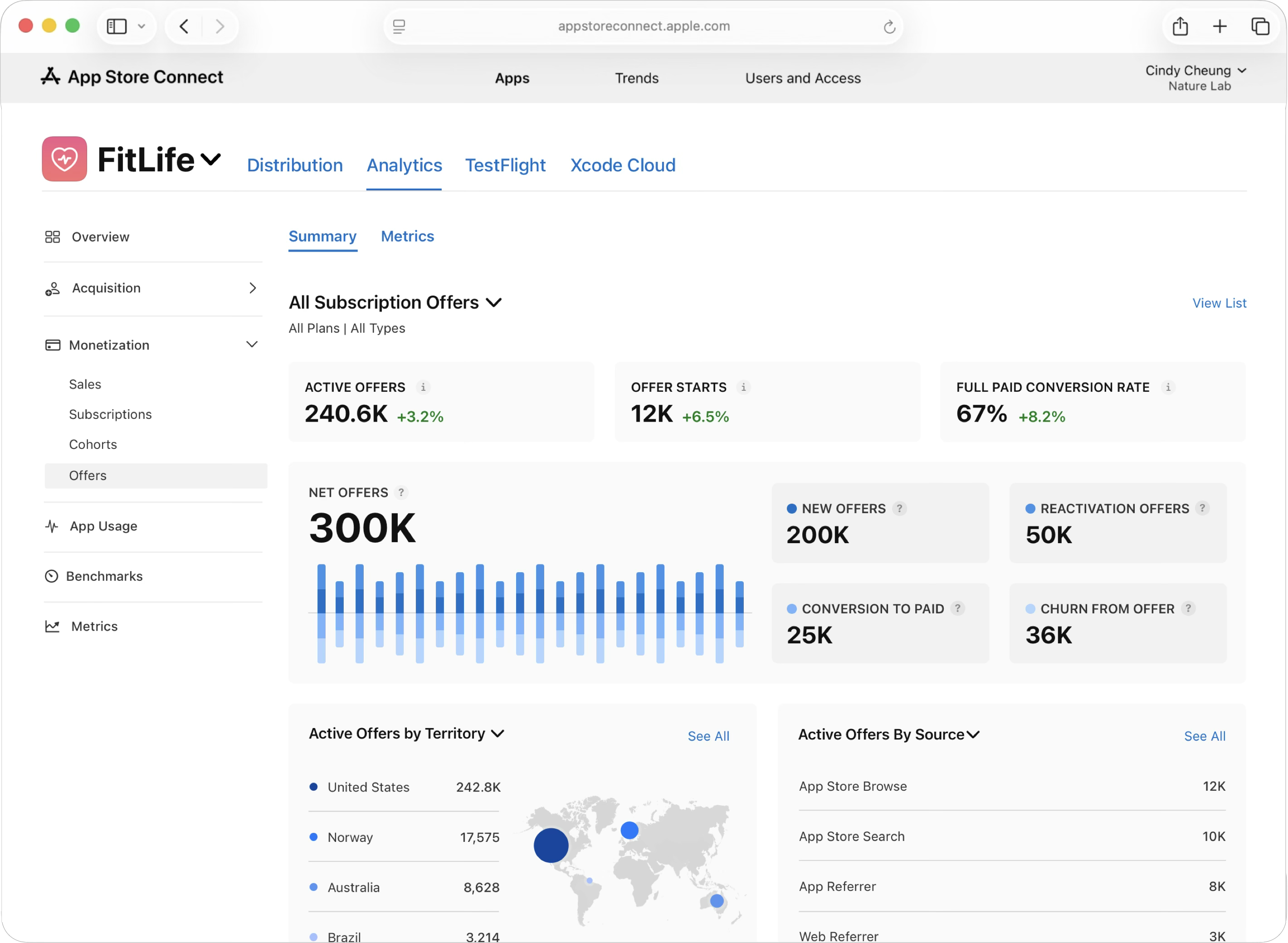
The Offers dashboard provides a comprehensive overview of your subscription offers' performance. It displays key metrics such as the volume of new and reactivated offers, the rate at which offers convert to paid subscriptions, and the churn rate from offers. Additionally, the dashboard breaks down active offer performance by geographic territory and by the acquisition source.
-
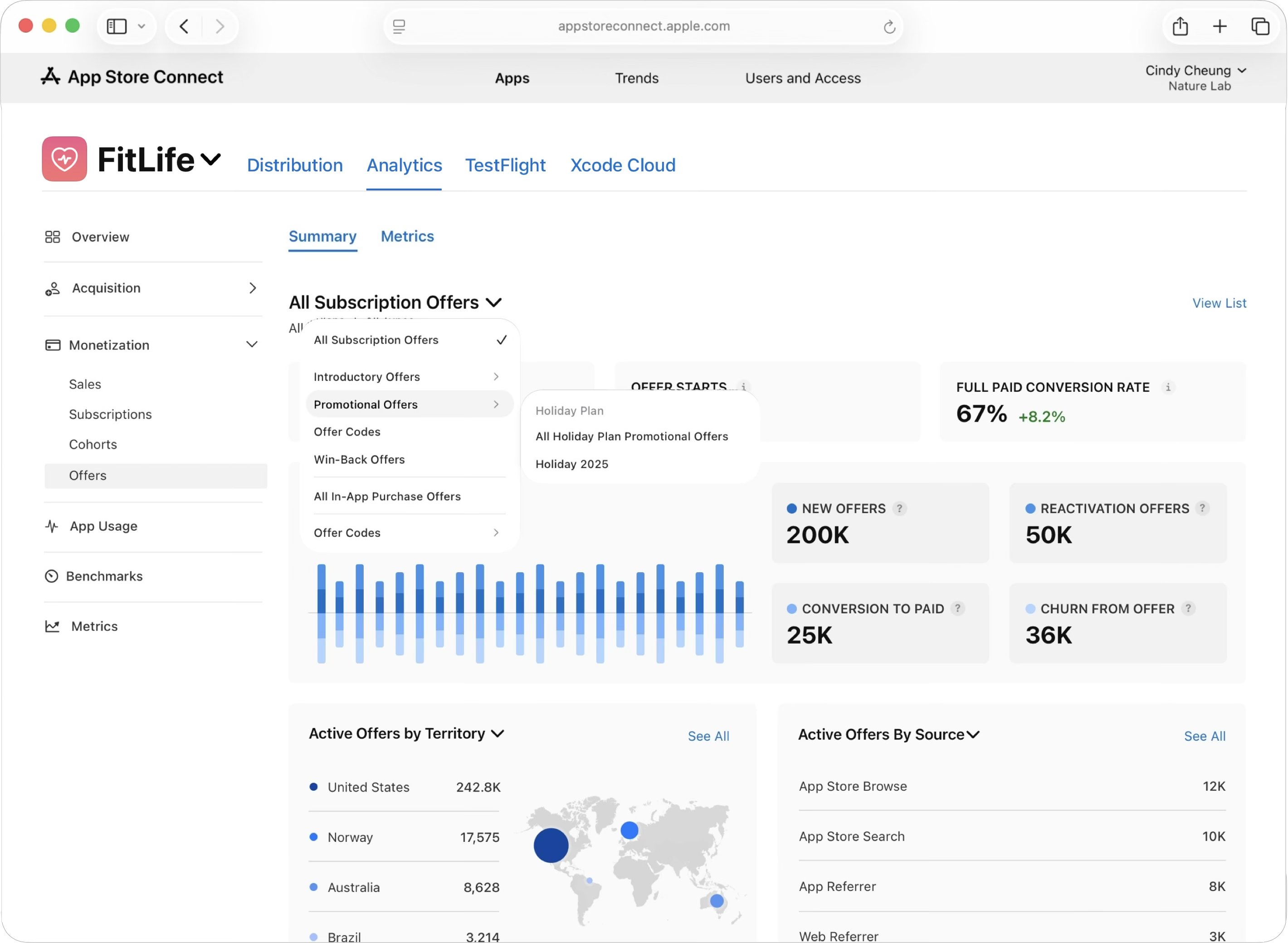
To analyze individual offers and offer types, click the All Subscription Offers drop-down menu. You can choose to display analytics from Introductory Offers, Promotional Offers, Offer-Codes, and Win-Back Offers.
-
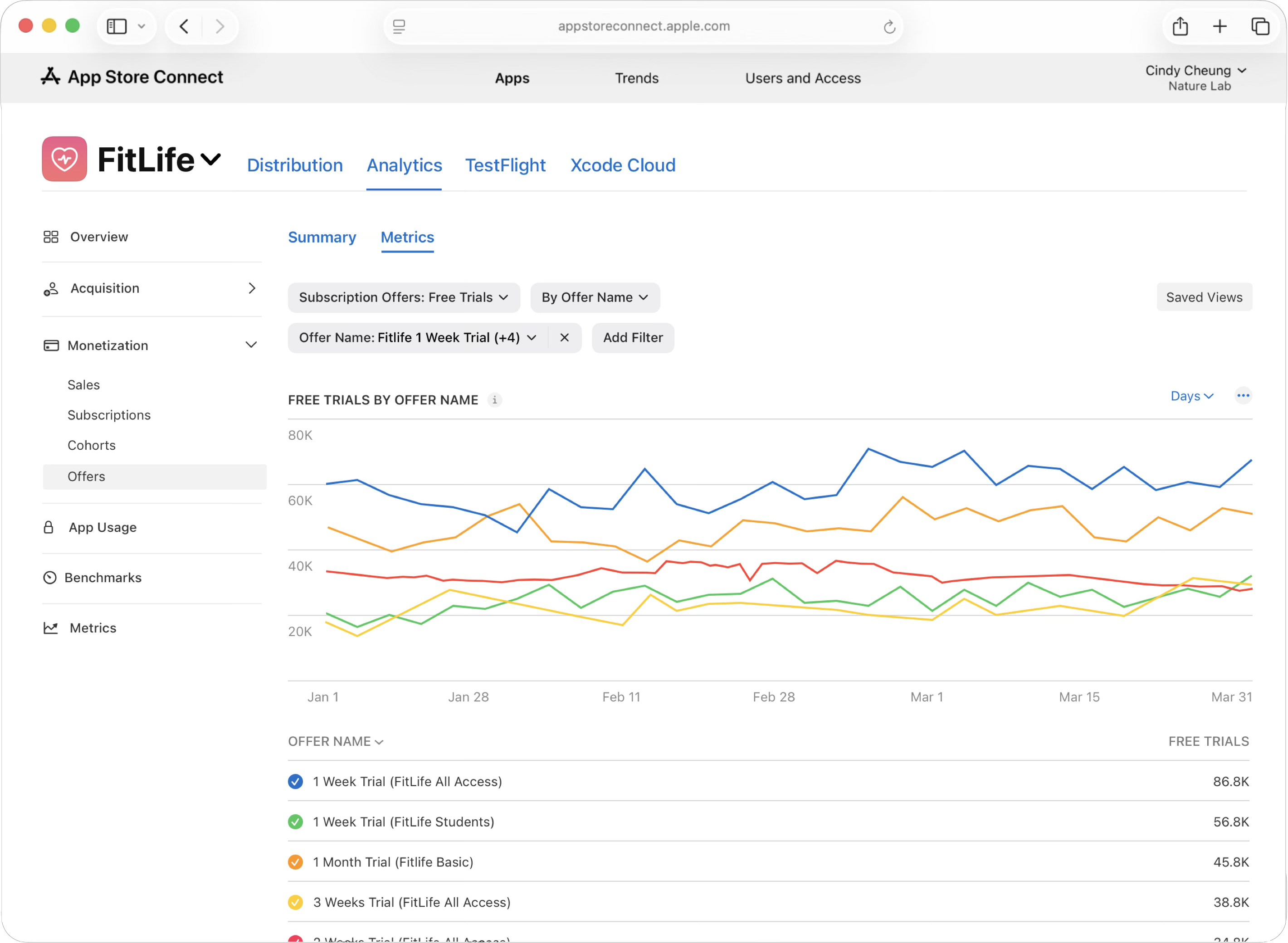
Add additional filters to see an individual offer's performance. Or add filters such as territory and device type.
-
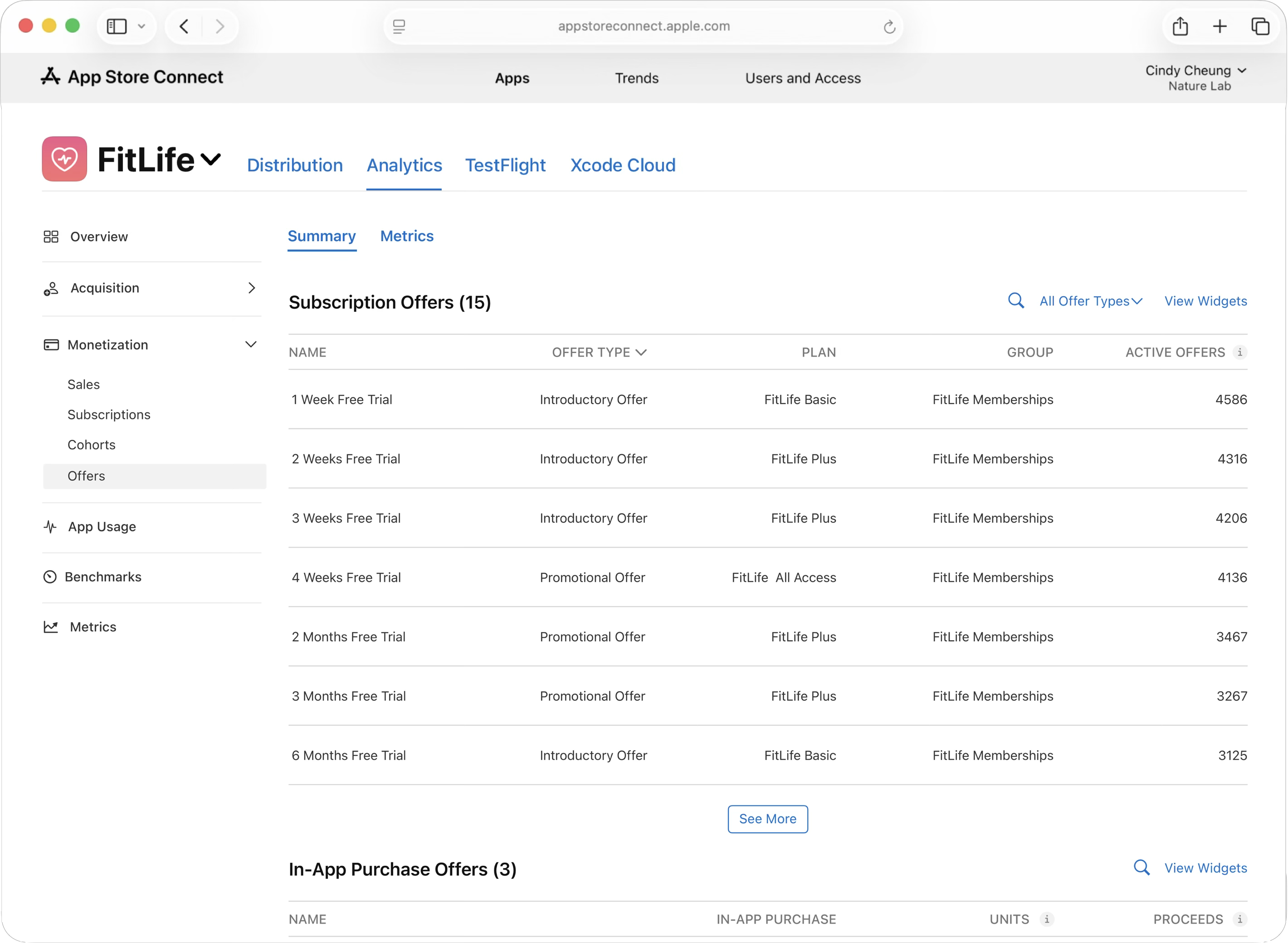
To view all of your offers in a list, click View List in the upper right hand corner.
-
The Offers List page provides a detailed breakdown of your app's offers, categorized into two main sections. The Subscription Offers section displays each offer's name, type, such as Introductory and Promotional Offers. , the associated subscription plan and group, and the number of currently active offers. You can refine this view by filtering through different offer types or access a visual overview via the "View Widgets" link. The In-App Purchase Offers section lists consumable and non-consumable purchase options, detailing each offer's name, its associated In-App Purchase, the total units sold, and the proceeds generated.
-
To perform deeper analysis, click the Metrics tab.
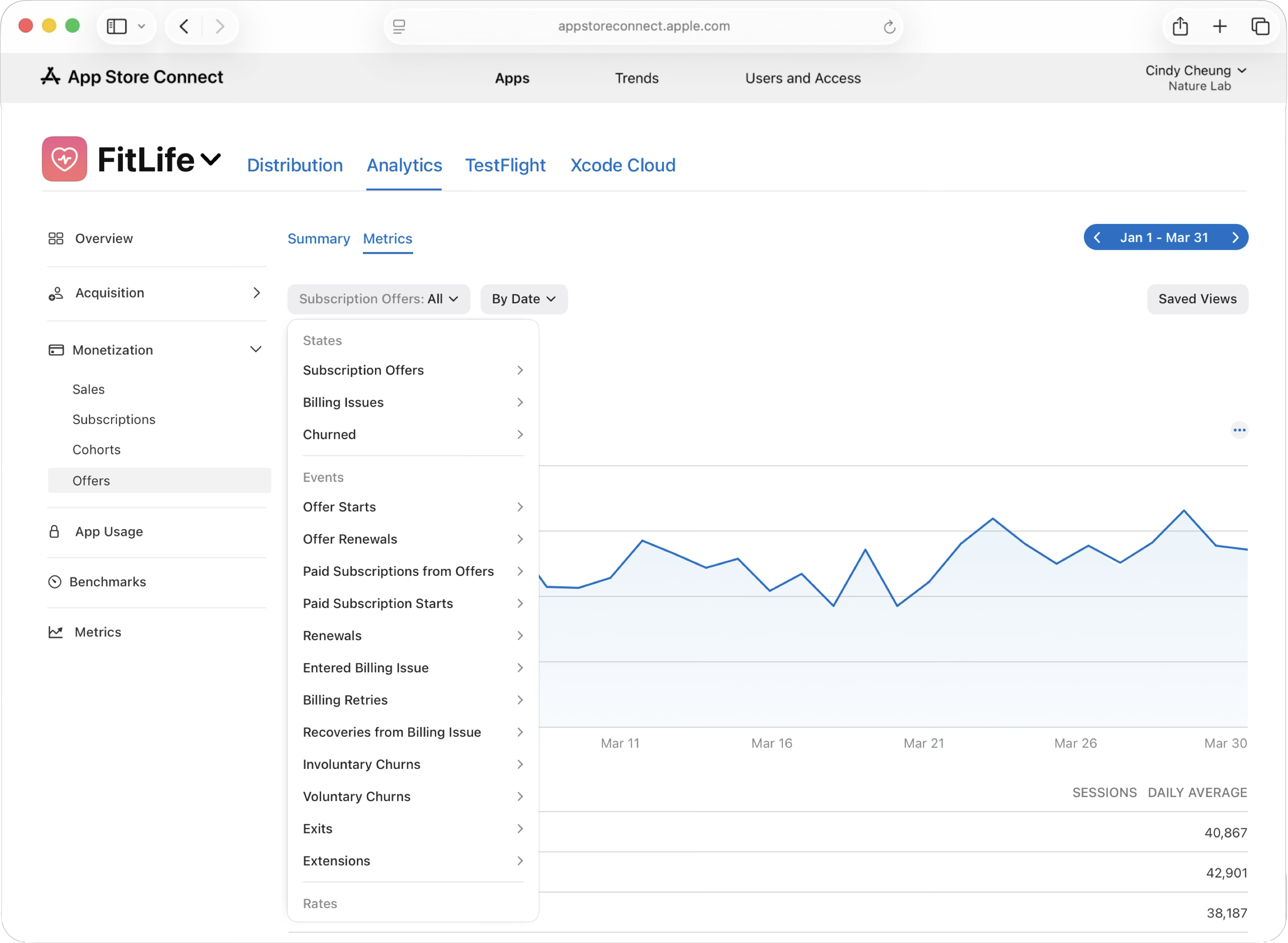
-
Apply filters to analyze your subscription offer performance and lifecycle. For example, adjust the date range, or track various metrics under States and Events to understand different aspects of your offers, including offer adoption, conversion to paid subscriptions, retention and churn, or billing status.