App Store Connect Help
App Store Connect Manage In-App Purchases Schedule price changes for In-App Purchases
Schedule price changes for In-App Purchases
You can update your In-App Purchase pricing at any time in App Store Connect. Price changes can have definite start and end dates, or they can be permanent changes with no end. For example, you can set a promotional price for a month, then return to the regular price.
Note: It may take up to 1 hour for changes you make to product metadata to appear in the sandbox environment.
|
Property |
Description |
||||||||||
|---|---|---|---|---|---|---|---|---|---|---|---|
|
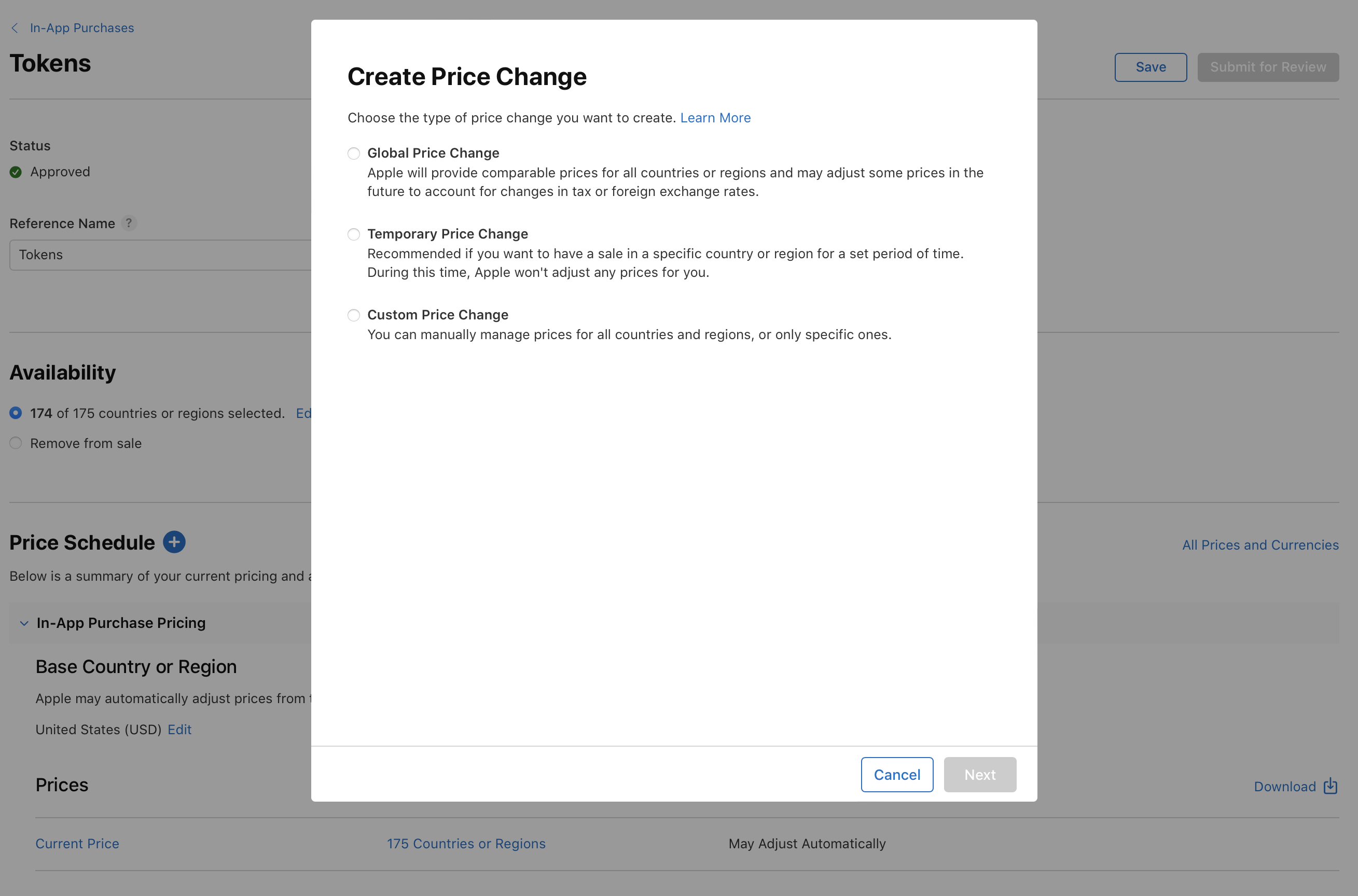
Global Price Change |
You change the price of your app in your base country or region in App Store Connect. Apple provides comparable prices for all other countries or regions, and may adjust some prices on your behalf in the future to account for changes in taxes and foreign exchange rates. Pricing in your base country or region won't be affected. |
||||||||||
|
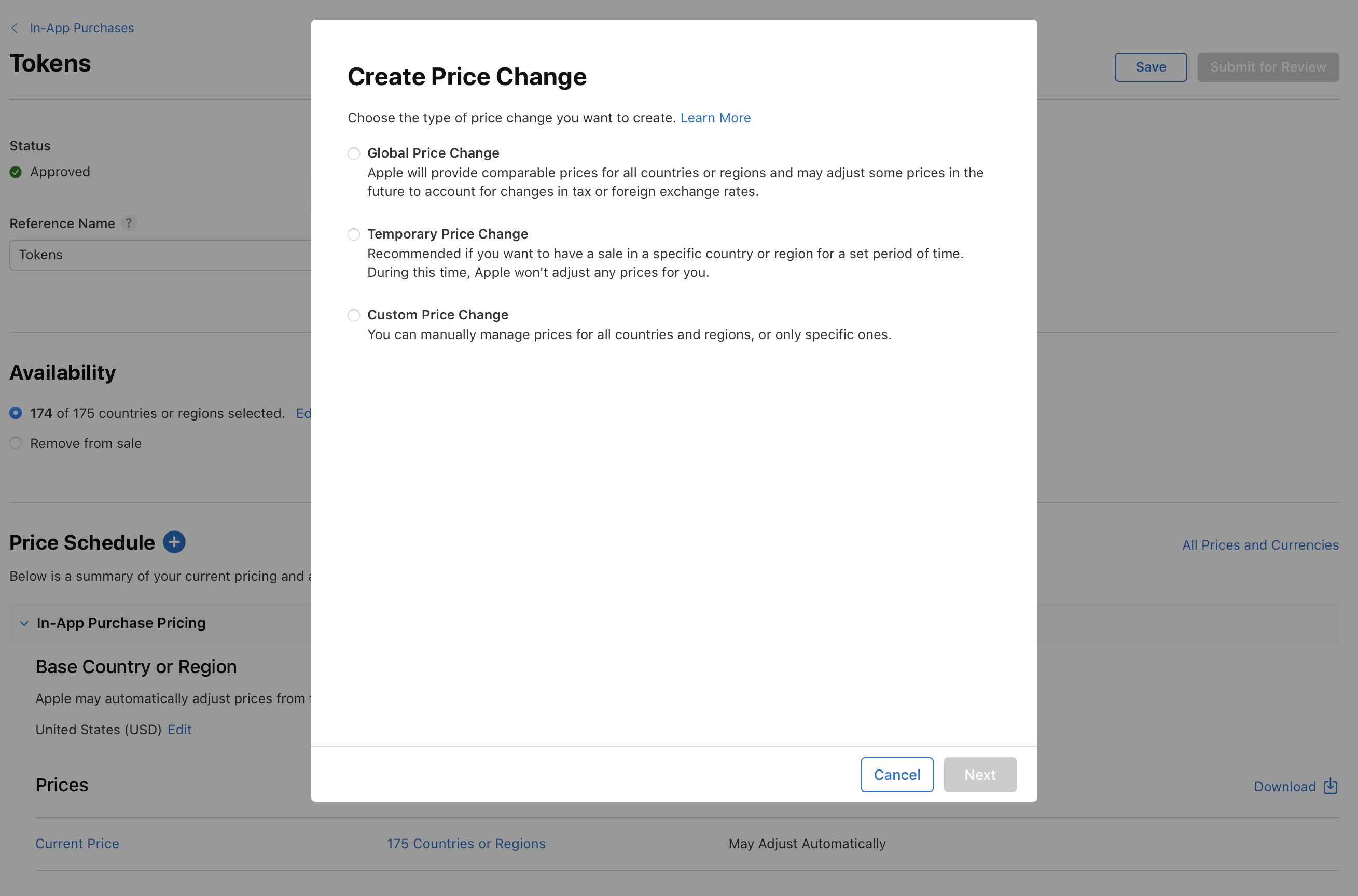
Temporary Price Change |
You select the start and end dates for a temporary price change in certain countries or regions. During this time, Apple won’t adjust prices on your behalf in these countries or regions. |
||||||||||
|
Custom Price Change |
You manually manage prices for some or all countries or regions. Apple won't adjust prices on your behalf in these countries or regions. |
||||||||||
Required role: Account Holder, Admin, or App Manager. View role permissions.
Schedule a global price change
-
In Apps, select the app you want to view.
-
In the sidebar, under Monetization, click In-App Purchases. (For non-renewing subscriptions, click Subscriptions. Then scroll down to the Non-Renewing Subscriptions section and click Manage.)
-
Click the In-App Purchase you want to edit.
-
Next to Price Schedule, click the add button (+).
-
Select Global Price Change, then click Next.
-
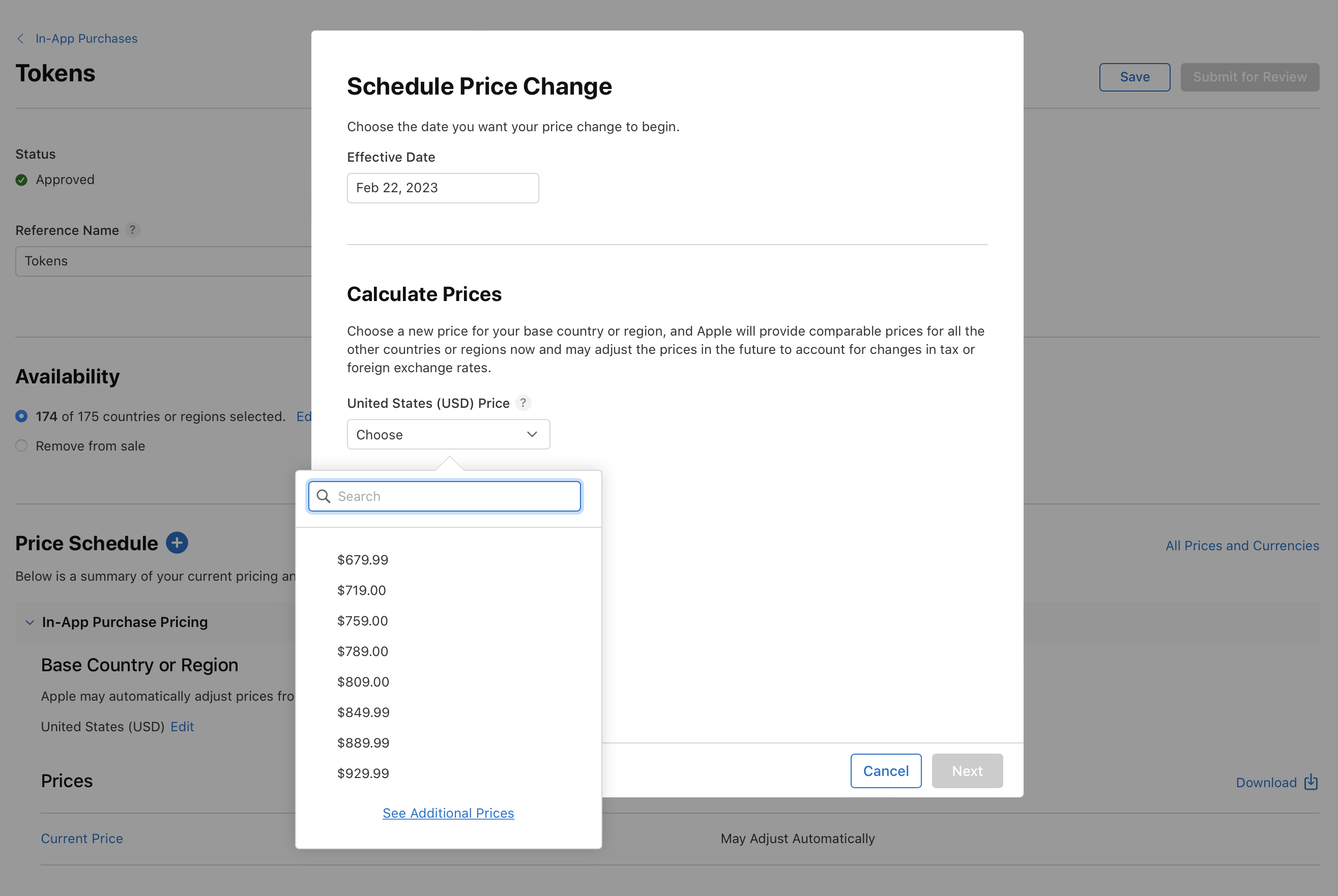
Select an effective date. Effective dates can be scheduled from today up to the end of the next calendar year.
-
Select a price for your base country or region. Apple uses this base to provide comparable prices on the other 174 storefronts. As taxes and foreign exchange rates change, prices on the other storefronts will be automatically updated by Apple periodically. the prices for each country or region, then click Confirm.
-
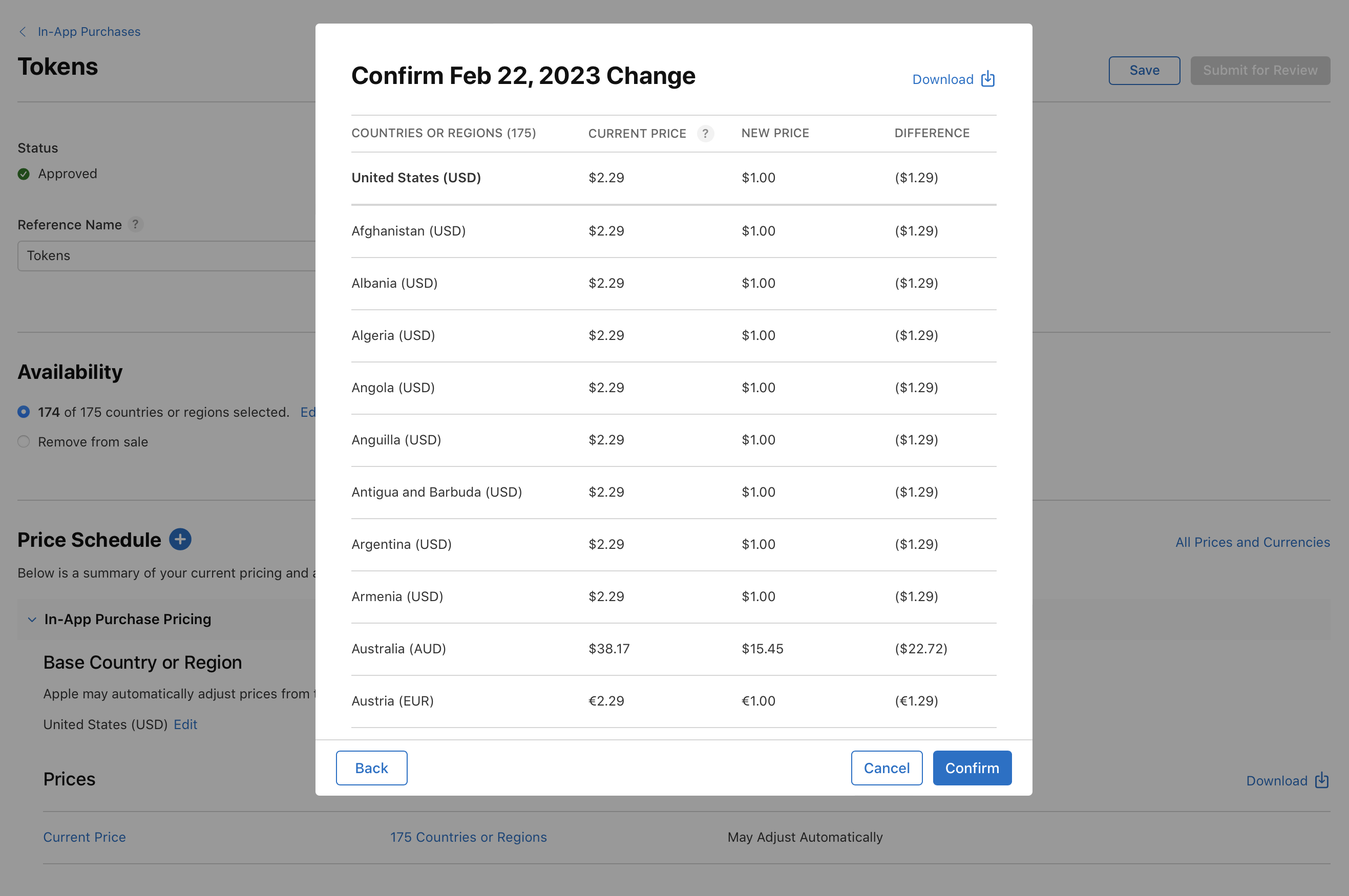
Review the prices for each country or region, then click Confirm.
Schedule a temporary price change
-
In Apps, select the app you want to view.
-
In the sidebar, under Monetization, click In-App Purchases. (For non-renewing subscriptions, click Subscriptions. Then scroll down to the Non-Renewing Subscriptions section and click Manage.)
-
Click the In-App Purchase you want to edit.
-
Next to Price Schedule, click the add button (+).
-
Select Temporary Price Change, then click Next.
-
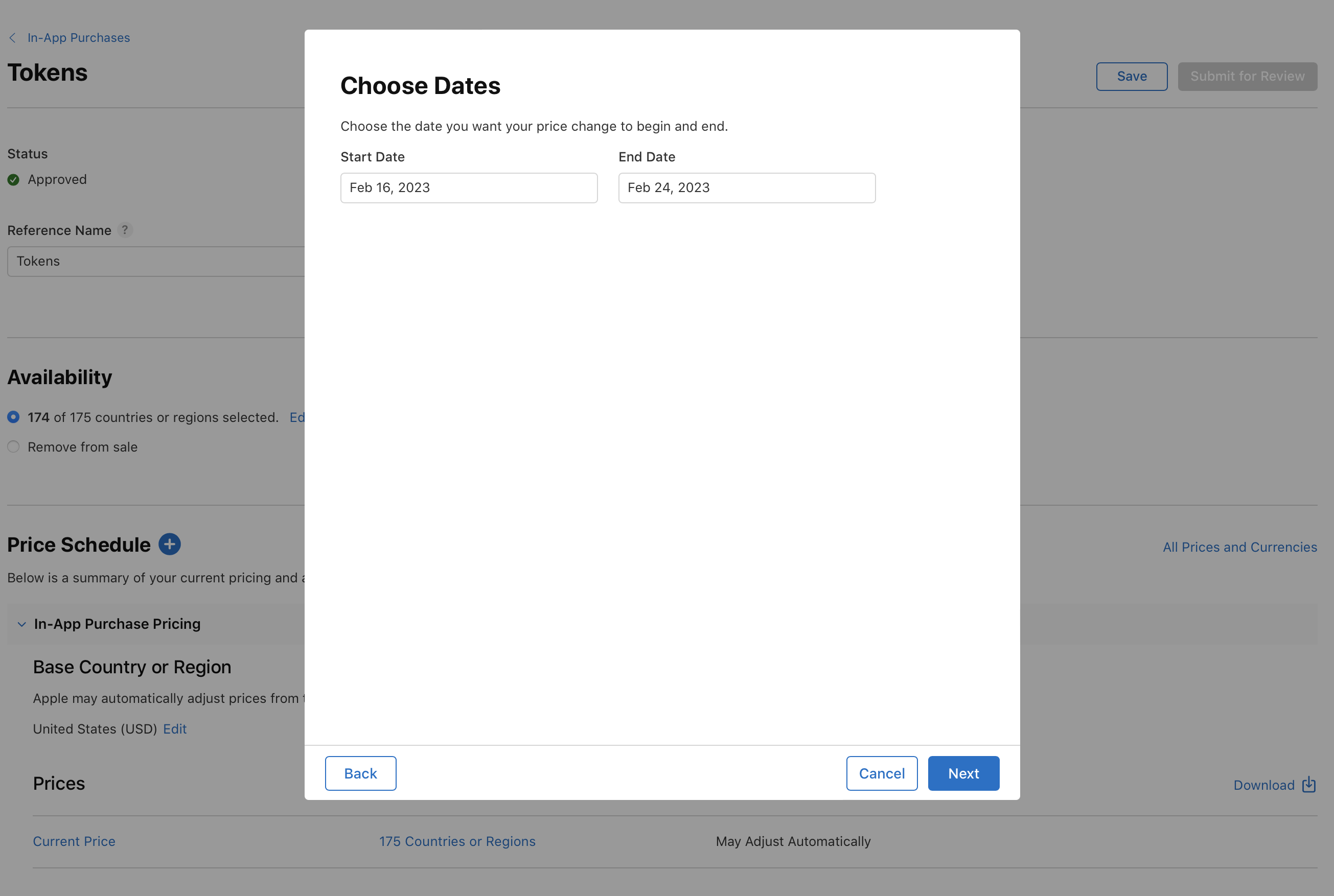
Select start and end dates, then click Next. Start dates can be scheduled from today up to the end of the next calendar year. The longest length for a temporary price change is one year.
-
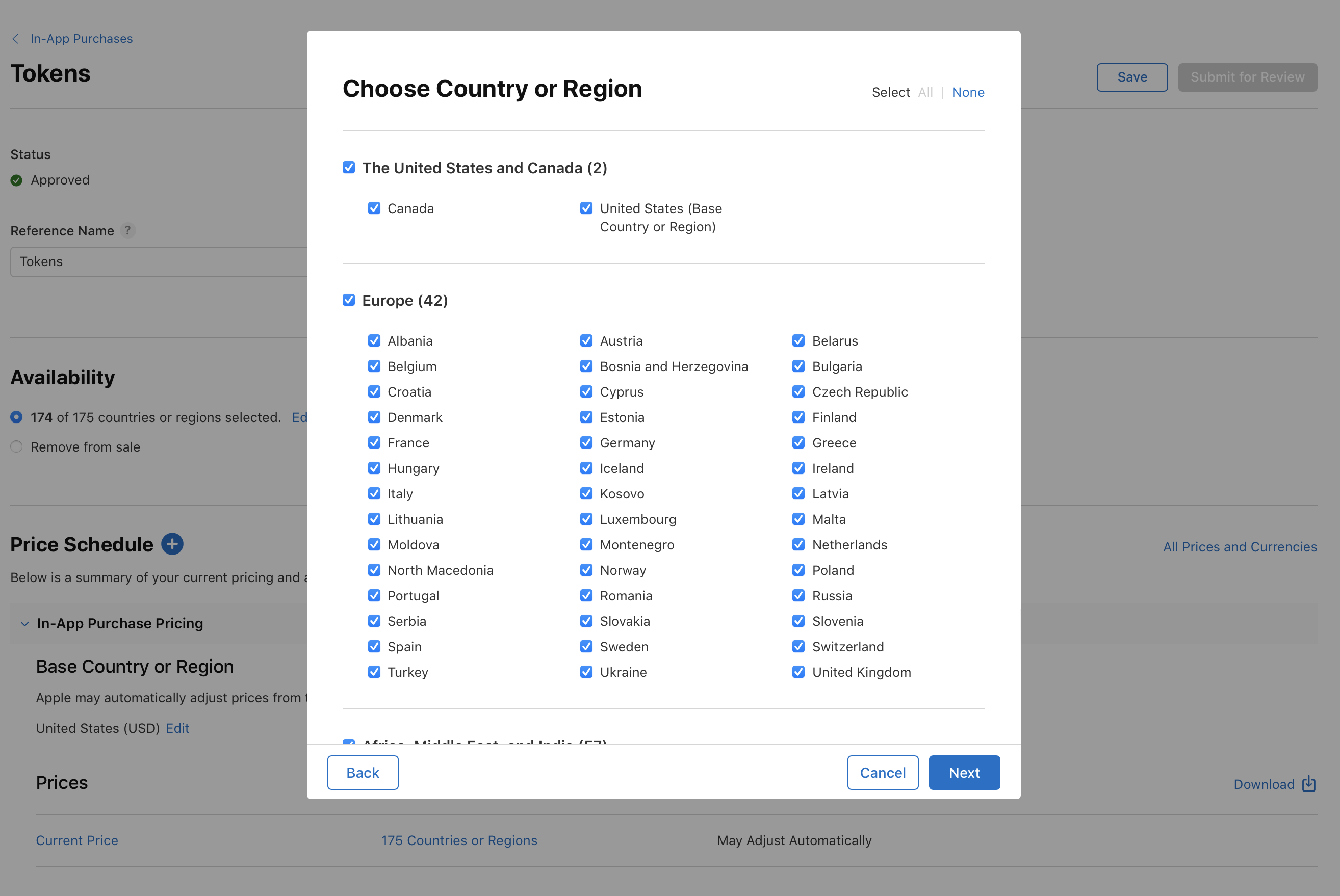
Select the App Store countries or regions where you'd like the price change to go into effect, then click Next.
-
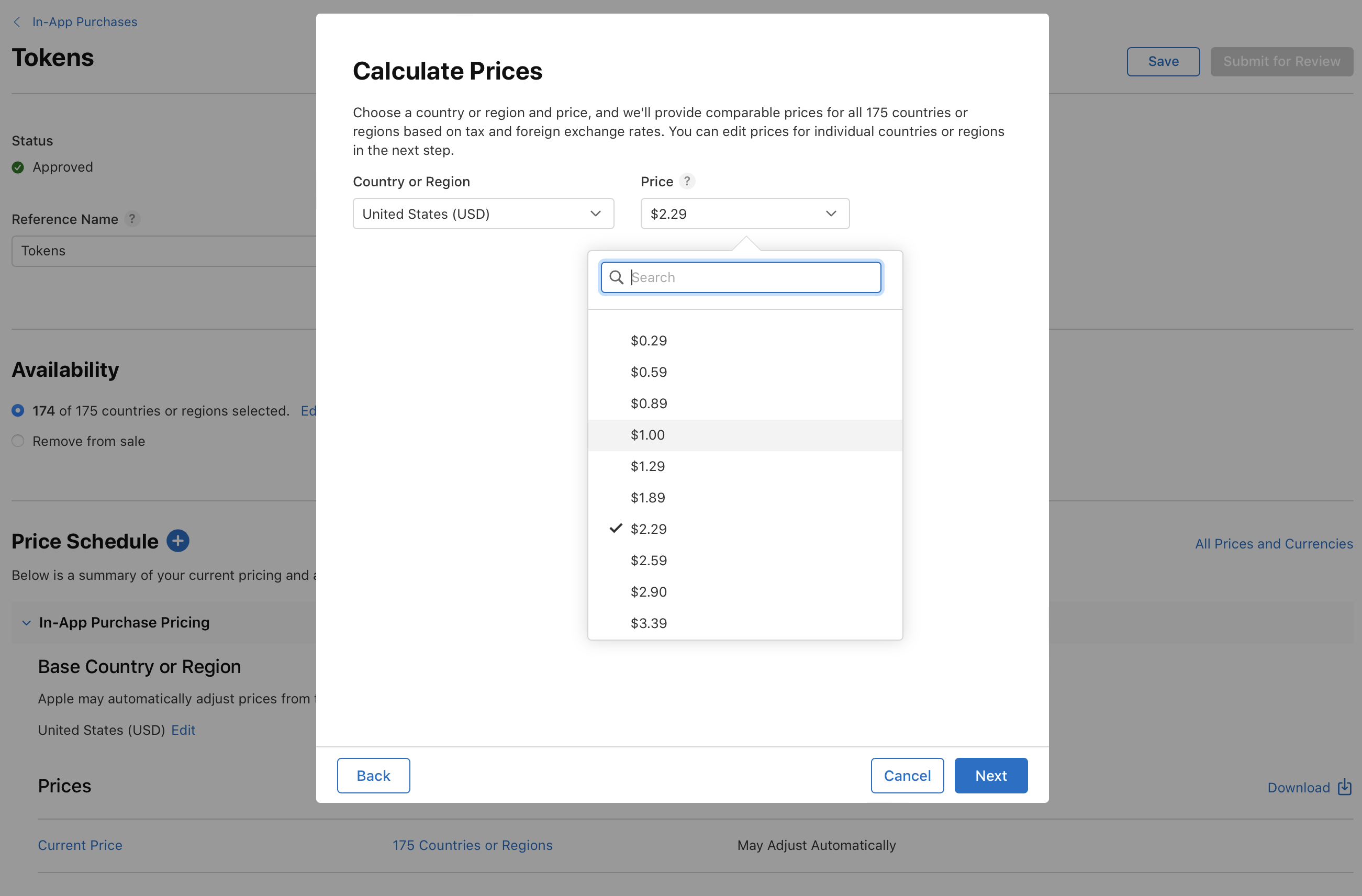
Select a country or region and a price, then click Next. Apple will use this to provide comparable prices across the selected countires or regions.
-
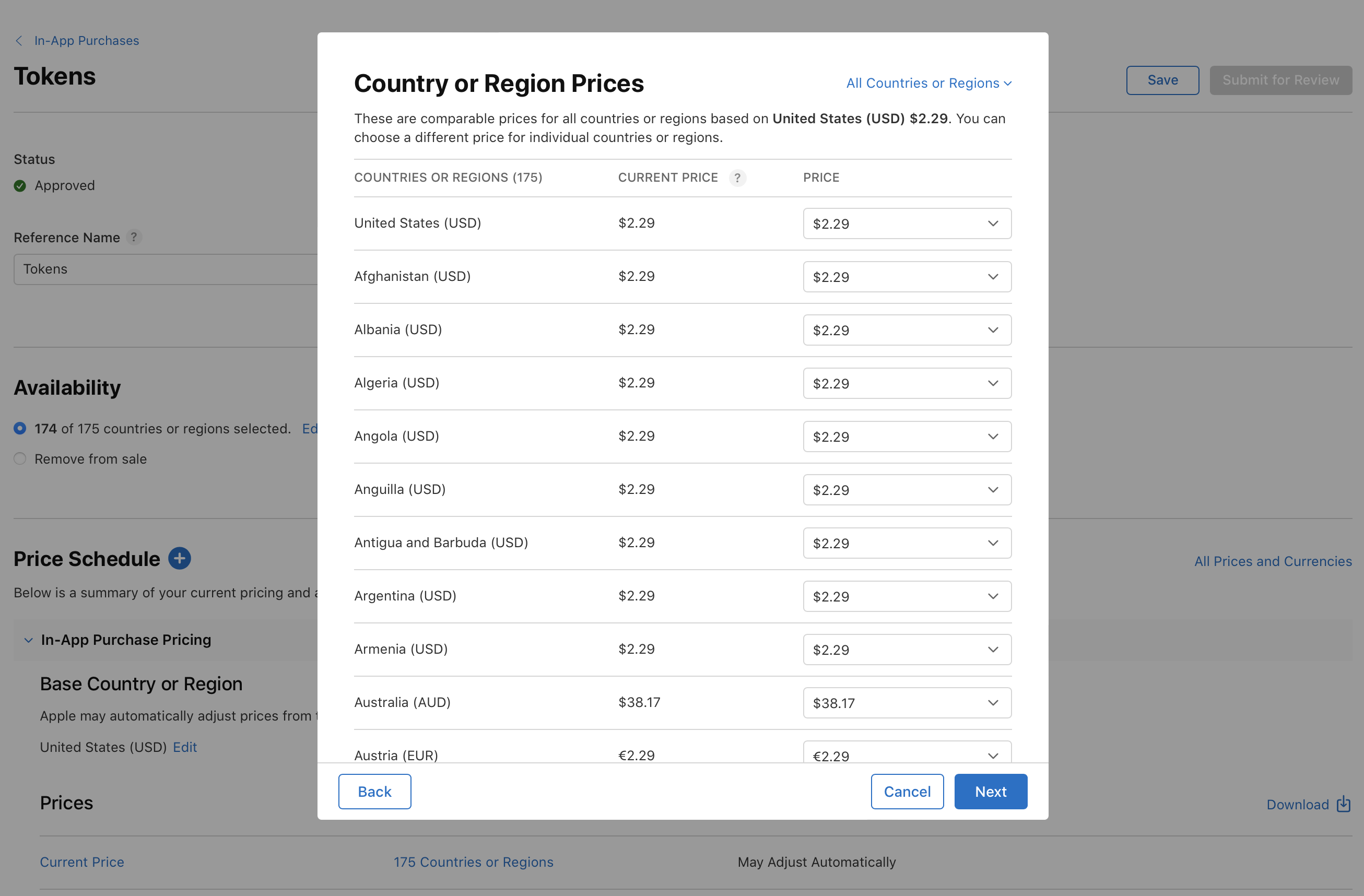
Review the pricing that Apple suggested for each country or region. Make any necessary changes, then click Next.
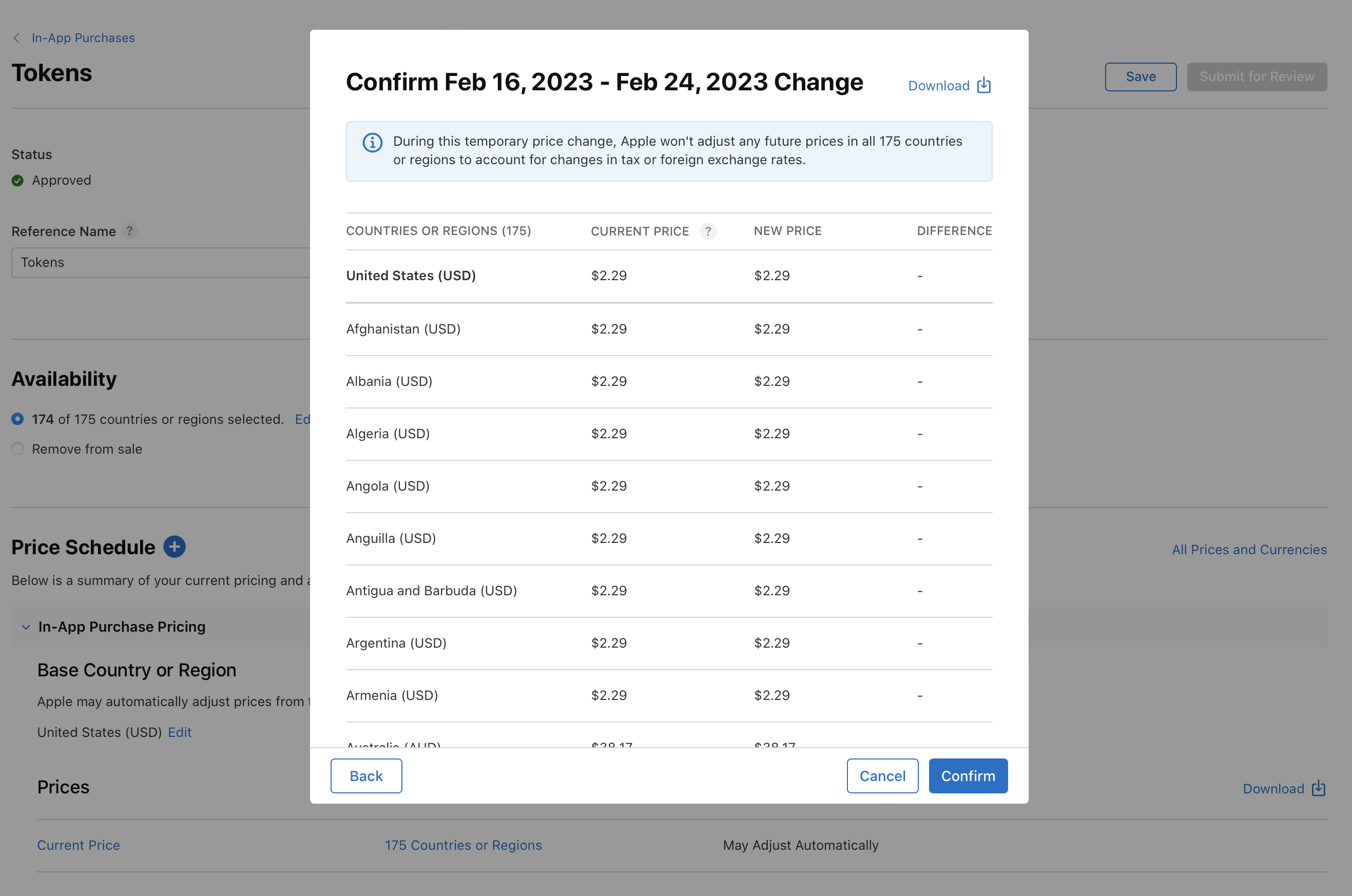
If your temporary price change includes your base country or region, keep in mind that Apple won’t make any automatic adjustments to your In-App Purchase pricing in all 175 countries or regions during the start and end dates you’ve selected. If you’d like to add more countries or regions, click Back or Cancel. Otherwise, click Next.
-
Review your temporary price change, then click Confirm.
Schedule a custom price change (manually manage prices in specific countries or regions)
-
In Apps, select the app you want to view.
-
In the sidebar, under Monetization, click In-App Purchases. (For non-renewing subscriptions, click Subscriptions. Then scroll down to the Non-Renewing Subscriptions section and click Manage.)
-
Click the In-App Purchase you want to edit.
-
Next to Price Schedule, click the add button (+).
-
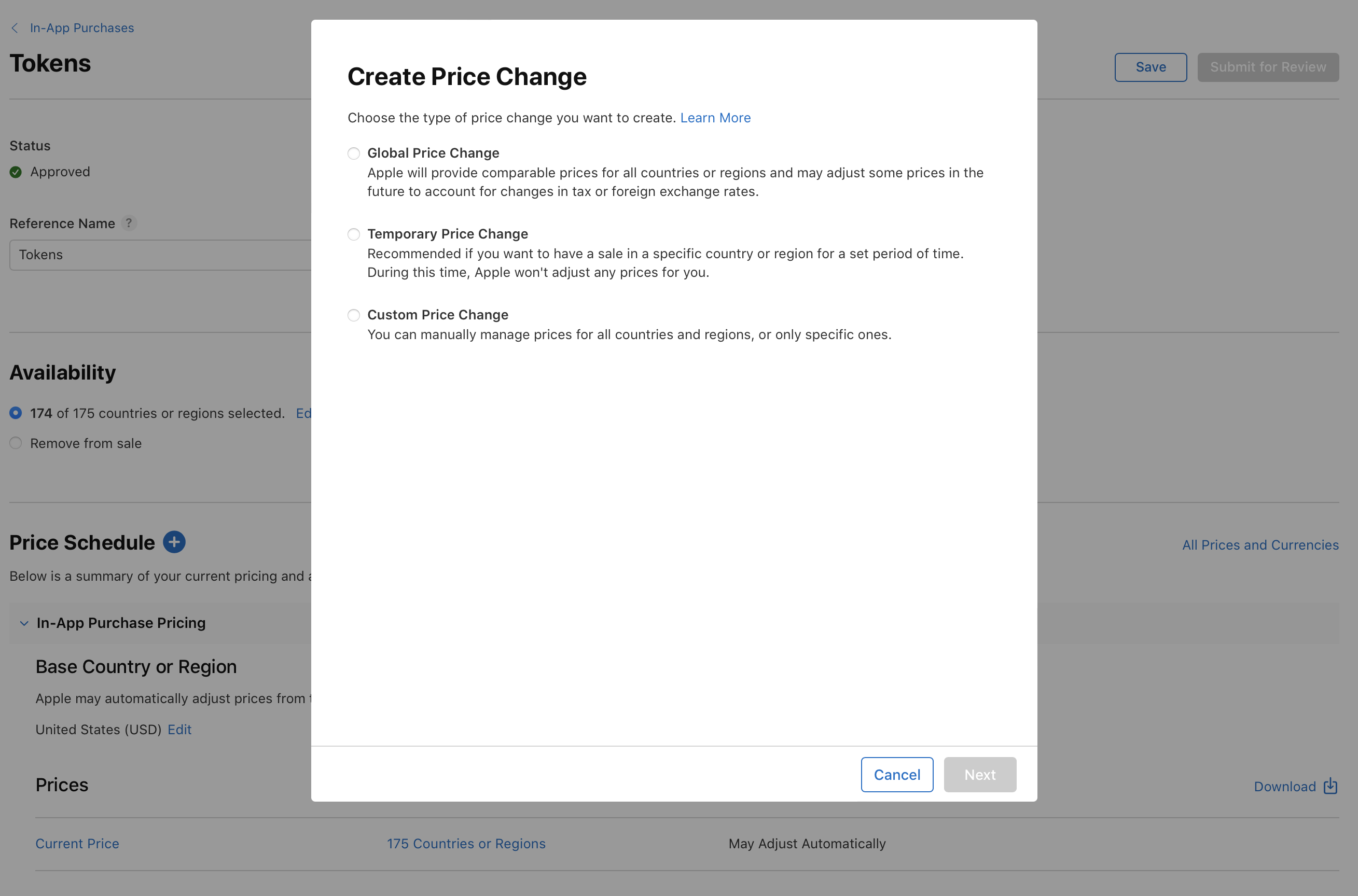
Select Custom Price Change, then click Next.
-
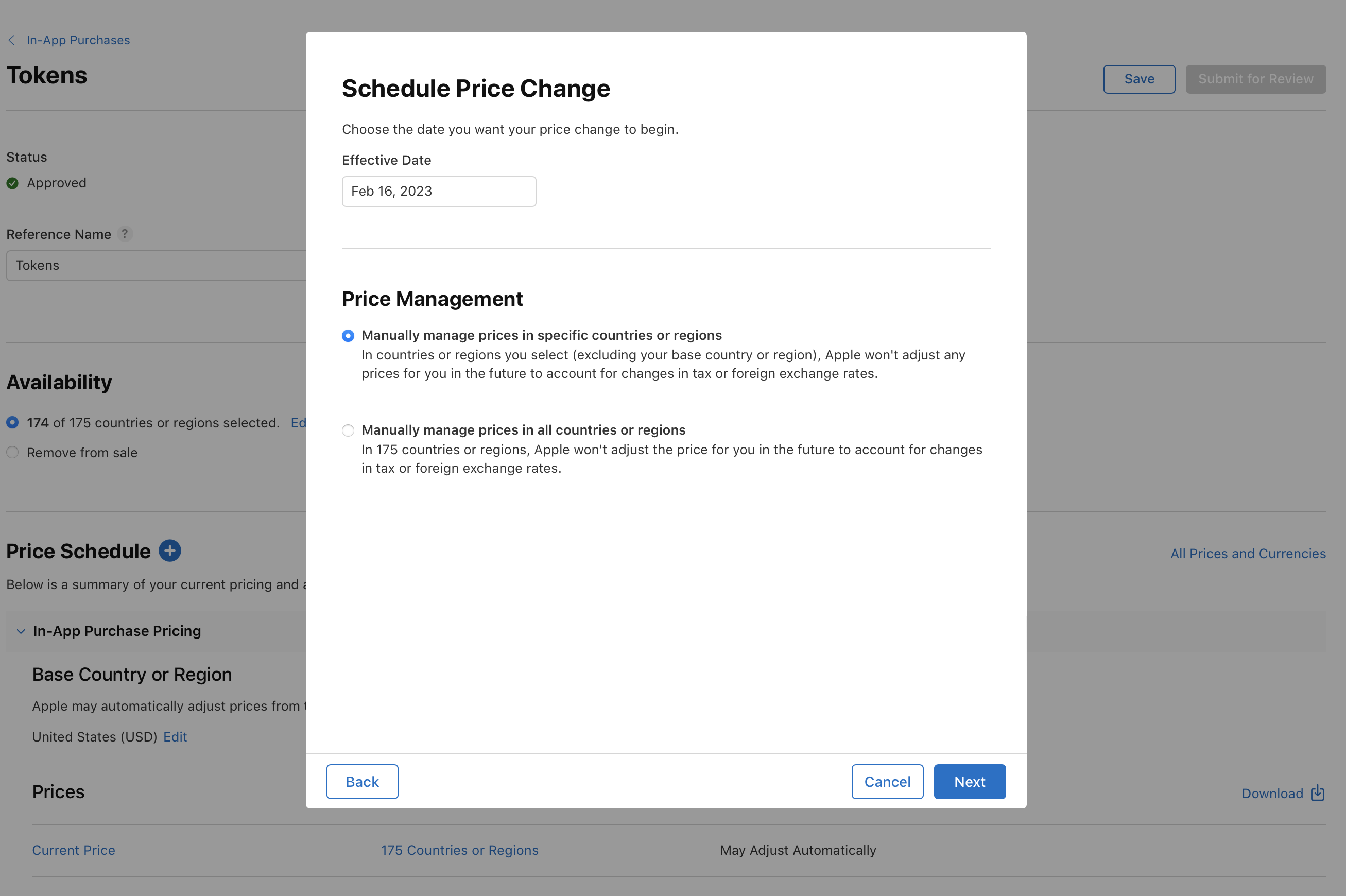
Select an effective date. Effective dates can be scheduled from today up to the end of the next calendar year.
-
Choose the first option, “Manually manage prices in specific countries or regions”.
-
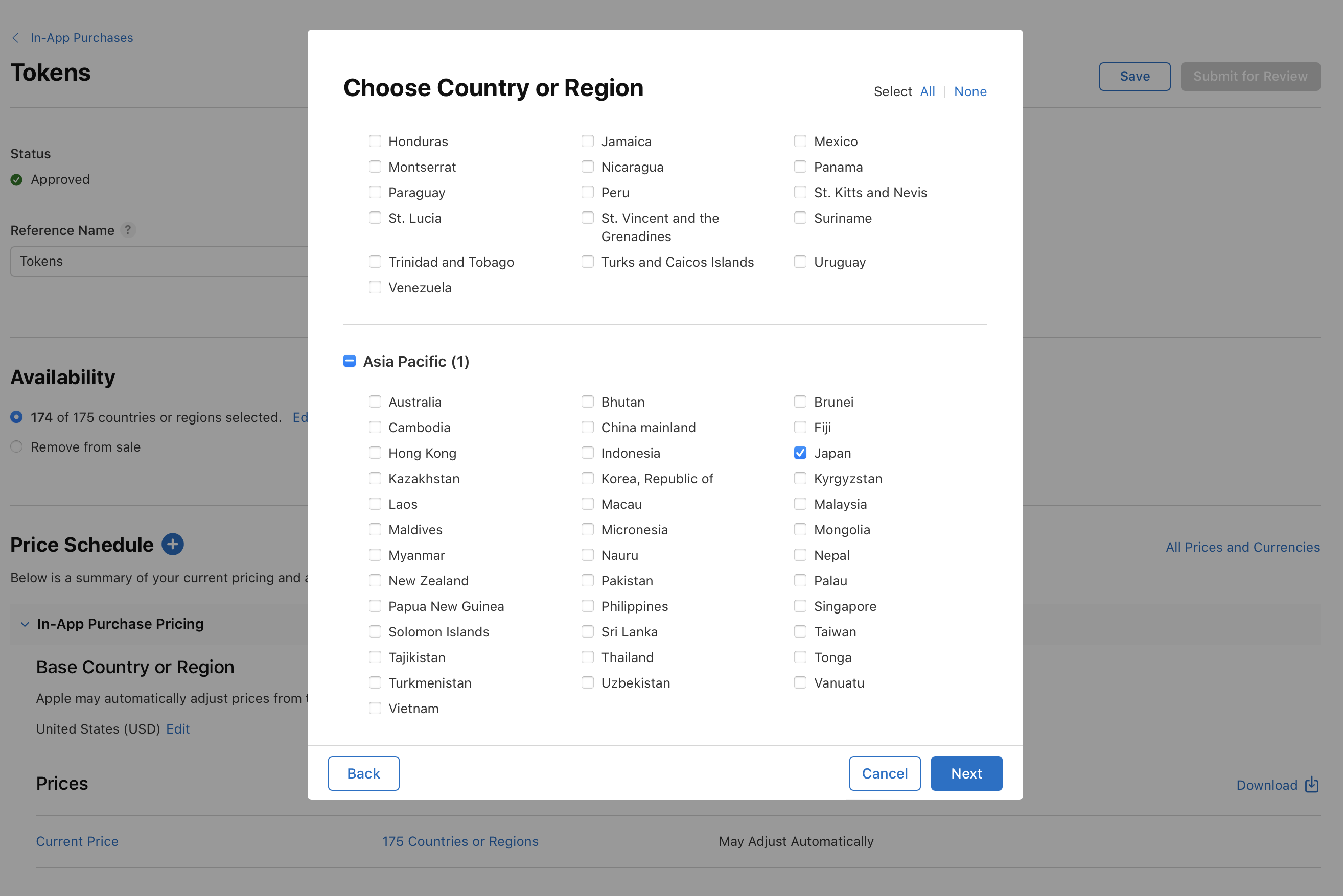
Select the App Store countries or regions where you'd like the price change to go into effect, then click Next. Your base country or region can't be selected.
-
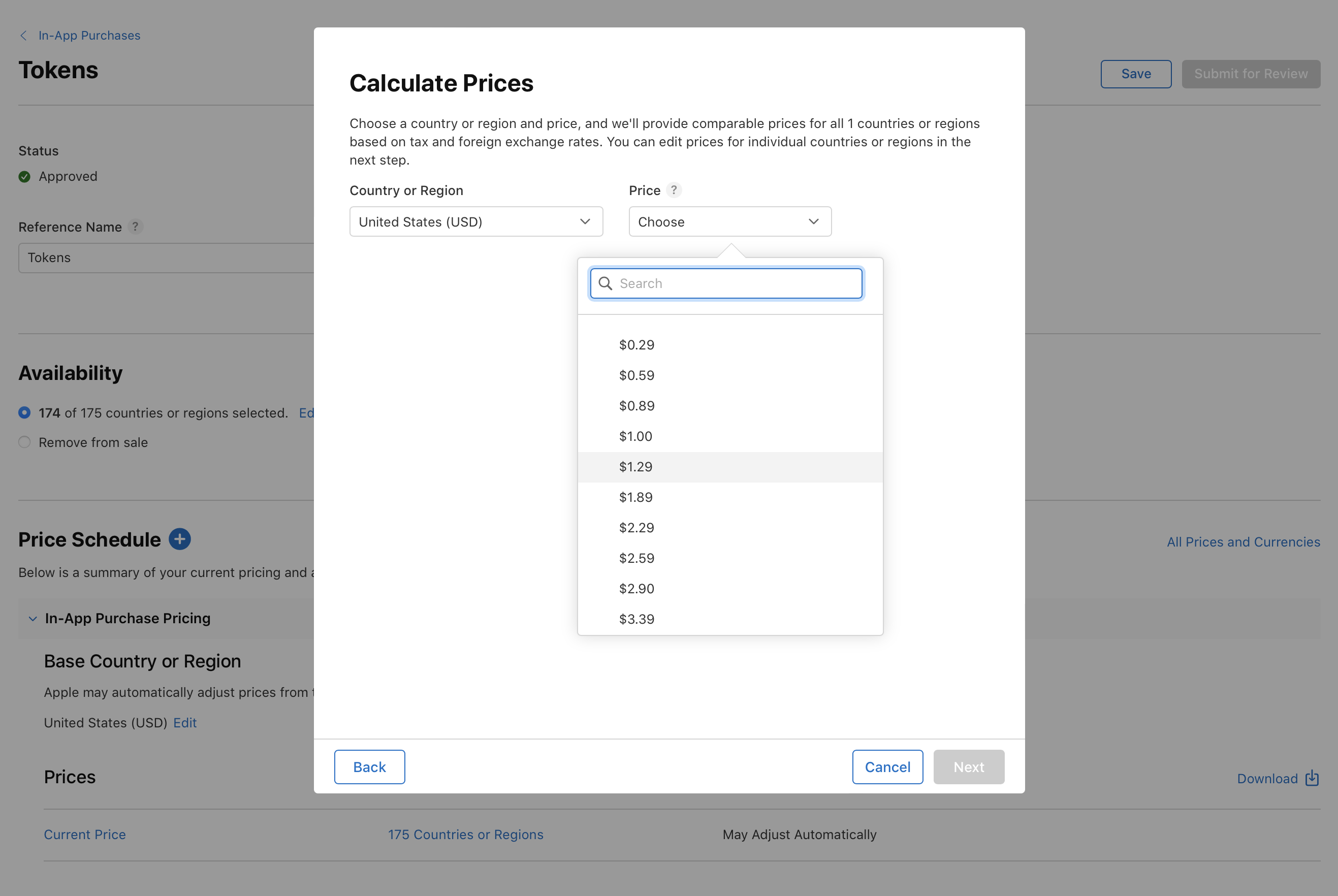
Select a country or region and a price, then click Next. Apple will use this to provide comparable prices across the other storefronts you selected.
-
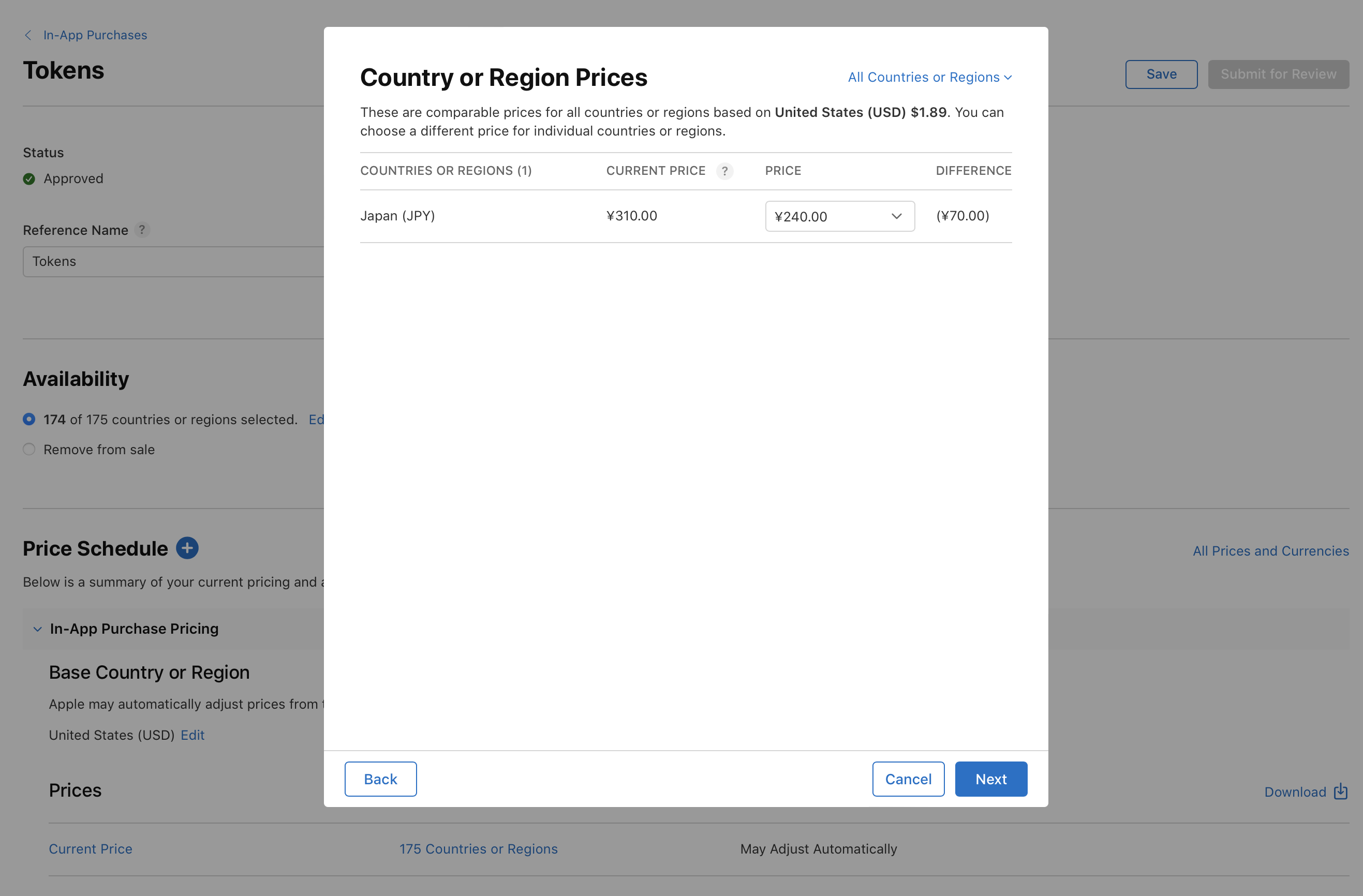
Review the prices for each country or region. Make any necessary changes, then click Next.
-
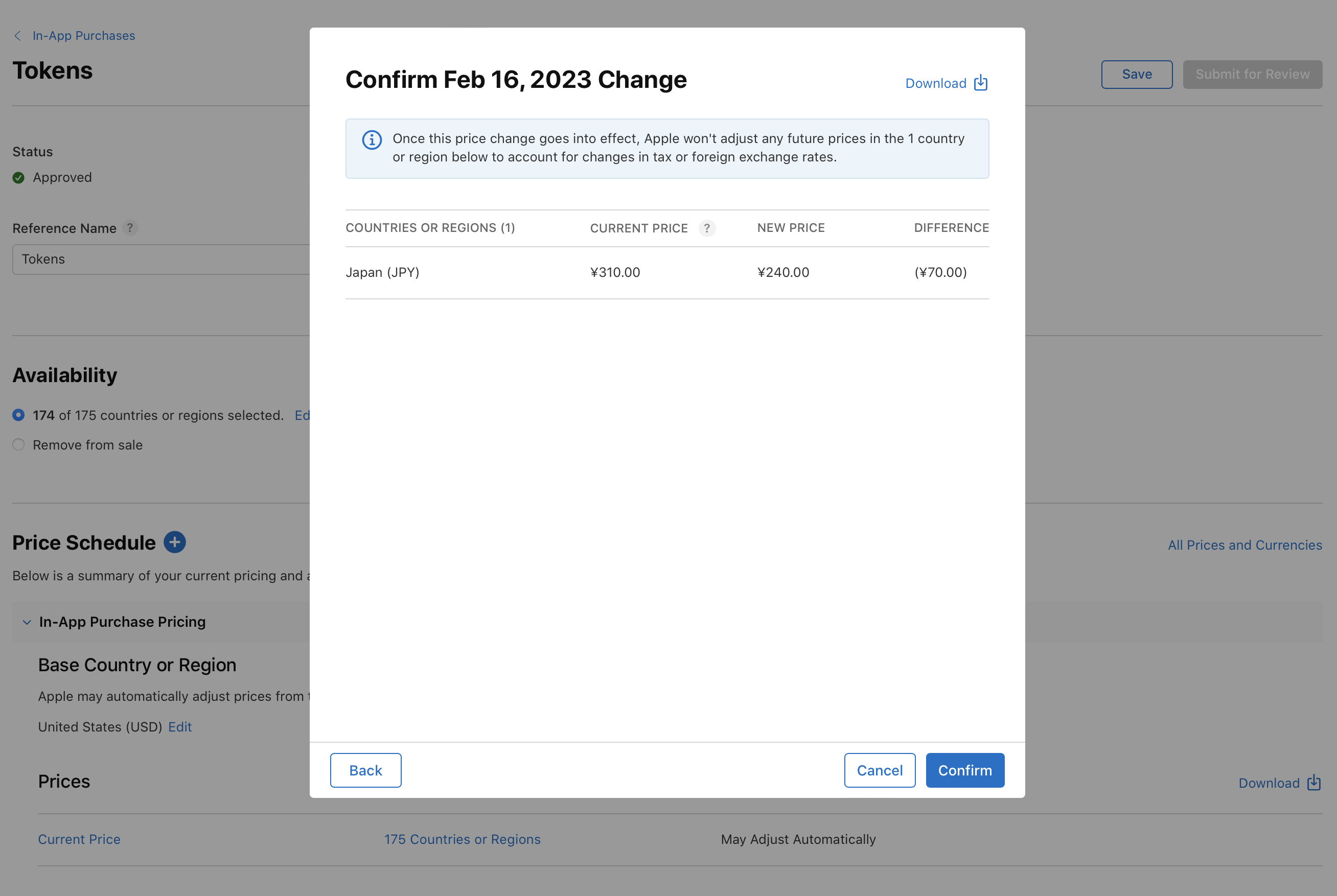
Review your upcoming changes, then click Confirm.
Once the change goes into effect, Apple will no longer update your In-App Purchase’s pricing to account for changes in taxes or foreign exchange rates in the countries or regions you selected. Ensure that you’ve read and understand the impact of Apple’s pricing capabilities.
Schedule a custom price change (manually manage prices in all 175 countries or regions)
If you plan a Custom Price Change that includes your base country or region in App Store Connect, Apple will no longer automatically update prices in any of the 175 App Store countries or regions.
-
In Apps, select the app you want to view.
-
In the sidebar, under Monetization, click In-App Purchases. (For non-renewing subscriptions, click Subscriptions. Then scroll down to the Non-Renewing Subscriptions section and click Manage.)
-
Click the In-App Purchase you want to edit.
-
Next to Price Schedule, click the add button (+).
-
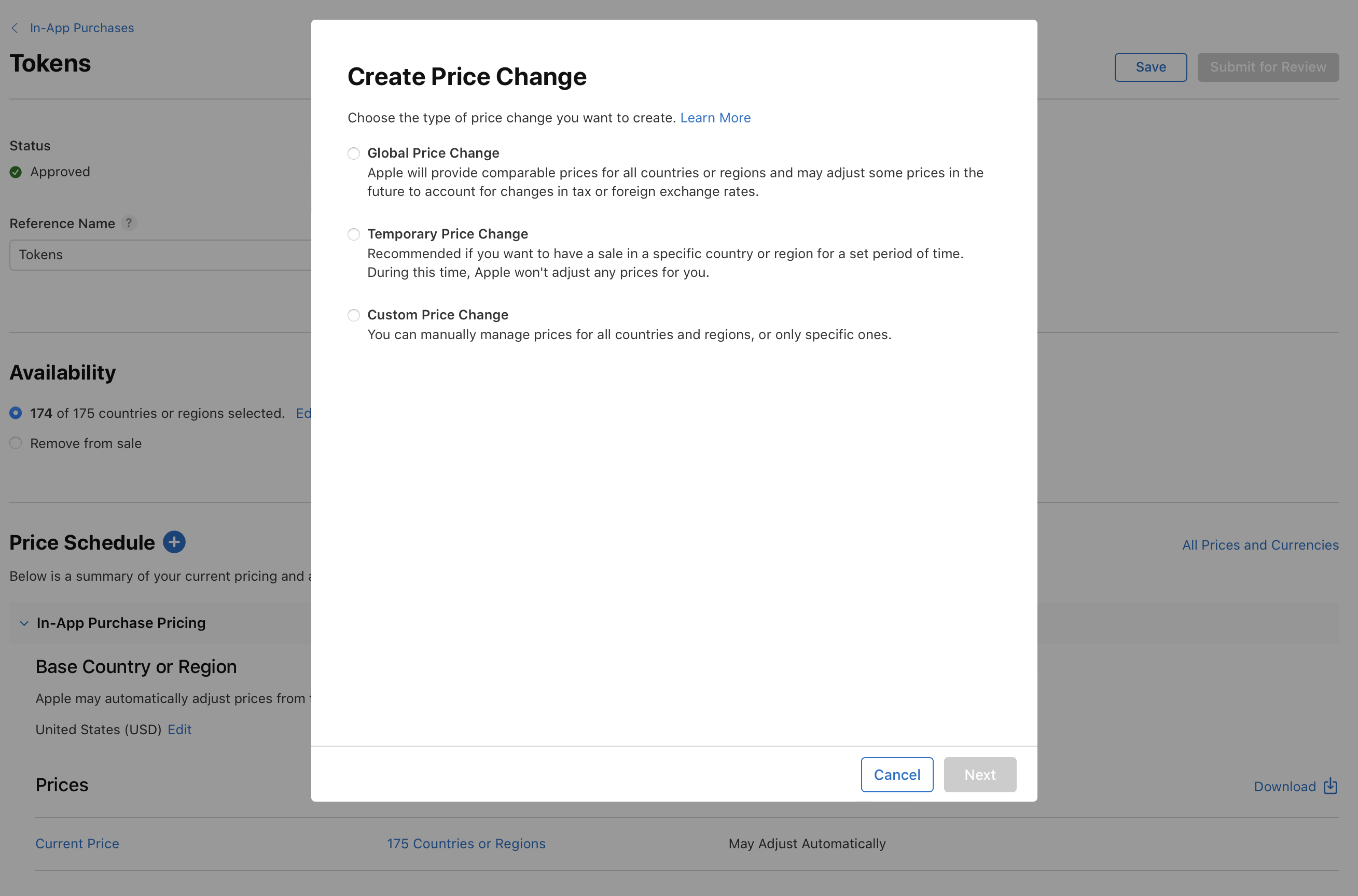
Select Custom Price Change, then click Next.
-
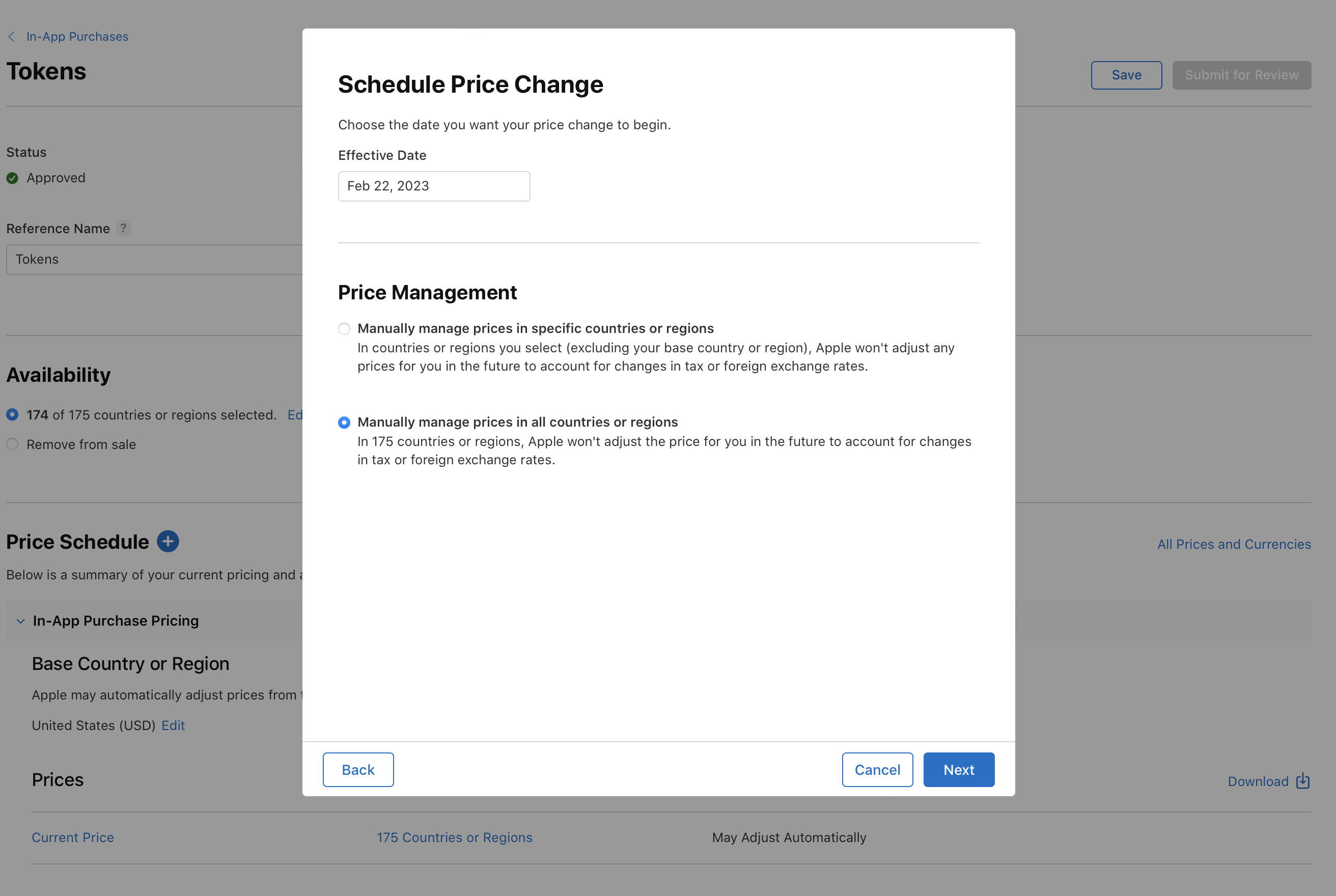
Select an effective date. Effective dates can be scheduled from today up to the end of the next calendar year.
-
Choose the second option, “Manually manage prices in all countries or regions,” then click Next. This price must be selected for you to manually manage prices in all 175 countries or regions, and you can keep the price as is or update it.
-
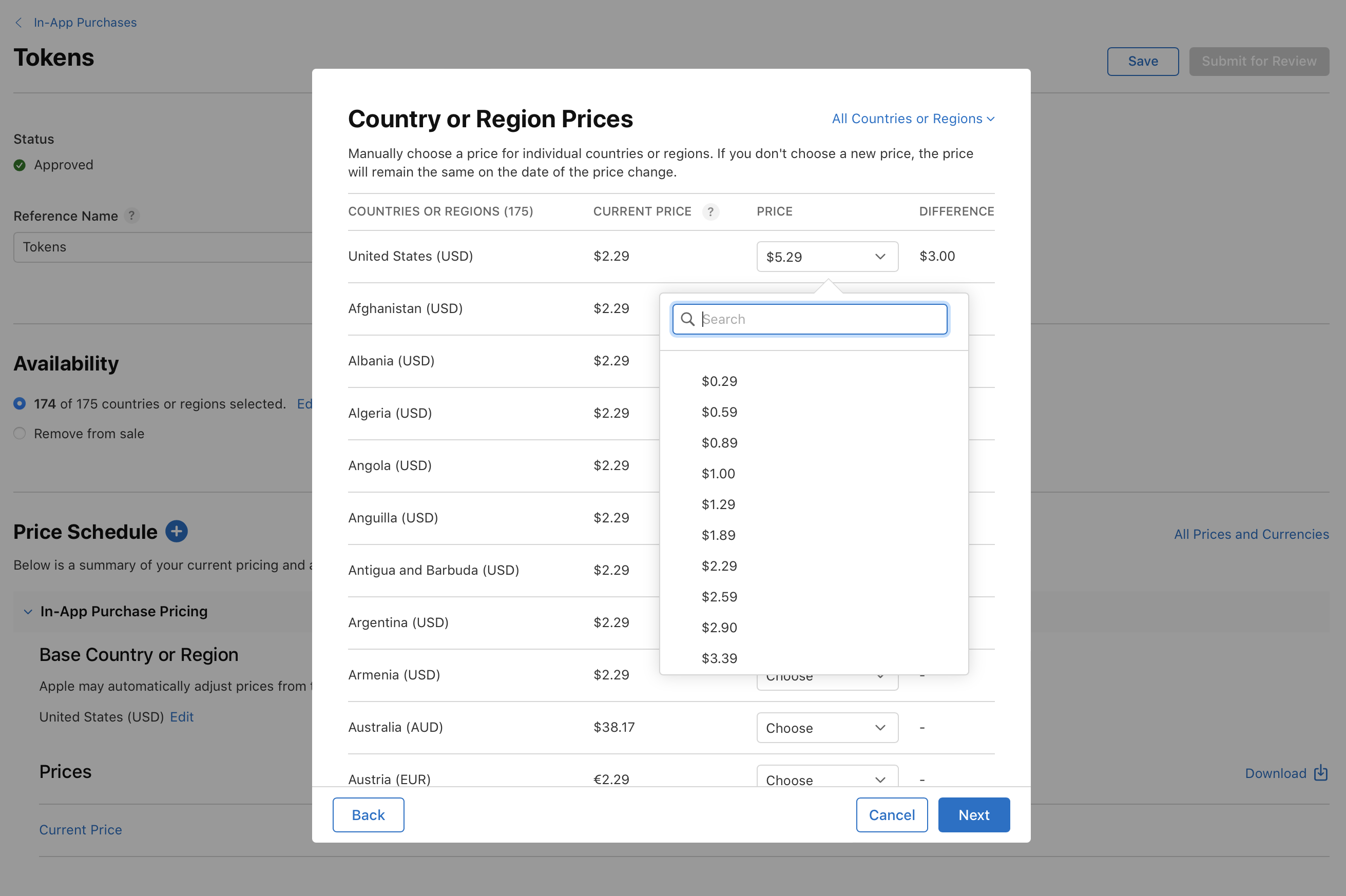
Select a price for your base country or region. This price must be selected for you to manually manage prices in all 175 countries or regions, and you can keep the price as is or update it.
-
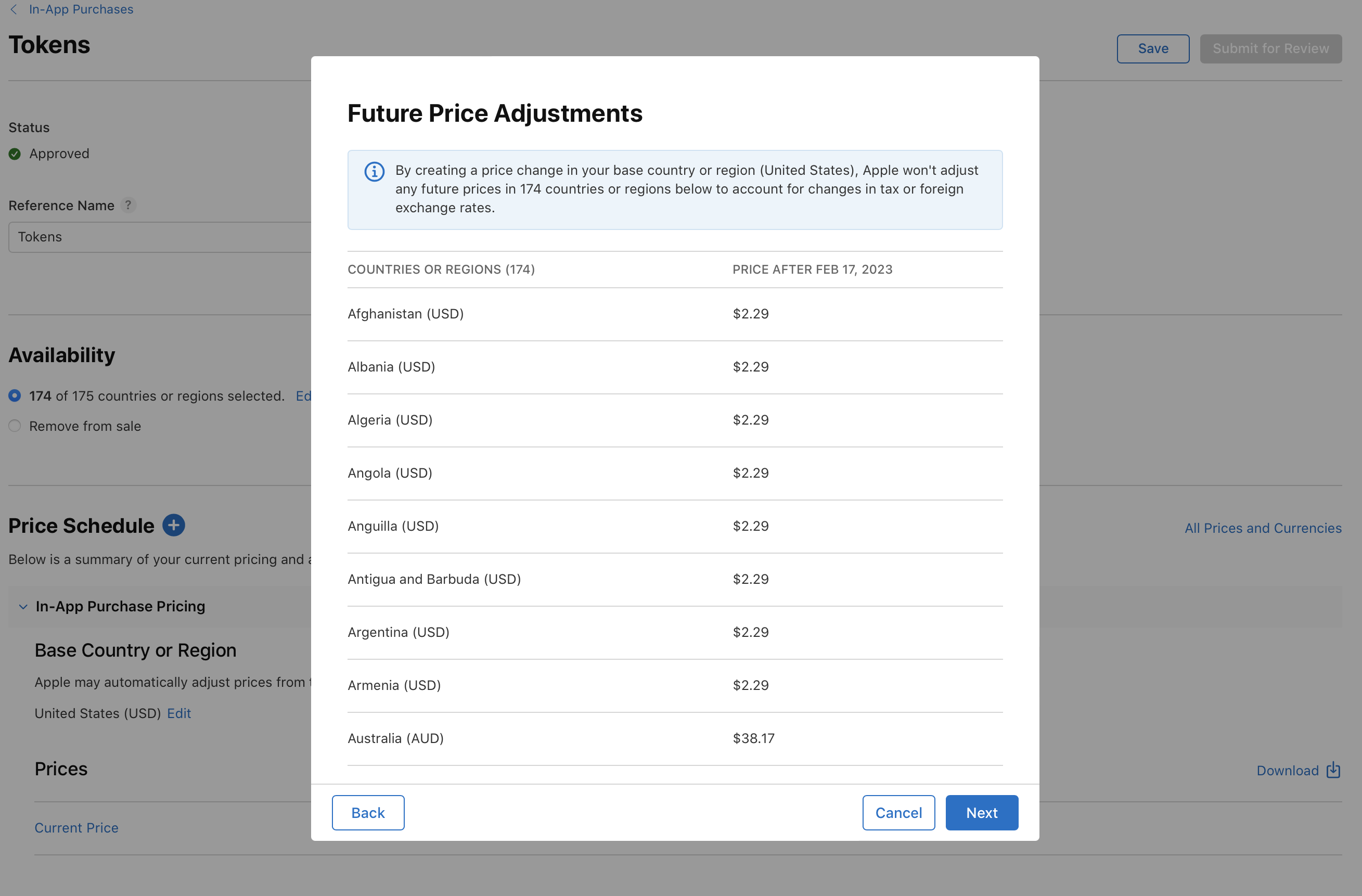
Review the current pricing for any countries or regions you didn’t select a price for, then click Next.
-
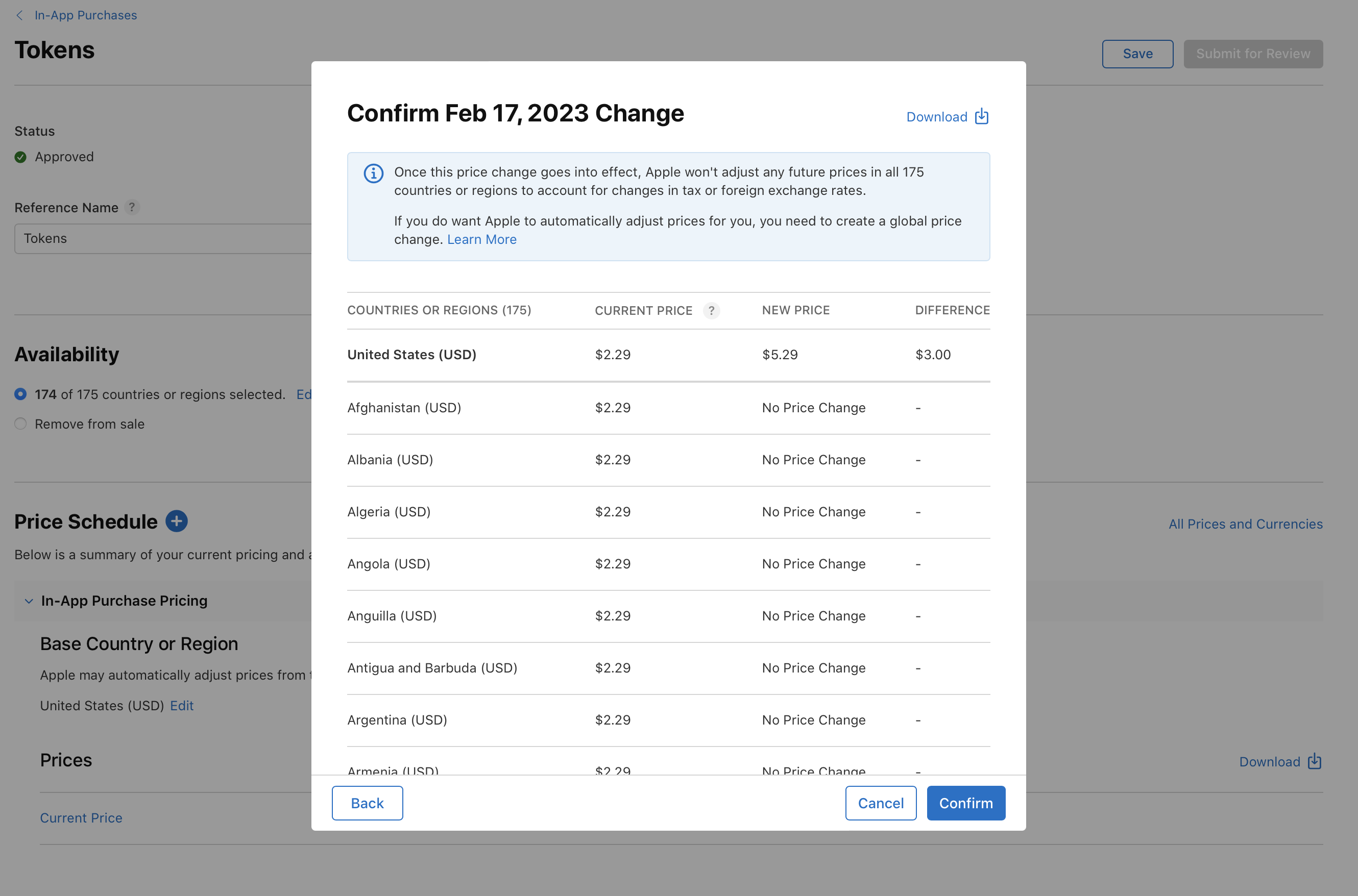
Review all of your upcoming changes, then click Confirm.
Once the change goes into effect, Apple won’t update pricing to account for changes in taxes or foreign exchange rates. If you do want Apple to automatically adjust prices for you, you need to create a Global Price Change. Ensure you’ve read and understand the impact of Apple’s pricing capabilities.
View or edit upcoming price changes
You may view or make changes to your upcoming price changes in App Store Connect at any time.
-
In Apps, select the app you want to view.
-
In the sidebar, under Monetization, click Pricing and Availability.
-
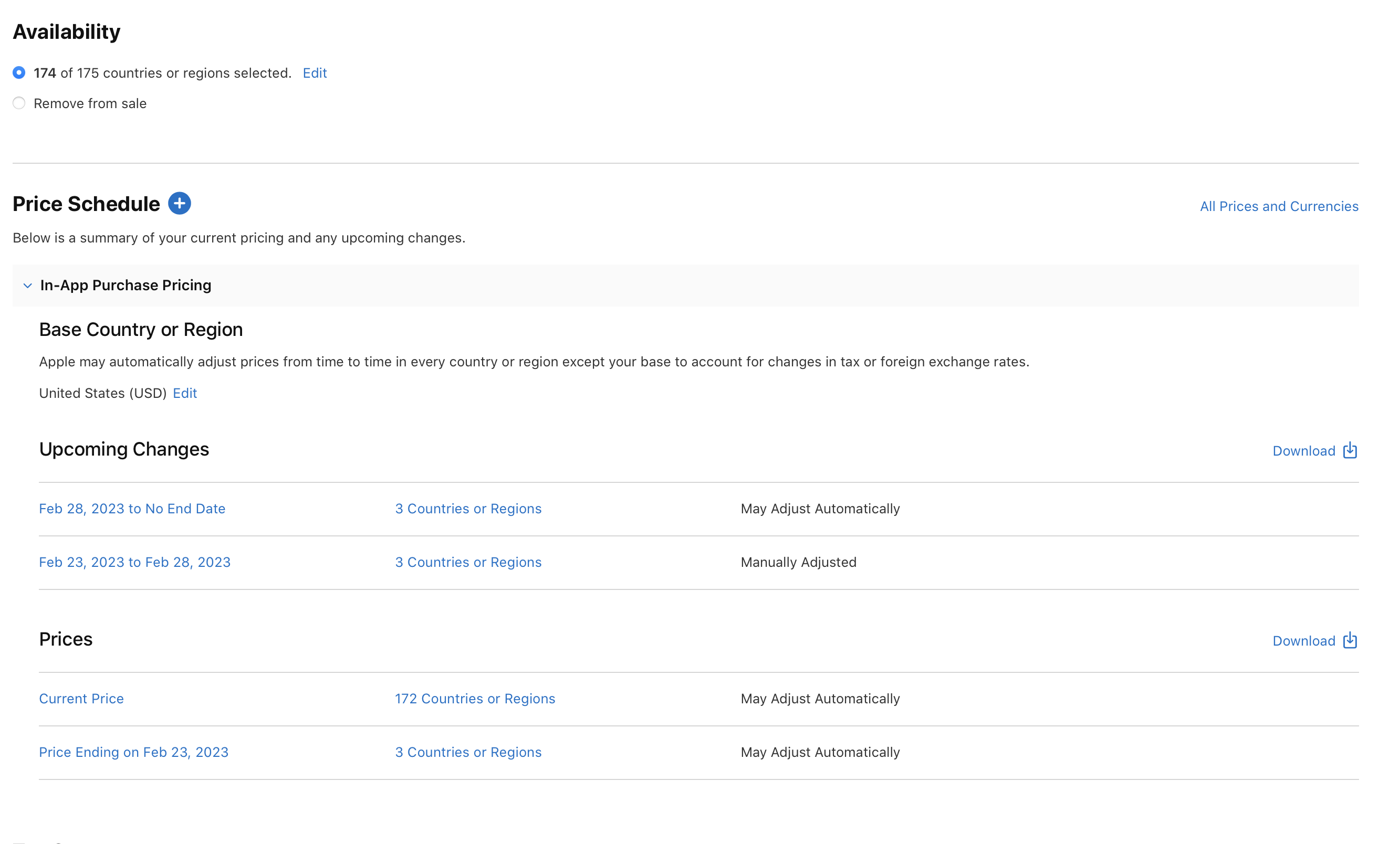
Under Price Schedule, view your upcoming changes and their start and end dates.
The price schedule indicates whether Apple may make adjustments to pricing in certain countries or regions due to changes in taxes or foreign exchange rates. Countries where pricing won’t be adjusted display Manually Adjusted. When Apple automatically adjusts prices, you can locate the upcoming scheduled price details in the Price Schedule. Upcoming Apple reprices are marked Foreign Exchange or Tax Rate Adjustment.
-
You can delete scheduled price changes by hovering over the red delete button (-). In certain cases, such as upcoming tax or foreign exchange rate adjustments, or when a manually adjusted price is starting or reverting, you may not be able to remove an upcoming price change. Click the date of the price change for details.
