App Store Connect Help
App Store Connect Manage submissions to App Review Submit assets from Asset Library
Submit assets from Asset Library
If you want to submit an asset and your app doesn't have an approved version, include the asset in the same submission as your first app version. If your app is already approved, you can choose to submit an asset with or without an app version. You can also add other items to a submission.
-
First app version: If your app doesn’t yet have an approved version, include your assets in the same submission as your first app version.
-
Subsequent updates: After your app has an approved version, you can submit standalone assets directly from the Asset Library without creating a new app version.
-
Assets assigned to other items: When you submit an app version, Custom Product Page, Product Page Optimization test, or In-App Event, any assets assigned to it are automatically included in that submission and reviewed together.
-
Submission restrictions: An asset can’t be submitted on its own through the Asset Library if the item it is assigned to is already part of an active submission.
Required role: Account Holder, Admin, or App Manager. View role permissions.
-
In Apps, select the app you want to view.
-
In the sidebar, select the Asset Library.
-
Click Edit at the top right.
-
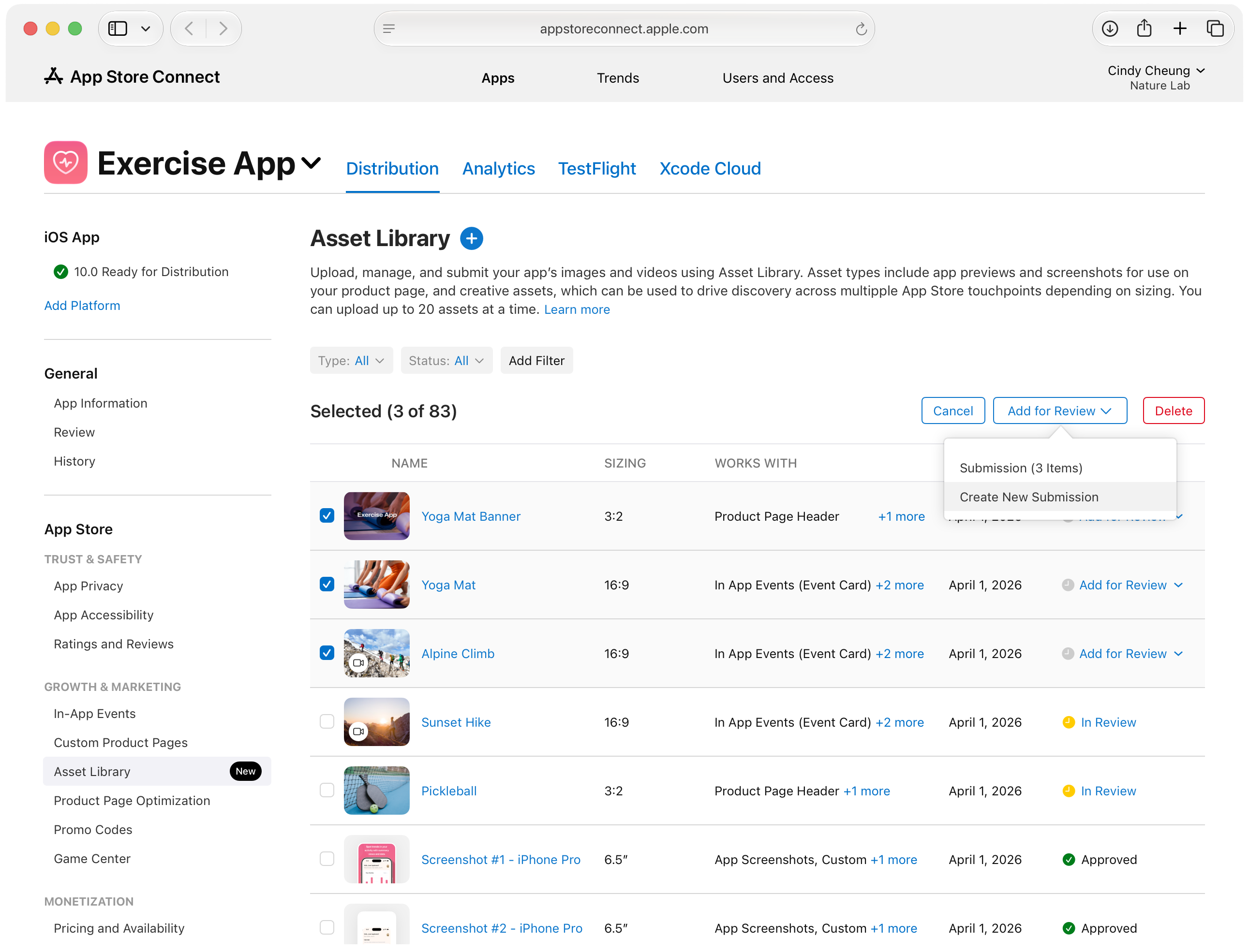
Select the assets you want to submit for review.
You can also select the Add for Review link in the Status column.
-
On the top right, click Add for Review, then select whether to add the asset to an existing draft submission or create a new submission.
If you submit an app version, Custom Product Page, Product Page Optimization test, or In-App Event, any assets assigned to it are reviewed as part of that submission. You can’t submit those assets separately in the Asset Library.
If you're submitting the asset for review without an app version, or your submission includes items associated with multiple platforms, select a platform in the draft submission screen. The asset, and any other items in your submission, are reviewed together with the latest version of the selected platform.
You can also add other items to the submission.
-
In the Draft Submission pane, click Submit for Review.