App Store Connect Help
App Store Connect Manage app information Manage your App Store assets
Manage your App Store assets
Overview
Your App Store images and videos help people quickly understand what your app or game offers, whether they're discovering it for the first time or coming back to see what's new.
Use Asset Library to submit and manage your app's images and videos across platforms, sizes, and placements, including app previews, screenshots, and custom creative assets like the product page header and in-app event cards.
App previews and screenshots. Upload app previews and screenshots to showcase your app or game in action. Set a visually compelling poster frame from your footage to highlight the moment that best conveys the essence of your app. You can also add app previews and screenshots for other devices and localizations, or archive ones you no longer need.
Creative assets. Upload, submit, or re-use creative assets to highlight your overarching brand or value proposition across the App Store, in placements like product page header, search results, and in-app events.
Required role: Account Holder, Admin, App Manager, or Marketing. View role permissions.
Manage your image and video assets in Asset Library
Use Asset Library to manage your app's images and videos, including app previews, screenshots, and creative assets. You can upload and submit creative assets on their own, independent of an app version, without specifying where you plan to use them. This lets you get them approved in advance and ready to use whenever you need them. Use your approved creative assets across eligible touch points on the App Store to drive engagement and discovery.
Because your screenshots and app previews also live in Asset Library, you can quickly reuse existing ones, for example when creating a Custom Product Page, without having to track them down again.
Learn more about App Store asset best practices and resources.
Learn how to upload and submit assets to the Asset Library using the App Store Connect API.
Upload assets to Asset Library
You can upload and submit images and videos on their own, independent of an app version, without specifying where you plan to use them. This lets you get assets approved in advance and ready to use whenever you need them.
Learn about app preview, screenshot, and creative asset specifications.
-
In Apps, select the app you want to upload assets for.
-
In the sidebar, click Asset Library.
-
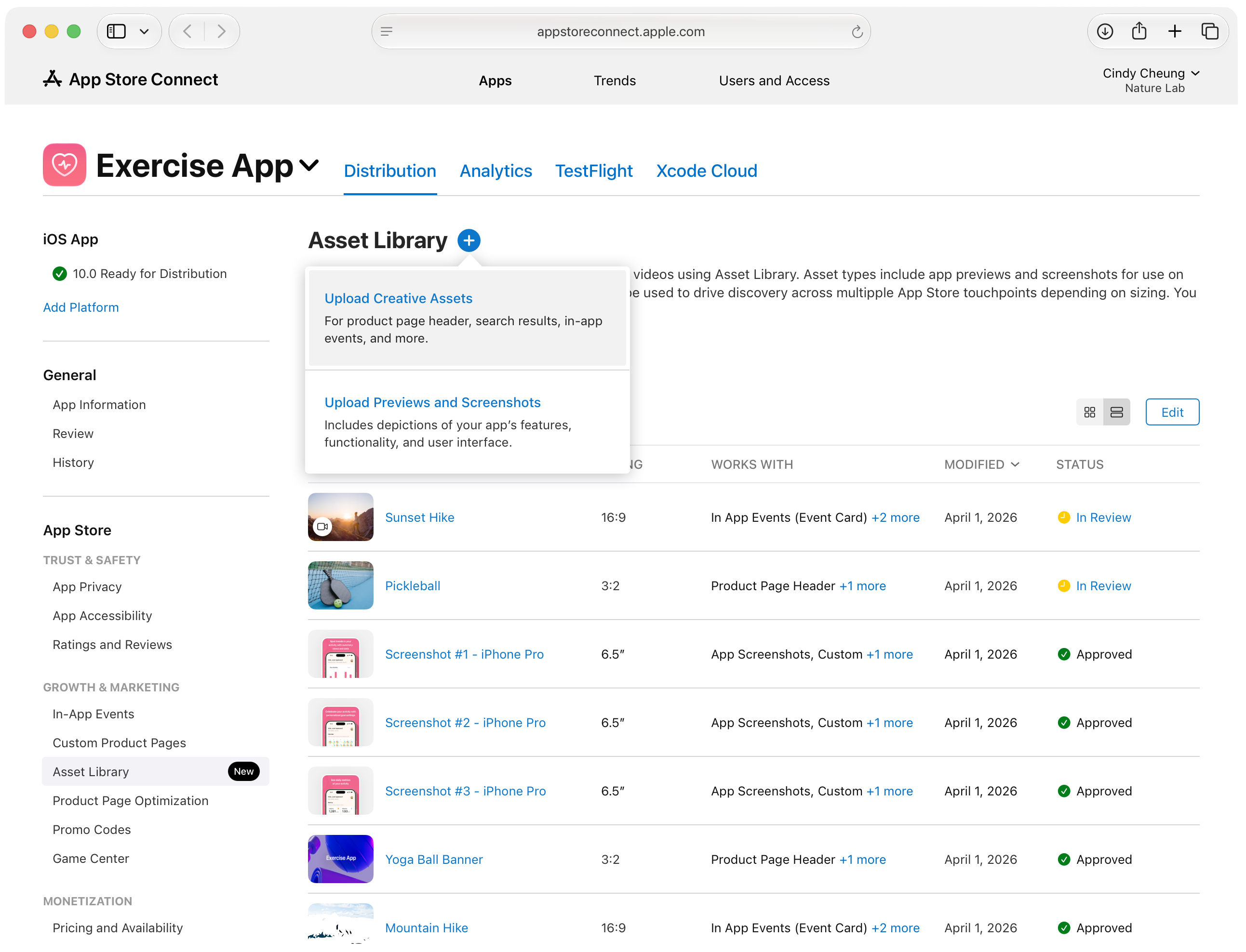
Click the add button (+).
-
Select the type of asset you’re uploading: Upload Creative Assets or Previews and Screenshots.
-
Choose the assets you want to upload, then click Upload at the bottom right.
When you're ready, submit your assets for review.
View your assets in Asset Library
-
In Apps, select the app you want to view assets for.
-
In the sidebar, click Asset Library.
-
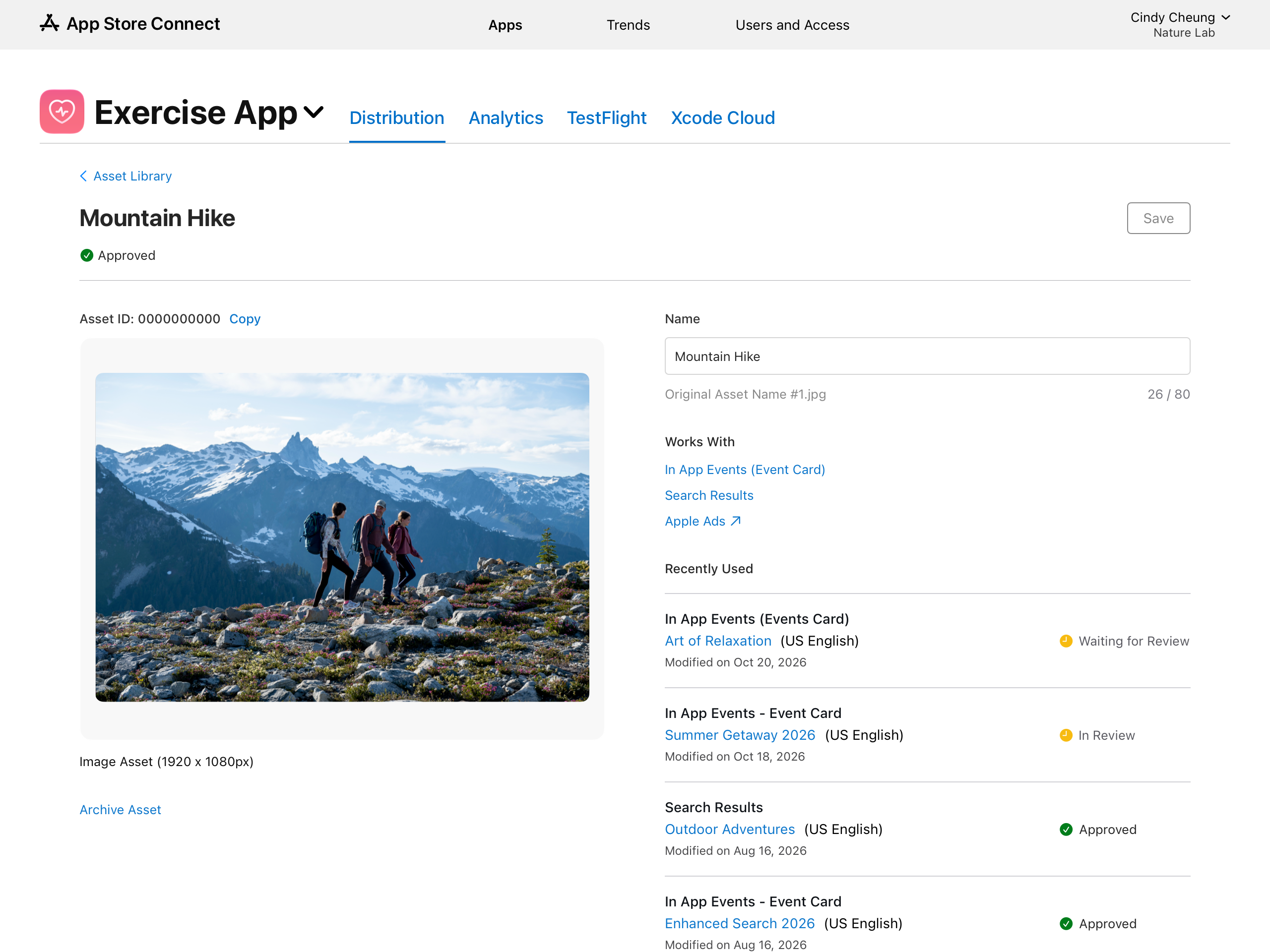
Click the asset you want to view or edit. In the detail view, you can:
-
In the Name field, you can enter a name to help you identify this asset. This name is only visible in App Store Connect.
-
In the Works With section, view which App Store features and placements the asset is compatible with, such as In-App Events or Search Results.
-
In the Recent Usage field, view where this asset was most recently used.
-
Set a poster frame for video assets. The poster frame set applies to everywhere the asset is used.
-
-
Click Save.
 Tip: When viewing your assets, you can filter by Type, Status, and Format to quickly find the asset you're looking for.
Delete assets from Asset Library
You can delete an asset only when its status is Prepared for Submission.
-
In Apps, select the app you want to remove assets for.
-
In the sidebar, select Asset Library.
-
Click Edit at the top right.
-
Select the assets you want to remove.
-
Click Delete at the top right.
-
In the confirmation dialog, click Delete.
You can also click an asset, then click Delete Asset at the bottom of the detail page.
Archive assets from Asset Library
To find archived assets, use the Status filter in the Asset Library.
-
In Apps, select your app.
-
In the sidebar, select Asset Library.
-
Select the asset you want to archive.
-
On the asset detail page, select Archive Asset, then confirm.
Note: Archived assets can't be used in new placements. However, if a new version of a placement is created and the archived asset is carried over, the asset may be restored automatically. To manually restore an archived asset, click the asset, click Unarchive Asset, then follow the prompts.
Manage your app previews and screenshots
You can manage your app previews and screenshots across three places in App Store Connect, each with different capabilities.
Product Page Information (on the version page, Custom Product Pages, and Product Page Optimization): Upload assets, sort their order, set or remove their placement, browse existing assets from Asset Library, and set a poster frame, all scoped to the version, Custom Product Page, or Product Page Optimization treatment you're currently editing.
Media Manager: Manage app preview and screenshot placements for each supported device size and localization. You can add assets from the Asset Library, reorder their display sequence, remove placements, and choose poster frames.
Asset Library: Upload new assets, set a poster frame, and delete unapproved assets, independent of any app version.
Your app previews and screenshots must meet Apple's guidelines and the App Review Guidelines(sections 2.3.3 and 2.3.4).
For marketing guidelines, visit Creating your product page or Show more with app previews.
Upload your previews and screenshots
You upload your app previews and screenshots through the Product Page Information section on the version page or directly in Asset Library then submit them for review when your app has one of these statuses:
-
Prepare for Submission
-
Invalid Binary
-
Rejected
-
Metadata Rejected
-
Developer Rejected
Follow the steps below to manage your screenshots and app previews. You can also manage them by selecting View All Sizes in Media Manager:
-
In Apps, select the app you want to view.
-
In the sidebar, select the app version under the platform you want to edit.
Note: To upload assets for other localizations, choose the language from the pop-up menu on the top right.
-
Under the Product Page Information section, click the App Previews and Screenshots tab.
-
Under Previews and Screenshots, select the device tab for the asset you want to upload.
Note: To upload the required screenshots for iMessage and watchOS apps, or to manage scaled app previews and screenshots for other device sizes, select View All Sizes in Media Manager on the right.
-
Click Upload or drag your screenshots and app preview into the appropriate well.
Note: You can also click Browse Assets to use approved, compatible images and videos from the Asset Library.
When you're ready, submit your assets for review.
Learn how to upload app previews and screenshots directly through Asset Library.
Set an app preview poster frame
-
In Apps, select the app you want to view.
-
In the sidebar, select the app version under the platform you want to edit.
-
Under the Product Page Information section, click the App Previews and Screenshots tab.
-
Click View All Sizes in Media Manager on the right.
-
Scroll to the device size where you want to edit the app preview.
-
Hold the pointer over the app preview and click Edit Poster Frame.
-
Select the new poster frame or restore the default frame.
-
Use the playback controls to navigate to the frame of the video you want to use for your poster frame.
-
To select the currently displayed frame of the video as your poster frame, click Set Poster Frame.
-
To save the poster frame, click Done.
Note:
-
Poster frames can't be edited after assets have been approved.
-
You can also set your poster frame directly from the Product Page Information section by holding the pointer over the app preview and clicking Edit Poster Frame. The poster frame set applies to everywhere the asset is used.
-
Remove your previews and screenshots
Learn how to delete app previews and screenshots directly through Asset Library.
-
In Apps, select the app you want to view.
-
In the sidebar, select the app version under the platform you want to edit.
-
Under the Product Page Information section, click the App Previews and Screenshots tab.
-
Click View All Sizes in Media Manager on the right.
-
Scroll to the device size where you want to delete the app preview or screenshots.
Note: If you want to remove it for a specific localization, on the top right, choose the language from the drop down menu.
-
Hold the pointer over the screenshot or app preview that you want to delete, and then click on the Delete button (–).
After you remove a screenshot or app preview, it’s also removed for all other display sizes using scaled versions.
Tip: You can also remove app previews and screenshots directly from under the Product Page Information section. Point to the left side of the image or video, then click Delete (–). The asset remains in Asset Library, but is no longer placed on your product page.
Learn how to remove screenshots and app previews using the App Store Connect API.
Manage creative assets
Creative assets are rich images or videos that showcase your app's or game's overarching value, brand, or excitement, distinct from the in-use functionality requirement in app previews and screenshots. You can now go beyond showing your apps and games in use, highlighting things like your brand, seasonal offerings, exciting new content, and more. In addition to standard screenshots and previews, these assets can be used to highlight a brand, promote seasonal offerings, or showcase new content.
You can designate a creative asset to appear in organic placements across the App Store, including product page header, search results, and in-app events and more.
Note:
-
Creative assets are optional and separate from your app's screenshots, app previews, In-App Purchase and Subscription images, and any promotional artwork requested by editorial teams.
-
Your app previews, screenshots and creative assets used in product page header, search results and in your in-app events all live in Asset Library, the central place to manage your app's assets across platforms, sizes, and placements.
If you upload a universal creative asset, you can use it for both your product page header and search results placement. Otherwise, select dedicated assets for each. Creative assets support both images and videos, and are available for iOS and iPadOS apps and games running iOS 27 or iPadOS 27 or later.
Learn more about App Store asset best practices and resources.
Learn about creative assets specifications.
Upload creative assets
You upload your custom creative assets through the Product Page Information section on the version page, directly in Asset Library, or from Custom Product Pages, Product Page Optimization, and In-App Events, then submit them for review.
Note: You can submit creative assets as a standalone submission through Asset Library. Because this submission is standalone, you can upload and get creative assets approved without updating your app's version or indicating where you plan to use them. Standalone assets are reviewed against your app's latest version.
Learn about creative assets specifications.
-
In Apps, select the app you want to view.
-
In the sidebar, click the app version under the platform you want.
-
Under the Product Page Information, click the Header and Search Results tab, then click Header or Search Results, depending on which asset you want to add.
-
Drag your image or video asset into the well, or, to use an asset already in Asset Library instead, click Browse Assets.
-
In the dialog that appears, select the asset you want to use on the App Store, then click Save.
Tip: Select Preview to review how your new assets look on the product page and search results on the App Store. You can view them for both iPhone and iPad, across different orientations and languages. -
Once everything looks good, submit your version for review as usual. After your version is approved and released, the creative assets on your product page header and in search results also go live on the App Store.
Note: To use the same asset for both your product page and search results, select Use header asset in search results. This option is only available for universal creative assets. Otherwise, upload or choose a dedicated asset for search results.
Update creative assets for a version already on the App Store
If your app's current version is already live on the App Store, you can update its creative assets with approved assets without submitting a new version.
-
In Apps, select the app you want to view.
-
In the sidebar, click the version that's currently live on the App Store.
-
Under the Product Page Information, click the Header and Search Results tab, then click Header or Search Results, depending on which asset you want to update.
-
Click Browse Assets. In the dialog that appears, choose an approved asset from Asset Library, then click Next.
-
In the dialog that appears, click Publish. Your app's product page updates with the new asset on the App Store.
Remove creative assets from a placement
-
In Apps, click the app you want to view.
-
In the sidebar, click the app version under the platform you want.
-
Click the Header and Search Results tab, then click Header or Search Results depending on which asset you want to remove.
-
Click Delete.
The asset is removed from its placement on the App Store, but isn't deleted from Asset Library. Learn how to delete or archive creative assets directly through Asset Library.